This tutorial exists for these OS versions
- Ubuntu 20.04 (Focal Fossa)
- Ubuntu 18.04 (Bionic Beaver)
- Ubuntu 17.10 (Artful Aardvark)
- Ubuntu 17.04 (Zesty Zapus)
- Ubuntu 16.10 (Yakkety Yak)
- Ubuntu 16.04 (Xenial Xerus)
On this page
The Perfect Server - Ubuntu 12.04 LTS (Apache2, BIND, Dovecot, ISPConfig 3)
Version 1.0
Author: Falko Timme
 Follow me on Twitter
This tutorial shows how to prepare an Ubuntu 12.04 LTS (Precise Pangolin) server (with Apache2, BIND, Dovecot) for the installation of ISPConfig 3, and how to install ISPConfig 3. ISPConfig 3 is a webhosting control panel that allows you to configure the following services through a web browser: Apache or nginx web server, Postfix mail server, Courier or Dovecot IMAP/POP3 server, MySQL, BIND or MyDNS nameserver, PureFTPd, SpamAssassin, ClamAV, and many more. This setup covers Apache (instead of nginx), BIND (instead of MyDNS), and Dovecot (instead of Courier).
Please note that this setup does not work for ISPConfig 2! It is valid for ISPConfig 3 only!
I do not issue any guarantee that this will work for you!
ISPConfig 3 Manual
In order to learn how to use ISPConfig 3, I strongly recommend to download the ISPConfig 3 Manual.
On more than 300 pages, it covers the concept behind ISPConfig (admin, resellers, clients), explains how to install and update ISPConfig 3, includes a reference for all forms and form fields in ISPConfig together with examples of valid inputs, and provides tutorials for the most common tasks in ISPConfig 3. It also lines out how to make your server more secure and comes with a troubleshooting section at the end.
ISPConfig Monitor App For Android
With the ISPConfig Monitor App, you can check your server status and find out if all services are running as expected. You can check TCP and UDP ports and ping your servers. In addition to that you can use this app to request details from servers that have ISPConfig installed (please note that the minimum installed ISPConfig 3 version with support for the ISPConfig Monitor App is 3.0.3.3!); these details include everything you know from the Monitor module in the ISPConfig Control Panel (e.g. services, mail and system logs, mail queue, CPU and memory info, disk usage, quota, OS details, RKHunter log, etc.), and of course, as ISPConfig is multiserver-capable, you can check all servers that are controlled from your ISPConfig master server.
For download and usage instructions, please visit http://www.ispconfig.org/ispconfig-3/ispconfig-monitor-app-for-android/.
1 Requirements
To install such a system you will need the following:
- the Ubuntu 12.04 LTS server CD, available here: http://releases.ubuntu.com/releases/12.04/ubuntu-12.04-server-i386.iso (i386) or http://releases.ubuntu.com/releases/12.04/ubuntu-12.04-server-amd64.iso (x86_64)
- a fast Internet connection.
2 Preliminary Note
In this tutorial I use the hostname server1.example.com with the IP address 192.168.0.100 and the gateway 192.168.0.1. These settings might differ for you, so you have to replace them where appropriate.
3 The Base System
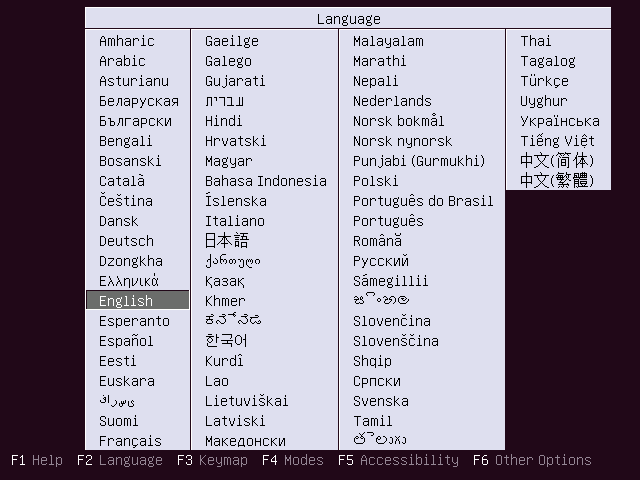
Insert your Ubuntu install CD into your system and boot from it. Select your language:
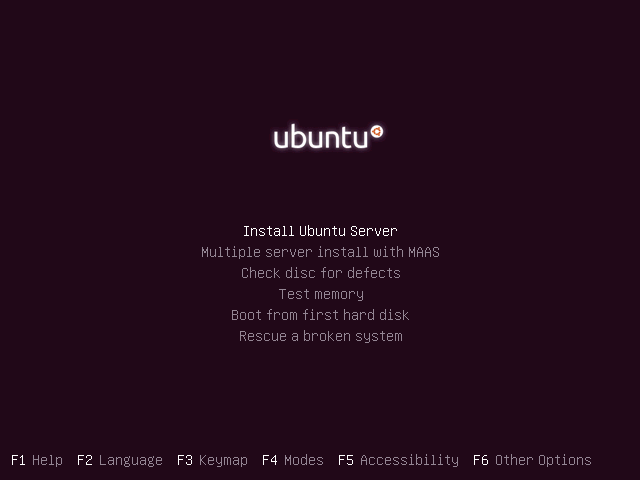
Then select Install Ubuntu Server:
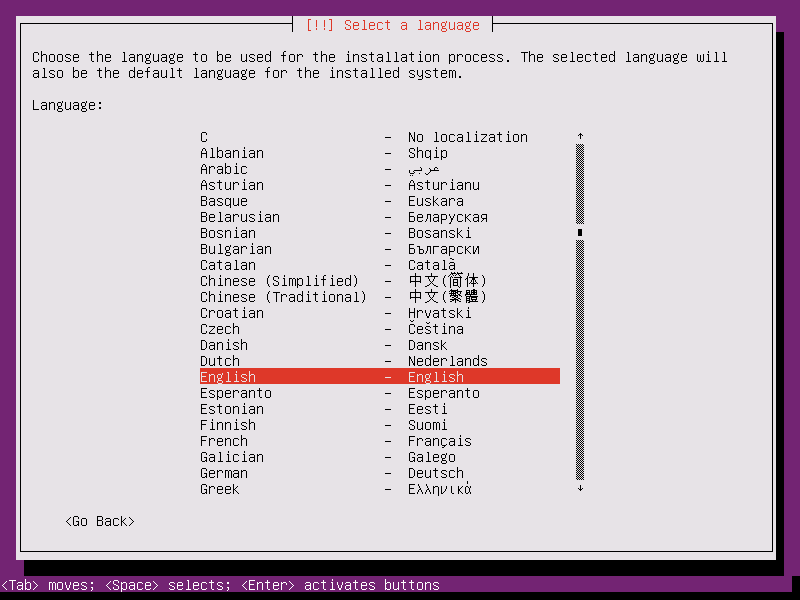
Choose your language again (?):
Then select your location:
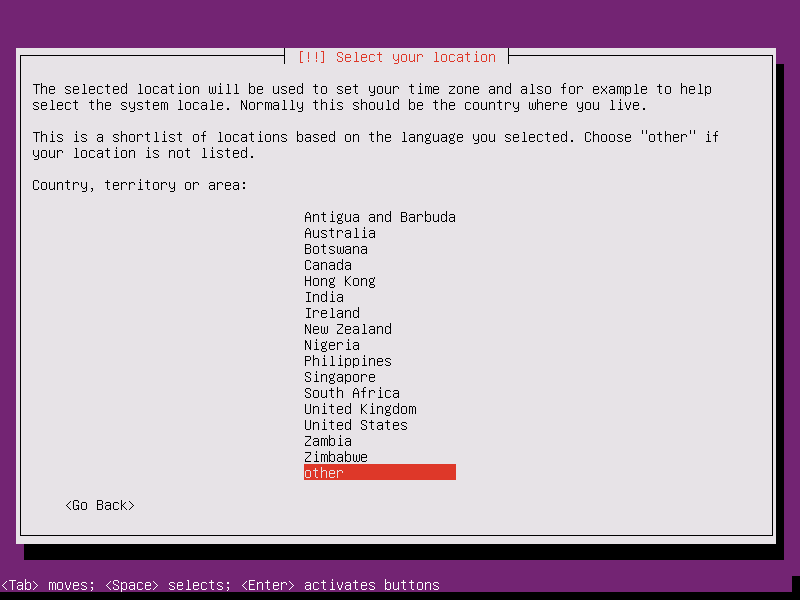
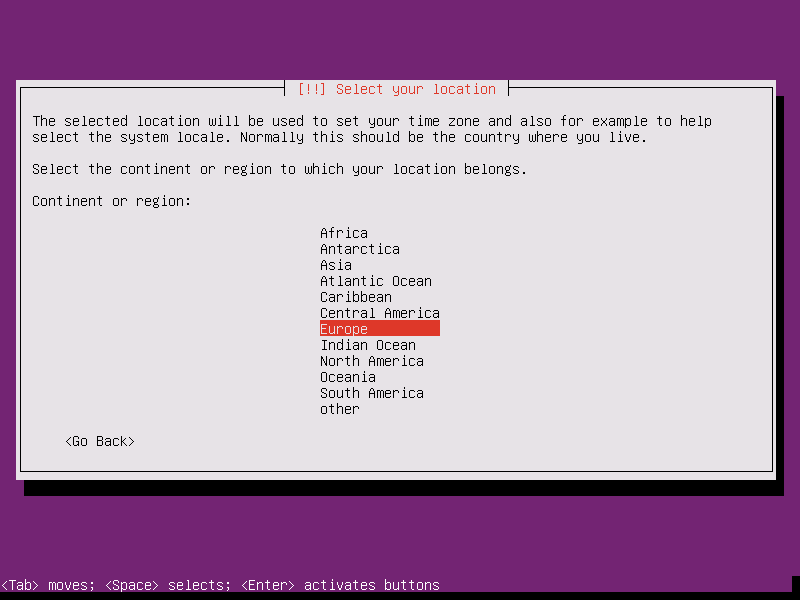
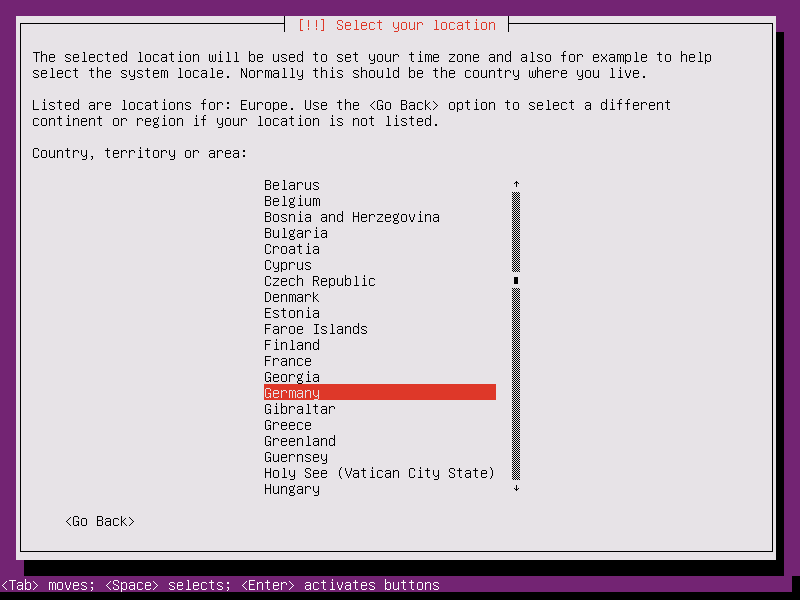
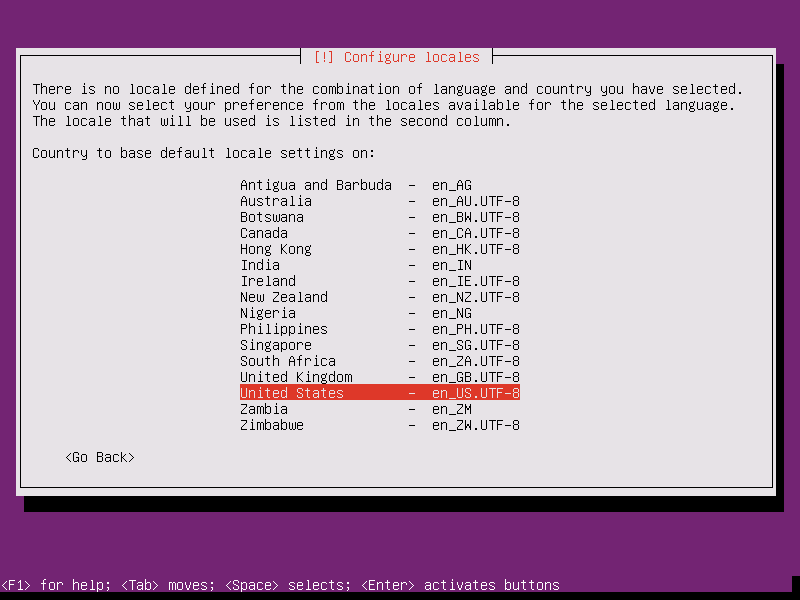
If you've selected an uncommon combination of language and location (like English as the language and Germany as the location, as in my case), the installer might tell you that there is no locale defined for this combination; in this case you have to select the locale manually. I select en_US.UTF-8 here:
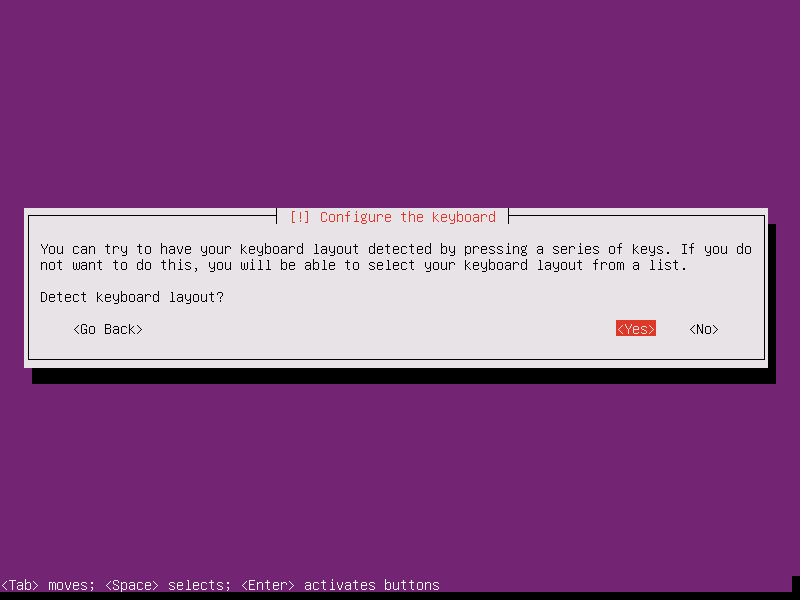
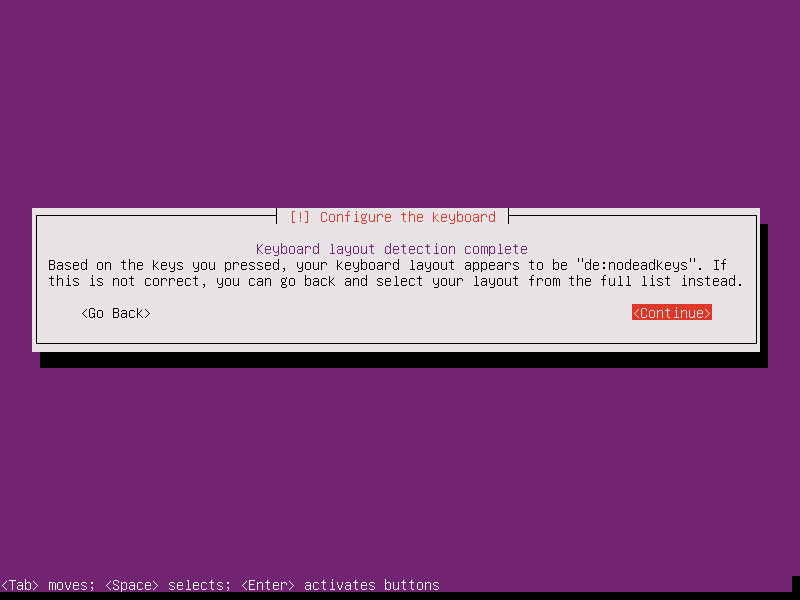
Choose a keyboard layout (you will be asked to press a few keys, and the installer will try to detect your keyboard layout based on the keys you pressed):
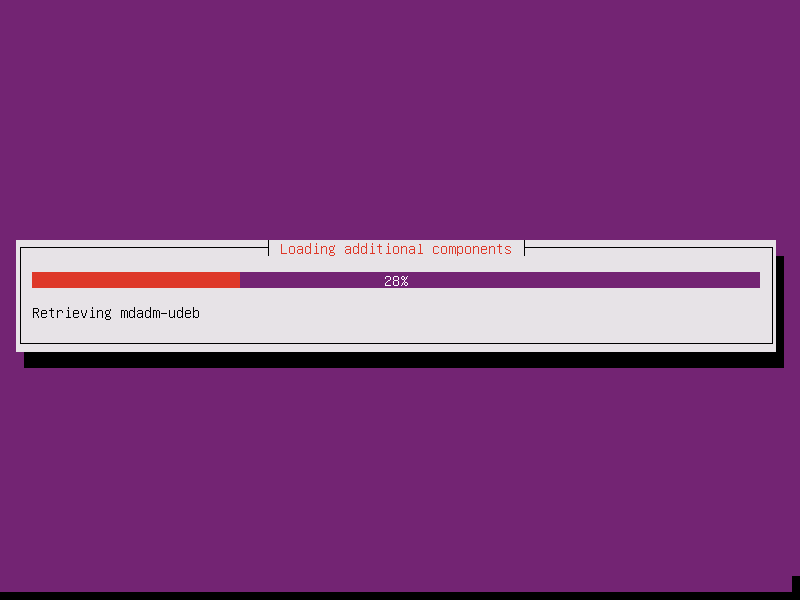
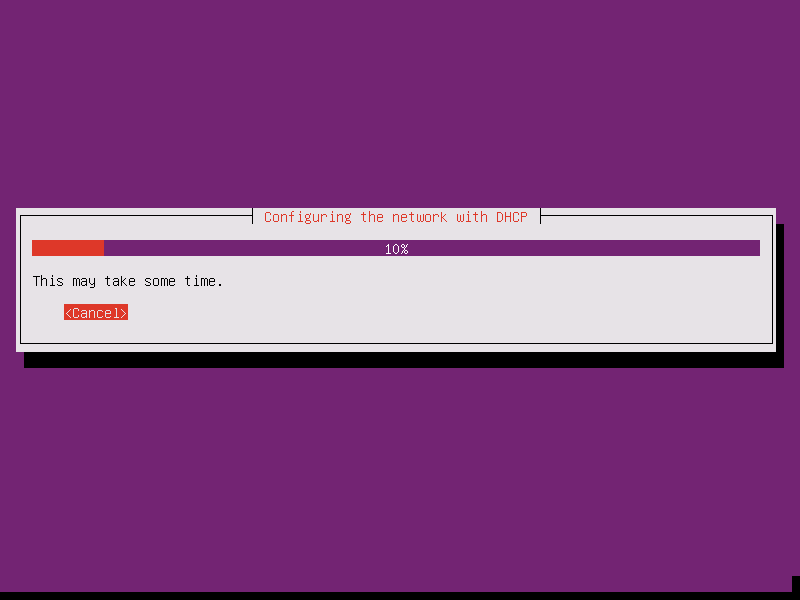
The installer checks the installation CD, your hardware, and configures the network with DHCP if there is a DHCP server in the network:
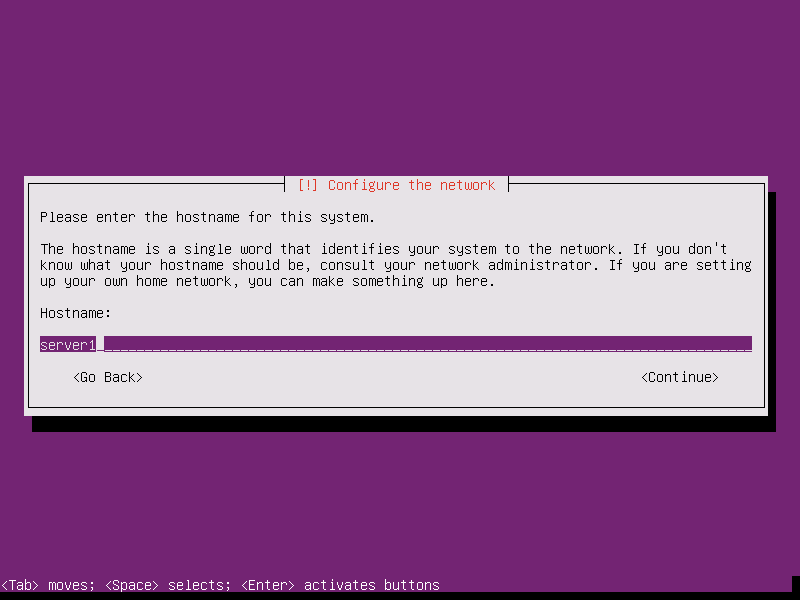
Enter the hostname. In this example, my system is called server1.example.com, so I enter server1:
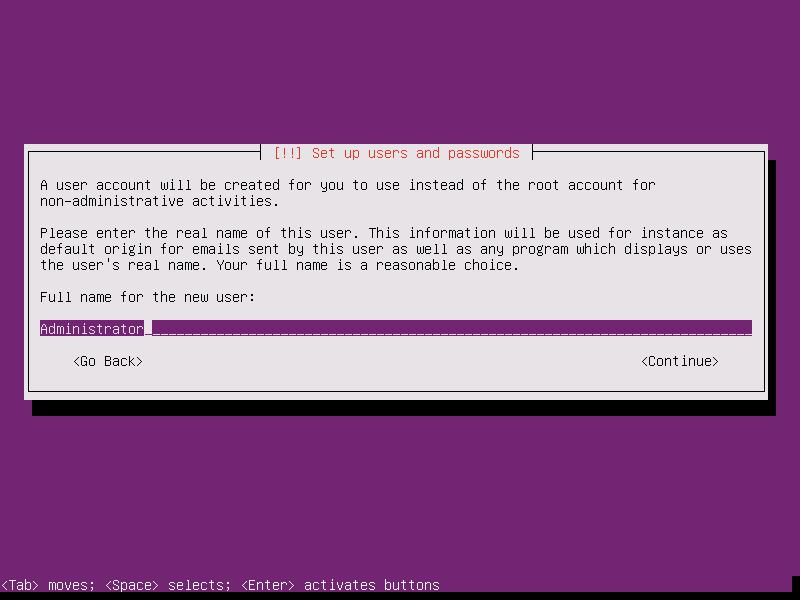
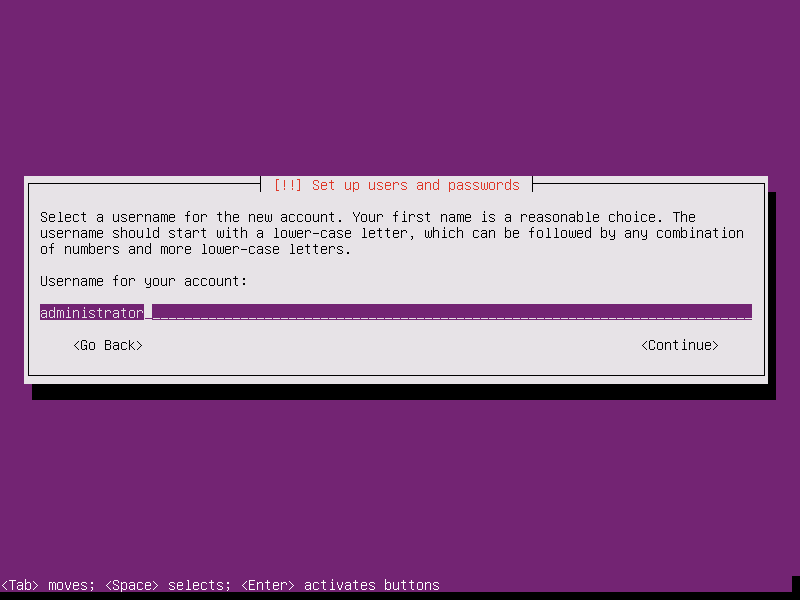
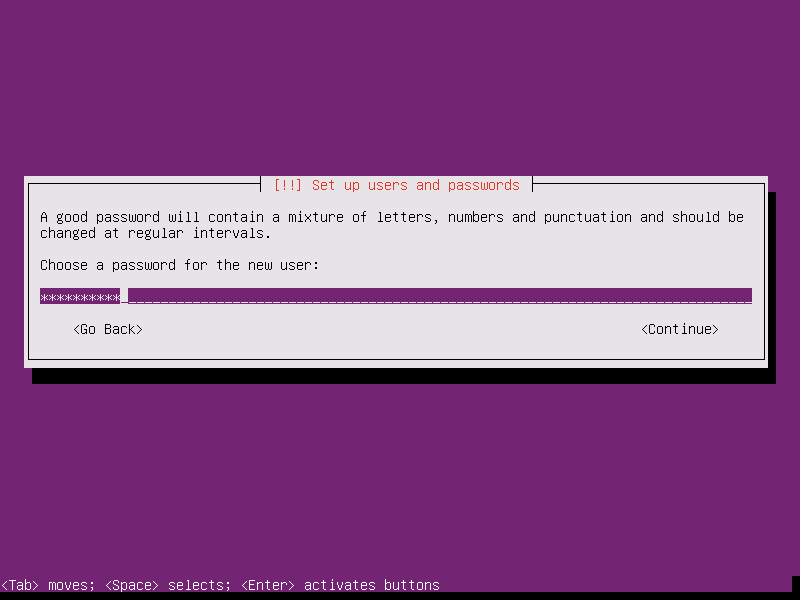
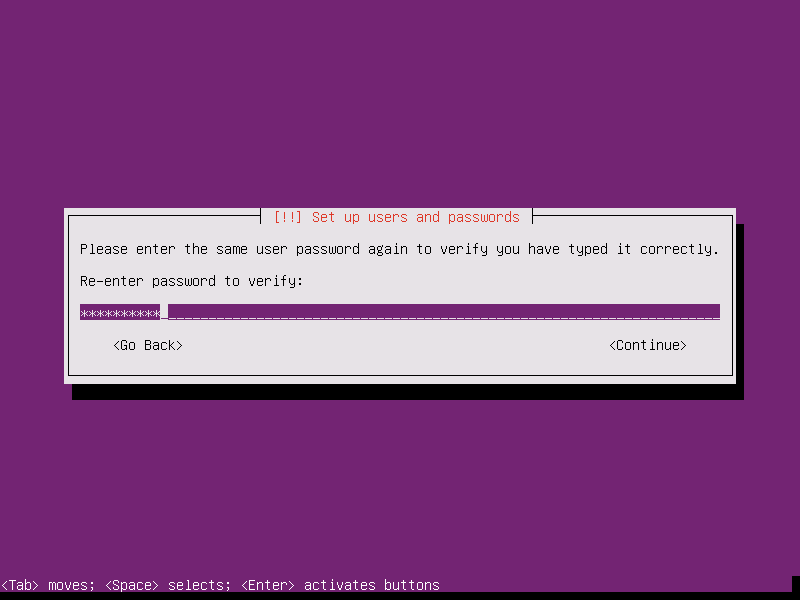
Create a user, for example the user Administrator with the user name administrator (don't use the user name admin as it is a reserved name on Ubuntu 12.04):