
There is a new version of this tutorial available for Ubuntu 16.04 (Xenial Xerus).
Installing Apache2 With PHP5 And MySQL Support On Ubuntu 11.10 (LAMP) - Page 2
This tutorial exists for these OS versions
- Ubuntu 16.04 (Xenial Xerus)
- Ubuntu 15.10 (Wily Werewolf)
- Ubuntu 15.04 (Vivid Vervet)
- Ubuntu 14.10 (Utopic Unicorn)
- Ubuntu 14.04 LTS (Trusty Tahr)
- Ubuntu 13.10 (Saucy Salamander)
On this page
5 Testing PHP5 / Getting Details About Your PHP5 Installation
The document root of the default web site is /var/www. We will now create a small PHP file (info.php) in that directory and call it in a browser. The file will display lots of useful details about our PHP installation, such as the installed PHP version.
vi /var/www/info.php
<?php |
Now we call that file in a browser (e.g. http://192.168.0.23/info.php):
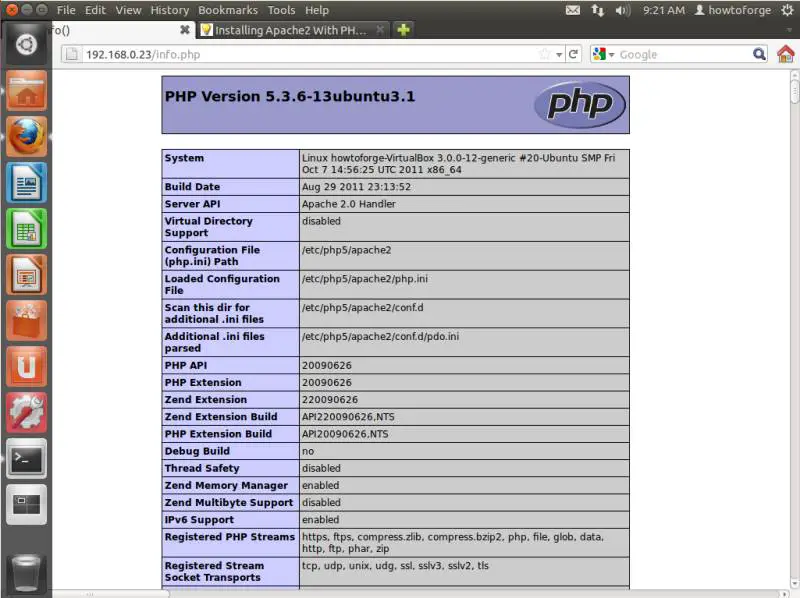
As you see, PHP5 is working, and it's working through the Apache 2.0 Handler, as shown in the Server API line. If you scroll further down, you will see all modules that are already enabled in PHP5. MySQL is not listed there which means we don't have MySQL support in PHP5 yet.
6 Getting MySQL Support In PHP5
To get MySQL support in PHP, we can install the php5-mysql package. It's a good idea to install some other PHP5 modules as well as you might need them for your applications. You can search for available PHP5 modules like this:
apt-cache search php5
Pick the ones you need and install them like this:
apt-get install php5-mysql php5-curl php5-gd php5-idn php-pear php5-imagick php5-imap php5-mcrypt php5-memcache php5-ming php5-ps php5-pspell php5-recode php5-snmp php5-sqlite php5-tidy php5-xmlrpc php5-xsl
Now restart Apache2:
/etc/init.d/apache2 restart
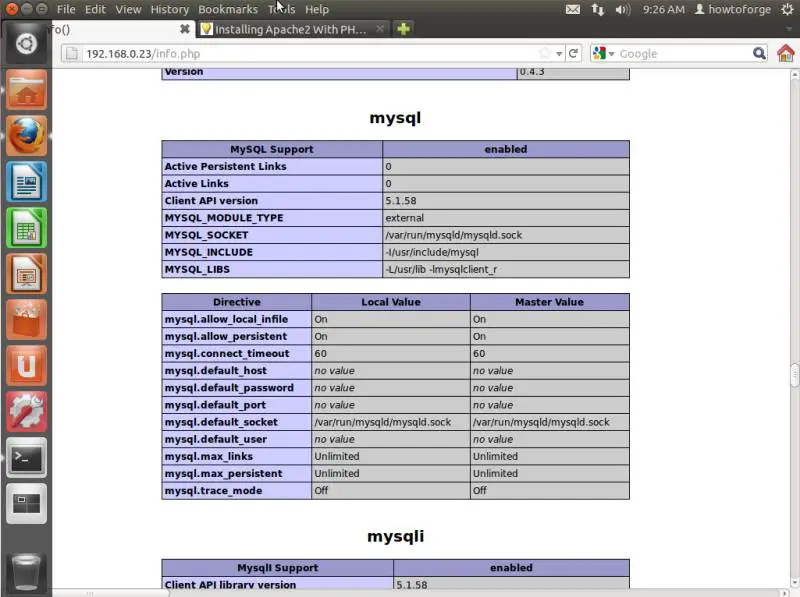
Now reload http://192.168.0.23/info.php in your browser and scroll down to the modules section again. You should now find lots of new modules there, including the MySQL module:
7 phpMyAdmin
phpMyAdmin is a web interface through which you can manage your MySQL databases. It's a good idea to install it:
apt-get install phpmyadmin
You will see the following questions:
Web server to reconfigure automatically: <-- apache2
Configure database for phpmyadmin with dbconfig-common? <-- No
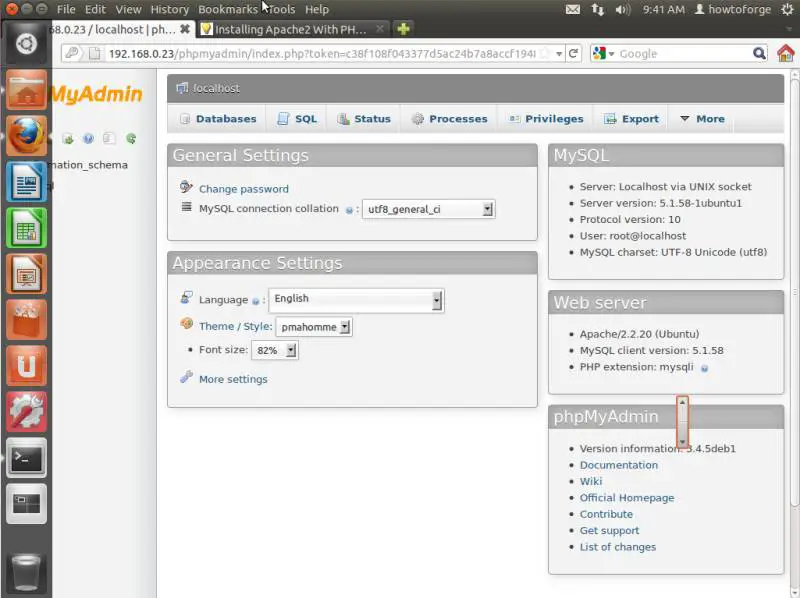
Afterwards, you can access phpMyAdmin under http://192.168.0.23/phpmyadmin/:
8 Links
- Apache: http://httpd.apache.org/
- PHP: http://www.php.net/
- MySQL: http://www.mysql.com/
- Ubuntu: http://www.ubuntu.com/
- phpMyAdmin: http://www.phpmyadmin.net/
Sub pages
Suggested articles
12 Comment(s)
Comments
Why not just run "sudo apt-get install lamp-server^ phpmyadmin"?
This worked for me:
sudo apt-get install lamp-server^ phpmyadmin
Hello. I am new. I made it. But how tu make it visible for the others in my network?:D
THX!
The apache server runs on port 80, you can verify this by doing something like this
http://192.168.0.2:80 or http://192.168.0.2 from any other machine on your network. Change the ipaddress of the machine to match the server machine, you can find this out easily by typing "ifconfig" in your terminal without quotes. depending on whether its wired or wireless you will want either eth0 or wlan0 in most cases. the ip address will be listed as follows (in my case its this)
inet addr:192.168.0.2 Bcast:192.168.0.255 Mask:255.255.255.0
The first ipaddress is the ip that your router has assigned to your machine the rest you can ignore for these purposes. If you intend keeping the machine on for a length of time, you may want to consider setting up a dedicated ip in the router for the machine, the method for this is way beyond the scope of this page, but you will find plenty of advice on the net for your specific router.
If you want to access it locally on the machine itself, 127.0.1.1 (thats how it installed on mine)
Excellent guide thank you very much. It helped me a lot, everything worked perfectly.
Maybe I am a noob but wtf ever.... when i try vi /var/www/info.php I can't figure out what to do. I have gotten every sort of pattern error. All i get is "swap" files. No info.php. Just info.php.swp
Any help??
sudo gedit /var/www/infp.php
its better to use "gksu gedit" instead of "sudo gedit"
I had to add:
ln -s /usr/share/phpmyadmin phpmyadmin
to get it working
Sorry, posted too quickly; it should read:
ln -s /usr/share/phpmyadmin /var/www/phpmyadmin
sudo ln -s /etc/phpmyadmin/apache.conf /etc/apache2/conf.d/phpmyadmin.conf
sudo /etc/init.d/apache2 reload
"http://192.168.0.2:80 or http://192.168.0.2 from any other machine on
your network. Change the ipaddress of the machine to match the server
machine, you can find this out easily by typing "ifconfig" in your
terminal without quotes. depending on whether its wired or wireless you
will want either eth0 or wlan0 in most cases. the ip address will be
listed as follows (in my case its this)" - this worked for me.
English |
Deutsch
