
Cloning Linux Systems With CloneZilla Server Edition (CloneZilla SE) - Page 2
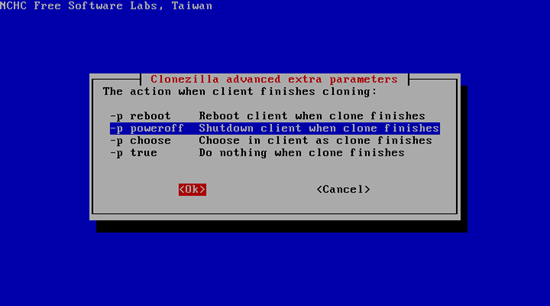
Select the action when the client finishes cloning (I want to shut down the client after the image has been created, so I select -p poweroff):
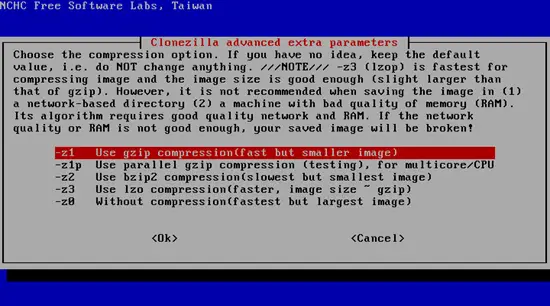
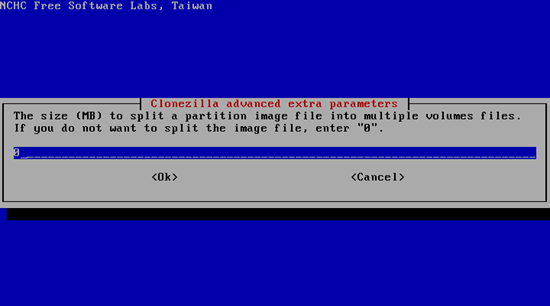
Press ENTER again on the next two screens to accept the default values:
Press ENTER again:
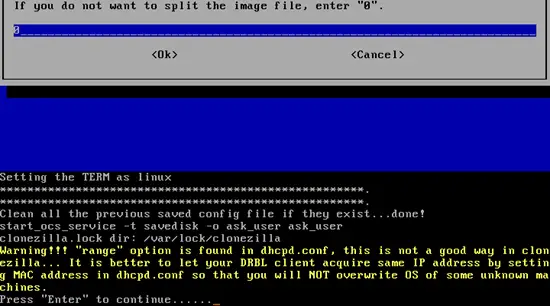
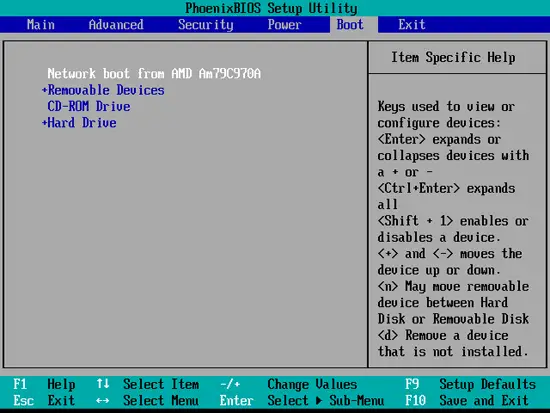
The server is now ready. Now start the client system that you want to clone. It is important that you boot it from the network (via PXE) - you might have to adjust the boot order in the client's BIOS so that it boots via PXE:
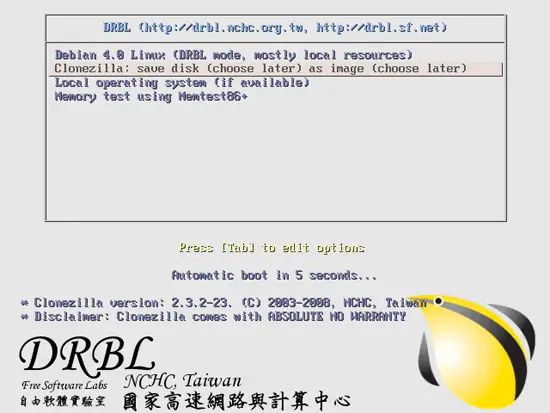
After you've configured the client to boot from the network, you should see a DRBL boot menu. Select Clonezilla: save disk (choose later) as image (choose later):
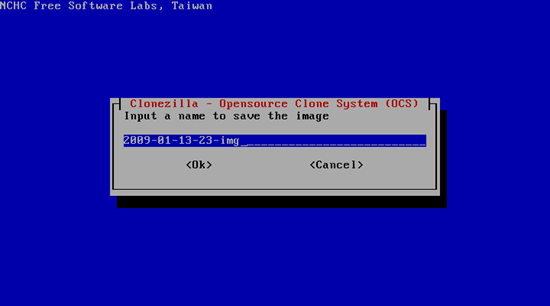
Next provide a name for the image (or accept the default value):
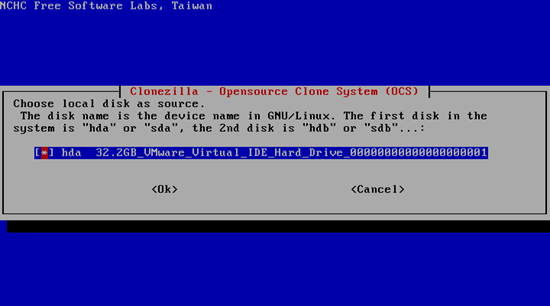
Select the source hard drive:
Afterwards, the image is being created and transferred to the CloneZilla server:
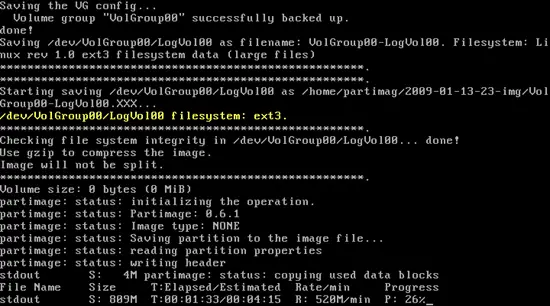
Then the CloneZilla server is notified that the image creation process has finished...
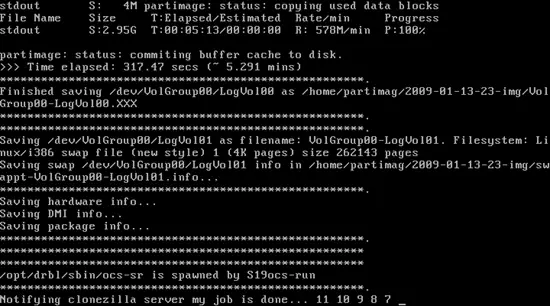
... and the client system is shut down (or rebooted - that depends on the action you've chosen on the server):
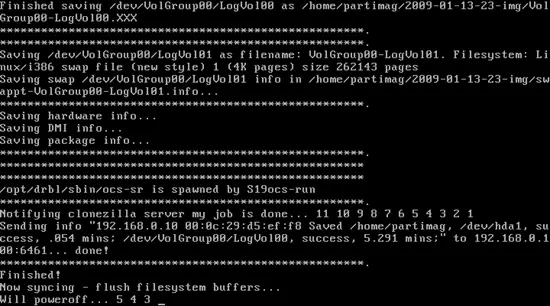
That's it, we now have an image of our Linux system that we can clone to other systems.





