Installing Ubuntu From A Windows System With Wubi - Page 2
On this page
3 Installing Ubuntu
Open Windows Explorer and go to the folder where you saved Wubi. Double-click on the Wubi icon:
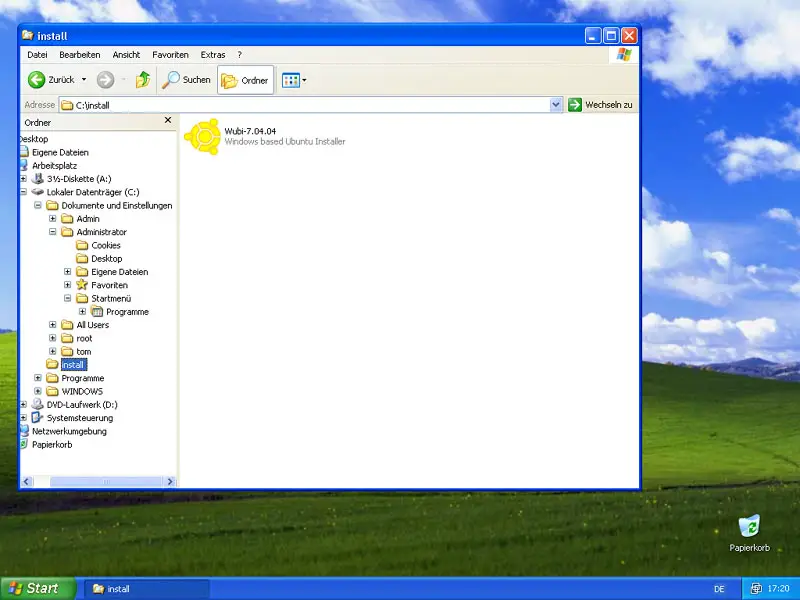
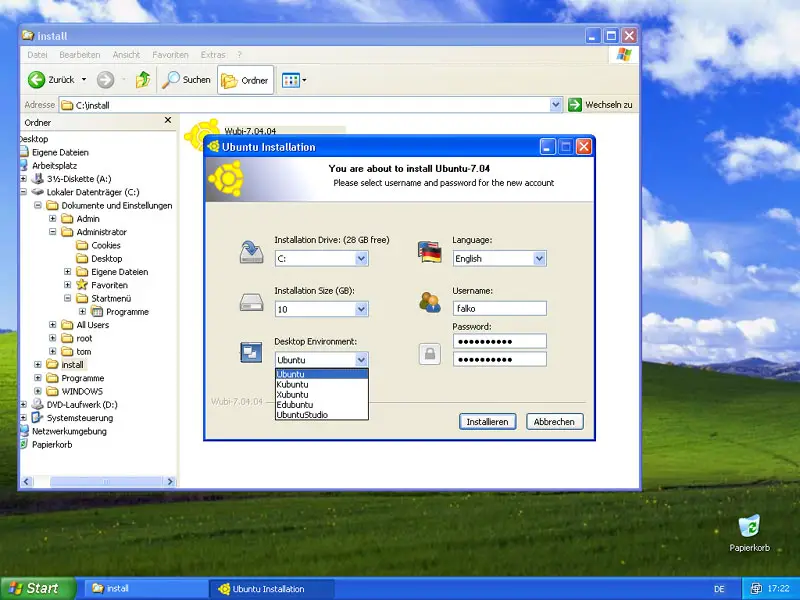
Wubi starts. You can now configure your future Ubuntu installation, i.e., you can specify the location of the Ubuntu installation on your Windows partition(s), the size of the Ubuntu installation, the Ubuntu flavour (Ubuntu, Kubuntu, Xubuntu, Edubuntu, UbuntuStudio), the language you want to use on your Ubuntu desktop, and a username and password for the Ubuntu system. Click on Install afterwards:
Wubi downloads the CD iso image of the Ubuntu flavour you've chosen. This can take some minutes, depending on your bandwidth:
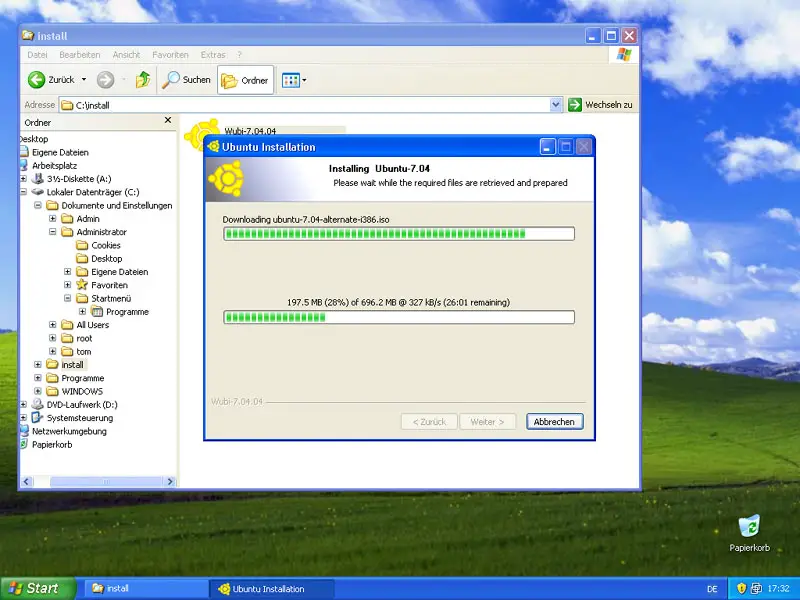
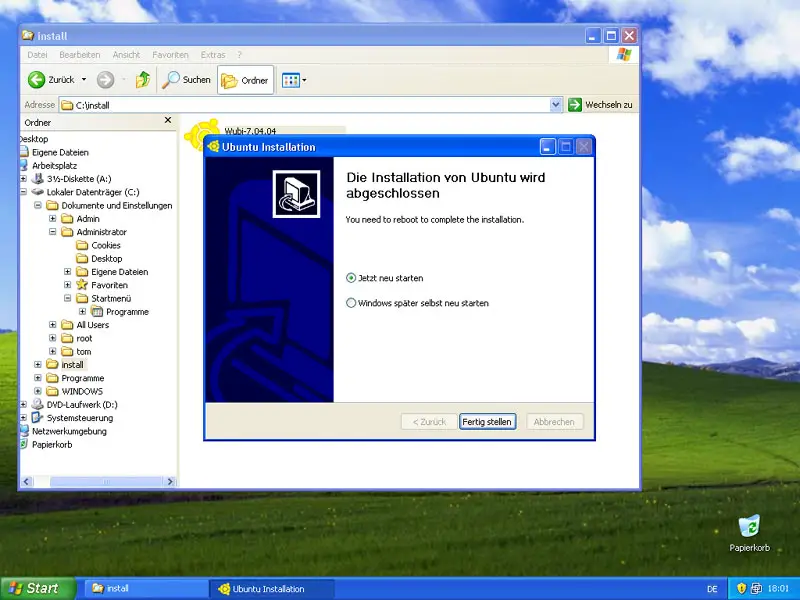
Afterwards, Wubi asks you to reboot the system. Please do so now:
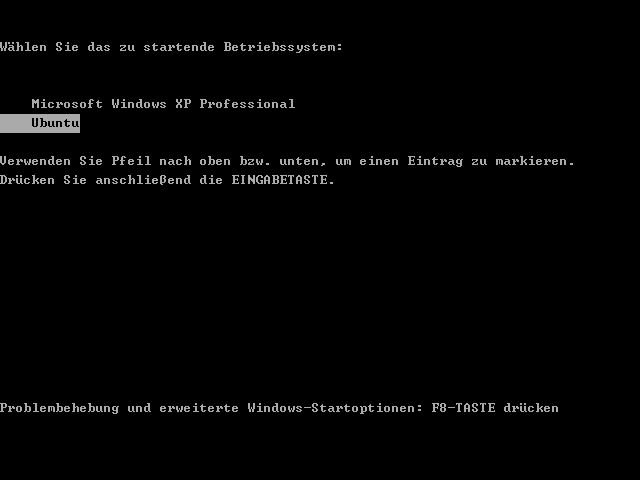
When the system reboots, you should now see a boot menu from which you can select your Windows system and the new Ubuntu system. Please select Ubuntu and press <ENTER>:
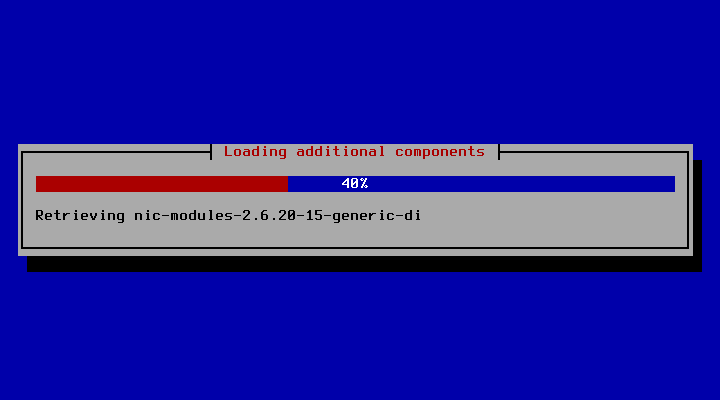
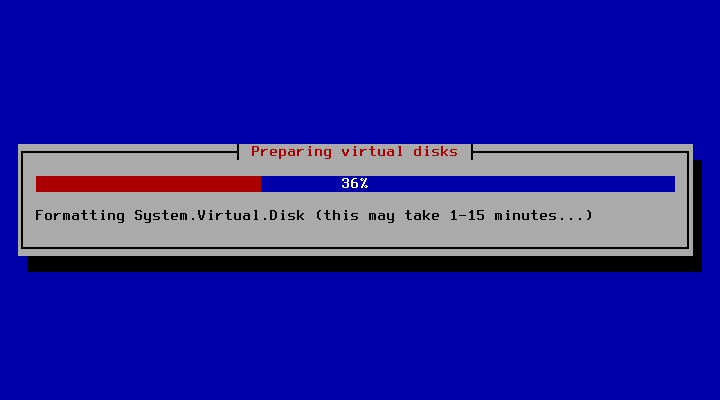
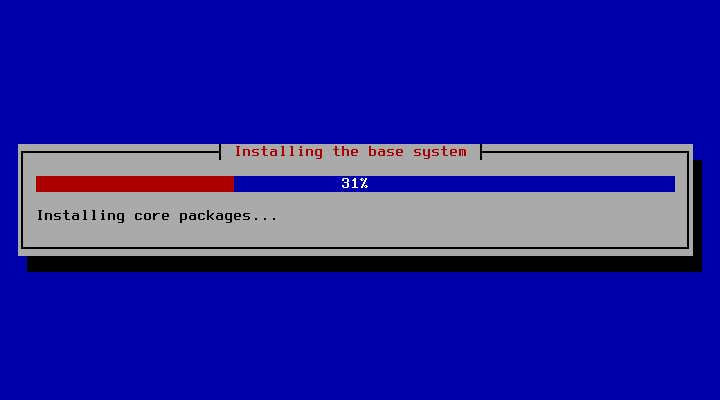
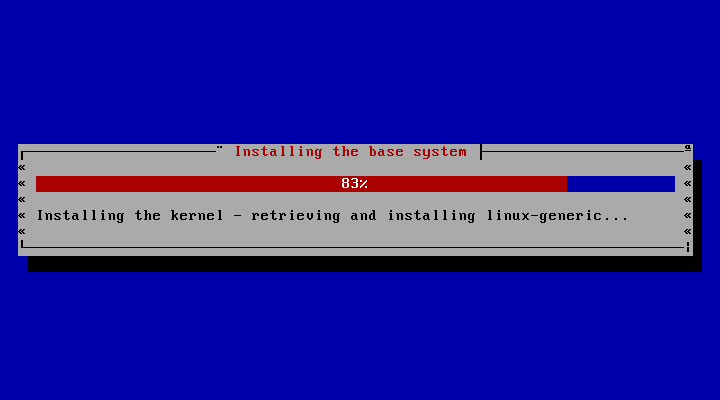
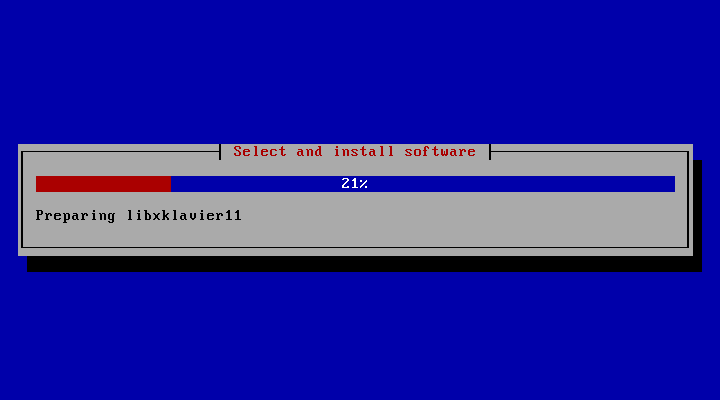
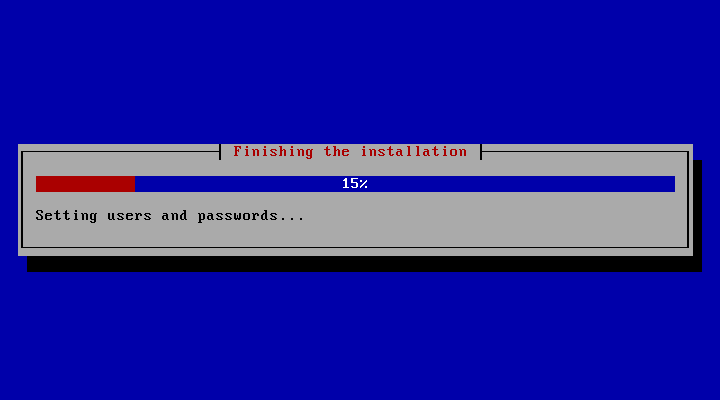
Because Ubuntu isn't installed yet, you should now see the Ubuntu installer (text mode). It installs your Ubuntu desktop according to the settings you've made in Wubi before - no interaction is needed from your part: