
VMware Server 2.0.2-x On Ubuntu Server 10.04 With VMware Remote Console Plug-in - Page 3
Step four: Control remote virtual machines with the VMware Remote Console Plug-in from a client
On the client, please open the CD tray, put in the Ubuntu CD, then close the tray.
If the client computer is an x86 system, we do:
cd /tmp
IP=192.168.1.75:8333 # < fill in the correct server ip address here
wget --no-check-certificate https://$IP/ui/plugin/vmware-vmrc-linux-x86.xpi
mv vmware-vmrc-linux-x86.xpi vmware-vmrc-linux-x64.zip
cd ~
mkdir -p bin/vmwareconsole # make directory bin in your own homedir
cd bin/vmwareconsole
unzip /tmp/vmware-vmrc-linux-x86.zip
cd ~/bin
ln -s vmwareconsole/plugins/vmware-vmrc . # make a symlink for easy access
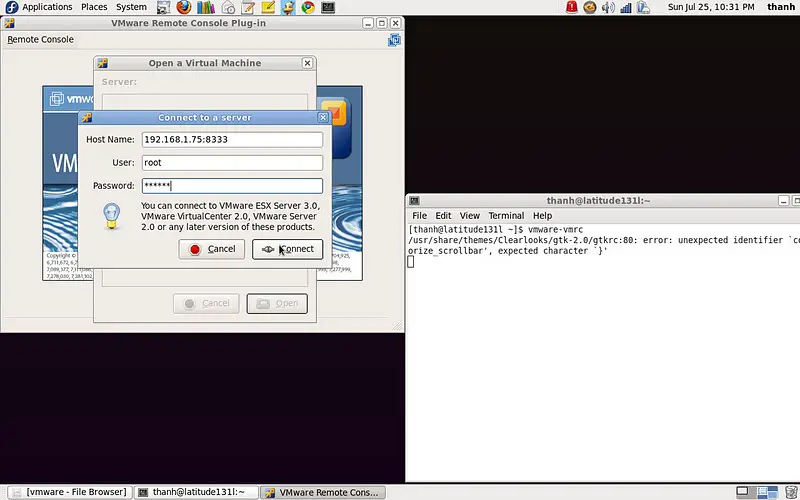
vmware-vmrc # run the console
If the client computer is an x86_64 system, we do:
cd /tmp
IP=192.168.1.75:8333 # < fill in the correct server ip address here
wget --no-check-certificate https://$IP/ui/plugin/vmware-vmrc-linux-x64.xpi
mv vmware-vmrc-linux-x64.xpi vmware-vmrc-linux-x64.zip
cd ~
mkdir -p bin/vmwareconsole # make directory bin in your own homedir
cd bin/vmwareconsole
unzip /tmp/vmware-vmrc-linux-x64.zip
cd ~/bin
ln -s vmwareconsole/plugins/vmware-vmrc . # make a symlink for easy access
vmware-vmrc # run the console
Host Name: 192.168.1.75:8333
User: root
Password: 111111
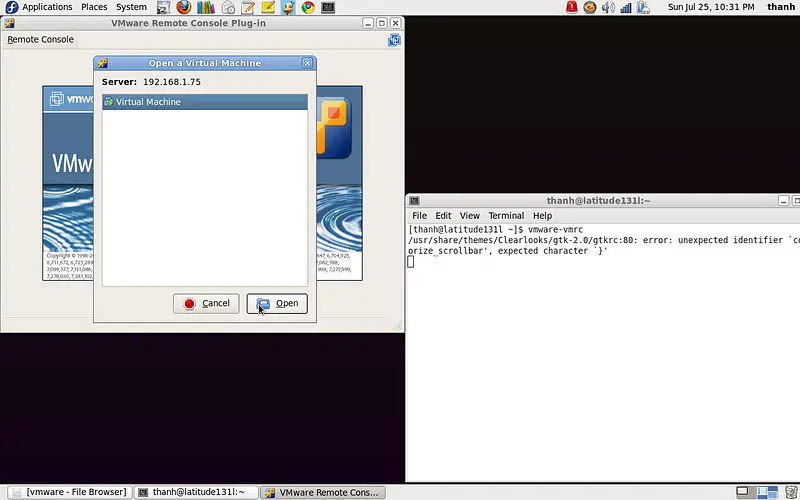
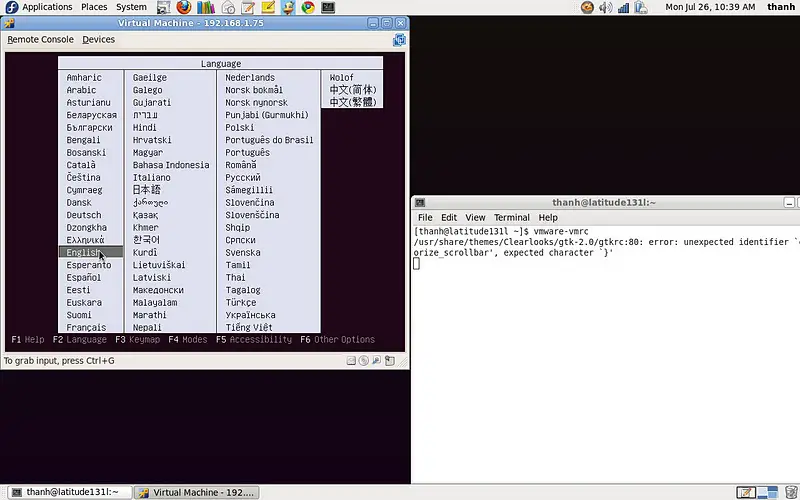
Now you can control your virtual machine from the remote console.
Have fun!
Thanks to:
https://www.howtoforge.com
http://www.ubuntu.com
http://www.vmware.com
http://communities.vmware.com/thread/267682?start=0&tstart=0





