
The Perfect Desktop - Ubuntu 11.10 (Oneiric Ocelot) - Page 3
This tutorial exists for these OS versions
- Ubuntu 14.10 (Utopic Unicorn)
- Ubuntu 13.10 (Saucy Salamander)
- Ubuntu 14.04 LTS (Trusty Tahr)
- Ubuntu 13.04 (Raring Ringtail)
- Ubuntu 12.10 (Quantal Quetzal)
- Ubuntu 12.04 LTS (Precise Pangolin)
On this page
3 Update The System
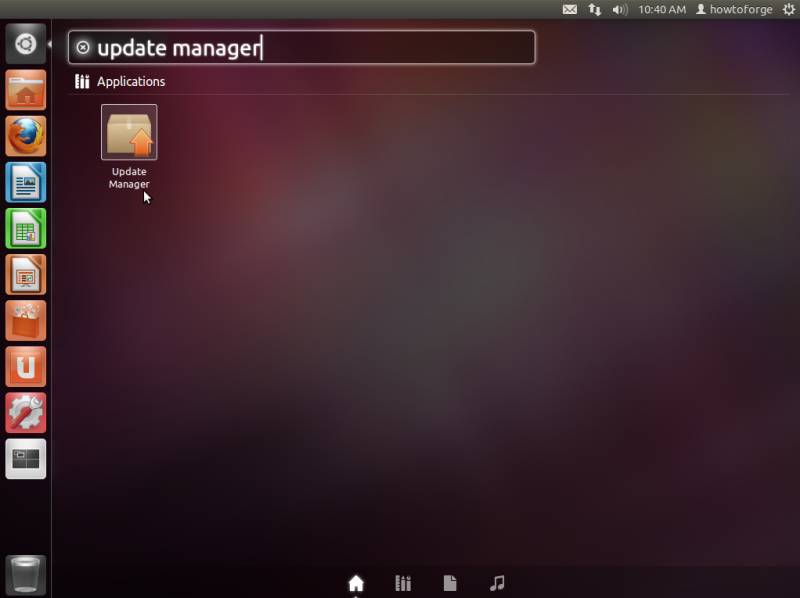
Now it's time to check for updates and install them. You can start the Update Manager by opening the Dash, typing in Update Manager into the search bar and clicking on the icon:
The Update Manager tells you which updates are available (you can click on the Check button to refresh the list). Click on Install Updates to install them:
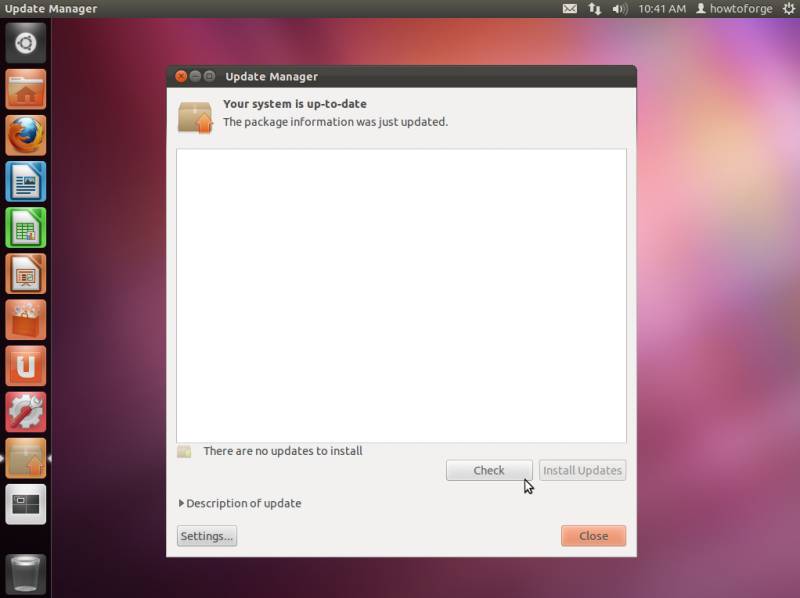
If there are any updates available you can instal them by clicking on Install Updates and entering your password confirm administrativ rights. When the update is complete, click on Close (if a new kernel was amongst the updates, a system restart is required to make the changes effective. If this is necessary, you will see a Restart Now button. Click on that button to restart the system.). The system is now up-to-date.
4 Flash Player And Java
If you have checked the Install this third-party software checkbox during installation, the Flash Player and Java should already be installed on the system.
To check this, open Firefox and type about:plugins in the address bar. Firefox will then list all installed plugins, and it should list the Flash Player (version 11.0 r1) and the IcedTea (Java) plugins among them:

5 Inventory Of What We Have So Far
Now let's browse all menus to see which of our needed applications are already installed:
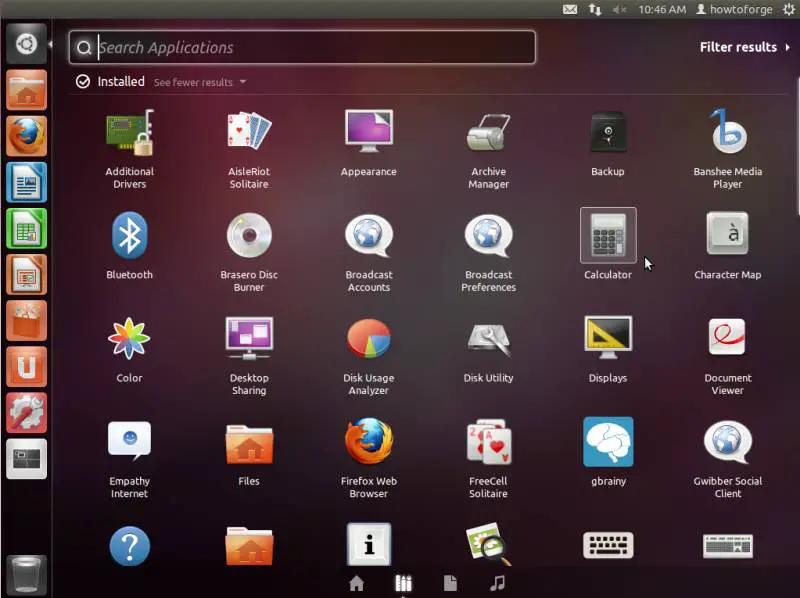
You should find the following situation ([x] marks an application that is already installed, whereas [ ] is an application that is missing):
Graphics:
[ ] The GIMP
[x] Shotwell Photo Manager
[ ] Picasa
Internet:
[x] Firefox
[ ] Opera
[ ] Chromium
[x] Flash Player
[ ] FileZilla
[ ] Thunderbird
[x] Evolution
[ ] aMule
[ ] Transmission BitTorrent Client
[ ] Vuze
[x] Empathy IM Client
[ ] Skype
[ ] Google Earth
[ ] Xchat IRC
[x] Gwibber Social Client
Office:
[x] LibreOffice Writer
[x] LibreOffice Calc
[ ] Adobe Reader
[ ] GnuCash
[ ] Scribus
Sound & Video:
[ ] Amarok
[ ] Audacity
[x] Banshee
[ ] MPlayer
[ ] Rhythmbox Music Player
[ ] gtkPod
[ ] XMMS
[ ] dvd::rip
[ ] Kino
[ ] Sound Juicer CD Extractor
[ ] VLC Media Player
[ ] RealPlayer
[x] Totem
[ ] Xine
[x] Brasero
[ ] K3B
[ ] Multimedia-Codecs
Programming:
[ ] KompoZer
[ ] Bluefish
[ ] Eclipse
Other:
[ ] VirtualBox
[ ] TrueType fonts
[x] Java
[x] Read/Write support for NTFS partitions
[ ] GNOME desktopn environment
So some applications are already on the system. NTFS read-/write support is enabled by default on Ubuntu 11.10.
6 Install Synaptic and Configure Additional Repositories
Before you install any additional packages it's best to first install the Synaptic Package Manager since it lets you download multiple packages at a time easily. Open a terminal (Dash > Terminal) and enter
sudo apt-get install synaptic
Some packages like the Adobe Reader are not available in the standard Ubuntu repositories. The easiest way to make such packages available to your system is to add the Medibuntu repository.
Again, open a terminal and edit /etc/apt/sources.list...
sudo gedit /etc/apt/sources.list
... and enable the oneiric partner and Ubuntu Extras repositories (if they are not already enabled):
[...]
## Uncomment the following two lines to add software from Canonical's
## 'partner' repository.
## This software is not part of Ubuntu, but is offered by Canonical and
the
## respective vendors as a service to Ubuntu users.
deb http://archive.canonical.com/ubuntu oneiric partner
deb-src http://archive.canonical.com/ubuntu oneiric partner

## This software is not part of Ubuntu, but is offered by third-party
## developers who want to ship their latest software.
deb http://extras.ubuntu.com/ubuntu oneiric main
deb-src http://extras.ubuntu.com/ubuntu oneiric main
[...]
Then save the file.
To enable the Medibuntu repository, please do the following:
Import the repository:
sudo wget http://www.medibuntu.org/sources.list.d/$(lsb_release -cs).list --output-document=/etc/apt/sources.list.d/medibuntu.list
Import the gpg-key and update your package-list:
sudo apt-get update && sudo apt-get install medibuntu-keyring && sudo apt-get update
Then run
sudo update-apt-xapian-index
to make Synaptic display packages from third-party repositories.





