
The Perfect Desktop - Ubuntu 11.10 (Oneiric Ocelot) - Page 2
This tutorial exists for these OS versions
- Ubuntu 14.10 (Utopic Unicorn)
- Ubuntu 13.10 (Saucy Salamander)
- Ubuntu 14.04 LTS (Trusty Tahr)
- Ubuntu 13.04 (Raring Ringtail)
- Ubuntu 12.10 (Quantal Quetzal)
- Ubuntu 12.04 LTS (Precise Pangolin)
On this page
7 Install Additional Software
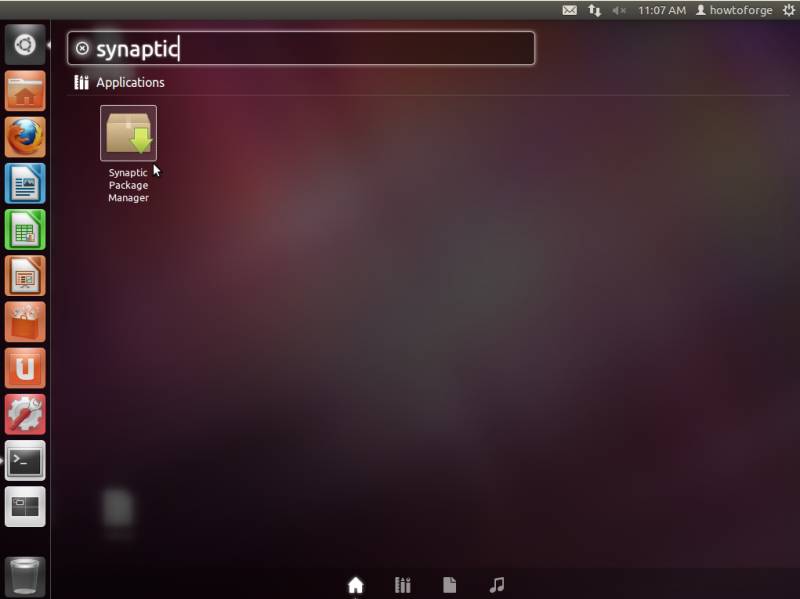
To install additional applications, open the Synaptic Package Manager (Dash > Synaptic Package Manager):
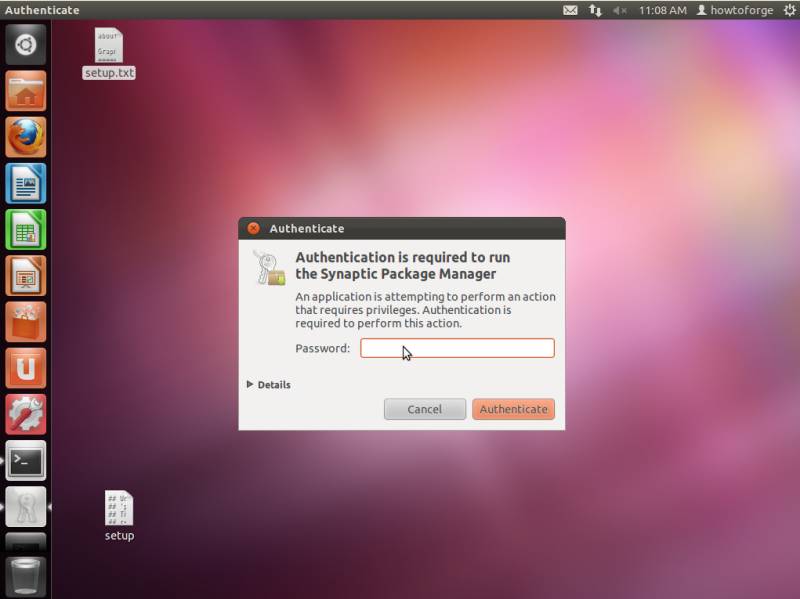
Type in your password:
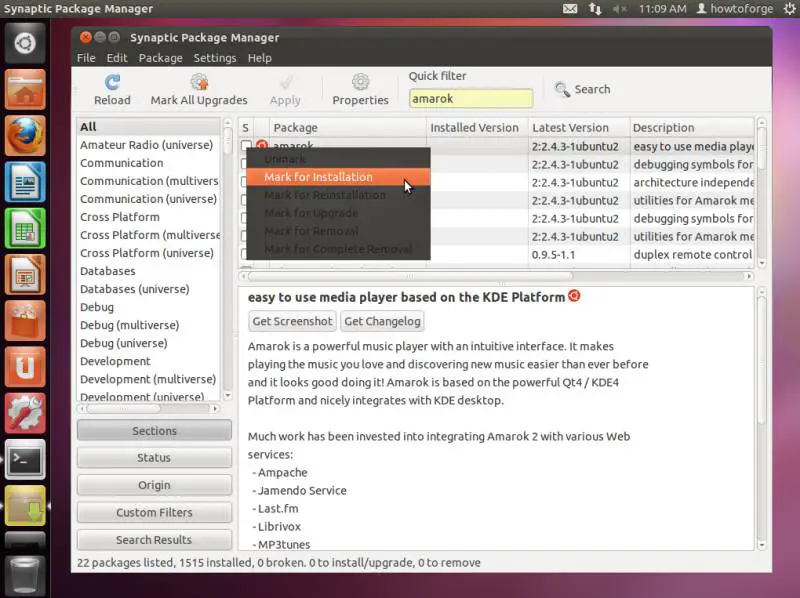
In the Synaptic Package Manager, we can install additional software. You can use the Quick filter field to find packages. To select a package for installation, click on the checkbox in front of it and select Mark for Installation from the menu that comes up:
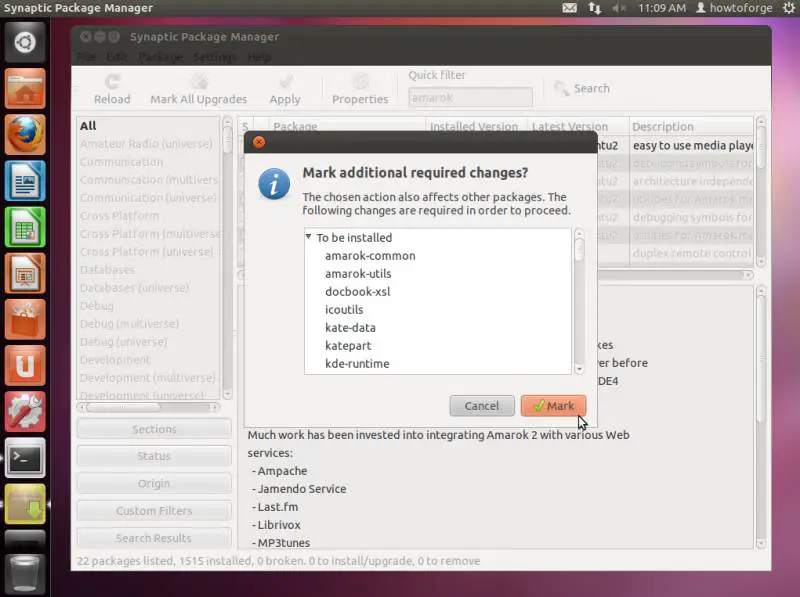
If a package has a dependency that needs to be satisfied, a window will pop up. Accept the dependencies by clicking on Mark:
Select the following packages for installation (* is a wildcard; e.g. gstreamer* means all packages that start with gstreamer):
- amarok
- gimp
- flashplugin-installer (necessary only if you didn't check the Install this third-party software checkbox during installation)
- amule
- audacity
- rhythmbox
- vuze
- bluefish
- dvdrip
- filezilla
- ttf-mscorefonts-installer
- gnucash
- gstreamer* (necessary only if you didn't check the Install this third-party software checkbox during installation)
- gtkpod
- k3b
- kino
- mplayer
- smplayer
- eclipse
- kompozer
- scribus
- vlc*
- mozilla-plugin-vlc
- xchat-gnome
- xmms2*
- sound-juicer
- acroread
- non-free-codecs
- ubuntu-restricted-extras
- libdvdcss2
- xine-ui
- xine-plugin
- thunderbird
- virtualbox-ose
- chromium-browser
- googleearth-package
- skype (32 bit version only, leave it out for 64 bit)
- gnome
- transmission
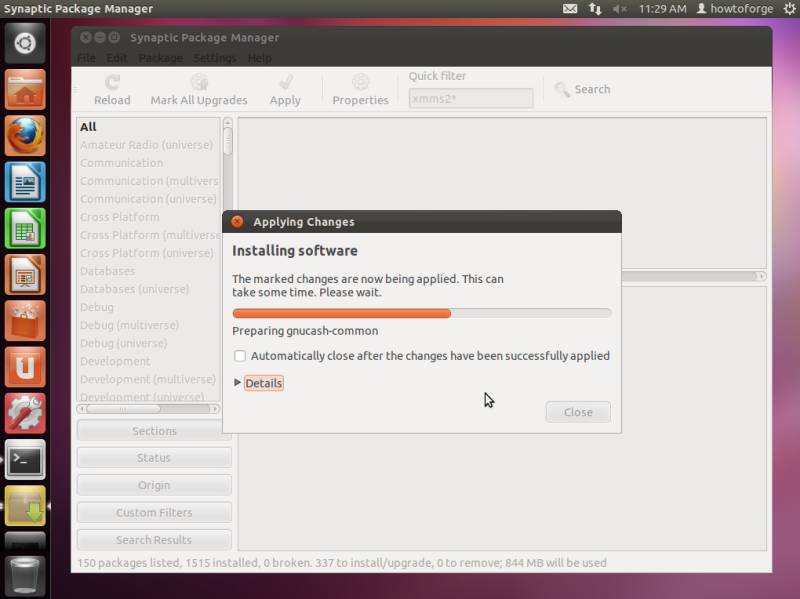
After you've selected the desired packages, click on the Apply button. Confirm your selection by again clicking on Apply. The packages are now being downloaded from the repositories and installed. This can take a few minutes, so please be patient:
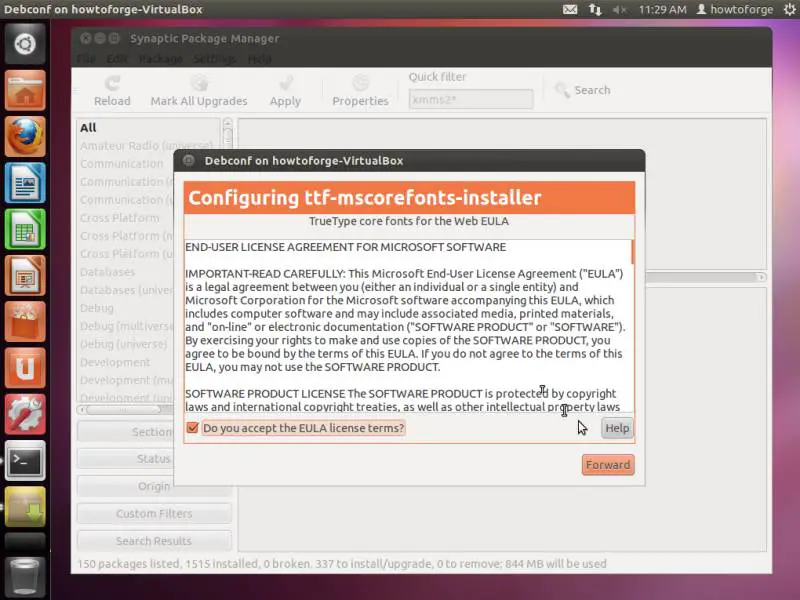
You might have to answer a few questions:
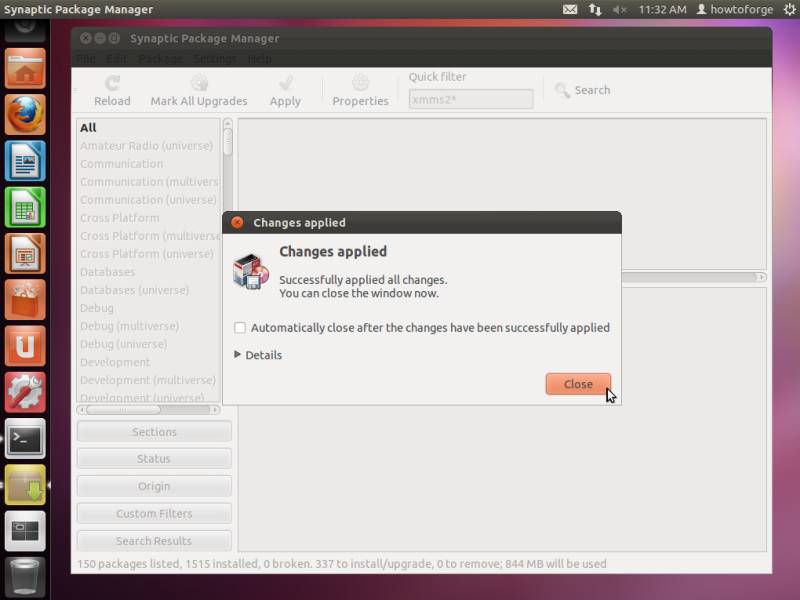
Upon installing the GNOME desktop environment, you will be asked which one of the installed environments you would like to choose as your default. After all packages have been installed, click on Close:
8 TrueType Fonts
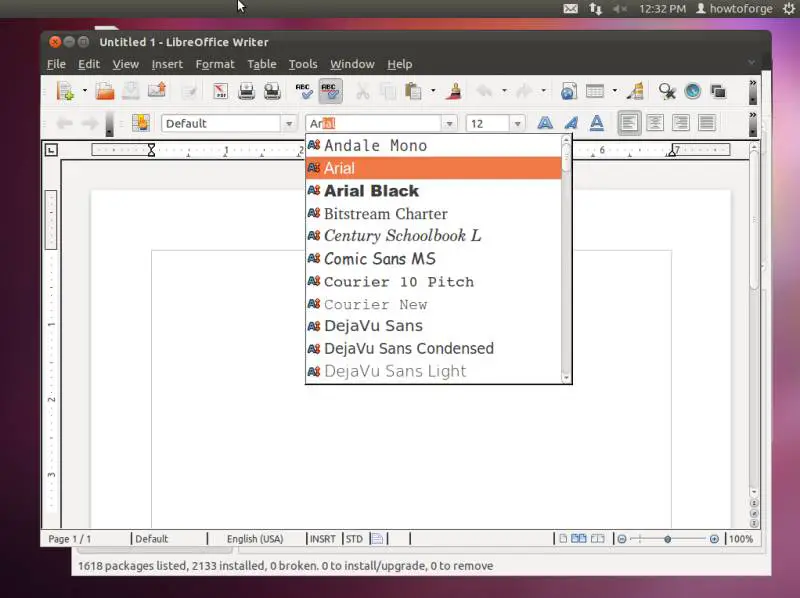
To check if the TrueType fonts have been installed correctly, open a word processor like LibreOffice. You should now find your new Windows fonts there:
9 Google Earth
In chapter 7, we have installed the package googleearth-package which is a utility to automatically build a .deb package of Google Earth. This means, Google Earth is not yet installed; we have to first build a .deb package of it with the help of googleearth-package, and then install the .deb package.
Open a terminal (Applications > Accessories > Terminal) and become root:
sudo su
Now you can build the Google Earth .deb package as follows:
make-googleearth-package --force
[...]
Package: googleearth
Version: 6.0.3.2197+0.6.0-1
Section: non-free/science
Priority: optional
Maintainer:  <root@howtoforge-VirtualBox>
Architecture: amd64
Depends: ttf-dejavu | ttf-bitstream-vera | msttcorefonts, lsb-core, libqtcore4, libgl1-mesa-glx, ia32-libs (>= 20080808), lib32gcc1 (>= 1:4.1.1), lib32stdc++6 (>= 4.1.1), lib32z1 (>= 1:1.1.4), libc6-i386 (>= 2.0), libc6-i386 (>= 2.1.3), libc6-i386 (>= 2.2), libc6-i386 (>= 2.3), libc6-i386 (>= 2.3.2), libc6-i386 (>= 2.4), libgl1-mesa-glx | libgl1 , ia32-libs-gtk
Suggests: nvidia-glx-ia32
Description: Google Earth, a 3D map/planet viewer
 Package built with googleearth-package.
dpkg-deb: building package `googleearth' in `./googleearth_6.0.3.2197+0.6.0-1_amd64.deb'.
Success!
You can now install the package with e.g. sudo dpkg -i <package>.deb
root@howtoforge-VirtualBox:/home/howtoforge#
If you don't see any errors, then you should find the Google Earth .deb package in the current directory:
ls -l
root@howtoforge-VirtualBox:/home/howtoforge# ls -l
total 34328
drwxr-xr-x 2 howtoforge howtoforge     4096 2011-10-14 11:04 Desktop
drwxr-xr-x 2 howtoforge howtoforge     4096 2011-10-14 10:37 Documents
drwxr-xr-x 2 howtoforge howtoforge     4096 2011-10-14 10:37 Downloads
-rw-r--r-- 1 howtoforge howtoforge      179 2011-10-14 10:22 examples.desktop
-rw-r--r-- 1 root       root       35107978 2011-10-14 12:39 googleearth_6.0.3.2197+0.6.0-1_amd64.deb
drwxr-xr-x 2 howtoforge howtoforge     4096 2011-10-14 10:37 Music
drwxr-xr-x 2 howtoforge howtoforge     4096 2011-10-14 10:37 Pictures
drwxr-xr-x 2 howtoforge howtoforge     4096 2011-10-14 10:37 Public
drwxr-xr-x 2 howtoforge howtoforge     4096 2011-10-14 10:37 Templates
drwxrwxr-x 2 howtoforge howtoforge     4096 2011-10-14 11:53 Ubuntu One
drwxr-xr-x 2 howtoforge howtoforge     4096 2011-10-14 10:37 Videos
root@howtoforge-VirtualBox:/home/howtoforge#
I want to install the .deb package using gdebi which takes care of all dependencies.
gdebi googleearth_6.0.3.2197+0.6.0-1_amd64.deb
10 Inventory (II)
Now let's check again what we have sofar. Our inventory should now look like this:
Graphics:
[x] The GIMP
[x] Shotwell Photo Manager
[ ] Picasa
Internet:
[x] Firefox
[ ] Opera
[x] Chromium
[x] Flash Player
[x] FileZilla
[x] Thunderbird
[x] Evolution
[x] aMule
[x] Transmission BitTorrent Client
[x] Vuze
[x] Empathy IM Client
[ ] Skype
[x] Google Earth
[x] Xchat IRC
[x] Gwibber Social Client
Office:
[x] LibreOffice Writer
[x] LibreOffice Calc
[x] Adobe Reader
[x] GnuCash
[x] Scribus
Sound & Video:
[x] Amarok
[x] Audacity
[x] Banshee
[x] MPlayer
[x] Rhythmbox Music Player
[x] gtkPod
[x] XMMS
[x] dvd::rip
[x] Kino
[x] Sound Juicer CD Extractor
[x] VLC Media Player
[ ] RealPlayer
[x] Totem
[x] Xine
[x] Brasero
[x] K3B
[x] Multimedia-Codecs
Programming:
[x] KompoZer
[x] Bluefish
[x] Eclipse
Other:
[x] VirtualBox
[x] TrueType fonts
[x] Java
[x] Read/Write support for NTFS partitions
[x] GNOME desktop environment





