
Installing Apache2 With PHP5 And MySQL Support On CentOS 6.3 (LAMP) - Page 2
This tutorial exists for these OS versions
On this page
5 Testing PHP5 / Getting Details About Your PHP5 Installation
The document root of the default web site is /var/www/html. We will now create a small PHP file (info.php) in that directory and call it in a browser. The file will display lots of useful details about our PHP installation, such as the installed PHP version.
vi /var/www/html/info.php
<?php phpinfo(); ?> |
Now we call that file in a browser (e.g. http://192.168.0.100/info.php):
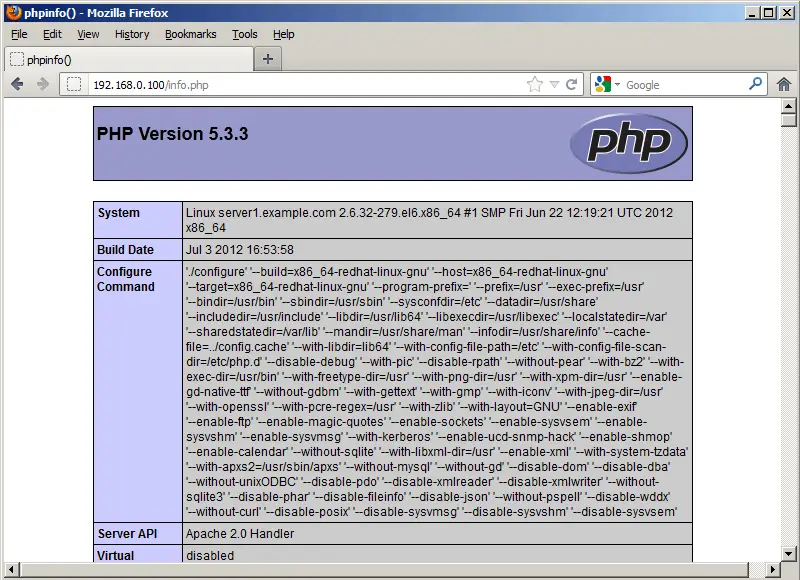
As you see, PHP5 is working, and it's working through the Apache 2.0 Handler, as shown in the Server API line. If you scroll further down, you will see all modules that are already enabled in PHP5. MySQL is not listed there which means we don't have MySQL support in PHP5 yet.
6 Getting MySQL Support In PHP5
To get MySQL support in PHP, we can install the php-mysql package. It's a good idea to install some other PHP5 modules as well as you might need them for your applications. You can search for available PHP5 modules like this:
yum search php
Pick the ones you need and install them like this:
yum install php-mysql php-gd php-imap php-ldap php-mbstring php-odbc php-pear php-xml php-xmlrpc
APC is a free and open PHP opcode cacher for caching and optimizing PHP intermediate code. It's similar to other PHP opcode cachers, such as eAccelerator and Xcache. It is strongly recommended to have one of these installed to speed up your PHP page.
APC can be installed as follows:
yum install php-pecl-apc
Now restart Apache2:
/etc/init.d/httpd restart
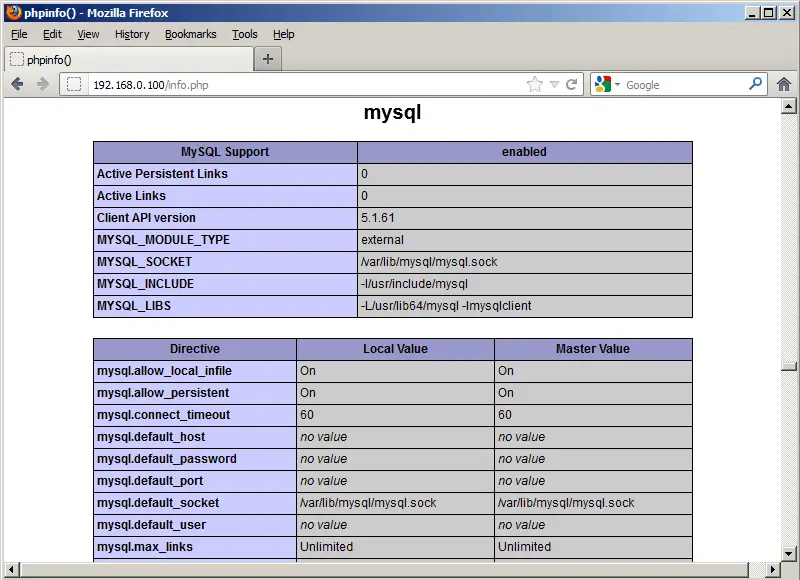
Now reload http://192.168.0.100/info.php in your browser and scroll down to the modules section again. You should now find lots of new modules there, including the MySQL module:
7 phpMyAdmin
phpMyAdmin is a web interface through which you can manage your MySQL databases.
First we enable the RPMforge repository on our CentOS system as phpMyAdmin is not available in the official CentOS 6.3 repositories:
Import the RPMforge GPG key:
rpm --import http://dag.wieers.com/rpm/packages/RPM-GPG-KEY.dag.txt
On x86_64 systems:
yum install http://pkgs.repoforge.org/rpmforge-release/rpmforge-release-0.5.2-2.el6.rf.x86_64.rpm
On i386 systems:
yum install http://pkgs.repoforge.org/rpmforge-release/rpmforge-release-0.5.2-2.el6.rf.i686.rpm
phpMyAdmin can now be installed as follows:
yum install phpmyadmin
Now we configure phpMyAdmin. We change the Apache configuration so that phpMyAdmin allows connections not just from localhost (by commenting out the <Directory "/usr/share/phpmyadmin"> stanza):
vi /etc/httpd/conf.d/phpmyadmin.conf
# # Web application to manage MySQL # #<Directory "/usr/share/phpmyadmin"> # Order Deny,Allow # Deny from all # Allow from 127.0.0.1 #</Directory> Alias /phpmyadmin /usr/share/phpmyadmin Alias /phpMyAdmin /usr/share/phpmyadmin Alias /mysqladmin /usr/share/phpmyadmin |
Next we change the authentication in phpMyAdmin from cookie to http:
vi /usr/share/phpmyadmin/config.inc.php
[...] /* Authentication type */ $cfg['Servers'][$i]['auth_type'] = 'http'; [...] |
Restart Apache:
/etc/init.d/httpd restart
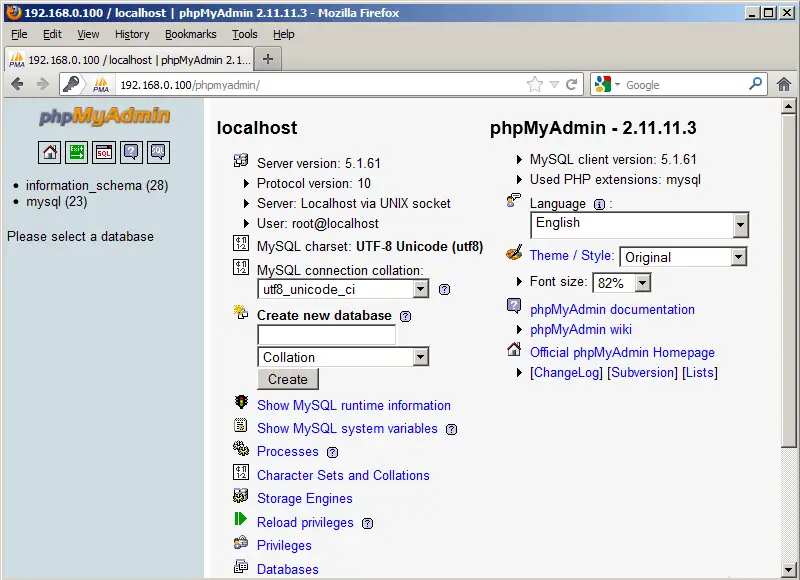
Afterwards, you can access phpMyAdmin under http://192.168.0.100/phpmyadmin/:
8 Links
- Apache: http://httpd.apache.org/
- PHP: http://www.php.net/
- MySQL: http://www.mysql.com/
- CentOS: http://www.centos.org/
- phpMyAdmin: http://www.phpmyadmin.net/





