
Convert Physical Windows Systems Into Virtual Machines To Be Run On A Linux Desktop
Version 1.0
Author: Falko Timme
This article shows how you can convert a physical Windows system (XP, 2003, 2000, NT4 SP4+) into a VMware virtual machine with the free VMware Converter Starter. The resulting virtual machine can be run in the free VMware Player and VMware Server, and also in VMware Workstation and other VMware products. Vmware Converter comes in handy if you want to switch to a Linux desktop, but feel the need to run your old Windows desktop from time to time. By converting your Windows desktop into a virtual machine, you can run it under VMware Server/Player, etc. on your Linux desktop.
I do not issue any guarantee that this will work for you!
1 Preliminary Note
In this article I will convert a Windows XP desktop into a virtual machine. Afterwards I will start the virtual machine in VMware Server.
(You can find guides for installing VMware Server on Debian Sarge and Ubuntu Dapper Drake here:
- Debian Sarge: https://www.howtoforge.com/debian_sarge_vmware_server_howto
- Ubuntu Dapper Drake: https://www.howtoforge.com/ubuntu_vmware_server
.)
2 Install VMware Converter
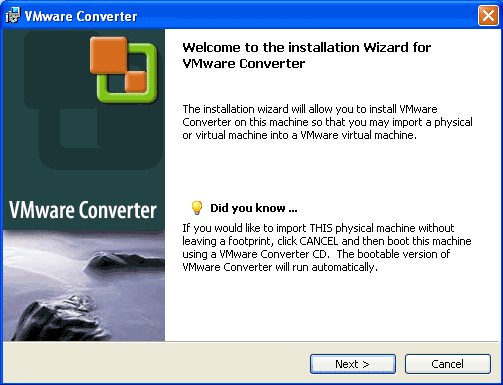
First download VMware Converter from http://www.vmware.com/products/converter to your Windows system (the one that you want to convert into a virtual machine) and start the installation by double-clicking on the downloaded file.
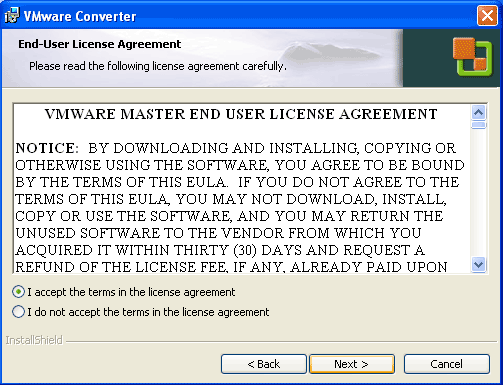
Accept the license agreement and click on Next:
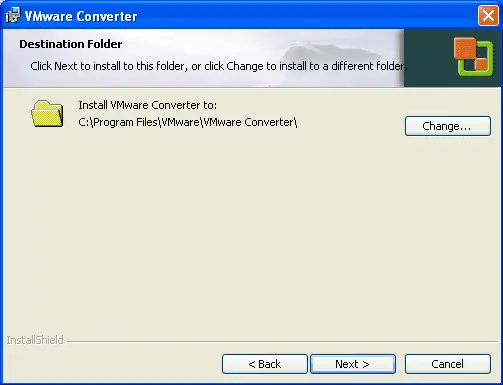
Select a destination folder for the installation (normally you can accept the default value):
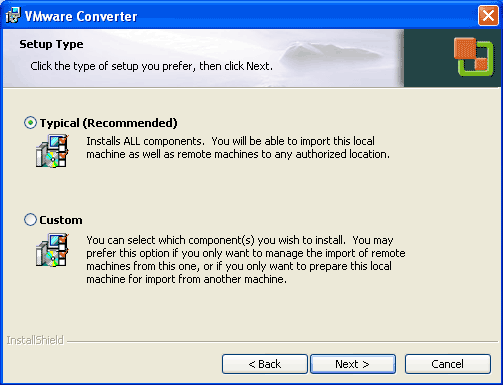
Choose Typical when asked for the setup type:
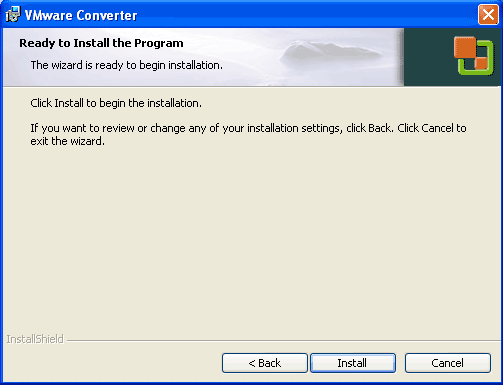
Click on Install to begin the installation:
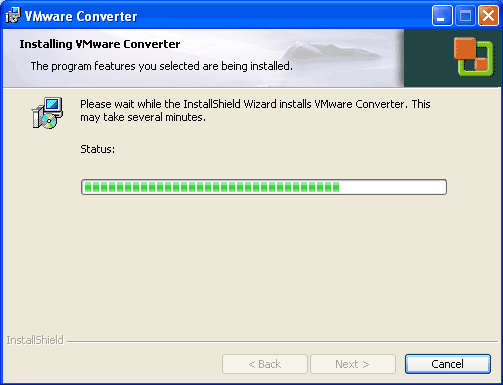
VMware Converter is being installed:
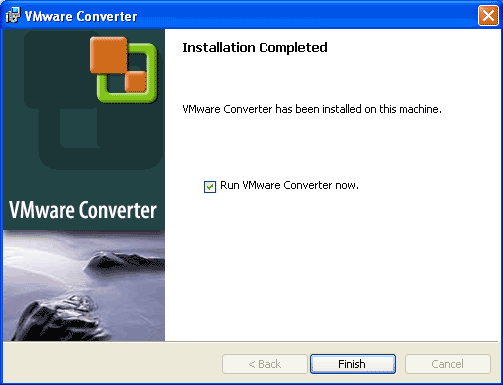
After the installation, click Finish. If you like to start VMware Converter now, please check Run VMware Converter now.:
You should now find a VMware Converter icon on your desktop:





