
Using PHP5-FPM With Apache 2.4 (+ mod_proxy_fcgi Module) On Fedora 18
Version 1.0
Author: Falko Timme  Follow me on Twitter
This tutorial shows how you can install an Apache 2.4 webserver on a Fedora 18 server with PHP5 (through PHP-FPM) and MySQL support. PHP-FPM (FastCGI Process Manager) is an alternative PHP FastCGI implementation with some additional features useful for sites of any size, especially busier sites. On Apache 2.4, we need Apache's mod_proxy_fcgi module to make it work.
I do not issue any guarantee that this will work for you!
1 Preliminary Note
In this tutorial I use the hostname server1.example.com with the IP address 192.168.0.100. These settings might differ for you, so you have to replace them where appropriate.
2 Installing MySQL 5
To install MySQL, we do this:
yum install mysql mysql-server
Then we create the system startup links for MySQL (so that MySQL starts automatically whenever the system boots) and start the MySQL server:
systemctl enable mysqld.service
systemctl start mysqld.service
Set passwords for the MySQL root account:
mysql_secure_installation
[root@server1 ~]# mysql_secure_installation
NOTE: RUNNING ALL PARTS OF THIS SCRIPT IS RECOMMENDED FOR ALL MySQL
SERVERS IN PRODUCTION USE! PLEASE READ EACH STEP CAREFULLY!
In order to log into MySQL to secure it, we'll need the current
password for the root user. If you've just installed MySQL, and
you haven't set the root password yet, the password will be blank,
so you should just press enter here.
Enter current password for root (enter for none):
OK, successfully used password, moving on...
Setting the root password ensures that nobody can log into the MySQL
root user without the proper authorisation.
Set root password? [Y/n] <-- ENTER
New password: <-- yourrootsqlpassword
Re-enter new password: <-- yourrootsqlpassword
Password updated successfully!
Reloading privilege tables..
... Success!
By default, a MySQL installation has an anonymous user, allowing anyone
to log into MySQL without having to have a user account created for
them. This is intended only for testing, and to make the installation
go a bit smoother. You should remove them before moving into a
production environment.
Remove anonymous users? [Y/n] <-- ENTER
... Success!
Normally, root should only be allowed to connect from 'localhost'. This
ensures that someone cannot guess at the root password from the network.
Disallow root login remotely? [Y/n] <-- ENTER
... Success!
By default, MySQL comes with a database named 'test' that anyone can
access. This is also intended only for testing, and should be removed
before moving into a production environment.
Remove test database and access to it? [Y/n] <-- ENTER
- Dropping test database...
... Success!
- Removing privileges on test database...
... Success!
Reloading the privilege tables will ensure that all changes made so far
will take effect immediately.
Reload privilege tables now? [Y/n] <-- ENTER
... Success!
Cleaning up...
All done! If you've completed all of the above steps, your MySQL
installation should now be secure.
Thanks for using MySQL!
[root@server1 ~]#
3 Installing Apache2
Apache2 is available as a Fedora package, therefore we can install it like this:
yum install httpd
This is Apache version 2.4 which doesn't work with the mod_fastcgi module that was used in Apache 2.2 for PHP-FPM (see Using PHP5-FPM With Apache2 On Fedora 17); we will therefore use the mod_proxy_fcgi module.
Now configure your system to start Apache at boot time...
systemctl enable httpd.service
... and start Apache:
systemctl start httpd.service
Now direct your browser to http://192.168.0.100, and you should see the Apache2 placeholder page:
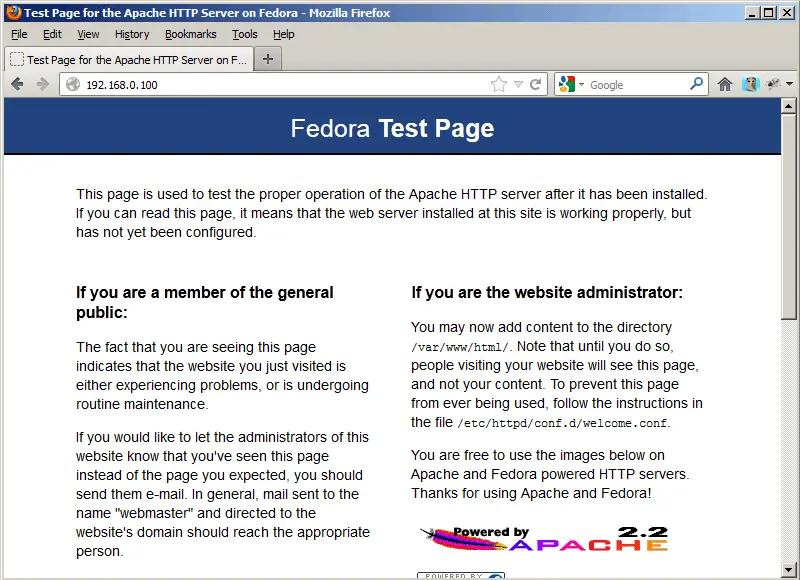
Apache's default document root is /var/www/html on Fedora, and the configuration file is /etc/httpd/conf/httpd.conf. Additional configurations are stored in the /etc/httpd/conf.d/ directory.
4 Installing PHP5
We can make PHP5 work in Apache2 through PHP-FPM and Apache's mod_proxy_fcgi module. The mod_proxy_fcgi module should already be installed and enabled:
ls -l /usr/lib64/httpd/modules/mod_proxy*
[root@server1 modules]# ls -l /usr/lib64/httpd/modules/mod_proxy*
-rwxr-xr-x 1 root root 52128 Oct 26 16:15 /usr/lib64/httpd/modules/mod_proxy_ajp.so
-rwxr-xr-x 1 root root 39984 Oct 26 16:15 /usr/lib64/httpd/modules/mod_proxy_balancer.so
-rwxr-xr-x 1 root root 19400 Oct 26 16:15 /usr/lib64/httpd/modules/mod_proxy_connect.so
-rwxr-xr-x 1 root root 11192 Oct 26 16:15 /usr/lib64/httpd/modules/mod_proxy_express.so
-rwxr-xr-x 1 root root 19368 Oct 26 16:15 /usr/lib64/httpd/modules/mod_proxy_fcgi.so
-rwxr-xr-x 1 root root 11152 Oct 26 16:15 /usr/lib64/httpd/modules/mod_proxy_fdpass.so
-rwxr-xr-x 1 root root 44184 Oct 26 16:15 /usr/lib64/httpd/modules/mod_proxy_ftp.so
-rwxr-xr-x 1 root root 39968 Oct 26 16:15 /usr/lib64/httpd/modules/mod_proxy_http.so
-rwxr-xr-x 1 root root 19464 Oct 26 16:15 /usr/lib64/httpd/modules/mod_proxy_scgi.so
-rwxr-xr-x 1 root root 98016 Oct 26 16:15 /usr/lib64/httpd/modules/mod_proxy.so
[root@server1 modules]#
cat /etc/httpd/conf.modules.d/00-proxy.conf
[...] # This file configures all the proxy modules: LoadModule proxy_module modules/mod_proxy.so LoadModule lbmethod_bybusyness_module modules/mod_lbmethod_bybusyness.so LoadModule lbmethod_byrequests_module modules/mod_lbmethod_byrequests.so LoadModule lbmethod_bytraffic_module modules/mod_lbmethod_bytraffic.so LoadModule lbmethod_heartbeat_module modules/mod_lbmethod_heartbeat.so LoadModule proxy_ajp_module modules/mod_proxy_ajp.so LoadModule proxy_balancer_module modules/mod_proxy_balancer.so LoadModule proxy_connect_module modules/mod_proxy_connect.so LoadModule proxy_express_module modules/mod_proxy_express.so LoadModule proxy_fcgi_module modules/mod_proxy_fcgi.so LoadModule proxy_fdpass_module modules/mod_proxy_fdpass.so LoadModule proxy_ftp_module modules/mod_proxy_ftp.so LoadModule proxy_http_module modules/mod_proxy_http.so LoadModule proxy_scgi_module modules/mod_proxy_scgi.so [...] |
We can install PHP-FPM as follows:
yum install php-fpm
Then open /etc/php.ini:
vi /etc/php.ini
In order to avoid errors like
[08-Aug-2011 18:07:08] PHP Warning: phpinfo(): It is not safe to rely on the system's timezone settings. You are *required* to use the date.timezone setting or the date_default_timezone_set() function. In case you used any of those methods and you are still getting this warning, you most likely misspelled the timezone identifier. We selected 'Europe/Berlin' for 'CEST/2.0/DST' instead in /usr/share/nginx/html/info.php on line 2
... in /var/log/php-fpm/www-error.log when you call a PHP script in your browser, you should set date.timezone in /etc/php.ini:
[...] [Date] ; Defines the default timezone used by the date functions ; http://php.net/date.timezone date.timezone = "Europe/Berlin" [...] |
You can find out the correct timezone for your system by running:
cat /etc/sysconfig/clock
[root@server1 ~]# cat /etc/sysconfig/clock
ZONE="Europe/Berlin"
[root@server1 ~]#
Next create the system startup links for php-fpm and start it:
systemctl enable php-fpm.service
systemctl start php-fpm.service
PHP-FPM is a daemon process (with the init script /etc/init.d/php-fpm) that runs a FastCGI server on port 9000.





