
The Perfect Desktop - Fedora 7 - Page 3
This tutorial exists for these OS versions
On this page
3 Update The System
After the new reboot, log in with your username and password:
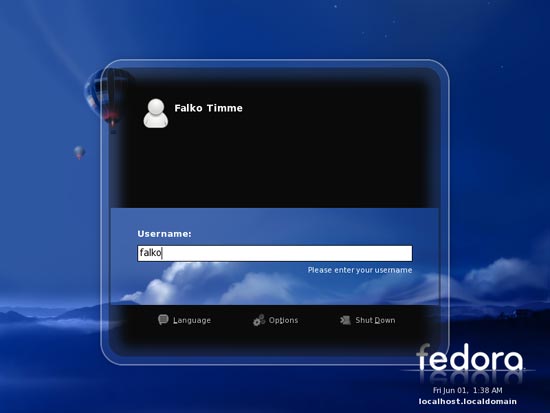
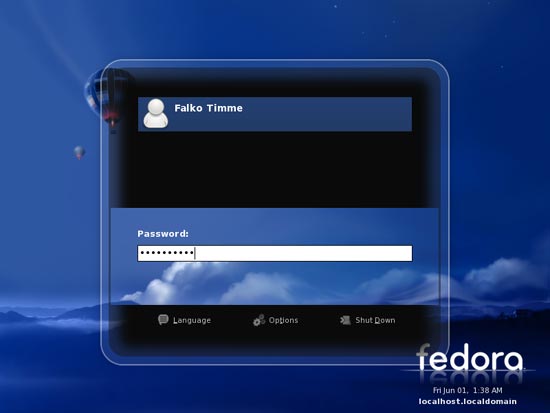
This is how your new Fedora 7 desktop looks like:
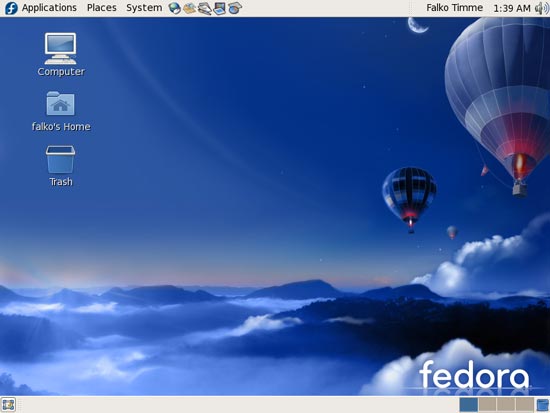
Now open a terminal (Applications > System Tools > Terminal) and become root:
su
What we do now is this: we open the configuration files for Fedora's online package repositories and disable GPG checks for downloaded packages. If we don't do this, we will get Unable to verify ... errors whenever we want to install/update a package, resulting in a failure of the whole operation.
We do this:
cd /etc/yum.repos.d
gedit fedora*
The last command will open all repository files in a text editor. Check each of them and make sure that you change all occurrences of
[...] gpgcheck=1 [...] |
to
[...] gpgcheck=0 [...] |
Most probably after a few moments a pop up will come up saying Updates Available. Of course, we want to update our system, so we click on View Updates:
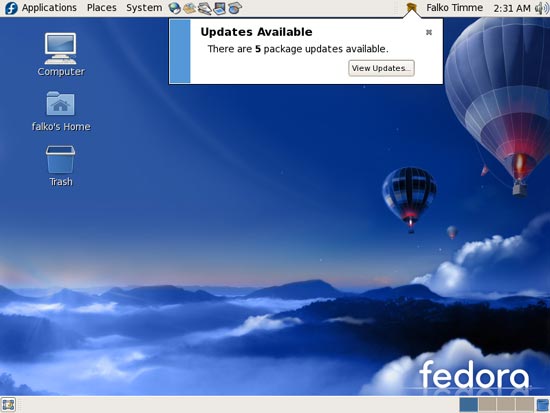
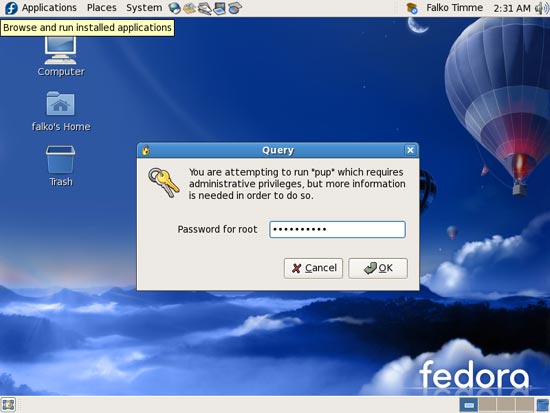
For the update we need superuser privileges, so we must type in the root password:
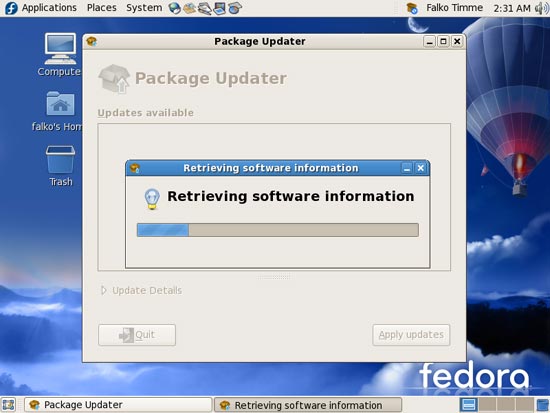
Afterwards, the package updater starts and retrieves update information:
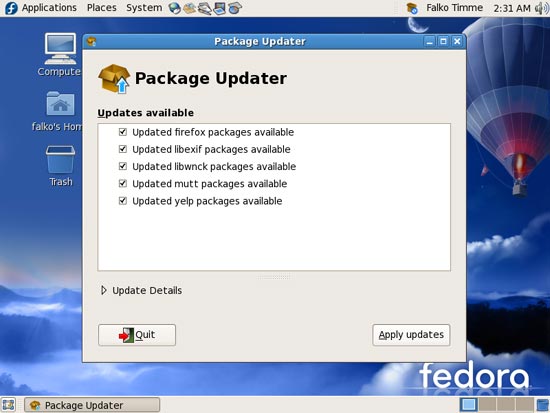
Then it shows us all packages that are available for update. Typically we will select all packages and click on Apply updates:
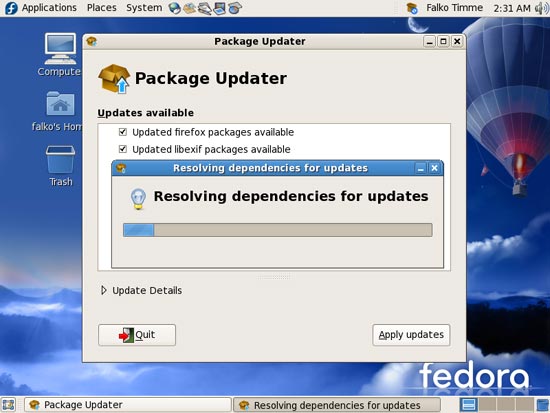
The updater resolves all dependencies (additional packages that need to be installed):
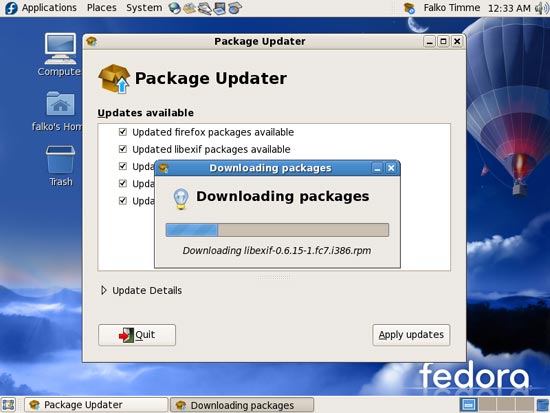
Afterwards the updater downloads all packages. Depending on how many packages have to be updated and their size this can take some time:
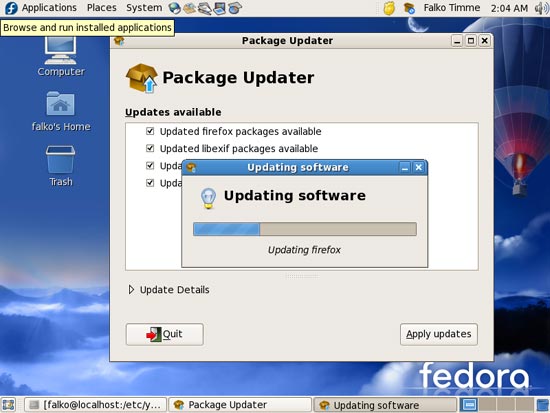
After the download of the packages has finished, the Package Updater installs the downloaded packages (and therefore updates the old packages):
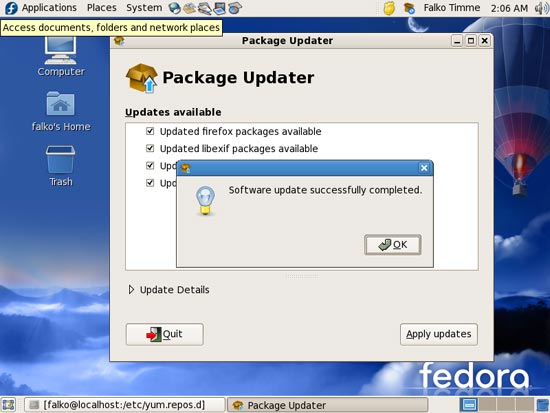
Afterwards, click on OK to leave the Package Updater. In some cases it's possible the the Package Updater asks you to do a reboot (e.g., if the kernel has been updated).
Your system is now up to date.
4 Inventory Of What We Have So Far
Now let's browse all menus under Applications to see which of our needed applications are already installed:
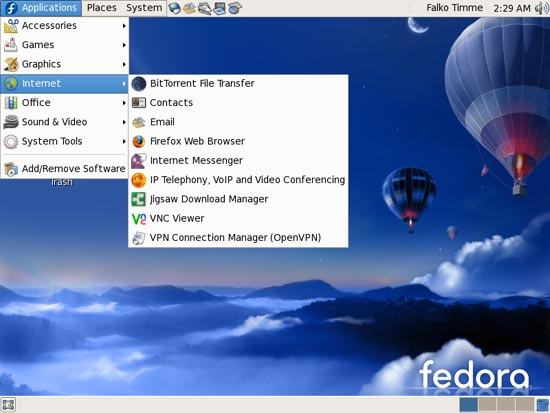
You should find the following situation ([x] marks an application that is already installed, where [ ] is an application that is missing). Some applications (such as Java) won't show up in the menus, but we know that we installed them during the initial installation of the Fedora system:
Graphics:
[x] Gimp
[ ] F-Spot
[ ] Picasa
Internet:
[x] Firefox
[ ] Opera
[ ] Flash Player
[ ] gFTP
[ ] Thunderbird
[x] Evolution
[ ] aMule
[ ] Azureus
[x] Bittorrent
[x] Pidgin
[ ] Skype
[ ] Google Earth
[ ] Xchat IRC
Office:
[x] OpenOffice Writer
[x] OpenOffice Calc
[ ] Adobe Reader
[ ] GnuCash
[ ] Scribus
Sound & Video:
[ ] Amarok
[ ] Audacity
[ ] Banshee
[ ] MPlayer
[x] Rhythmbox Music Player
[ ] gtkPod
[ ] XMMS
[ ] dvd::rip
[ ] Kino
[x] Sound Juicer CD Extractor
[ ] VLC Media Player
[ ] Real Player
[x] Totem
[ ] Xine
[ ] GnomeBaker
[ ] K3B
[ ] Multimedia-Codecs
Programming:
[ ] NVU
[ ] Bluefish
[ ] Quanta Plus
Other:
[ ] VMware Server
[ ] TrueType Fonts
[x] Java
[ ] Read/Write Support for NTFS Partitions
So some applications are already on the system...
5 Adding Software Repositories
The official Fedora repositories don't provide all the software we need. Fortunately there are also third-party repositories for Fedora 7 (mostly maintained by volunteers) that have what we need, and we can make our system use these repositories.
To do this, open a terminal window again (under Applications > System Tools > Terminal) and type in
su
to become root.
Then run
rpm -ivh http://ftp.freshrpms.net/pub/freshrpms/fedora/linux/7/freshrpms-release/freshrpms-release-1.1-1.fc.noarch.rpm
This adds the FreshRPMs repository to our package manager.
There are two other repositories that we add manually by creating the appropriate files in our gedit text editor. Still as root, run
gedit /etc/yum.repos.d/macromedia.repo
and put the following into that file and save it:
[macromedia] name=Macromedia for i386 Linux baseurl=http://macromedia.rediris.es/rpm/ #baseurl=http://macromedia.mplug.org/rpm/ #baseurl=http://sluglug.ucsc.edu/macromedia/rpm/ enabled=1 gpgcheck=1 gpgkey=http://macromedia.rediris.es/FEDORA-GPG-KEY |
Do the same with the other repository (still as root):
gedit /etc/yum.repos.d/newrpms.repo
[newrpms.sunsite.dk] name=Fedora Core 5 i386 NewRPMS.sunsite.dk baseurl=http://newrpms.sunsite.dk/apt/redhat/en/$basearch/fc$releasever #http://newrpms.atrpms.net/apt/redhat/en/$basearch/fc$releasever failovermethod=priority enabled=0 gpgcheck=1 |
Then import the software keys of the new repositories (still as root):
rpm --import http://freshrpms.net/packages/RPM-GPG-KEY.txt
rpm --import http://newrpms.sunsite.dk/gpg-pubkey-newrpms.txt





