The Perfect Desktop - Linux Mint 14 (Nadia) - Page 2
This tutorial exists for these OS versions
- Linux Mint 17.1 (Rebecca)
- Linux Mint 17 (Quiana)
- Linux Mint 15 (Olivia)
- Linux Mint 14 (Nadia)
- Linux Mint 13 (Maya)
- Linux Mint 12 (Lisa)
On this page
3 Update The System
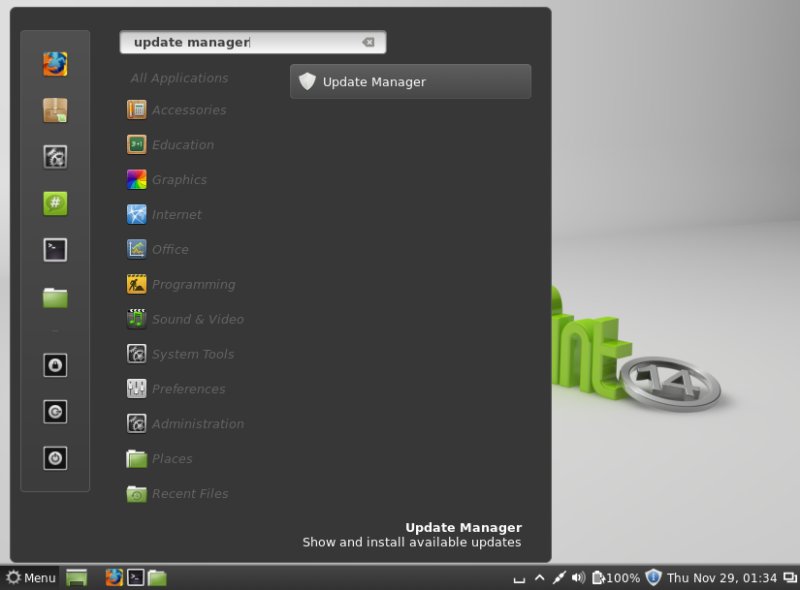
Now it's time to check for updates and install them. This is done using the Update Manager. Start it from Menu > Administration > Update Manager:
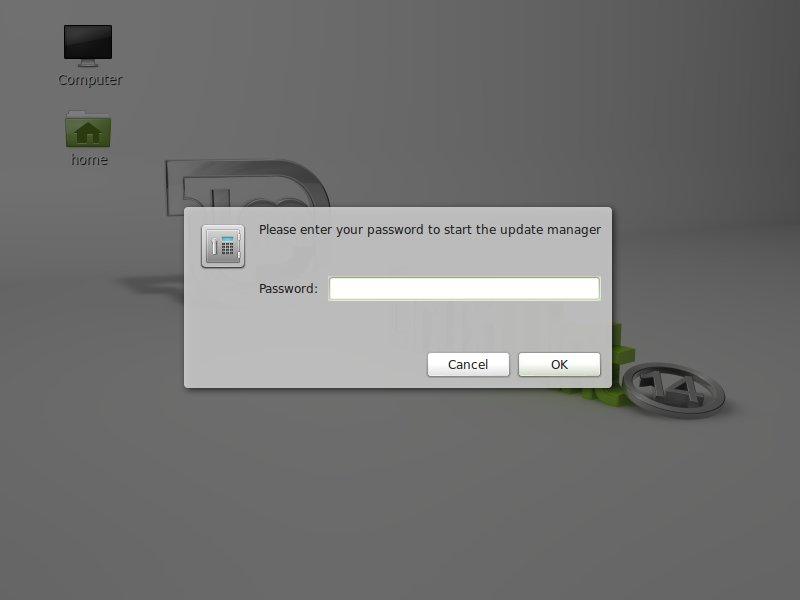
Type in your password to gain authorization:
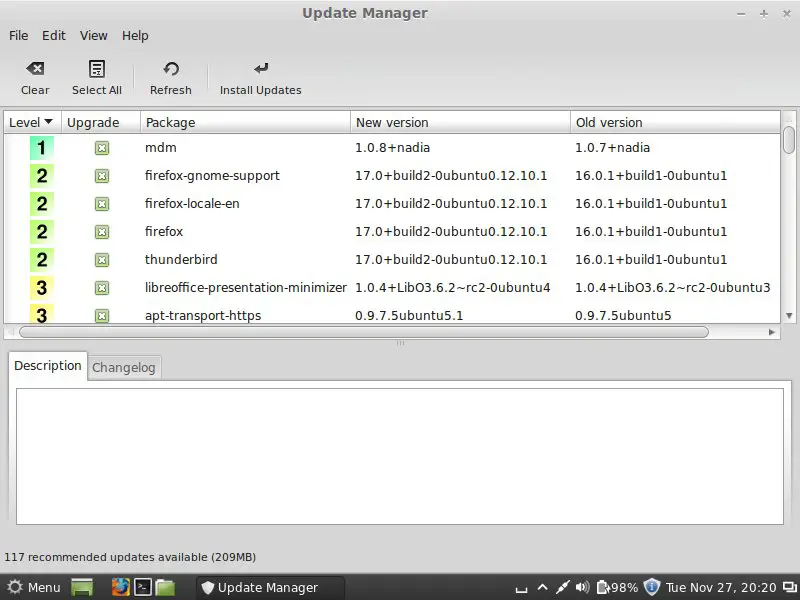
The Update Manager tells you which updates are available (you can click on the Refresh button to refresh the list). Click on Install Updates to install them:
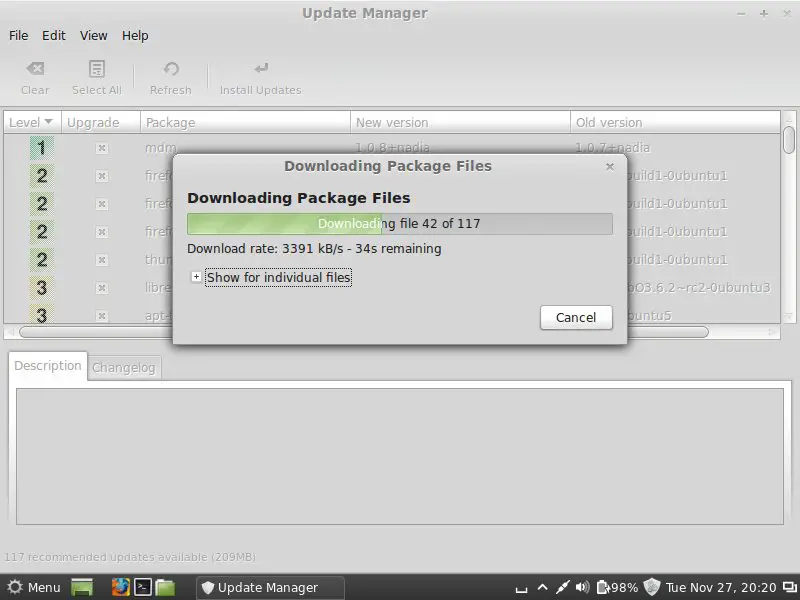
When the update is complete, click on Close (if a new kernel was amongst the updates, a system restart is required to make the changes effective).
The system is now up-to-date.
4 Flash Player And Java
Flash Player and Java should already be installed on the system.
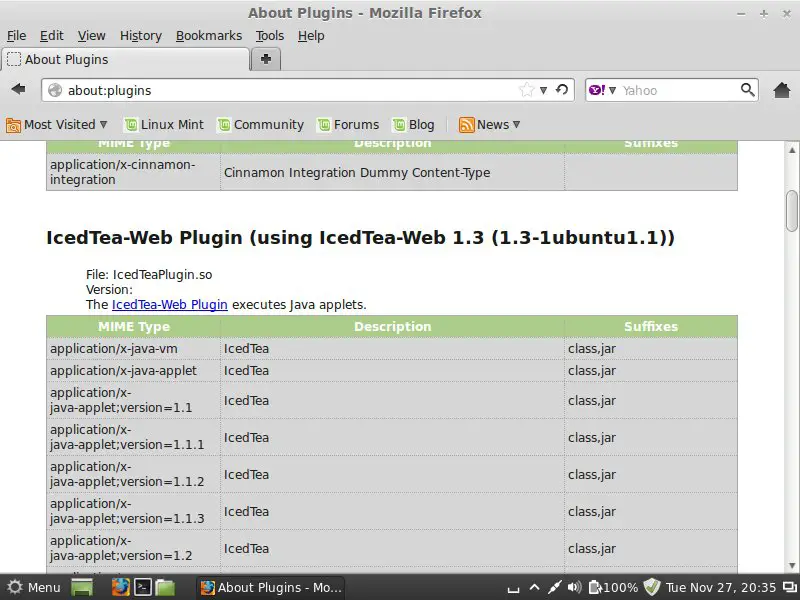
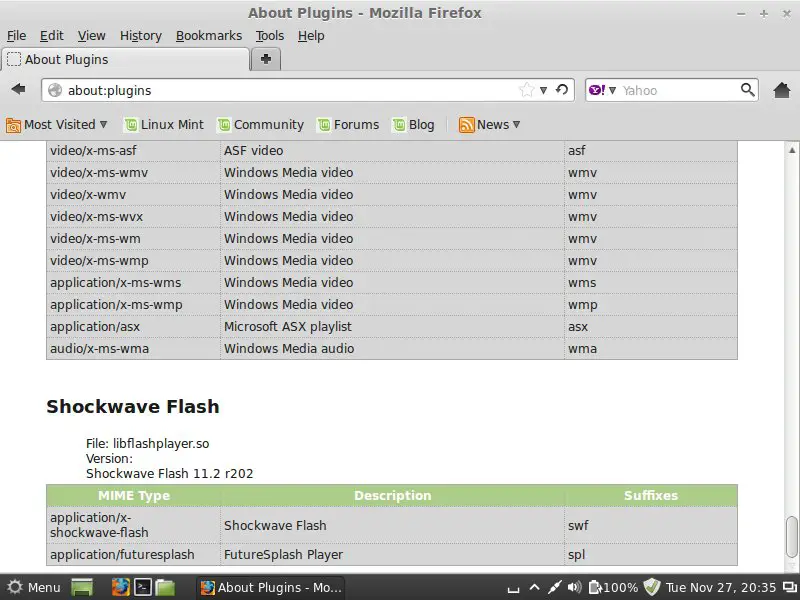
To check this, open Firefox and type about:plugins in the address bar. Firefox will then list all installed plugins, and it should list the Flash Player (version 11.2 r202) plugins among them:
5 Inventory Of What We Have So Far
Now let's browse all menus to see which of our needed applications are already installed:
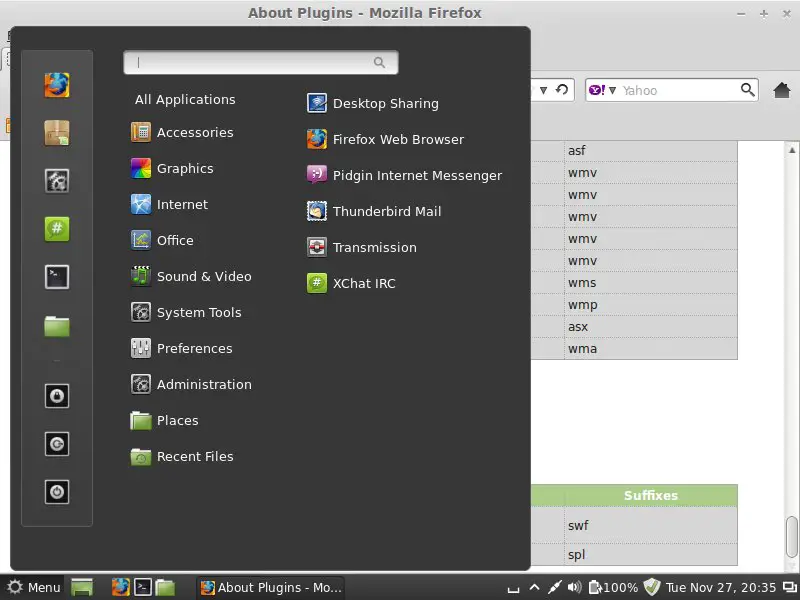
You should find the following situation ([x] marks an application that is already installed, whereas [ ] is an application that is missing):
Graphics:
[x] The GIMP
[ ] Shotwell Photo Manager
[ ] Pinta
Internet:
[x] Firefox
[ ] FileZilla
[x] Thunderbird
[ ] Deluge
[ ] Skype
[ ] Marble
[x] Pidgin
[ ] Dropbox
[ ] Gwibber Social Client
Office:
[ ] LibreOffice Writer
[ ] LibreOffice Calc
[ ] Adobe Reader
[ ] GnuCash
[ ] Scribus
Sound & Video:
[ ] Audacity
[x] Banshee
[ ] dvd::rip
[ ] Kino
[x] VLC Media Player
[ ] K3B
[ ] Multimedia-Codecs
[ ] Winff
Programming:
[ ] KompoZer
[ ] Eclipse
Other:
[ ] VirtualBox
[ ] TrueType fonts
[x] Java
[x] Read/Write support for NTFS partitions
[x] gdebi
[x] Synaptic Package Manager
[x] gedit
So some applications are already on the system. NTFS read-/write support is enabled by default on Mint 14.
6 Install Additional Software
To install additional applications, open the Synaptic Package Manager (Menu > Administration > Synaptic Package Manager):
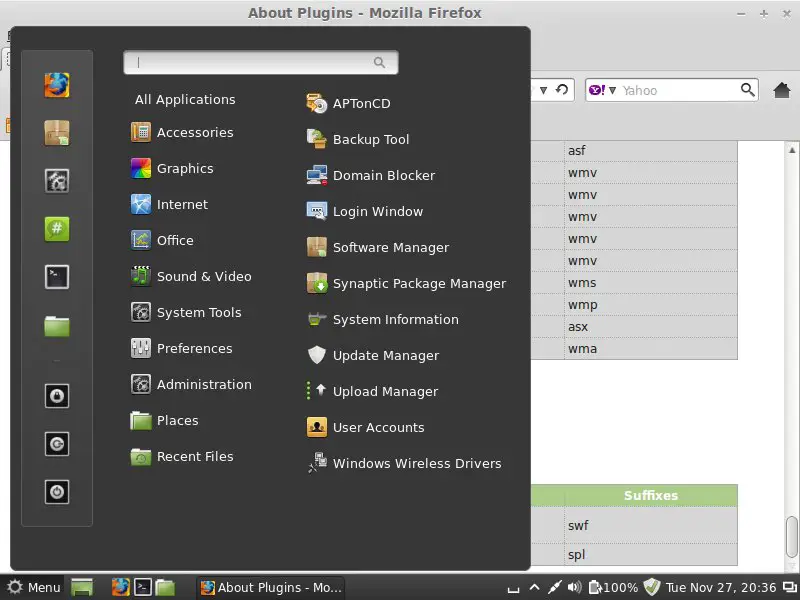
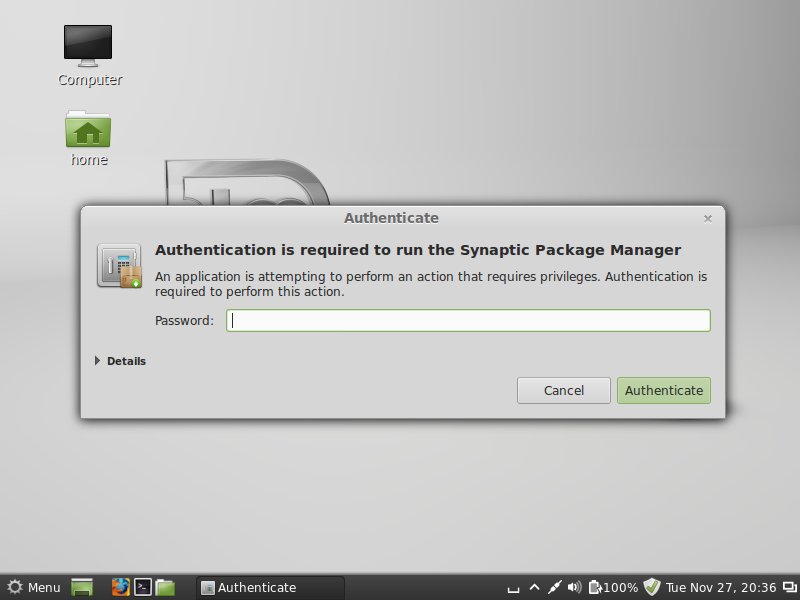
Type in your password:
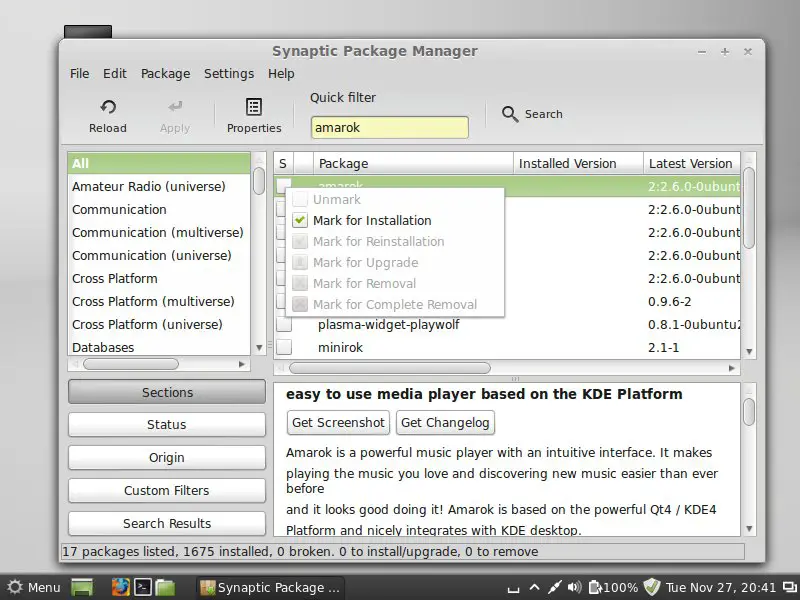
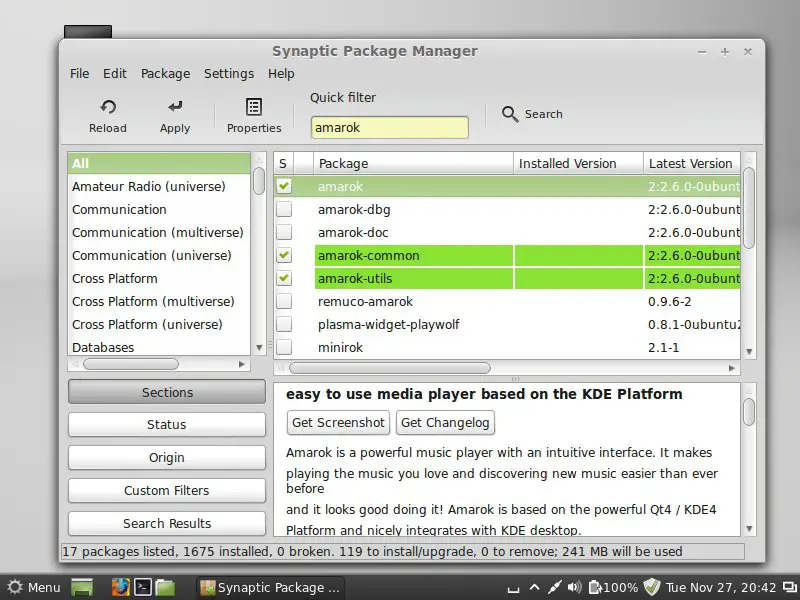
In Synaptic Package Manager we can install additional software. You can use the Quick filter field to find packages. To select a package for installation, click on the checkbox in front of it and select Mark for Installation from the menu that comes up:
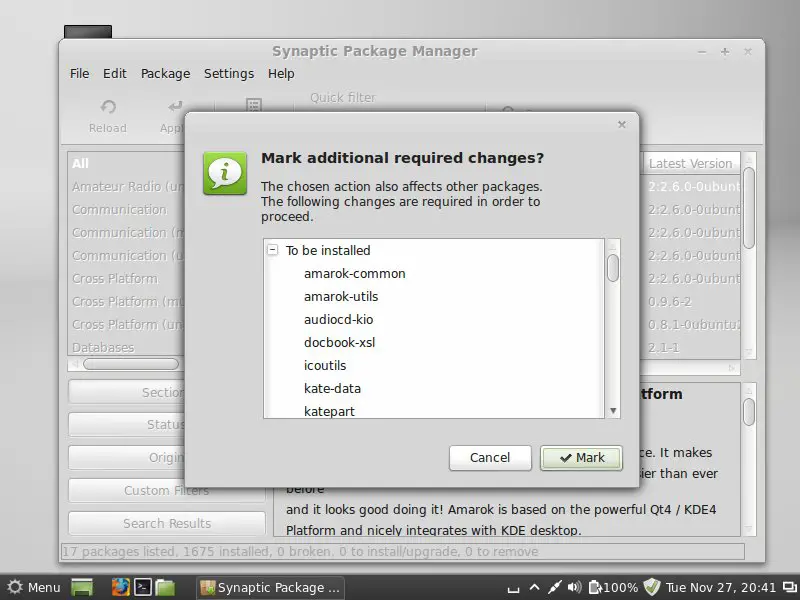
If a package has a dependency that needs to be satisfied, a window will pop up. Accept the dependencies by clicking on Mark:
The following packages need to be installed if you want the applications of the above primary choice (* is a wildcard; e.g. openjdk-6* means all packages that start with openjdk-6):
- flashplugin-installer
- audacity
- dvdrip
- filezilla
- ttf-mscorefonts-installer
- gnucash
- k3b
- kino
- eclipse
- scribus
- mozilla-plugin-vlc
- non-free-codecs
- ubuntu-restricted-extras
- virtualbox-ose
- skype
- shotwell
- pinta
- deluge
- dropbox-nautilus
- marble
- libreoffice
- winff
- openjdk-7*
- gwibber
These are the packages for all the other possible alternative applications (you don't need to install them if you are happy with the above selection):
- chromium-browser
- opera
- amarok
- vuze
- bluefish
- gtkpod
- mplayer
- smplayer
- xmms2*
- sound-juicer
- rhythmbox
- xine-plugin
- evolution
- googleearth
- soundconverter
- soundkonverter
- kolourpaint4
- mypaint
- qbittorrent
- okular
- clementine
- exaile
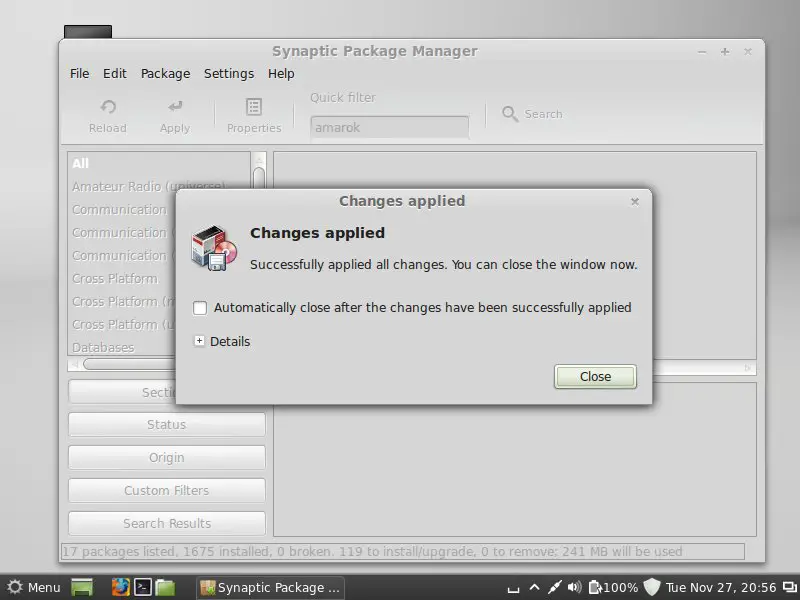
After you've selected the desired packages, click on the Apply button.
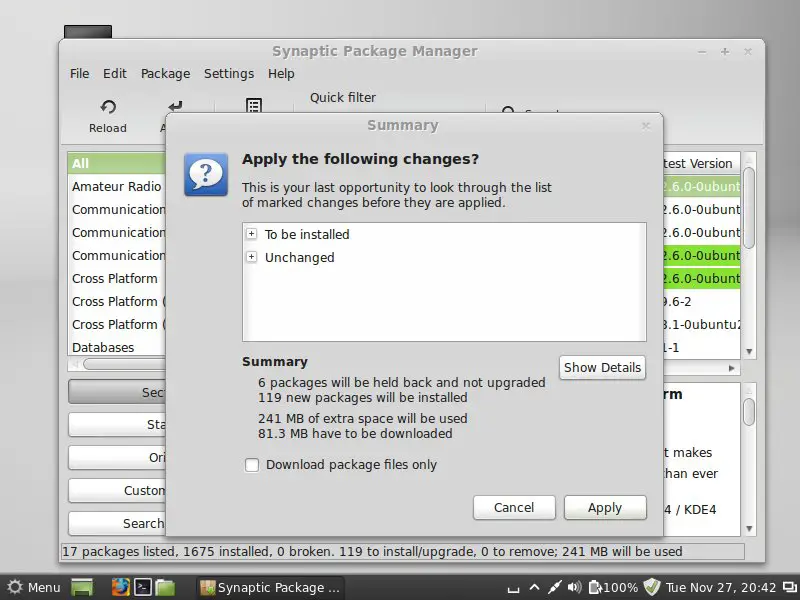
Confirm your selection by again clicking on Apply:
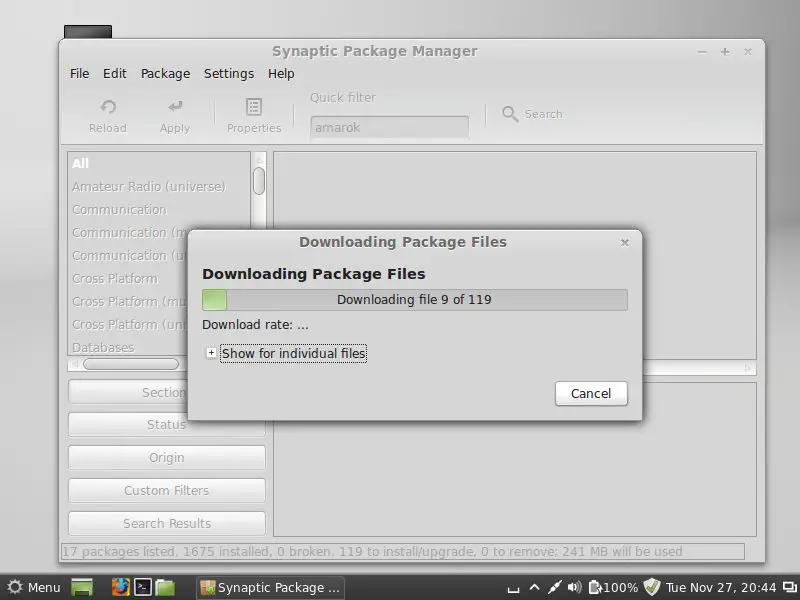
The packages are now being downloaded from the repositories and installed. This can take a few minutes, so please be patient:
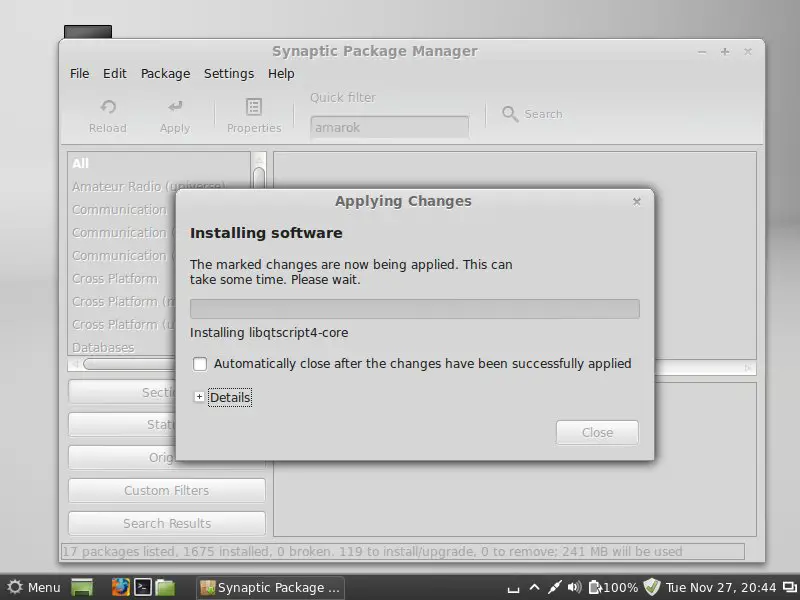
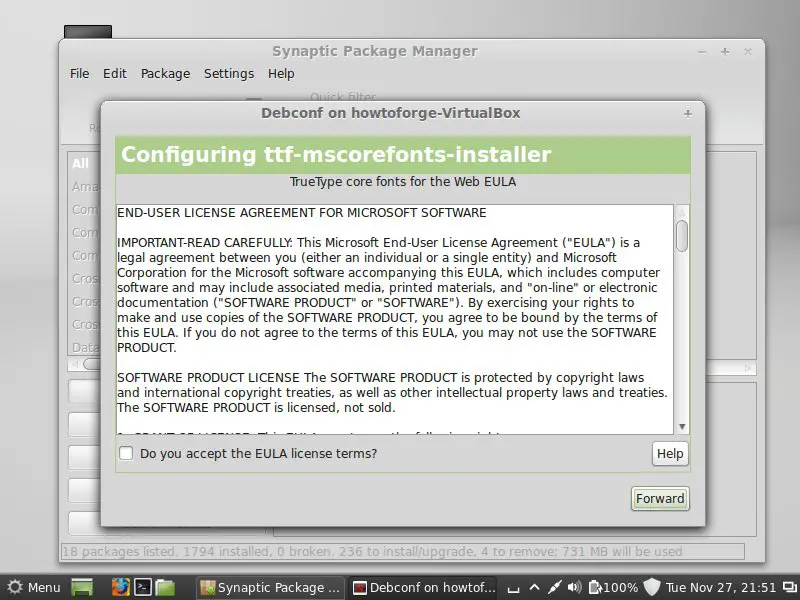
You might have to answer a few questions. Accept the licenses and proceed:
After all packages have been installed, click on Close: