Key-Based SSH Logins With PuTTY - Page 3
7 Attach The Private Key To The PuTTY Profile
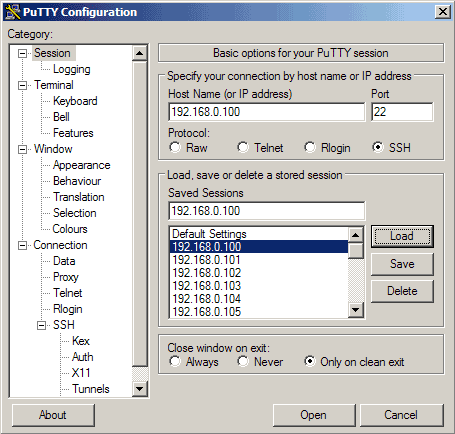
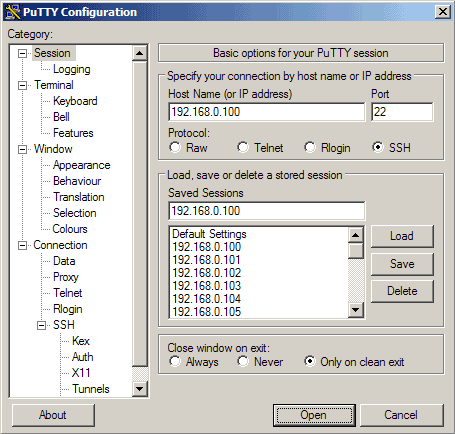
Now launch PuTTY again and load the profile of your SSH server (192.168.0.100):
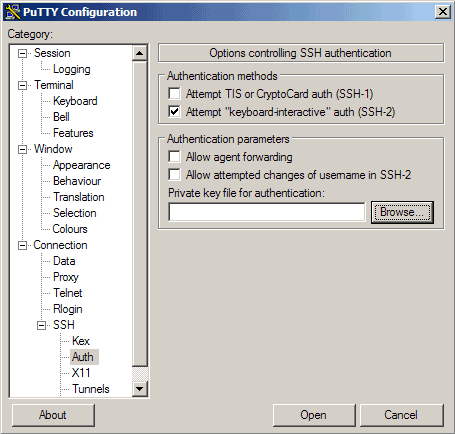
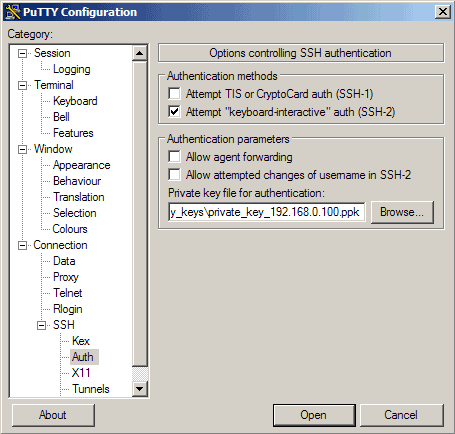
Then go to SSH -> Auth and click on Browse:
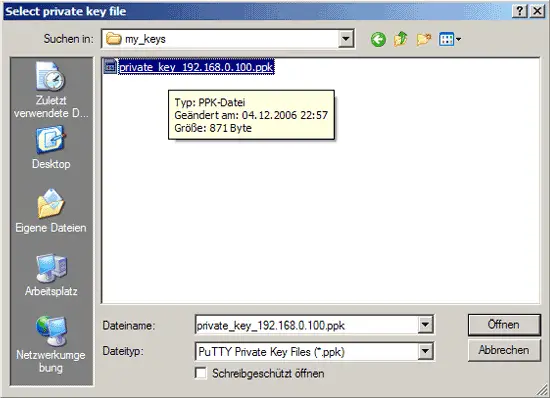
Browse your file system and select your previously created private key:
Then go to Session again and click on Save:
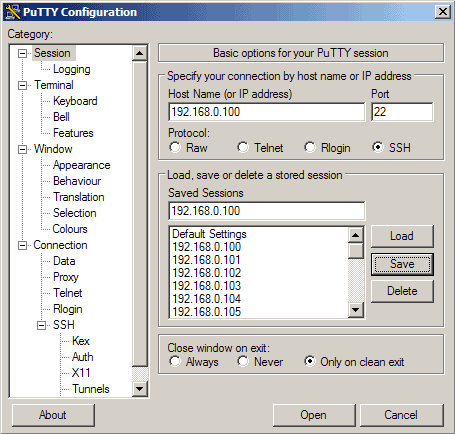
Now we have attached the private key to our 192.168.0.100 PuTTY profile.
8 Our First Key-Based Login
Now everything is ready for our first key-based login to our SSH server. Click on Open:
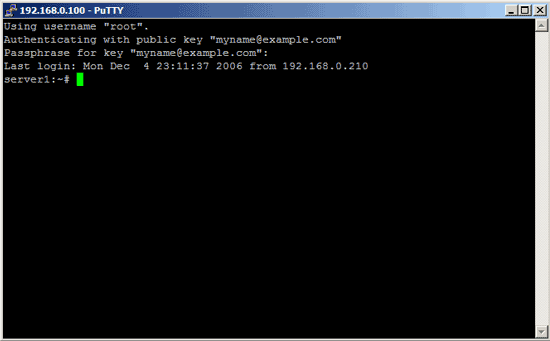
As you can see, the public key is now used for authentication, and you are asked for the passphrase (the one you specified in chapter 5):