
Key-Based SSH Logins With PuTTY
This guide describes how to generate and use a private/public key pair to log in to a remote system with SSH using PuTTY. PuTTY is an SSH client that is available for Windows and Linux (although it is more common on Windows systems). Using key-based SSH logins, you can disable the normal username/password login procedure which means that only people with a valid private/public key pair can log in. That way, there is no way for brute-force attacks to be successful, so your system is more secure.
1 Preliminary Note
In this tutorial, I use a Windows desktop to connect to a Linux SSH server (Debian with IP address: 192.168.0.100).
2 Install PuTTY, PuTTYgen, And Pageant On The Windows System
First, we need to install PuTTY, PuTTYgen, and Pageant on our Windows system. All we need to do is download the executable files (.exe) and save them somewhere, e.g. on the desktop. We don't need to install them as they are standalone applications. To start them, we only need to double-click them.
Download the following files from the PuTTY download page and save them on your Windows system, e.g. on the desktop:
- http://the.earth.li/~sgtatham/putty/latest/x86/putty.exe
- http://the.earth.li/~sgtatham/putty/latest/x86/puttygen.exe
- http://the.earth.li/~sgtatham/putty/latest/x86/pageant.exe

3 Create A Profile With Settings For Our 192.168.0.100 Server
In PuTTY, you can create profiles for connections to your various SSH servers, so you don't have to type in the settings again when you want to connect to a certain server again.
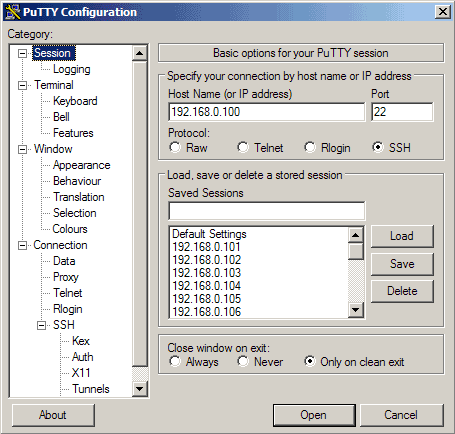
Let's create a profile for our 192.168.0.100 server. Start PuTTY by double-clicking its executable file. You are now in the category Session (see the tree on the left side of the screenshot). Enter 192.168.0.100 under Host Name (or IP address), enter 22 under Port and select SSH under Protocol:
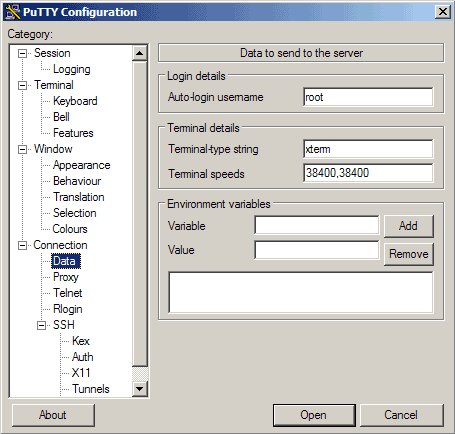
Then go to Connection -> Data and specify the username with that you want to log in to your SSH server under Auto-login username. In this article I use root:
Then go to Session again. Under Saved Sessions enter a name for the profile, e.g. 192.168.0.100 or any other string that lets you remember for which server the profile is. Then click on Save:
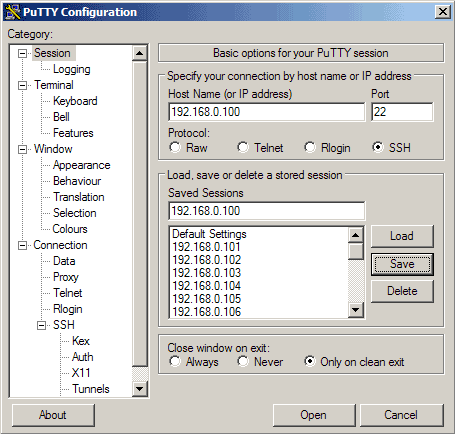
The next time you use PuTTY, you can simply select the appropriate profile from the Saved Sessions textarea, click on Load and then Open.





