
Using Sharp Fonts On A GNOME Desktop - Page 2
On this page
3 Configure X And GNOME
First we must configure X to use 96 dpi by modifying /etc/X11/xorg.conf. Open a terminal and run
sudo cp /etc/X11/xorg.conf /etc/X11/xorg.conf.bak
sudo gedit /etc/X11/xorg.conf
Search for the monitor section (Section "Monitor"). Put the following lines at the end of that section:
#    DisplaySize    270    203    # 1024x768 96dpi
#    DisplaySize    338    254    # 1280x960 96dpi
#    DisplaySize    338    270    # 1280x1024 96dpi
#    DisplaySize    370    277    # 1400x1050 96dpi
#    DisplaySize    423    370    # 1600x1400 96dpi
If you have another screen resolution than the ones listed above, please add a line for your resolution. You can calculate the DisplaySize like this:
displaysize = (<pixelsize>/96)*25.4
Then uncomment the line that suits your screen resolution. If you have a resolution of 1024x768 pixels, the monitor section should look like this in the end:
[...]
Section "Monitor"
        Identifier        "Generic Monitor"
        Option                "DPMS"
        HorizSync        28-51
        VertRefresh        43-60
        DisplaySize    270    203    # 1024x768 96dpi
#       DisplaySize    338    254    # 1280x960 96dpi
#       DisplaySize    338    270    # 1280x1024 96dpi
#       DisplaySize    370    277    # 1400x1050 96dpi
#       DisplaySize    423    370    # 1600x1400 96dpi
EndSection
[...]
|
Then reboot the system:
sudo shutdown -r now
After the system has come up again, open a terminal again and run the following commands:
xdpyinfo | grep dimensions
The output should display the correct screen resolution, like this:
falko@falko-desktop:~$ xdpyinfo | grep dimensions
  dimensions:    1024x768 pixels (271x203 millimeters)
xdpyinfo | grep resolution
This should show that X is now using 96 dpi:
falko@falko-desktop:~$ xdpyinfo | grep resolution
  resolution:    96x96 dots per inch
Now we must tell GNOME to use 96 dpi. Go to System > Preferences > Font:
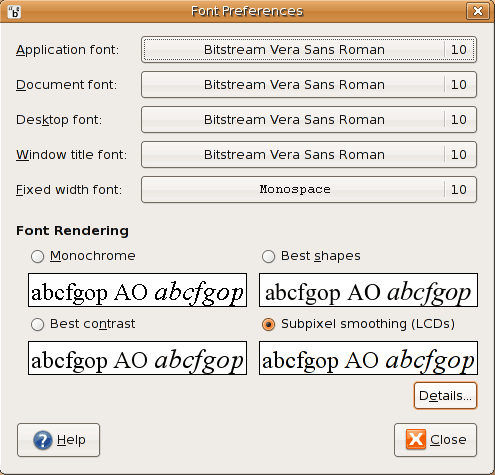
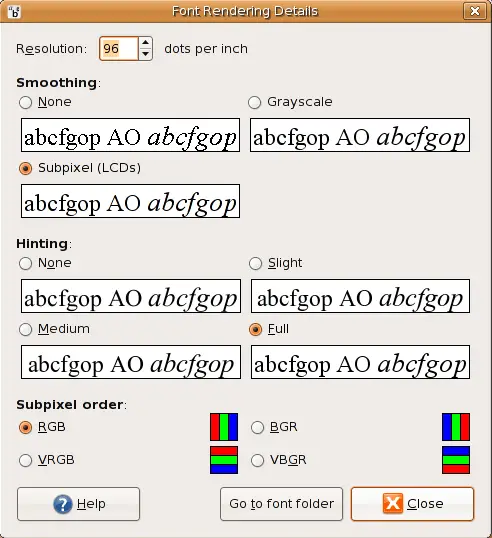
Click on the Details button. The following window comes up where you must select 96 dpi as resolution (usually this is already the default value):
4 Install Microsoft Fonts
To install Microsoft fonts on your system, please make sure that the Ubuntu universe and multiverse repositories are enabled in /etc/apt/sources.list:
sudo gedit /etc/apt/sources.list
For Ubuntu Edgy Eft, you should have the following lines in that file (please use a repository that is close to you):
[...] deb http://de.archive.ubuntu.com/ubuntu/ edgy universe deb-src http://de.archive.ubuntu.com/ubuntu/ edgy universe deb http://de.archive.ubuntu.com/ubuntu/ edgy multiverse deb-src http://de.archive.ubuntu.com/ubuntu/ edgy multiverse [...] |
And for Ubuntu Feisty Fawn, the lines should look like this:
[...] deb http://de.archive.ubuntu.com/ubuntu/ feisty universe deb-src http://de.archive.ubuntu.com/ubuntu/ feisty universe deb http://de.archive.ubuntu.com/ubuntu/ feisty multiverse deb-src http://de.archive.ubuntu.com/ubuntu/ feisty multiverse [...] |
If you had to modify /etc/apt/sources.list, please run this command to update the packages database:
sudo apt-get update
Then install the Microsoft fonts:
sudo apt-get install msttcorefonts
In the next step we must copy the Tahoma fonts (which aren't included in the msttcorefonts package) from our Windows system to our Linux system and register the new Tahoma fonts.
First we create a new directory for the Tahoma fonts:
sudo mkdir /usr/share/fonts/truetype/custom
Then copy the files tahoma.ttf and tahomabd.ttf from the C:\WINDOWS\Fonts directory on your Windows system to /usr/share/fonts/truetype/custom/ (e.g. with a USB stick).
Next create the file /etc/defoma/hints/custom.hints:
sudo gedit /etc/defoma/hints/custom.hints
category truetype begin /usr/share/fonts/truetype/custom/tahoma.ttf Family = Tahoma FontName = Tahoma-Regular Encoding = Unicode Location = Magyar Dutch Spanish Czech Russian English Catalan Slovak Italian Turkish Danish Slovenian Basque Portuguese German Polish Swedish Norwegian French Finnish Greek Charset = ISO8859-1 ISO8859-2 ISO8859-3 ISO8859-4 ISO8859-5 ISO8859-7 ISO8859-9 ISO8859-10 ISO8859-13 ISO8859-14 ISO8859-15 KOI8-R KOI8-U CP1251 VISCII1.1-1 TCVN-5712 ISO10646-1 UniCharset = ISO8859-1 ISO8859-2 ISO8859-3 ISO8859-4 ISO8859-5 ISO8859-7 ISO8859-9 ISO8859-10 ISO8859-13 ISO8859-14 ISO8859-15 KOI8-R KOI8-U CP1251 VISCII1.1-1 TCVN-5712 GeneralFamily = SansSerif Weight = Medium Width = Variable Shape = NoSerif Upright Foundry = Microsoft Priority = 20 end begin /usr/share/fonts/truetype/custom/tahomabd.ttf Family = Tahoma FontName = Tahoma-Bold Encoding = Unicode Location = Magyar Dutch Spanish Czech Russian English Catalan Slovak Italian Turkish Danish Slovenian Basque Portuguese German Polish Swedish Norwegian French Finnish Greek Charset = ISO8859-1 ISO8859-2 ISO8859-3 ISO8859-4 ISO8859-5 ISO8859-7 ISO8859-9 ISO8859-10 ISO8859-13 ISO8859-14 ISO8859-15 KOI8-R KOI8-U CP1251 VISCII1.1-1 TCVN-5712 ISO10646-1 UniCharset = ISO8859-1 ISO8859-2 ISO8859-3 ISO8859-4 ISO8859-5 ISO8859-7 ISO8859-9 ISO8859-10 ISO8859-13 ISO8859-14 ISO8859-15 KOI8-R KOI8-U CP1251 VISCII1.1-1 TCVN-5712 GeneralFamily = SansSerif Weight = Bold Width = Variable Shape = NoSerif Upright Foundry = Microsoft Priority = 20 end |
Afterwards, we register our new fonts:
sudo /usr/bin/defoma-font -v register-all /etc/defoma/hints/custom.hints
sudo dpkg-reconfigure fontconfig





