
Step-by-Step IPP based Print Server using CUPS
This tutorial describes how to install a Linux print server with CUPS. It also covers the installation and configuration of printer drivers on the print server as well as the printer setup on a Windows 2000 client.
Contents:
1. IPP Server Setup
2. Installation/Configuration of printer drivers
3. IPP Client Setup
1. IPP Server Setup
Step #1 - Installing CUPS Service
# su root
# yum install cups*
Step #2 - Configuring CUPS
# vi /etc/cups/cupsd.conf
The default CUPS configuration limits administration to the local machine. To open up access, edit the /etc/cups/cupsd.conf and comment out the lines reading:
The Below lines restricts web administration access to localhost
Comment lines 842, 843, 844 so it should look like this
      Order deny,allow
      Deny from all
      Allow from 127.0.0.1
To disable password authentication you need to edit the /etc/cups/cupsd.conf file and comment out the lines reading:
The Below lines restricts the printer access to system users
Comment lines 838, 839 so the user can print without authentication
      AuthType Basic
      AuthClass System
Step #3 - Restart the CUPS server
# service cups restart
Step #4 - Run the steps described in "IPP_PrintDrivers_Setup" document
Step #5 - Restart the CUPS Service
# service cups restart
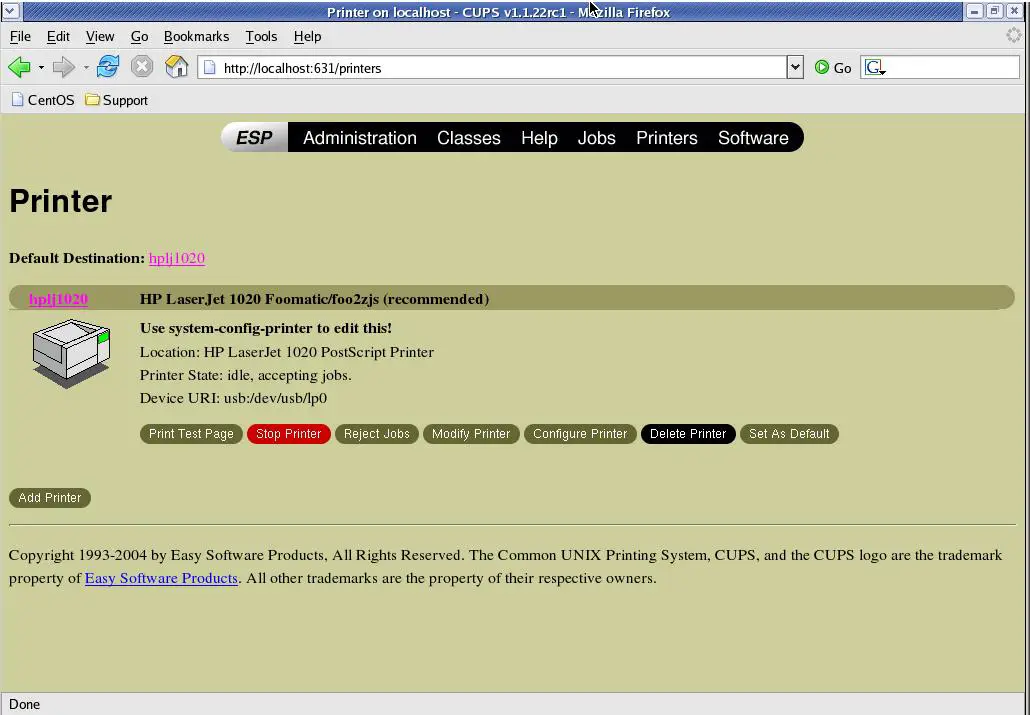
Step #6 – If required the CUPS can be managed with
http://localhost:631 - on local system
or
http://192.168.6.210:631 - on remote system (Replace the IP)
Note: Here IP: 192.168.6.210 is for the example use your own
Step #6 – Run the steps described in “IPP_Client_Setup” document
Step #7 - Trouble shooting CUPS
If you find the error message in the log file /var/log/cups/error_log:
print_job: Unsupported format 'application/octet-stream'!
Hint: Do you have the raw file printing rules enabled?
Soluation: uncomment the line in the /etc/cups/mime.types file:
application/octet-stream
and in the /etc/cups/mime.convs file:
application/octet-stream application/vnd.cups-raw
If the CUPS is installed with public IP, port 631 should be enabled on proxy/squid/router level
If the CUPS is installed with a private IP and wants to print from anywhere, we need to configure port forwarding at router end and router should configured with a public ip so that the print service can be used with http://publicIP:631/printers/printername and router will forward packets to localip:631.





