
How To Set Up An SSL Vhost Under Apache2 On Ubuntu 9.10/Debian Lenny - Page 3
7 Configure Firefox To Trust CAcert.org (Optional)
If you use a CAcert.org certificate, your browser most likely doesn't trust this certificate and will show a warning. This chapter explains how you can import the CAcert.org root certificate into Firefox so that it won't show this warning anymore (please read http://wiki.cacert.org/BrowserClients for other browsers like MSIE, Safari or Opera).
Please note that if you run an e-commerce web site, you should better buy a certificate from a trusted CA because you can't ask all your visitors to reconfigure their browsers.
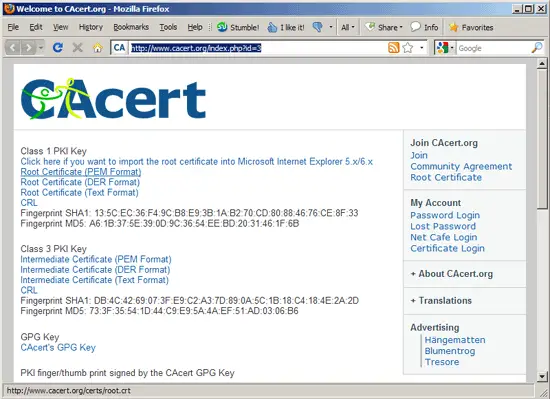
Please visit http://www.cacert.org/index.php?id=3 and click on the Root Certificate (PEM Format) link (http://www.cacert.org/certs/root.crt):
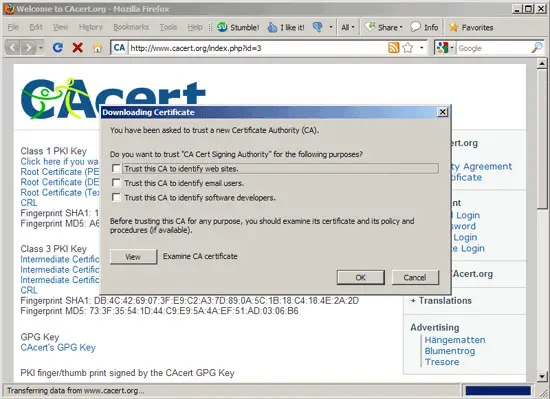
The Downloading Certificate dialogue opens. Click on View to examine the certificate:
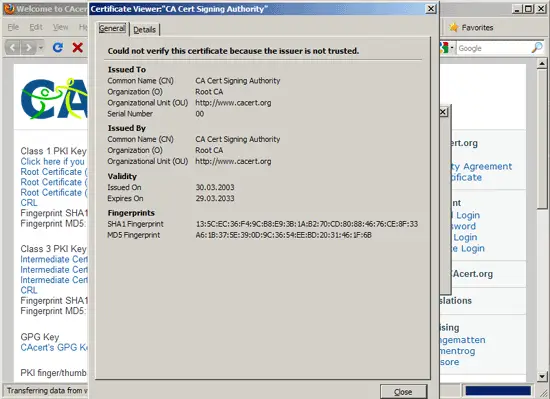
Please make sure that the fingerprints are as follows:
SHA1 Fingerprint: 135C EC36 F49C B8E9 3B1A B270 CD80 8846 76CE 8F33
MD5 Fingerprint: A6:1B:37:5E:39:0D:9C:36:54:EE:BD:20:31:46:1F:6B
Click on Close afterwards:
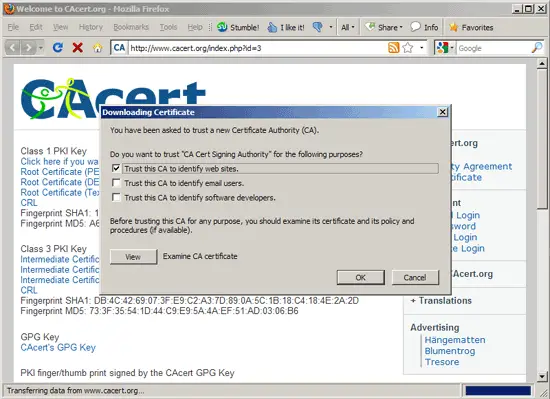
Next check Trust this CA to identify web sites. and click on OK:
Now go to Tools > Options...
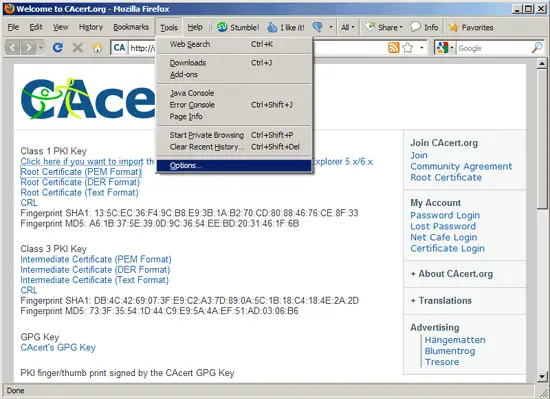
... and then to Advanced > Encryption. Click on Revocation Lists:
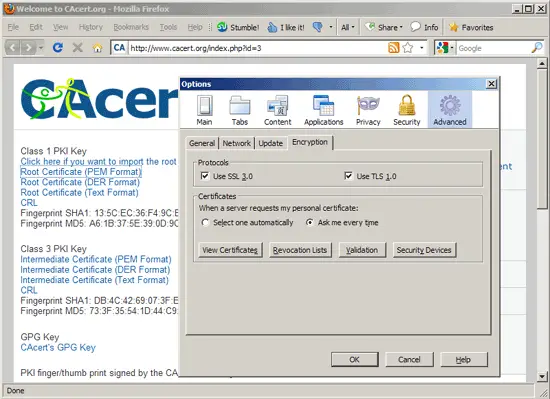
The Manage CRLs window opens. Click on Import...:
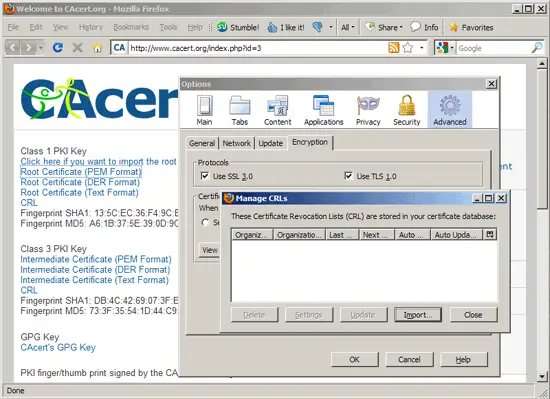
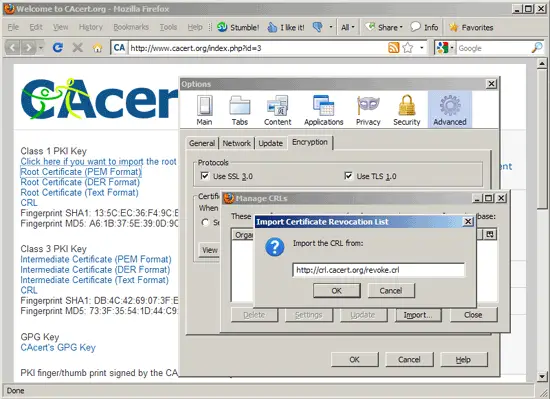
Fill in the following URL and click on OK: http://crl.cacert.org/revoke.crl
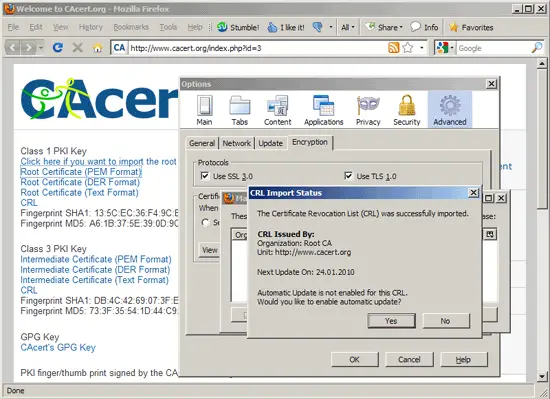
After a few moments you should see the following message. Click on Yes to enable automatic updates:
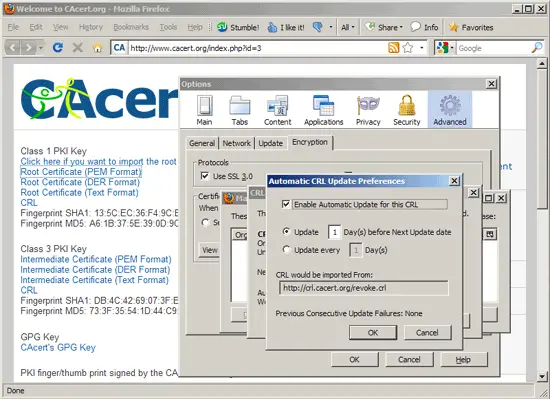
Check Enable Automatic Update for this CRL and click on OK:
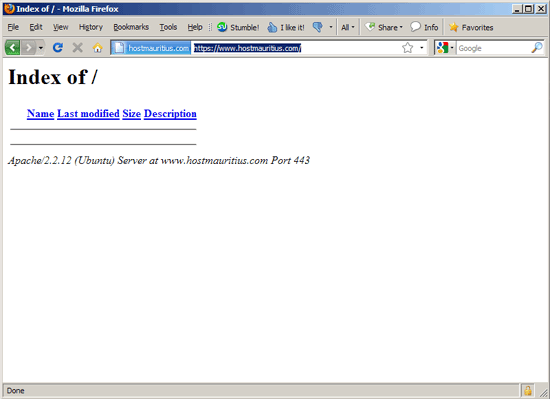
That's it. You should now be able to go to your SSL vhost without getting a browser warning:
8 Links
- Apache: http://httpd.apache.org/
- mod_ssl: http://httpd.apache.org/docs/2.0/mod/mod_ssl.html
- OpenSSL: http://www.openssl.org/
- CACert.org: http://www.cacert.org/
- Ubuntu: http://www.ubuntu.com/
- Debian: http://www.debian.org/





