
How To Configure Remote Access To Your Ubuntu Desktop
On this page
This guide explains how you can enable a remote desktop on an Ubuntu desktop so that you can access and control it remotely. This makes sense for example if you have customers that are not very tech-savvy. If they have a problem, you can log in to their desktops without the need to drive to their location. I will also show how to access the remote Ubuntu desktop from a Windows client and an Ubuntu client.
1 Preliminary Note
I have updated and tested this guide on an Ubuntu 17.04 (Zesty Zapus) desktop and Ubuntu 16.04 LTS.
2 Enabling The Remote Desktop
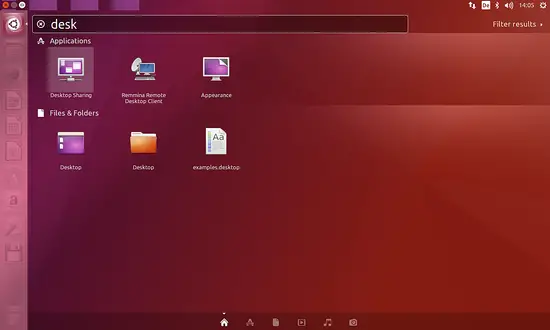
We don't have to install anything to enable the remote desktop on Ubuntu. All we have to do is go to Search your computer, enter the word "desk" and click on Desktop Sharing:
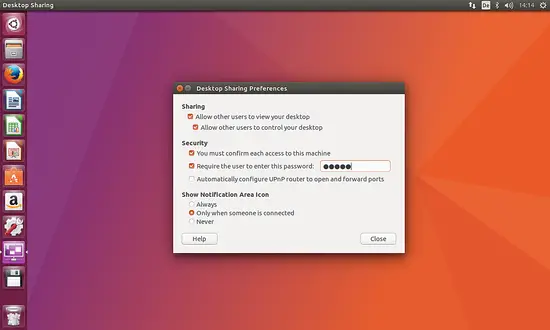
In the Desktop Sharing window, you can configure the remote desktop connection. If you want others to just see your desktop, but not be able to make changes, enable Allow other users to view your desktop only. If they should be able to change settings (e.g. repair your system if there are problems), enable Allow other users to control your desktop as well.
There are various VNC clients available. The command that I use on other Linux clients to connect to your desktop is 'remmina'.
remmina
Then there are the security settings. If someone connects to your desktop and you want to be able to block or allow that connection, enable Ask you for confirmation. This makes sense only if someone is actually sitting in front of the system. If you want to connect to your office desktop or any other sysem that only you have access to, then don't enable this option.
But what you should do is set a password for your remote desktop (without a password anyone who happens to find out your system's address - e.g. by scanning the network - can access your desktop):
That's it - the remote desktop can now be used!
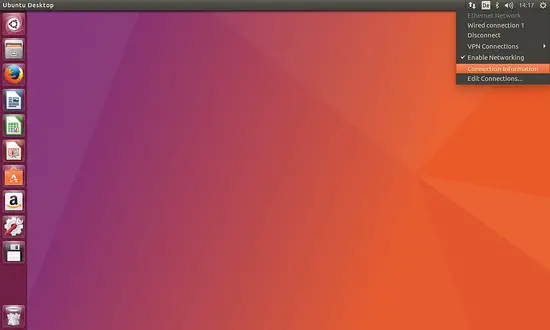
You can use the hostname of your computer (in my case 'falko-desktop') for the connection or the IP address. To avoid problems when the computer name (falko-desktop) cannot be resolved in the network, it's a good idea to find out the system's IP address and use that one instead in the remmina command. Right-click on the network icon (the two monitors) in the upper right corner and select Connection Information:
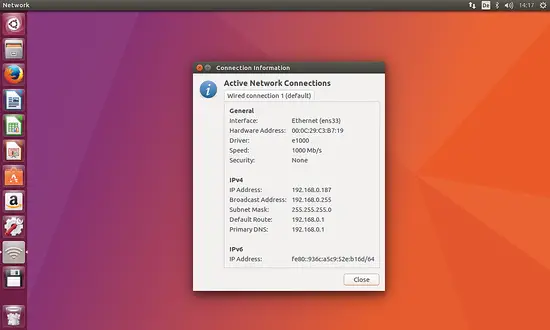
A window with details about your current network configuration opens. In it you can find your IP address (192.168.0.187 in my case) - write it down somewhere:
If you want to connect to your desktop from outside your network, you must use your router's public IP address (or get yourself a free hostname from dyndns.org pointing to your router's public IP address). Port 5900 (which is used by the remote desktop) must be open in the firewall, and your router must forward port 5900 to the Ubuntu desktop.
If you plan to connect to the Ubuntu Desktop from Windows systems on your local network with RealVNC, then you might have to disable encryption for the connection with the following command:
gsettings set org.gnome.Vino require-encryption false
Otherwise, you will get an error in RealVNC client about an incompatible encryption Mechanism. Then reboot the desktop PC to apply the changes.





