This tutorial exists for these OS versions
- Ubuntu 14.10 (Utopic Unicorn)
- Ubuntu 13.10 (Saucy Salamander)
- Ubuntu 14.04 LTS (Trusty Tahr)
- Ubuntu 13.04 (Raring Ringtail)
- Ubuntu 12.10 (Quantal Quetzal)
- Ubuntu 12.04 LTS (Precise Pangolin)
On this page
The Perfect Desktop - Ubuntu 7.10 "Gutsy Gibbon"
Version 1.0
Author: Oliver Meyer <o [dot] meyer [at] projektfarm [dot] de>
This document describes how to set up an Ubuntu 7.10 "Gutsy Gibbon" desktop. The result is a fast, secure and extendable system that provides all you need for daily work and entertainment. About 23.000 packages are available in the repositories.
This howto is a practical guide without any warranty - it doesn't cover the theoretical backgrounds. There are many ways to set up such a system - this is the way I chose.
1 Installation
1.1 Get Ubuntu 7.10 "Gutsy Gibbon"
The CD image is available at http://www.ubuntu.com/getubuntu/download.
1.2 Live
Start/restart your computer and insert the Live-CD - be sure that your bios is configured to boot from your CD/DVD drive first. If there are no special reasons to do something else, select "Start or install Ubuntu" in the first window to boot the Live-CD.
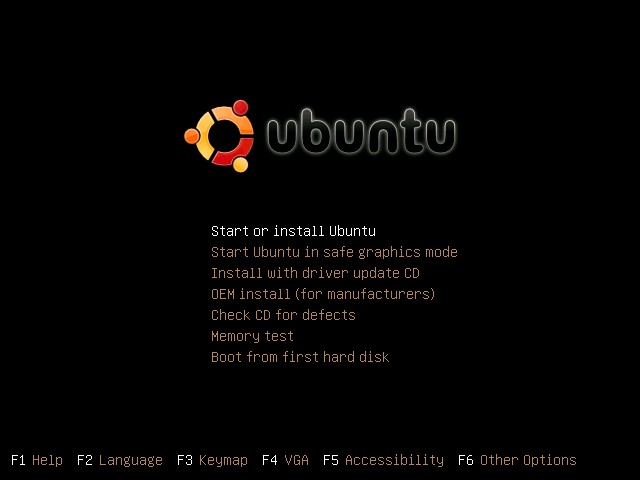
The Live-CD is starting up.
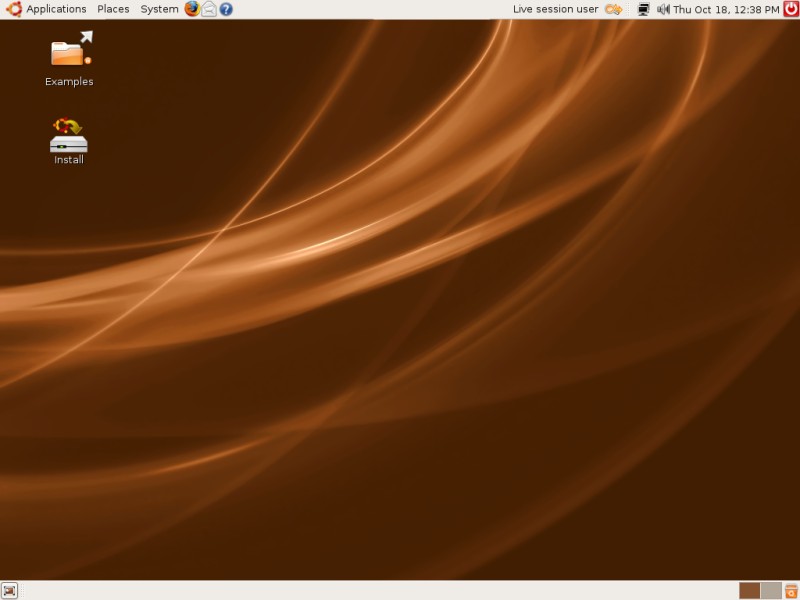
A few moments later you'll see the desktop.
1.3 Start The Installation
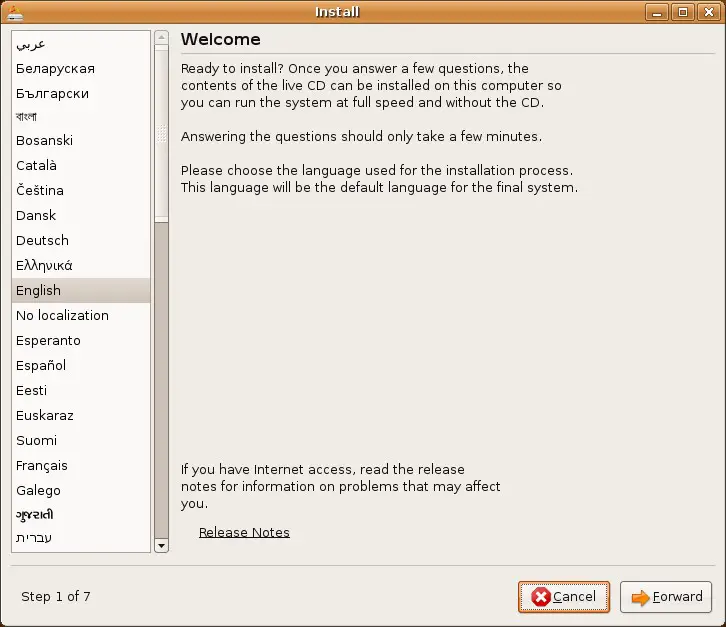
Double-click on the "Install"-button on the desktop. The install wizard appears. Choose your preferred language and proceed.
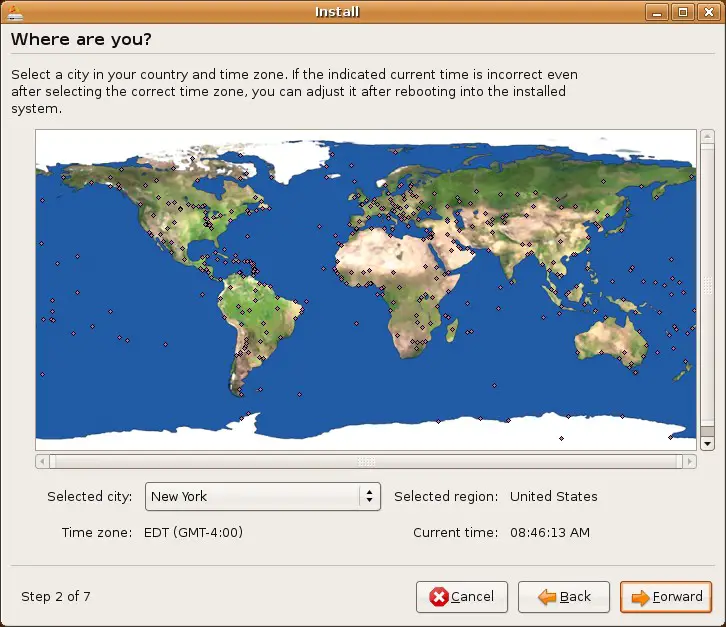
Select the timezone nearest to your location and proceed.
Choose your keyboard layout and proceed.

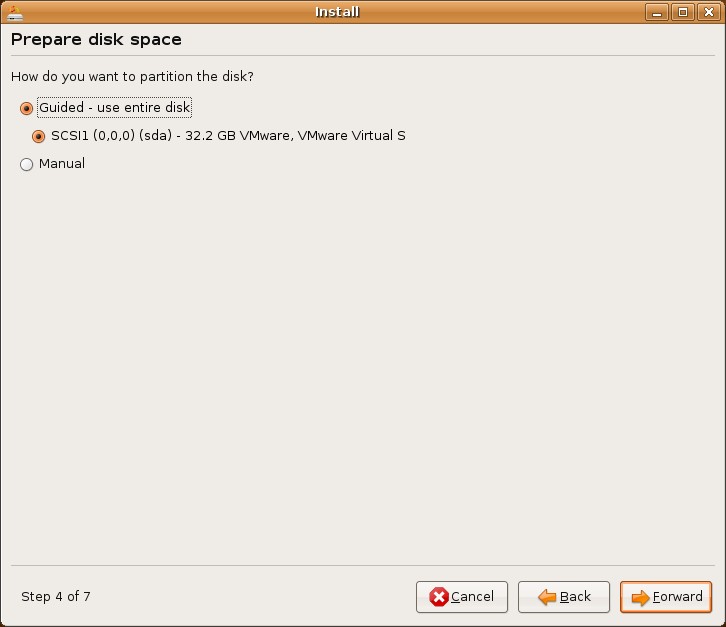
Select how you want to partition the disk and proceed.
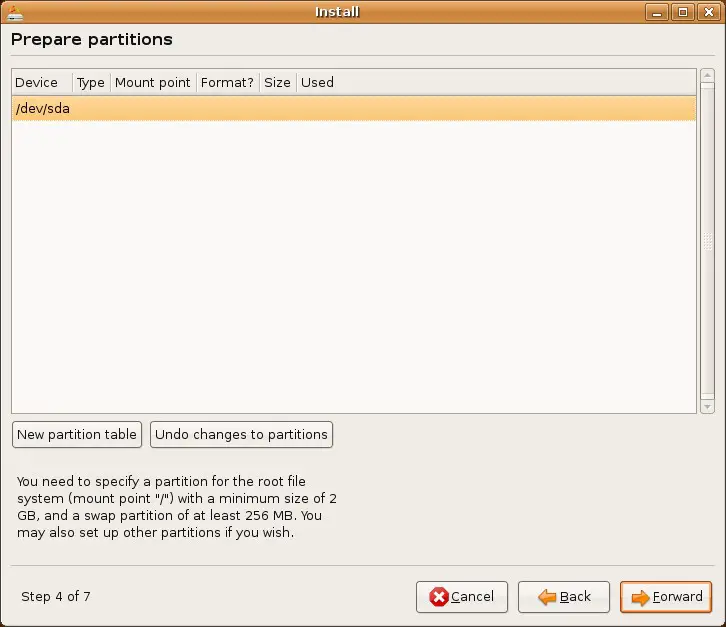
If you chose the manual partition in the window before, you'll see this window. Here you can create, modify or delete partitions and mount points.
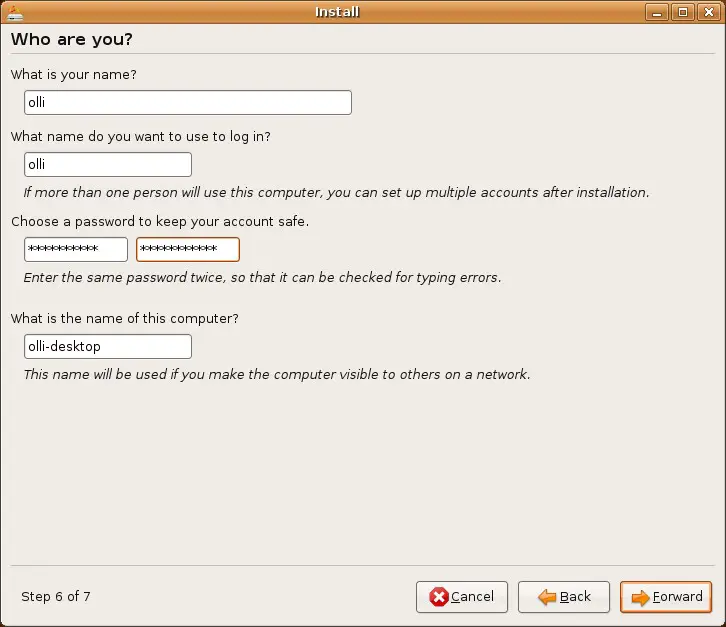
Enter the required data for your first account and the name for your computer into the corresponding fields.
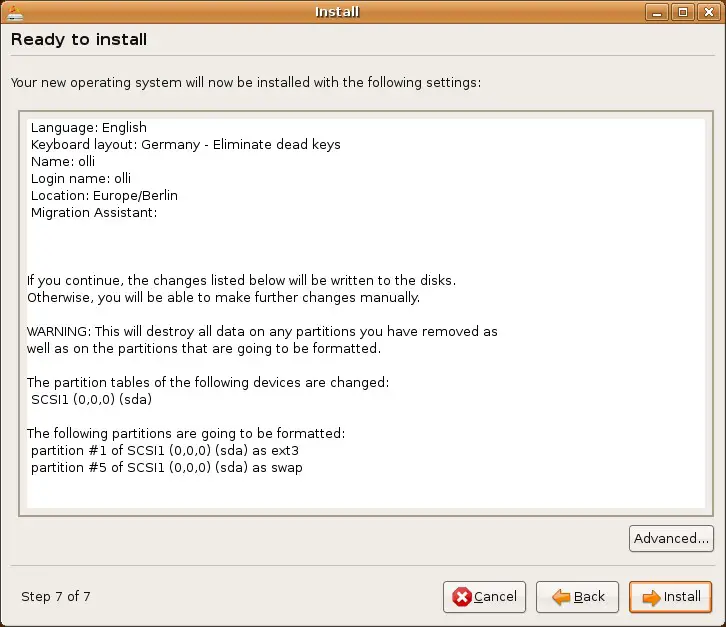
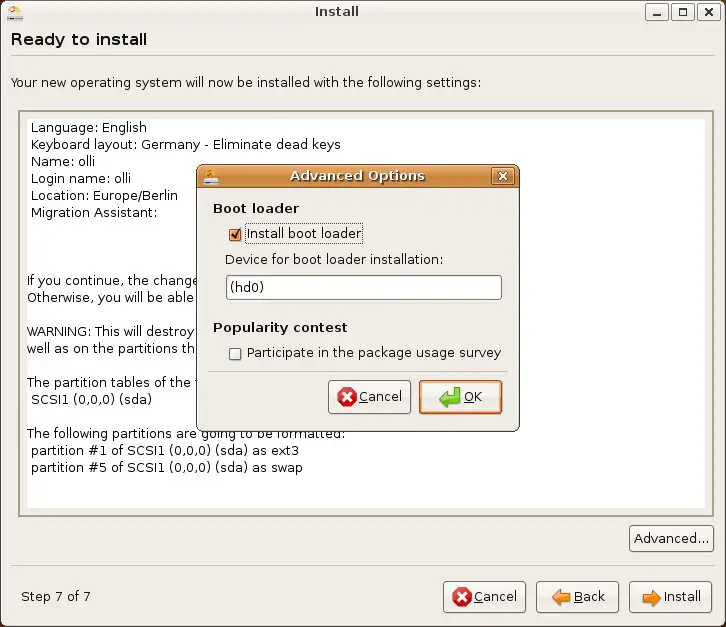
This window contains the summary of your choices. If you want to change the device for the boot loader installation click on "Advanced" and change it to your needs. Click on "Install" when you agree to your choices.
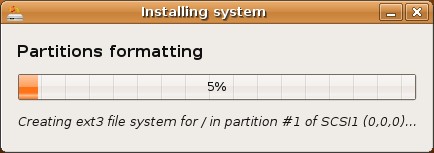
The system is beeing installed.
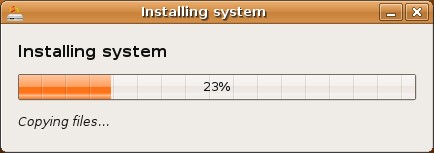
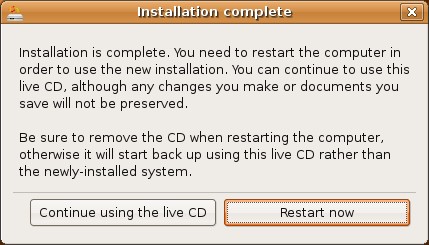
Remove the installation media after the installation finished and restart your computer.
1.4 After The Installation
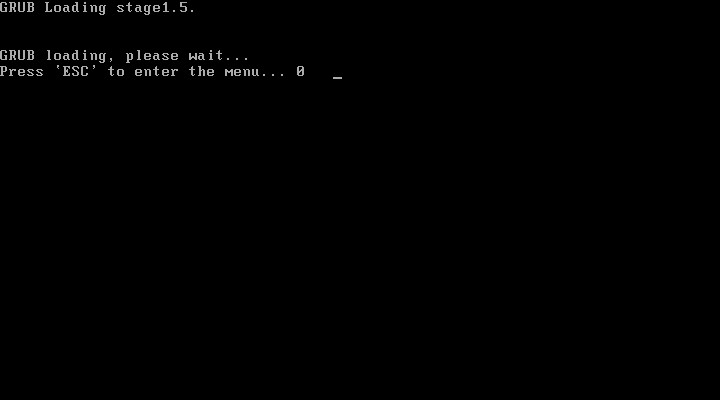
The system is starting. If you want to start another kernel, edit the start parameters or run a memory test, hit "Esc". Otherwise wait a few seconds to start with the default settings.
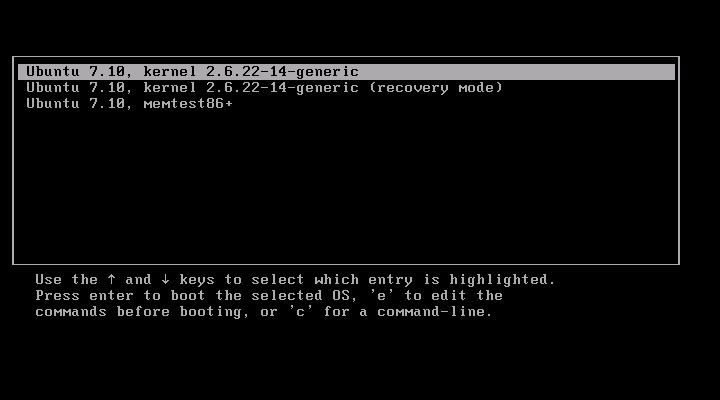
If you hit "Esc" you will see this window. Have a look at the instructions at the lower end.
Afterwards the login-screen appears. There are some options available in the bottom left corner. Log in with the username and password that you chose in the install wizard. If
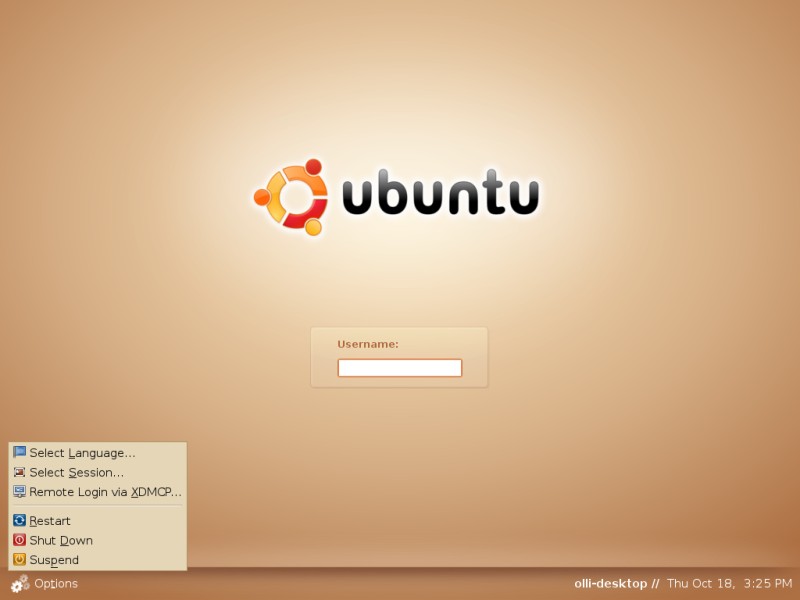
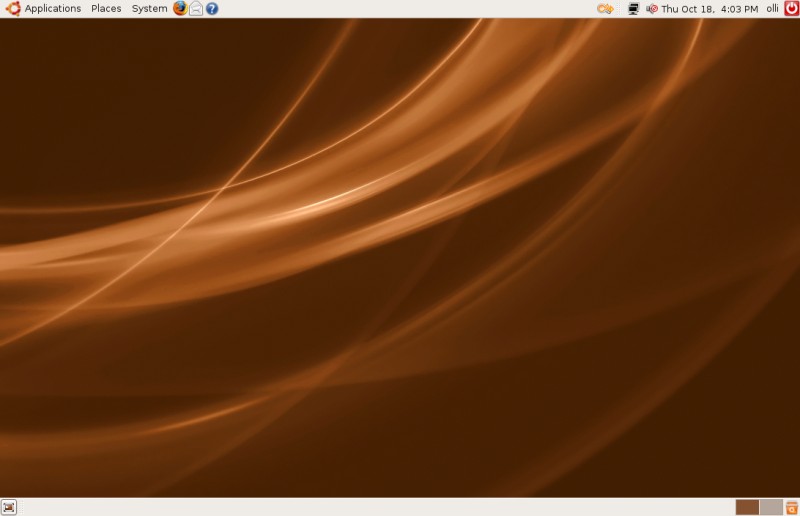
Welcome to your Desktop.