The Perfect Desktop - Xubuntu 12.10 (Quantal Quetzal)
This tutorial exists for these OS versions
- Xubuntu 14.04 LTS (Trusty Tahr)
- Xubuntu 12.10 (Quantal Quetzal)
- Xubuntu 12.04 LTS (Precise Pangolin)
On this page
This tutorial shows how you can set up a Xubuntu 12.10 desktop that is a full-fledged replacement for a Windows desktop, i.e. that has all the software that people need to do the things they do on their Windows desktops. The advantages are clear: you get a secure system without DRM restrictions that works even on old hardware, and the best thing is: all software comes free of charge. Xubuntu uses the lightweight XFCE desktop environment.
The software I propose as default is the one I found easiest to use and best in their functionality - this won't necessarily be true for your needs, thus you are welcome to try out the applications listed as alternatives.
I do not issue any guarantee that this will work for you!
1 Preliminary Note
To fully replace a Windows desktop, I want the Xubuntu desktop to have the following software installed:
Graphics:
- Pinta - open source drawing application modeled after Paint.NET
- KolourPaint - paint application with elemental functions
- MyPaint - paint application with a large variety of brushes
- The GIMP - free software replacement for Adobe Photoshop
- Shotwell Photo Manager - full-featured personal photo management application for the GNOME desktop
Internet:
- Firefox
- Opera
- Chromium - Google's open-source browser
- Thunderbird - email and news client
- Evolution - combines e-mail, calendar, address book, and task list management functions
- Deluge - free cross-platform BitTorrent client
- Transmission BitTorrent Client - Bittorrent client
- Vuze - Java BitTorrent client
- qBittorrent - free alternative to µtorrent
- Marble - desktop globe similar to google earth
- GoogleEarth - Google's desktop globe
- Flash Player
- FileZilla - multithreaded FTP client
- Pidgin IM Client - multi-platform instant messaging client
- Skype
- Dropbox Client - cloud storage
- Gwibber Social Client - open-source microblogging client (Twitter, Facebook, etc.)
Office:
- Adobe Reader
- Evince - document viewer
- Okular - document viewer
- LibreOffice Writer - replacement for Microsoft Word
- LibreOffice Calc - replacement for Microsoft Excel
- GnuCash - double-entry book-keeping personal finance system, similar to Quicken
- Scribus - open source desktop publishing (DTP) application
Sound & Video:
- Banshee - audio player, can encode/decode various formats and synchronize music with Apple iPods
- Amarok - audio player
- MPlayer - media player (video/audio), supports WMA
- Rhythmbox Music Player - audio player, similar to Apple's iTunes, with support for iPods
- gtkPod - software similar to Apple's iTunes, supports iPod, iPod nano, iPod shuffle, iPod photo, and iPod mini
- Sound Juicer CD Extractor - CD ripping tool, supports various audio codecs
- Nightingale - audio player similar to Winamp, but not yet as feature rich (Songbird fork)
- XMMS - audio player similar to Winamp
- Clementine - Amarok 1.4 fork
- Exaile - audio player
- VLC Media Player - media player, plays all kinds of videos (video/audio)
- Totem - media player (video/audio)
- Xine - media player, supports various formats; can play DVDs
- Winff - free video converter
- SoundConverter - free audio converter
- Soundkonverter - free audio converter
- XFCA - free video/audio converter and ripper
- K3B - CD/DVD burning program
- Brasero - CD/DVD burning program
- Audacity - free, open source, cross platform digital audio editor
- Kino - free digital video editor
- dvd::rip - full featured DVD copy program
- Multimedia Codecs
Programming:
- KompoZer - WYSIWYG HTML editor, similar to Macromedia Dreamweaver, but not as feature-rich (yet)
- Bluefish - text editor, suitable for many programming and markup languages
- Eclipse - Extensible Tool Platform and Java IDE
Other:
- VirtualBox OSE - lets you run your old Windows desktop as a virtual machine under your Linux desktop, so you don't have to entirely abandon Windows
- TrueType fonts
- Java
- Read-/Write support for NTFS partitions
- gedit - simple text editor
Lots of our desired applications are available in the Ubuntu repositories, and some of these applications have been contributed by the Ubuntu community. Some may also not be in the default repositories and have to be downloaded from the internet or from extra repositories.
The software provided in the above list covers most of the basic tasks one may need to do on their desktop computers, sometimes there are multiple choices for same functionality. If you know which one you like best, you obviously don't need to install and test the other applications, however if you like choice, then of course you can install more than one.
I will use the username falko in this tutorial. Please replace it with your own username.
2 Installing The Base System
The installation of the base system is easy as 1-2-3 because the Xubuntu installer doesn't offer a lot of options to choose from, so you cannot go wrong.
Download the Xubuntu 12.10 iso image from http://xubuntu.org/getxubuntu/, burn it onto a CD, and boot your computer from it:
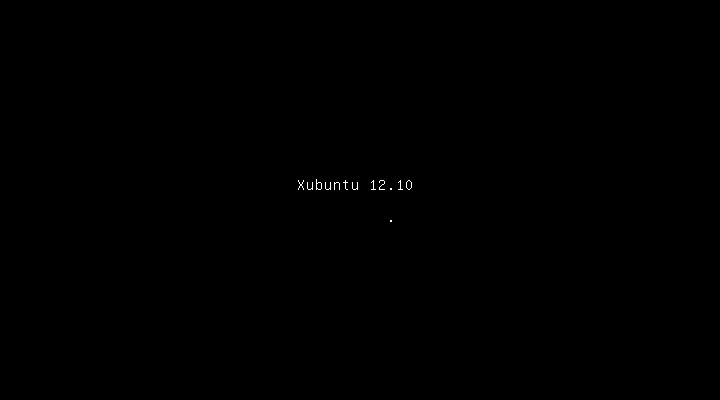
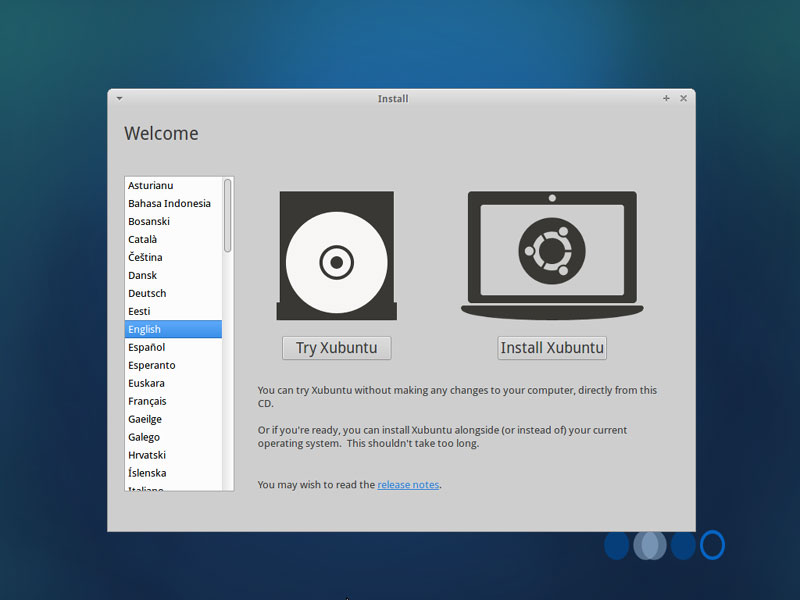
Select your language and click on the Install Xubuntu button to start the installation:
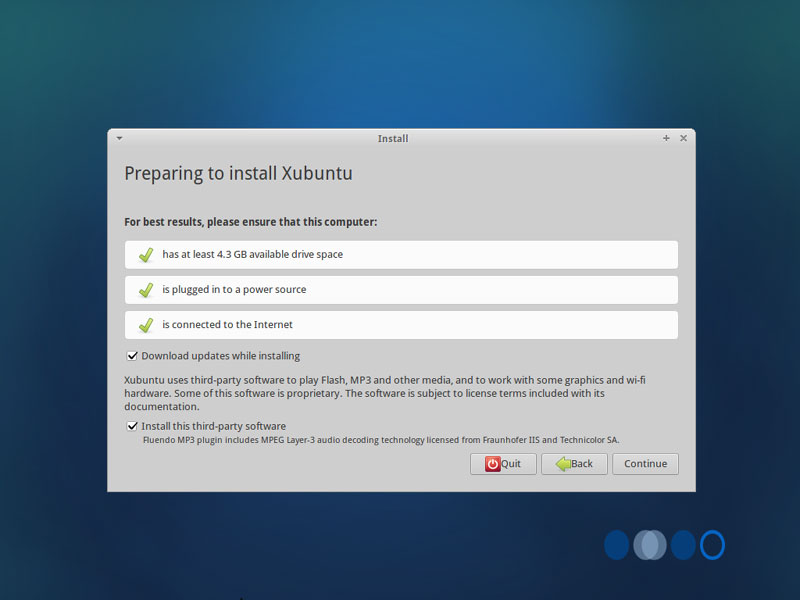
On the next screen you see a few requirements for the Xubuntu 12.10 installation (the system should have at least 4.4 GB available drive space and should be connected to the Internet). Please check the Download updates while installing and Install this third-party software (this will install the software necessary to process Flash, MP3, and other media files) checkboxes and click on Continue:
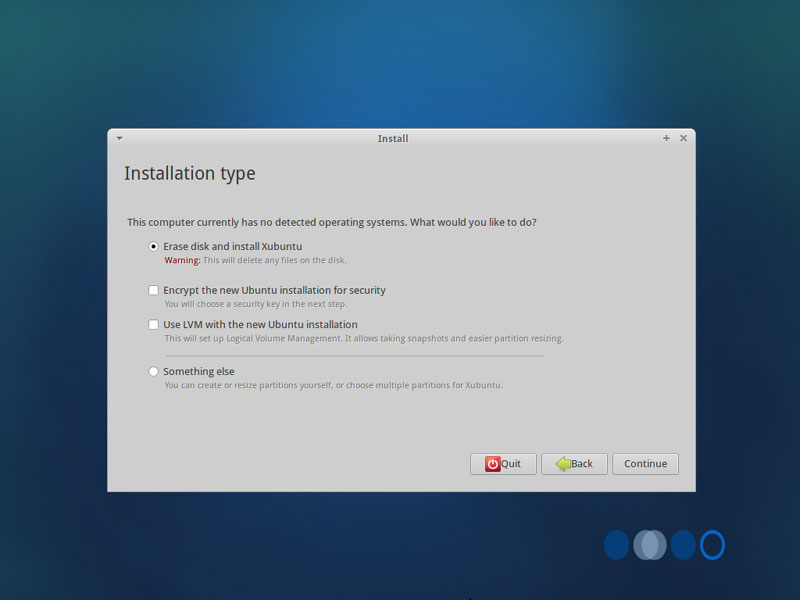
Now we come to the partitioning of our hard disk. Usually Erase disk and install Xubuntu is a good choice, unless you need custom partitions and know what you're doing. Erase disk and install Xubuntu will create one big / partition for us:
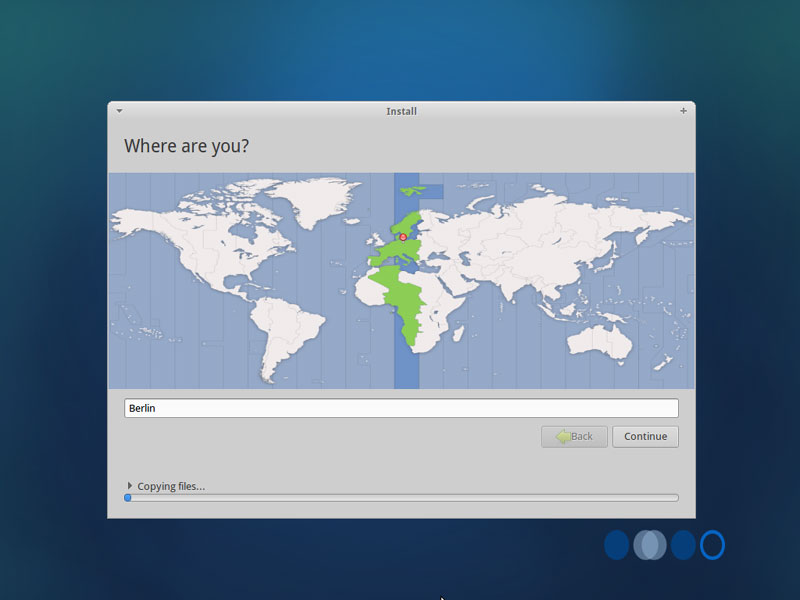
Then choose your time zone:
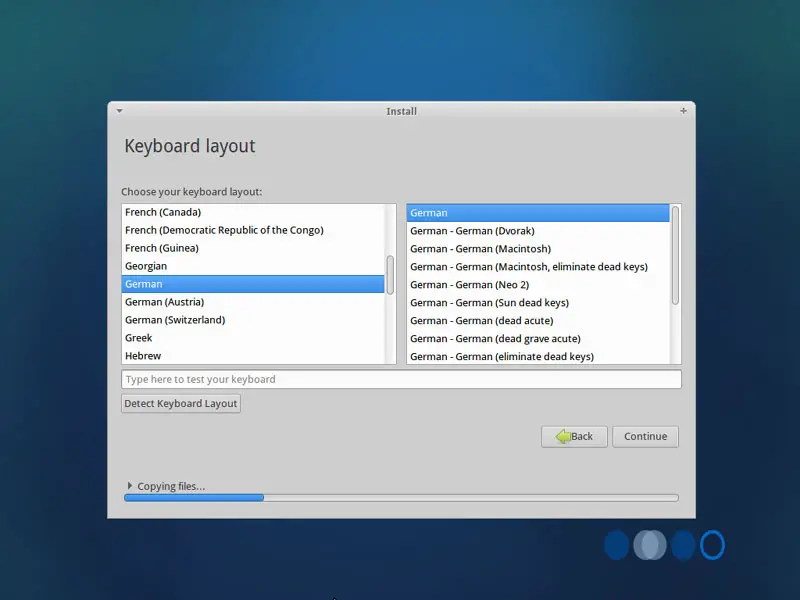
Change the keyboard layout, if necessary:
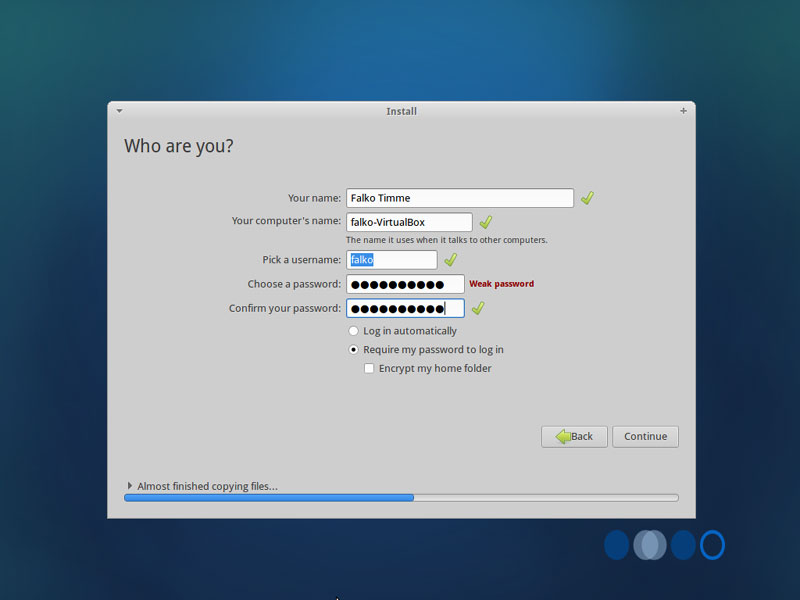
Type in your real name, your desired username along with a password, and click on Continue:
Afterwards, Xubuntu is being installed. This can take a few minutes, so be patient:
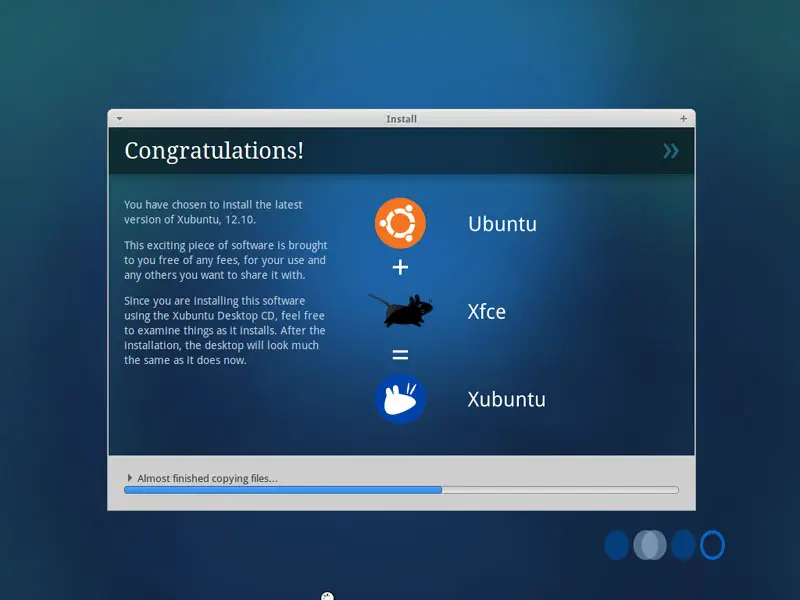
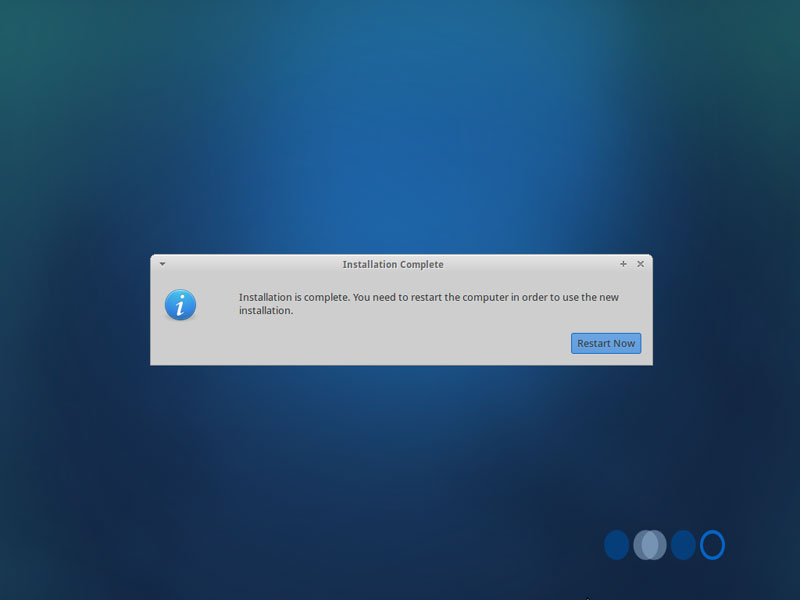
After the installation, you will be asked to reboot the system. Click on Restart Now:
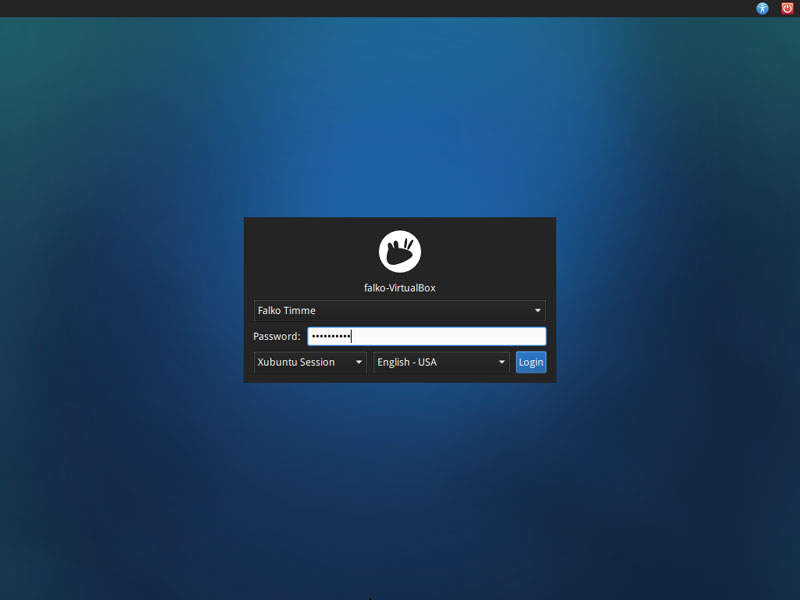
Your new Xubuntu system starts. Log into the desktop with the username and password you provided during the installation:
This is how your new Xubuntu XFCE desktop looks:
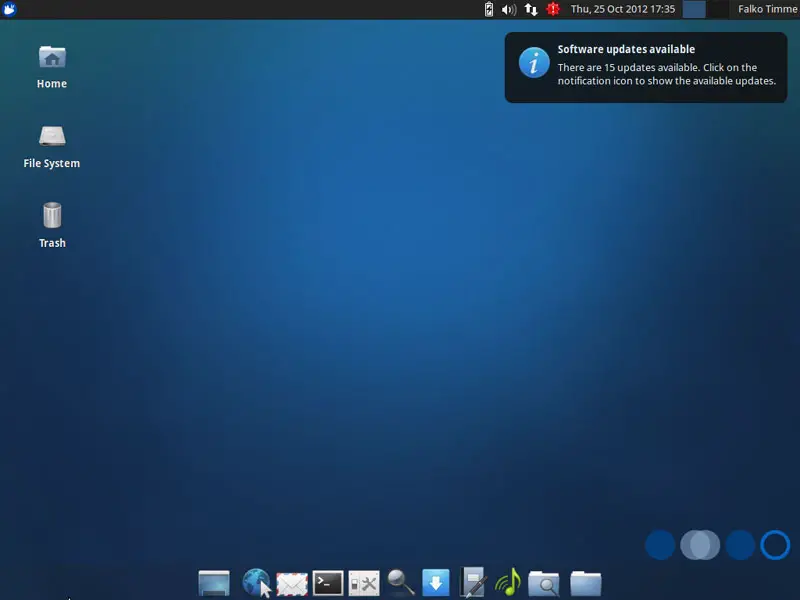
Now the base system is ready to be used.