QuickStart, The Swiss Army Knife For Ubuntu 8.04 Desktop
Version 1.0
Author: Falko Timme
In this article I will show how to install and use QuickStart on an Ubuntu 8.04 desktop. QuickStart is like a Swiss army knife, it allows you to do various things on your Ubuntu desktop: creating and restoring backups, running scheduled backups, backing up configuration files, installing some common applications, installing DVD codecs, deleting unnecessary files, etc.
This document comes without warranty of any kind! I do not issue any guarantee that this will work for you!
1 Installing QuickStart
Open a browser and go to http://www.quickstart.freeforums.org/quickstart-download-pics-t2.html. Click on the Install_QuickStart.sh download link:
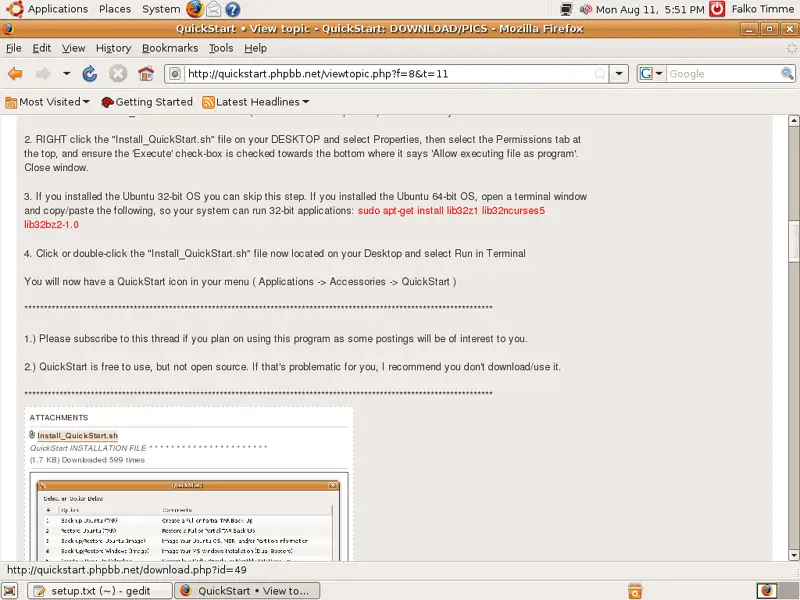
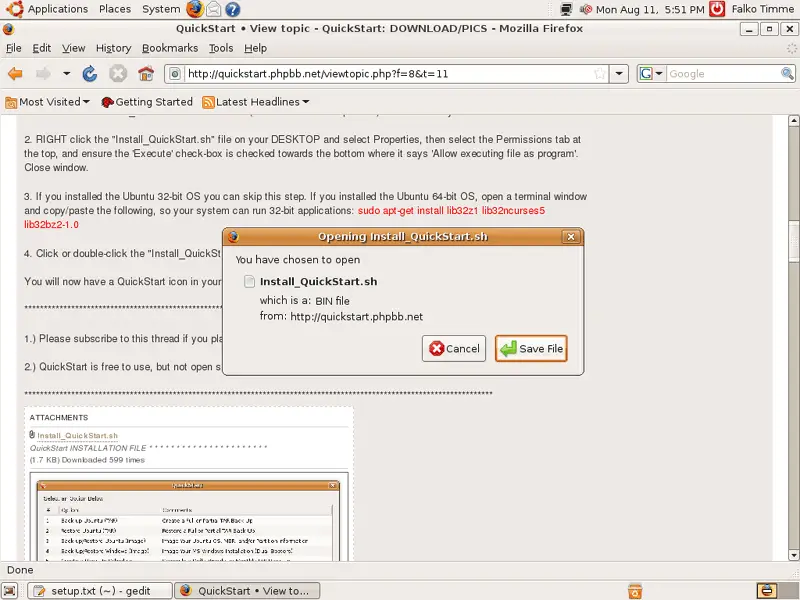
Select Save File and store the file somewhere on your hard drive. In this example I store it directly on the desktop:
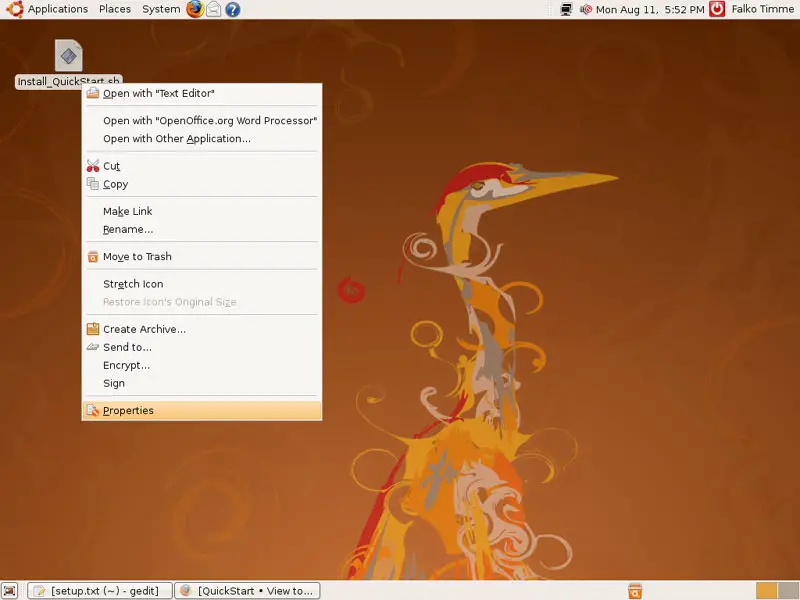
After the download has finished, right-click the icon of the downloaded file and select Properties:
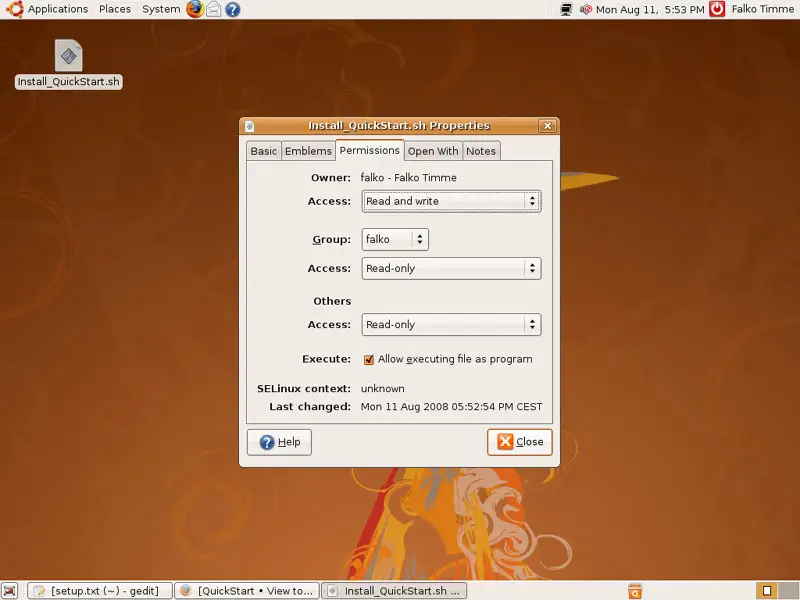
In the Properties window, go to the Permissions tab and check Allow executing file as program; click on Close afterwards:
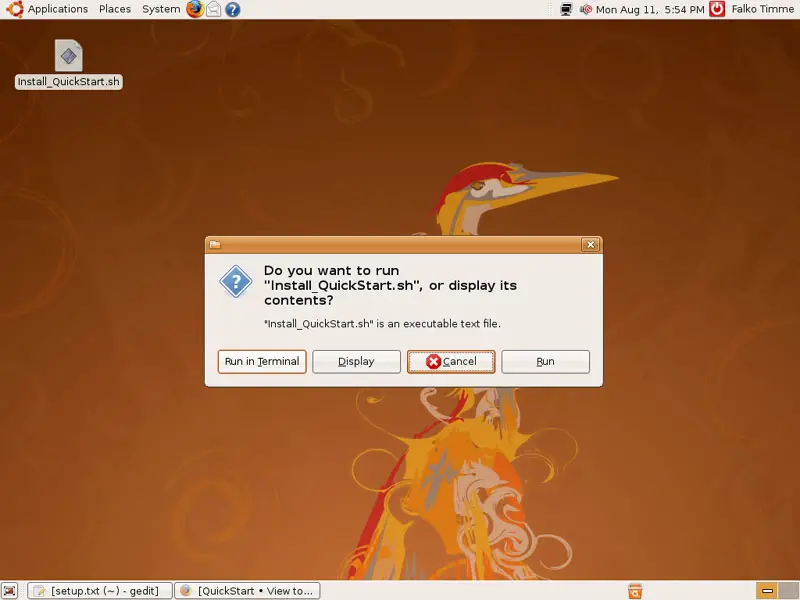
Next double-click the icon and select Run in Terminal:
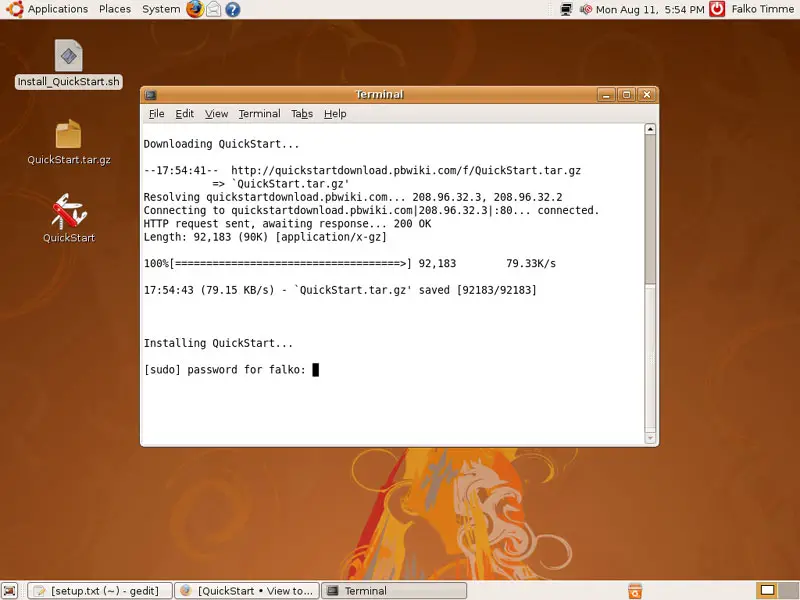
Type in your password. QuickStart will then be installed:
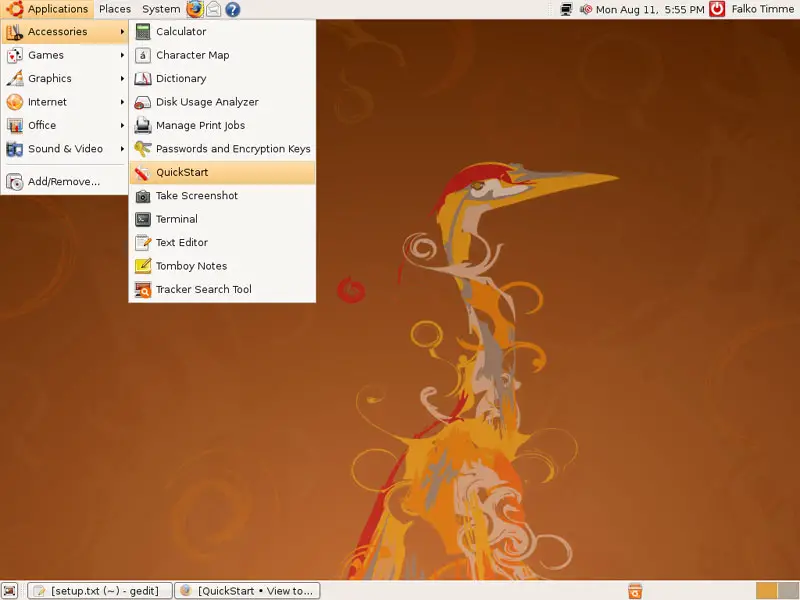
After the installation, you can find QuickStart under Applications > Accessories > QuickStart:
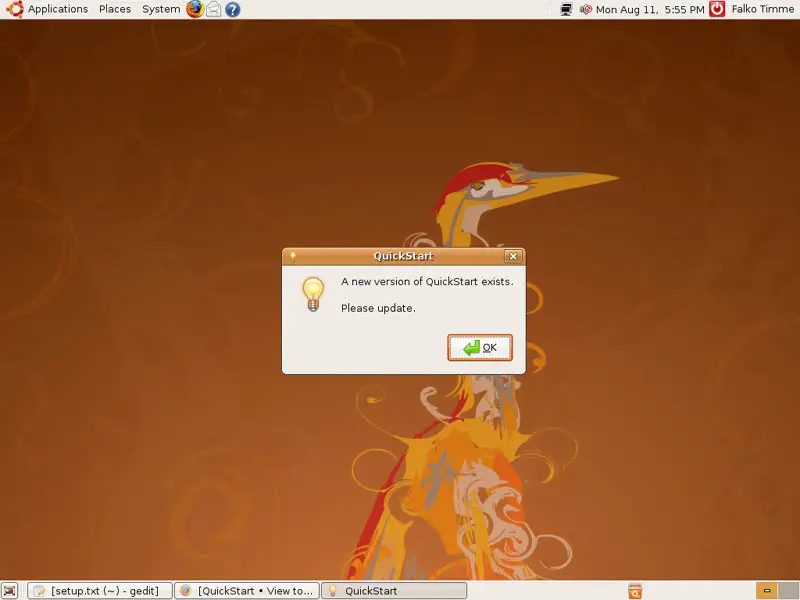
You might see this message when you start QuickStart. Click on OK to continue:
This is how the QuickStart main menu looks. Select what you want to do and click on OK:
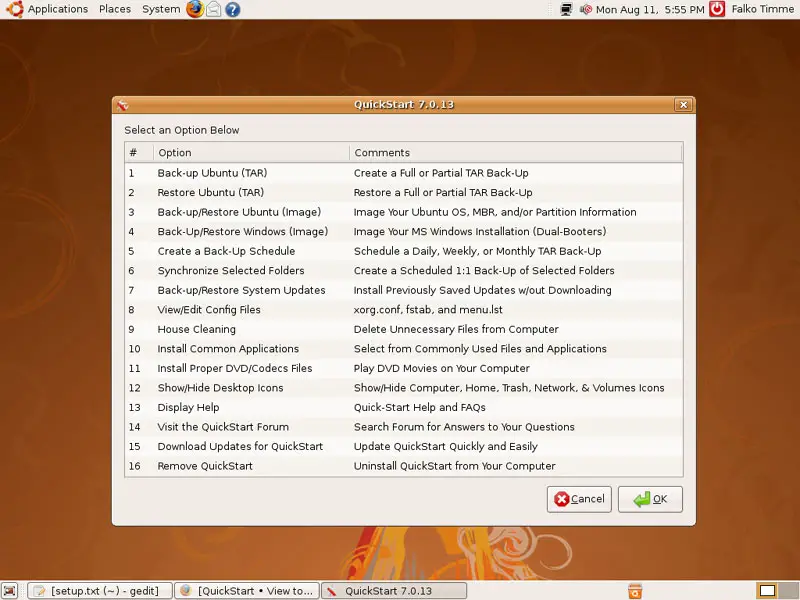
I will now walk you through a few of the available options.
2 Updating QuickStart
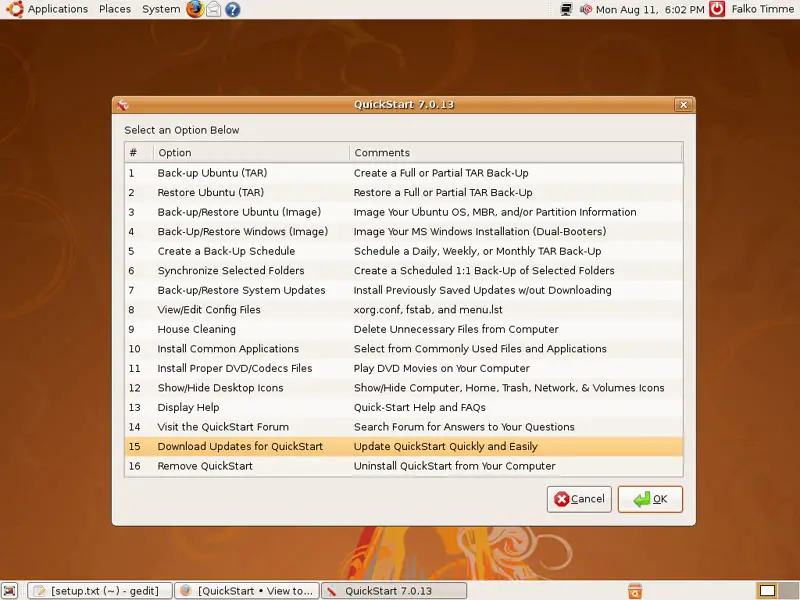
If you got the A new version of QuickStart exists message when you launched QuickStart, select 15 Download Updates for QuickStart and click on OK:
QuickStart will then automatically download the latest updates and update itself. At the end of the update process, you will see the following message:
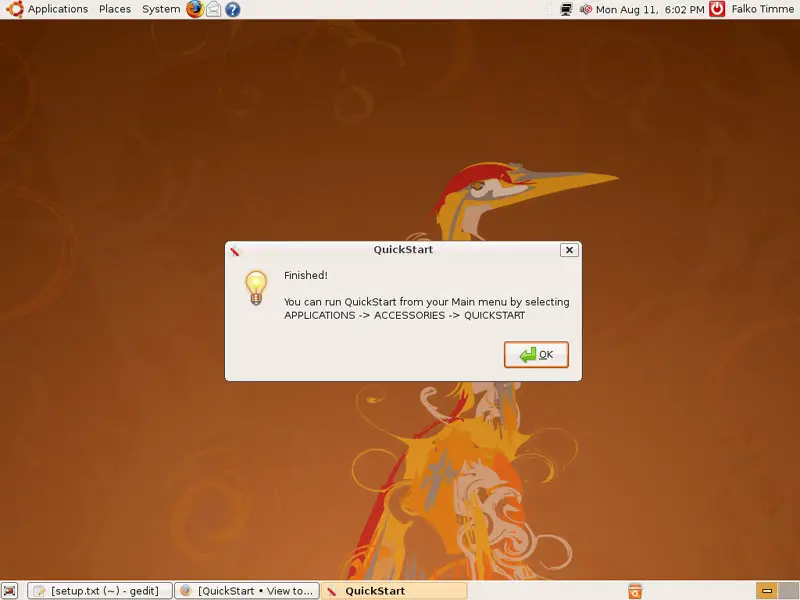
QuickStart will finish itself, so to run the updated version, you must start it again (Applications > Accessories > QuickStart).
3 Show/Hide Desktop Icons
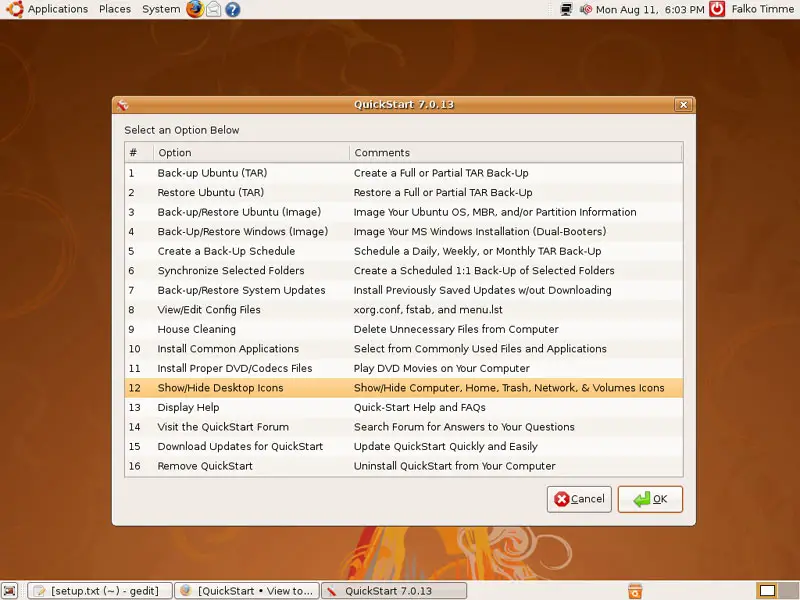
With QuickStart, you can show and hide the Computer, Home, Trash, Network, and Volumes icons on your desktop. Select 12 Show/Hide Desktop Icons:
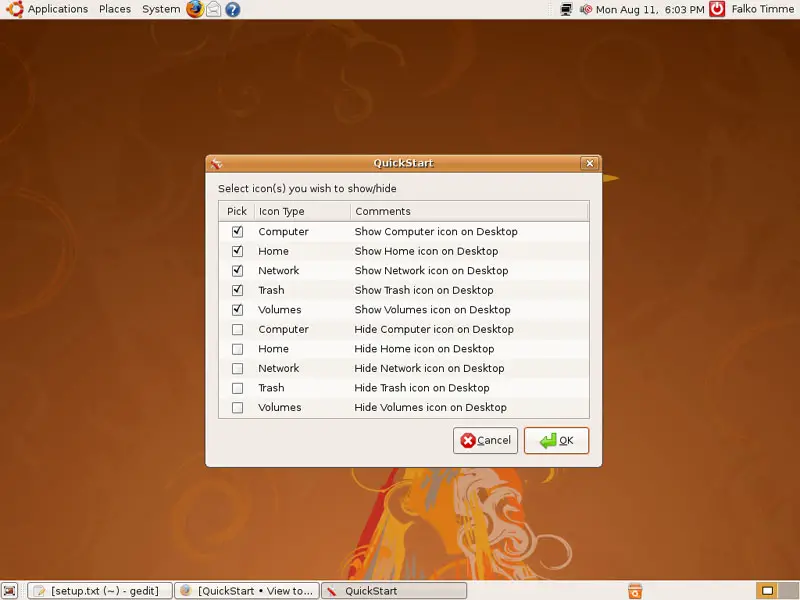
Select the icons that you want to show or hide and click on OK:
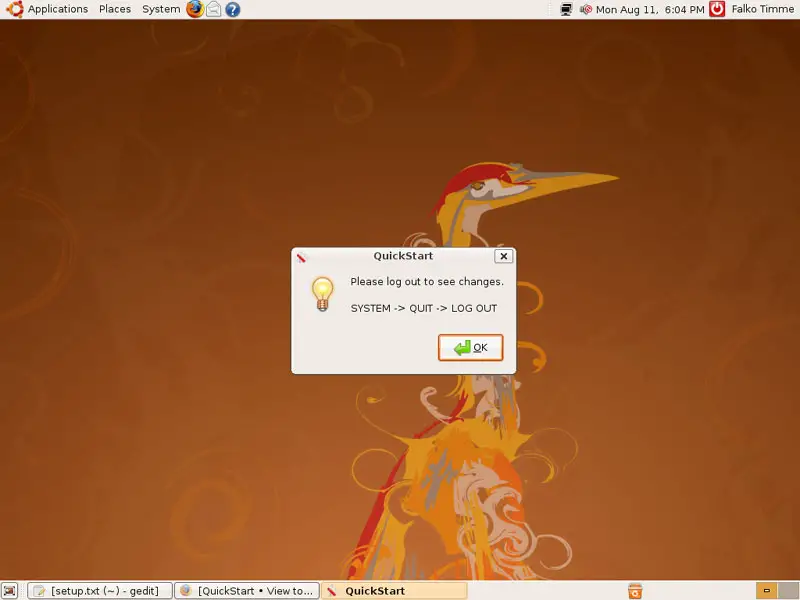
For the changes to take effect, we must log out and in again...
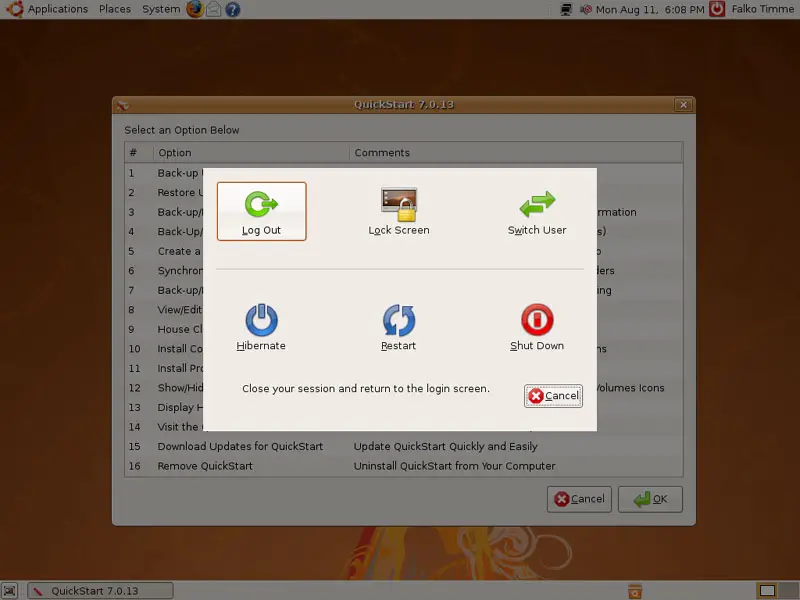
... so we go to System > Quit (while QuickStart is still running!)...
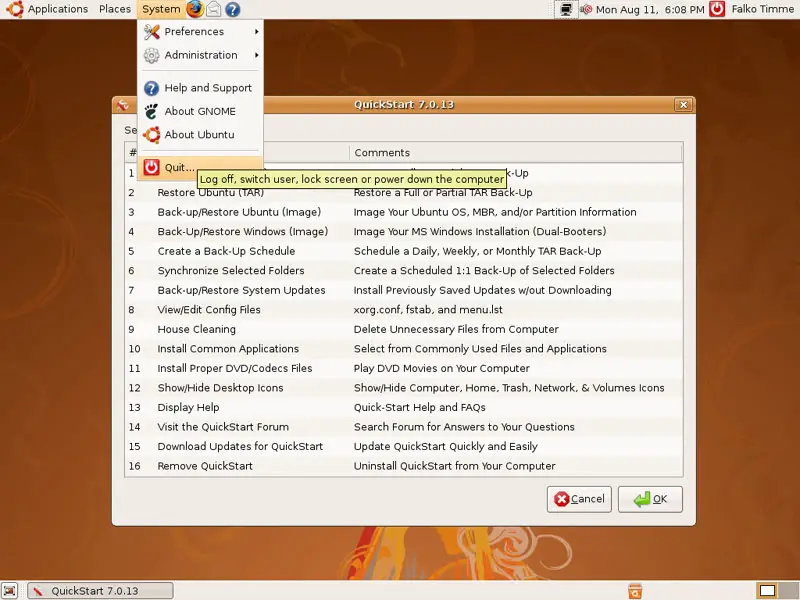
... and select Log Out:
After you've logged in again, you should now see the selected icons on your desktop: