
Installing The Native Linux Flash Player 9 On Ubuntu
Version 1.0
Author: Falko Timme
This article describes how to install the new native Linux Flash Player 9 from Adobe on an Ubuntu Edgy Eft desktop so that it can be used within Firefox. The procedure works for other Ubuntu versions and Debian as well.
I do not issue any guarantee that this will work for you!
1 Current Plug-Ins
Please log in to your Ubuntu desktop and launch your Firefox browser. Type in about:plugins in the address bar to learn more about your currently installed plug-ins. The output could look like this:
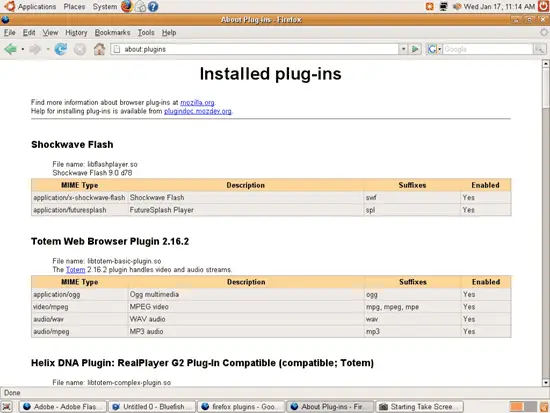
As you see I have a previous version of the Flash Player 9 installed (9.0.d78; I installed it with Automatix2), but it is only a beta version. It is possible that on your desktop the Flash Player isn't installed at all - it doesn't matter as it is no prerequisite to follow this tutorial.
2 Download Adobe Flash Player 9
Go to http://www.adobe.com and click on the Get Adobe Flash Player button. Make sure you use a browser from your Linux desktop; if you use a Windows browser you will be redirected to the Windows version of the Flash Player 9. Provided you use a Linux browser, you will be redirected to the download page of the Linux version of the Flash Player 9. On the download page you can choose between a Flash Player .tar.gz file and a Flash Player .rpm file. Select one of them (it doesn't matter which one) and download it to your computer (in my case I downloaded it to /home/falko/Desktop).
3 Install Flash Player 9
In this chapter I describe how to install the .tar.gz and also the .rpm version. Make sure to close all browser windows before you do this.
3.1 Install The .tar.gz Version
If you have downloaded the .tar.gz version of the Flash Player 9, open a command line terminal and install it like this:
cd /home/falko/Desktop/
(Replace /home/falko/Desktop with the path to the directory where you saved the Flash Player 9 .tar.gz.)
tar xvfz install_flash_player_9_linux.tar.gz
cd install_flash_player_9_linux/
Then run the setup script:
sudo ./flashplayer-installer
You will be asked a few questions:
Copyright(C) 2002-2006 Adobe Macromedia Software LLC. All rights reserved.
Adobe Flash Player 9 for Linux
Adobe Flash Player 9 will be installed on this machine.
You are running the Adobe Flash Player installer as the "root" user.
Adobe Flash Player 9 will be installed system-wide.
Support is available at http://www.adobe.com/support/flashplayer/
To install Adobe Flash Player 9 now, press ENTER.
To cancel the installation at any time, press Control-C. <-- <ENTER>
NOTE: Please exit any browsers you may have running.
Press ENTER to continue... <-- <ENTER>
Please enter the installation path of the Mozilla, SeaMonkey,
or Firefox browser (i.e., /usr/lib/mozilla): <-- /usr/lib/mozilla
dir= /usr/lib/mozilla
WARNING: An older version of the Adobe Flash Player has been detected in
/usr/lib/mozilla/plugins.
The installer will overwrite this existing binary.
----------- Install Action Summary -----------
Adobe Flash Player 9 will be installed in the following directory:
Browser installation directory = /usr/lib/mozilla
Proceed with the installation? (y/n/q): <-- y
Installation complete.
Perform another installation? (y/n): <-- n
Please log out of this session and log in for the changes to take effect.
The Adobe Flash Player installation is complete.
Close the terminal afterwards and log out of your current desktop session, then log in again.
3.2 Install the .rpm Version
Because Ubuntu uses apt instead of rpm, we cannot install the .rpm version directly. But we can transform it into a .deb package with the help of alien (see https://www.howtoforge.com/converting_rpm_to_deb_with_alien for more information).
So we open a terminal and install alien:
sudo apt-get install alien
Afterwards go to the directory where you saved the Flash Player 9 .rpm file, e.g.
cd /home/falko/Desktop/
Then run alien to convert it into a .deb file:
sudo alien -k flash-plugin-9.0.31.0-release.i386.rpm
The output of this command looks like this:
Warning: Skipping conversion of scripts in package flash-plugin: postinst prerm
Warning: Use the --scripts parameter to include the scripts.
flash-plugin_9.0.31.0-release-1_i386.deb generated
As you see, alien has created the package flash-plugin_9.0.31.0-release-1_i386.deb which we can install with dpkg (make sure to close all browser windows before):
sudo dpkg -i flash-plugin_9.0.31.0-release-1_i386.deb
Close the terminal afterwards and log out of your current desktop session, then log in again.
4 Test Flash Player 9
To check if Flash Player 9 is recognized by Firefox, we start Firefox and type in about:plugins again. The output should look like this now:
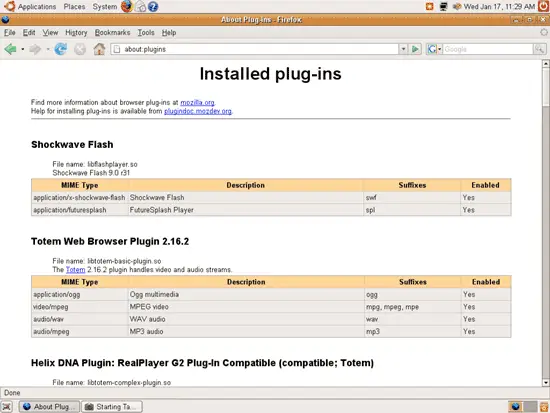
As you see Flash Player 9.0.r31 is now installed, so everything is fine.
Have fun with your new Flash Player 9 for Linux!
5 Links
- Adobe: http://www.adobe.com
- Ubuntu: http://www.ubuntu.com
- Firefox: http://www.mozilla.com/en-US/firefox/





