
How To Set Up Mumble Voice Chat On Fedora 7
Version 1.0
Author: Oliver Meyer <o [dot] meyer [at] projektfarm [dot] de>
This document describes how to set up a Mumble voice chat environment with Fedora 7. Mumble is a low-latency voice chat software with focus on games.
This howto is meant as a practical guide; it does not cover the theoretical backgrounds. They are treated in a lot of other documents in the web.
This document comes without warranty of any kind! I want to say that this is not the only way of setting up such a system. There are many ways of achieving this goal but this is the way I take. I do not issue any guarantee that this will work for you!
1 Preparation
Set up a Fedora 7 Server (Fedora 7 minimal without GUI etc) - this will be the mumble-server.
Set up a Fedora 7 Desktop-System - this will be the mumble-client.
2 The Mumble Server
2.1 Get And Install The Mumble Server
On the Fedora 7 server:
su -
%yourrootpassword%
cd /tmp/
wget http://download.opensuse.org/repositories/home:/pirast/Fedora_7/i386/mumble-server-1.0.0-38.1.i386.rpm
yum localinstall mumble-server-1.0.0-38.1.i386.rpm --nogpgcheck
2.2 Basic Configuration
Set the password for the mumble-superuser ( "SuperUser" ):
murmur -supw %password%
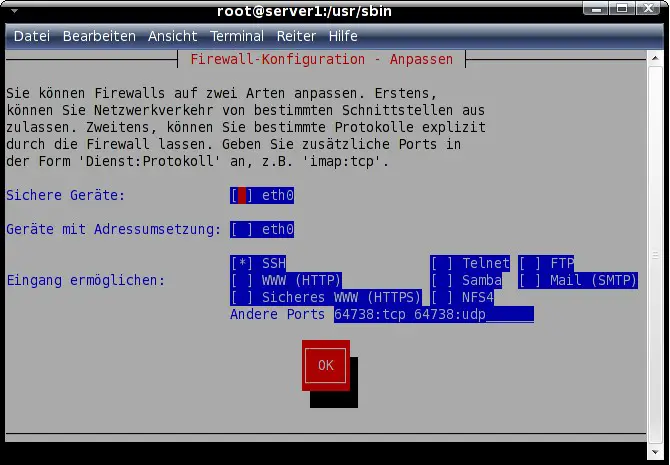
The standard port to access the mumble-server is 64738 ( tcp+udp ) - you can customize the settings ( well documented, self-explanatory ) in /etc/murmur/murmur.ini.
Open the Port for tcp and udp:
system-config-securitylevel-tui
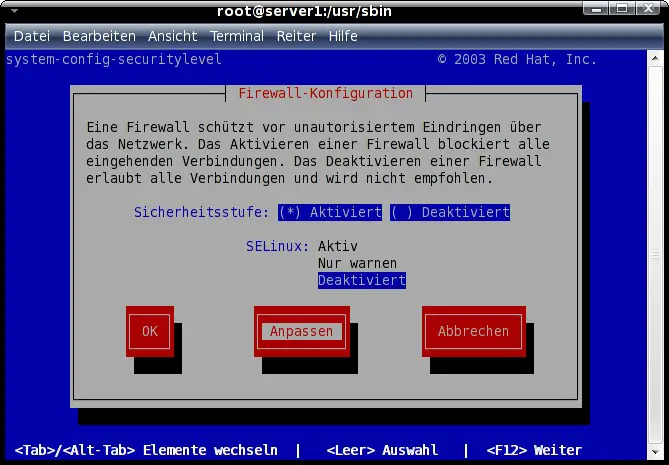
Insert the port ( tcp and udp ) to the lowest line and accept the settings:
2.3 Customize The SQLite Database On The Desktop
Currently there is no option to register users ( give them a password ) in the mumble-gui - so you have to do that by customizing the mumble-database ( SQLite by default ). I used sqliteman on a Fedora 7 Desktop to customize the database. Sqliteman is available at http://sqliteman.com/ - there are rpm-packages for Fedora and Suse - and the sources of course.
On the Fedora 7 Desktop open http://download.opensuse.org/repositories/home:/subik/Fedora7/i386/ in your preffered browser, click on the rpm-file and install it with the software-installer.
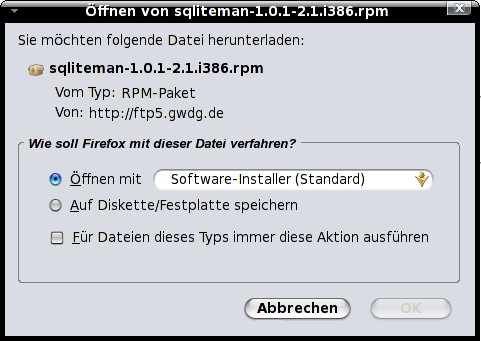
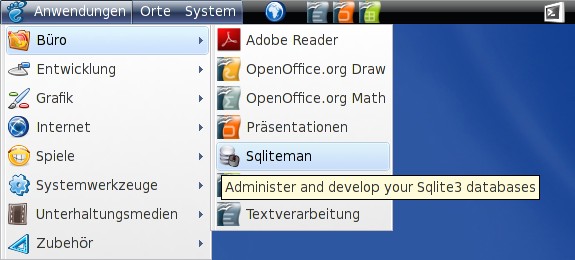
Afterwards sqliteman is available via the gnome-applications menu:
Now we have to get the mumble sqlite-database from the server, customize it to our needs and afterwards send it back to the server.
I chose scp for this:
cd /tmp/
scp %user%@%server%:%file% %local_destination%
e.g.:
scp [email protected]:/usr/sbin/murmur.sqlite /tmp/
Now lets customize the database - open it in sqliteman:
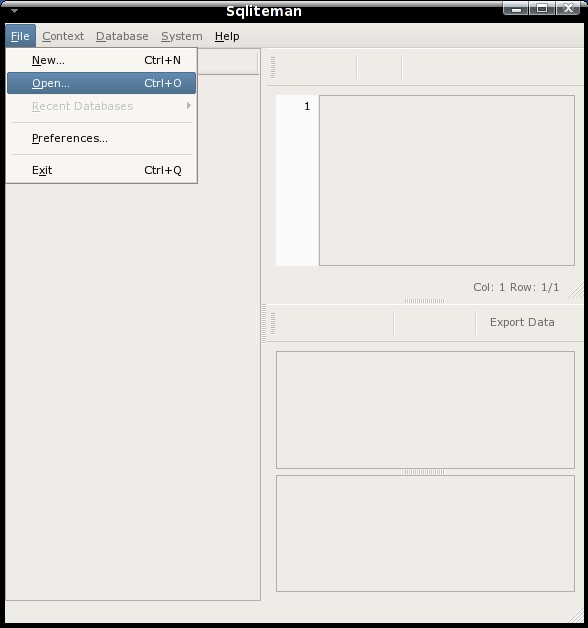
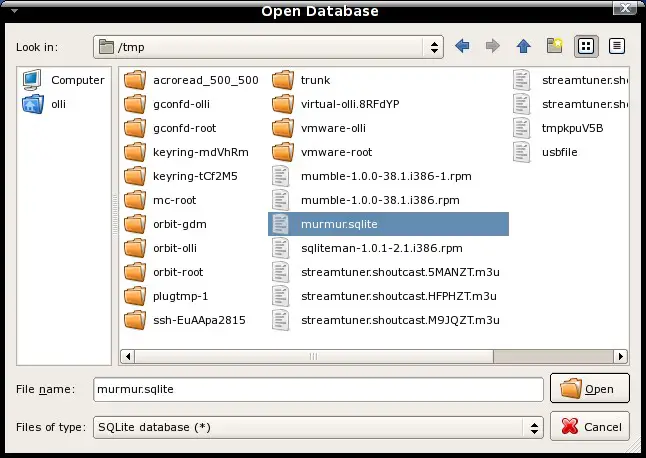
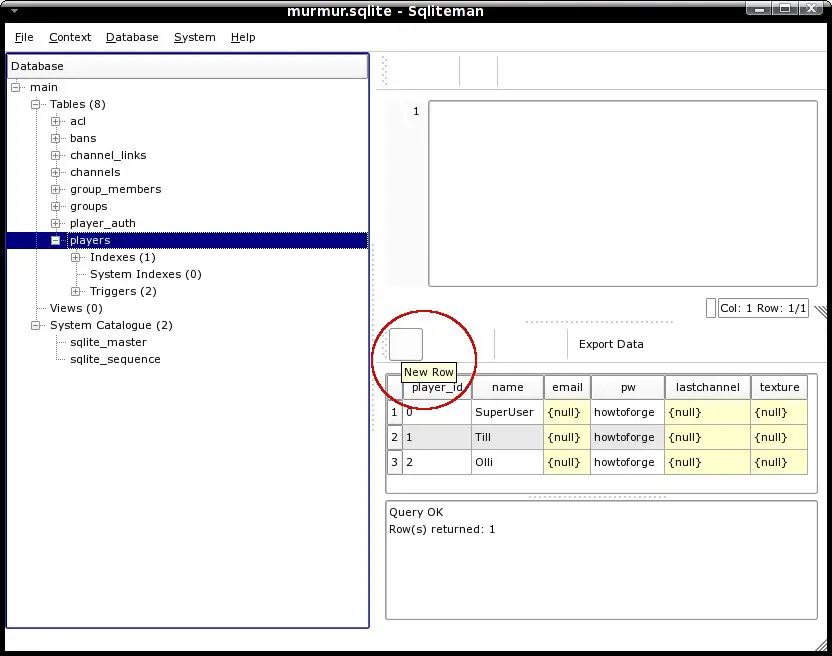
You'll see the structure of the database on the left and the details of a selected table on the right. Currently there is a bug with the buttons on the right side - they, or rather their letterings, are invisible. To see, for what each button is for, hover over them and after a few seconds a description will pop up.

To register users double-click on "players" on the left side - afterwards the details of this table are shown on the right. Add a new row for each user you want to register and enter the usernames and passwords in the corresponding fields. Take care that you assign an unique "player_id" to each user.
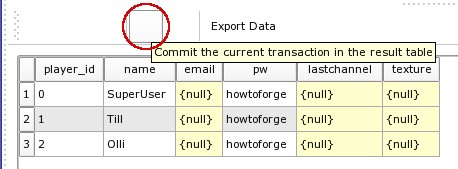
When you are ready with your changes you have to commit them to take effect.
In the next step we copy the database back to the server:
scp %local_file% %user%@%server%:%destination%
e.g.:
scp /tmp/murmur.sqlite [email protected]:/usr/sbin/
Start the mumble-server:
/etc/init.d/murmur start





