
Managing OpenVZ With The WebVZ Control Panel On Debian Lenny
Version 1.0
Author: Falko Timme
This guide explains how you can install WebVZ on a Debian Lenny OpenVZ host. WebVZ is a light web-based control panel for OpenVZ. It has its own web server (Webrick) and database engine (SQLITE 3).
I do not issue any guarantee that this will work for you!
1 Preliminary Note
I'm using a Debian Lenny server with the hostname server1.example.com and the IP address 192.168.0.100 here.
I'm assuming that OpenVZ is already installed on working on the server, e.g. as shown in this tutorial: Installing And Using OpenVZ On Debian Lenny (AMD64)
2 Installing WebVZ
First we install some prerequisites:
apt-get install ruby rubygems libsqlite3-ruby sqlite3 irb1.8 libopenssl-ruby1.8 libreadline-ruby1.8 rdoc1.8
WebVZ needs Rails version 2.1.0 which we install as follows:
gem install -v=2.1.0 rails
Next we download and install WebVZ in the directory /usr/local/webvz:
cd /usr/local
wget http://dfn.dl.sourceforge.net/sourceforge/webvz/webvz.2.0.tar.gz
tar xvfz webvz.2.0.tar.gz
mv webvz.2.0 webvz
cd webvz
ln -s /var/lib/vz /vz
ln -s /usr/bin/irb1.8 /usr/bin/irb
mkdir /etc/sysconfig
ln -s /etc/vz/conf /etc/sysconfig/vz-scripts
That's it - now we can install WebVZ as follows (you must still be in the /usr/local/webvz directory):
ruby script/server
You should see something like this:
server1:~/webvz.2.0# ruby script/server
=> Booting WEBrick...
=> Rails 2.1.0 application started on http://0.0.0.0:3000
=> Ctrl-C to shutdown server; call with --help for options
[2009-02-09 19:55:04] INFO WEBrick 1.3.1
[2009-02-09 19:55:04] INFO ruby 1.8.7 (2008-08-11) [x86_64-linux]
[2009-02-09 19:55:04] INFO WEBrick::HTTPServer#start: pid=3106 port=3000
(Please note that the input prompt will not return until you press CTRL+D, but that would also terminate WebVZ. I will address this issue in a moment. For now we leave WebVZ running.)
3 Using WebVZ
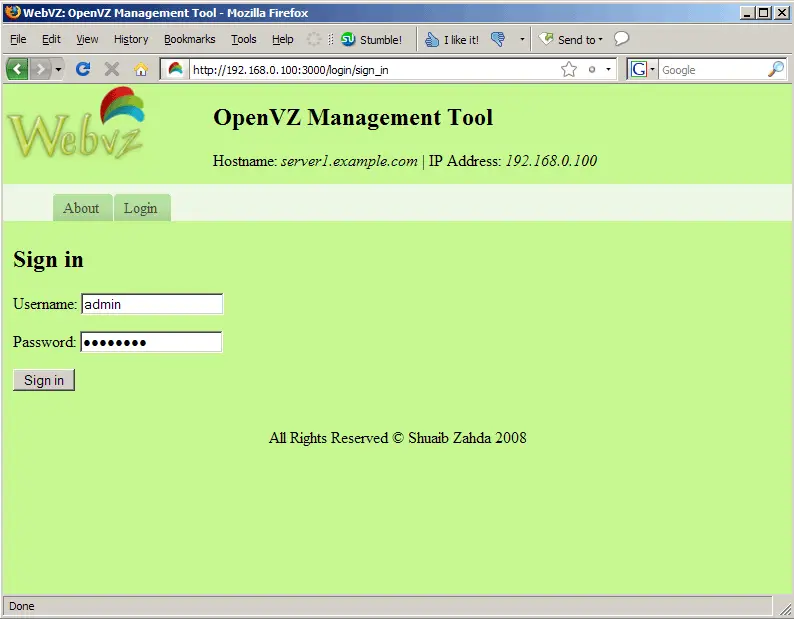
Now open a browser and go to http://server1.example.com:3000 or http://192.168.0.100:3000 and log in with the username admin and the password admin123:
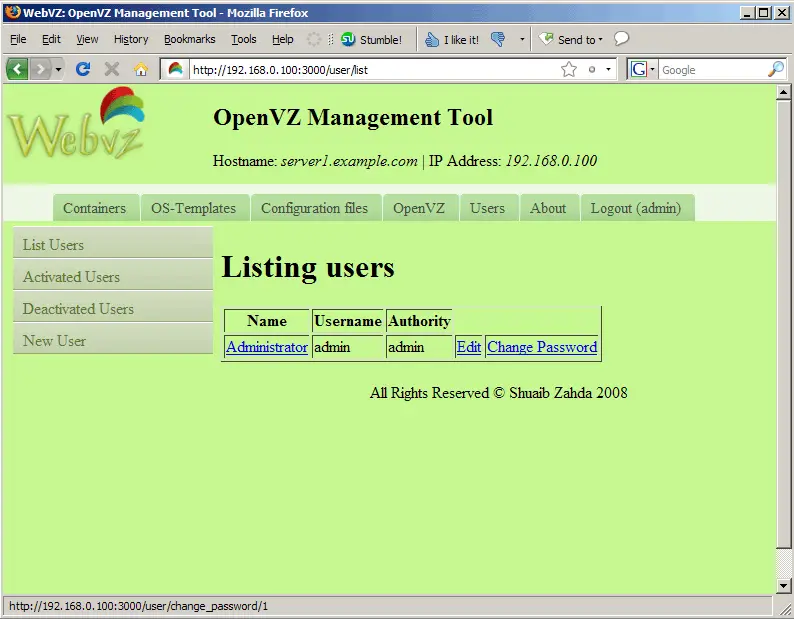
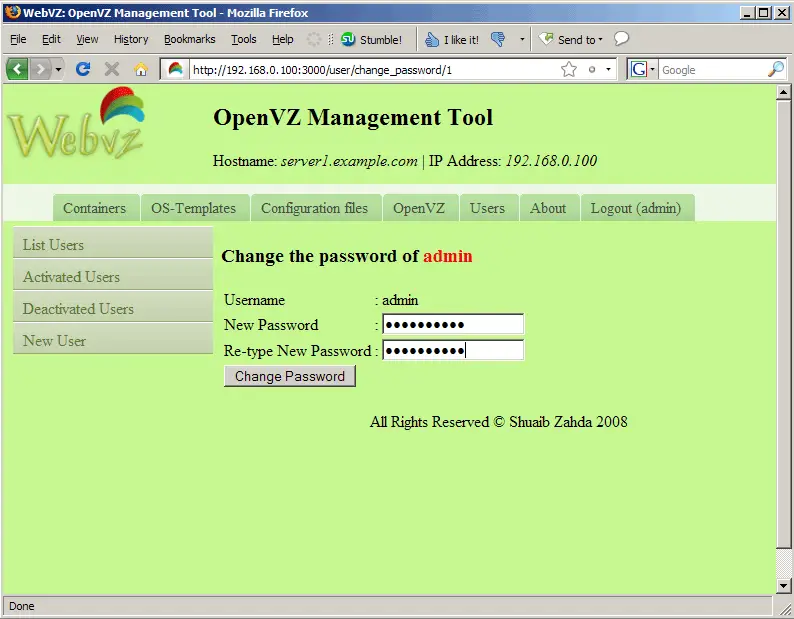
After the first login, go to the Users tab and change your password:
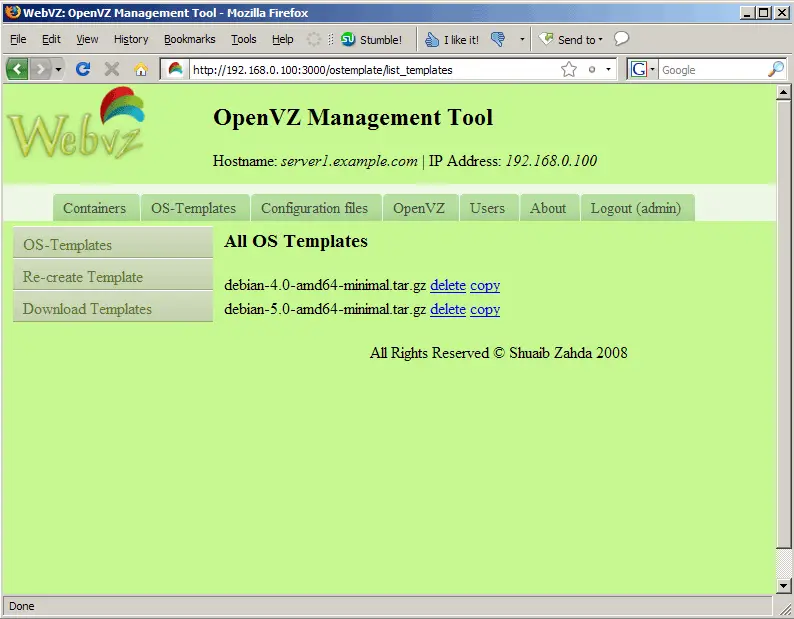
The OS-Templates tab displays a list of currently installed operating system templates for OpenVZ:
To create a new container, go to Containers > New Container...
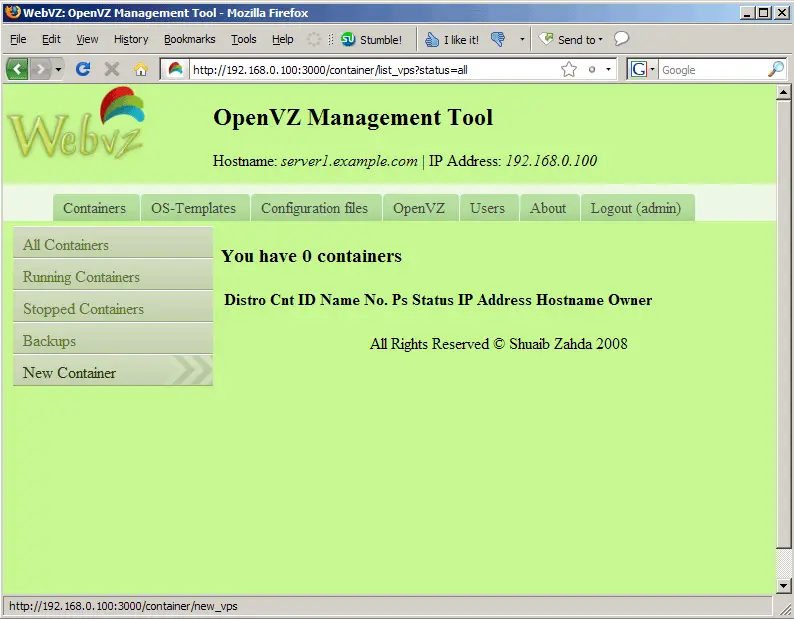
... and complete the following form:
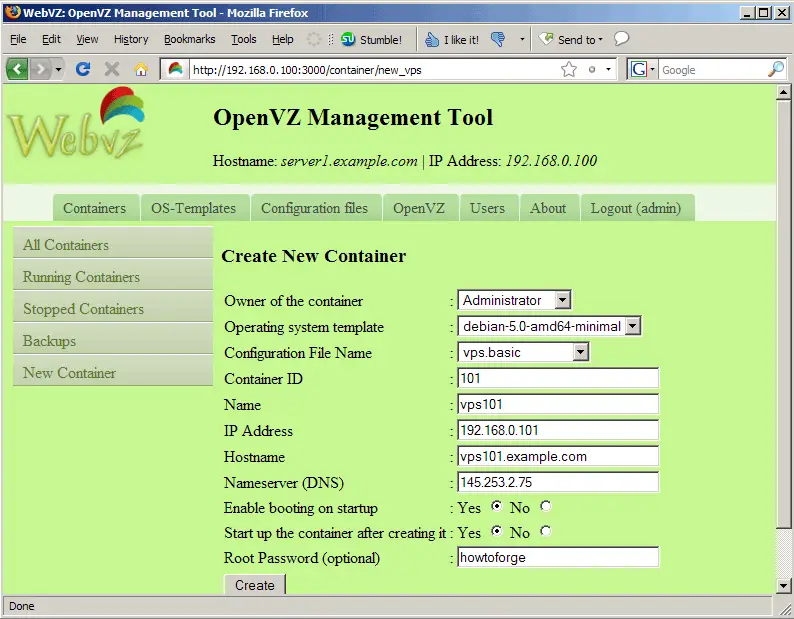
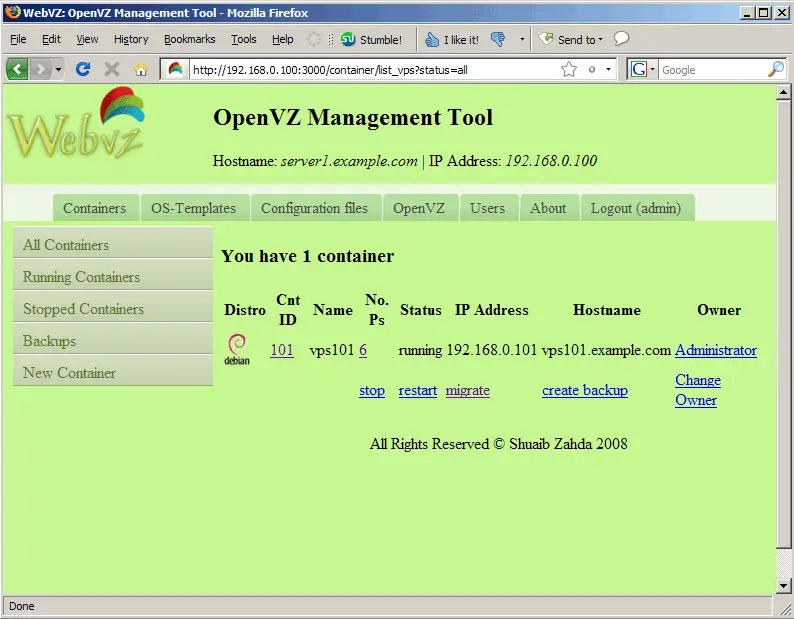
The container will then be created. Afterwards, you can manage it from WebVZ:
4 Running WebVZ As A Daemon
As I mentioned at the end of chapter 2, as soon as you press CTRL+D or close the command line window, the WebVZ process is killed. Of course, this is not what we want. We can make WebVZ run as a daemon as follows:
cd /usr/local/webvz/
ruby script/server &>/dev/null &
If you want WebVZ to be started at boot time, you can edit /etc/rc.local...
vi /etc/rc.local
... and add the line cd /usr/local/webvz/ && /usr/bin/ruby script/server &>/dev/null & before the exit 0 line:
#!/bin/sh -e # # rc.local # # This script is executed at the end of each multiuser runlevel. # Make sure that the script will "exit 0" on success or any other # value on error. # # In order to enable or disable this script just change the execution # bits. # # By default this script does nothing. cd /usr/local/webvz/ && /usr/bin/ruby script/server &>/dev/null & exit 0 |
5 Links
- WebVZ: http://webvz.sourceforge.net/index.html
- OpenVZ: http://wiki.openvz.org/
- Debian: http://www.debian.org/





