
KVM Virtualization With Enomalism 2 On A Fedora 10 Server - Page 3
3.2 Creating Our Own Virtual Machines
Instead of using the preconfigured appliances, we can also create our own virtual machines. Go to Repository > VM CREATOR. Click on the Browse... button...
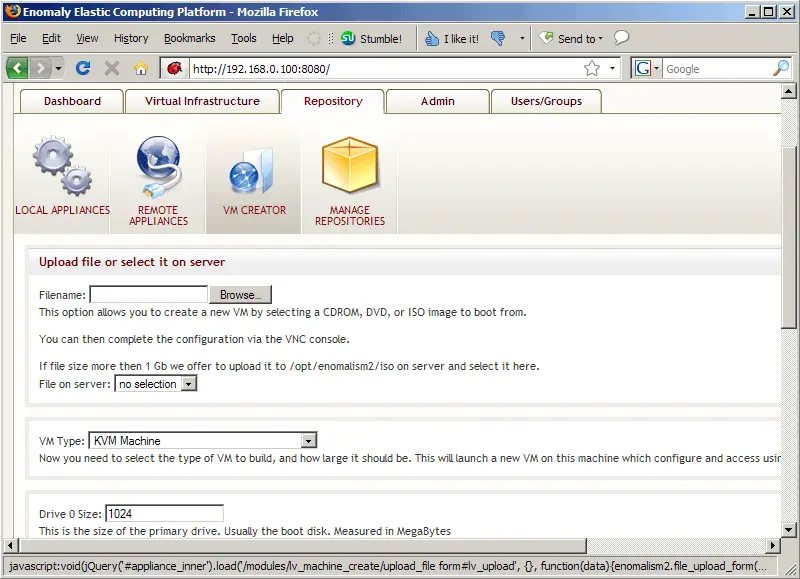
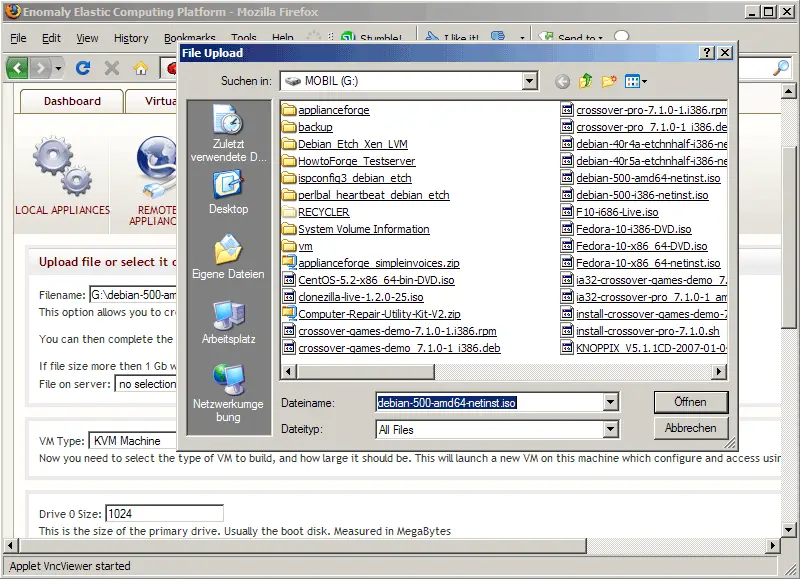
... select an operating system ISO image from your local hard drive (I'm going to install a Debian Lenny guest, so I select the debian-500-amd64-netinst.iso from my local hard drive):
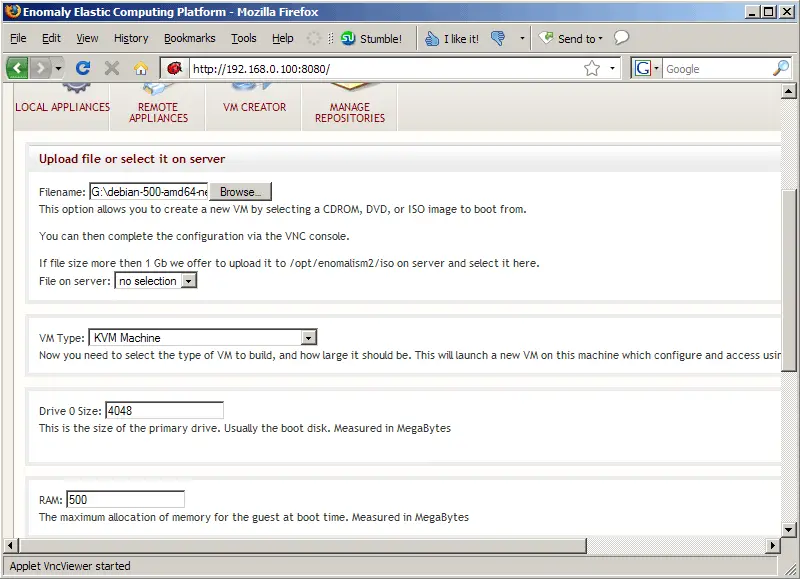
Next select KVM Machine in the VM Type drop-down menu and specify the size of the guest image (e.g. 4048 MB) as well as the memory that you want to allocate to the guest:
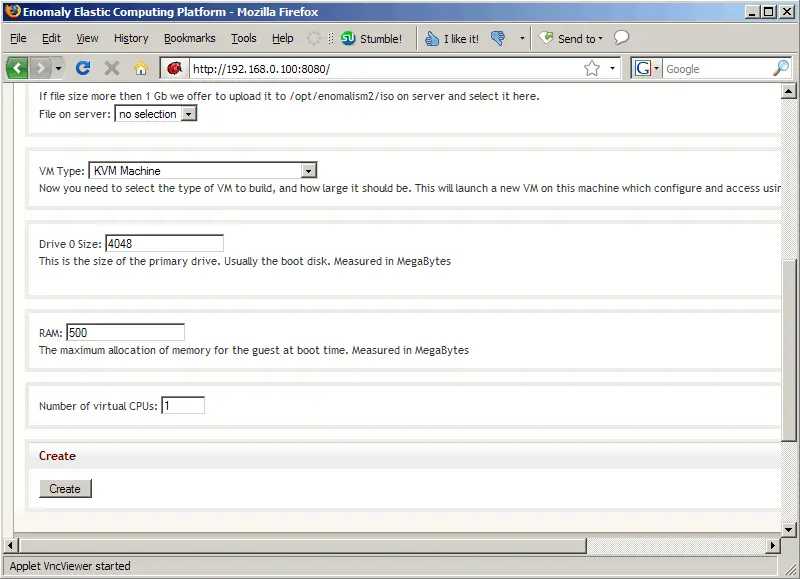
If your host system has more than one CPU core, you can specify the number of virtual CPUs for the guest. Click on Create afterwards:
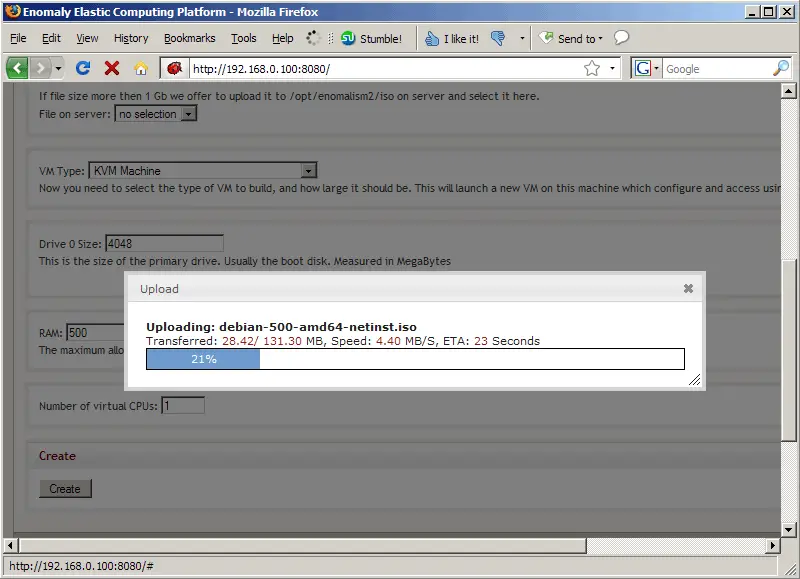
The ISO image is now being uploaded to the Fedora 10 KVM host:
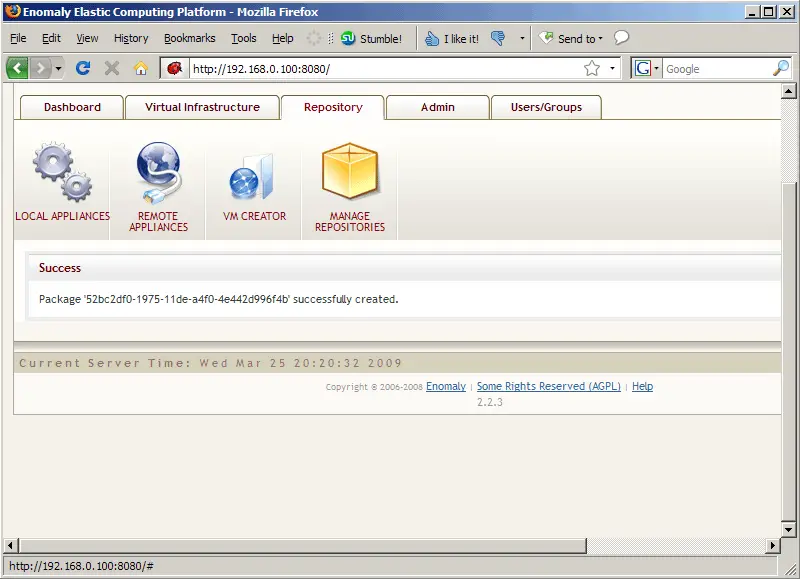
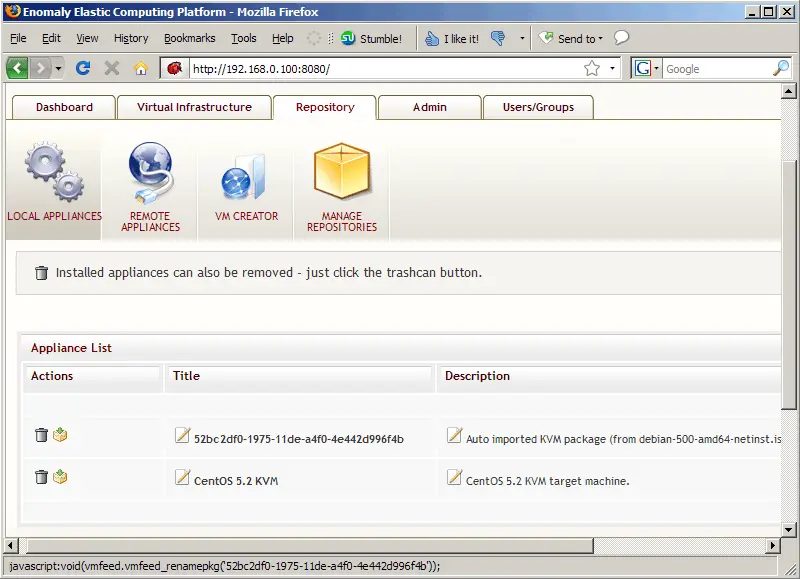
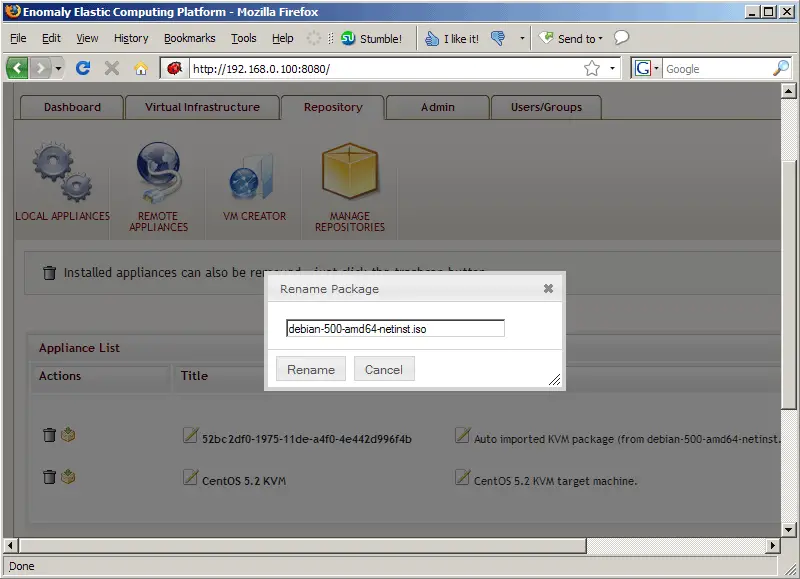
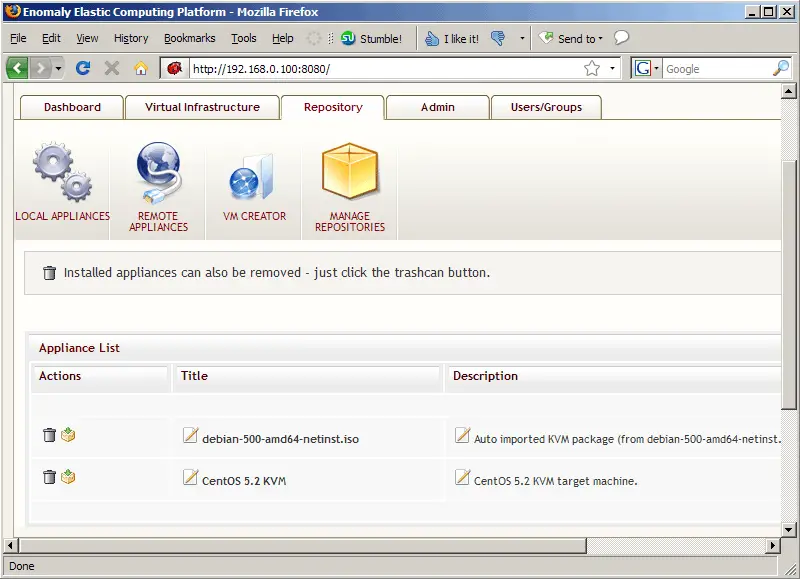
Afterwards, you can find the ISO image under Repository > LOCAL APPLIANCES. It has a cryptic name, so you should rename it to something more intuitive:
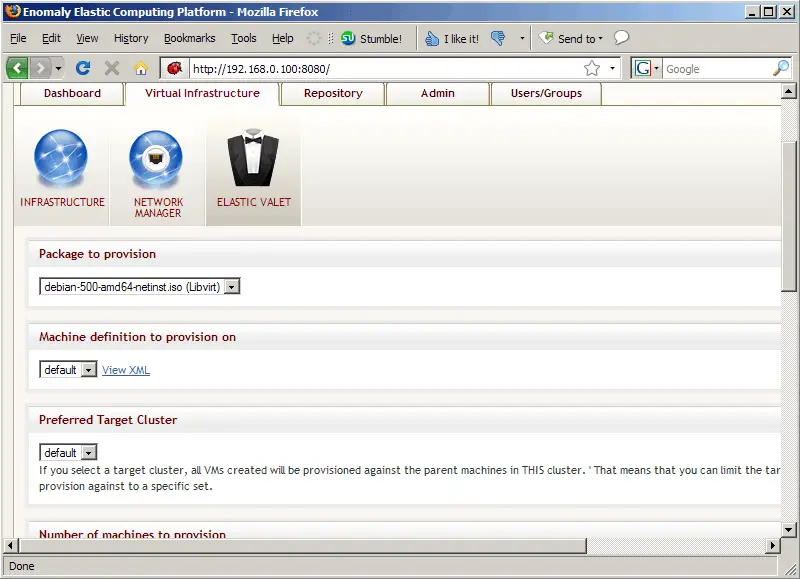
To create a virtual machine from the ISO image, go to Virtual Infrastructure > ELASTIC VALET, select the ISO image and click on Provision:
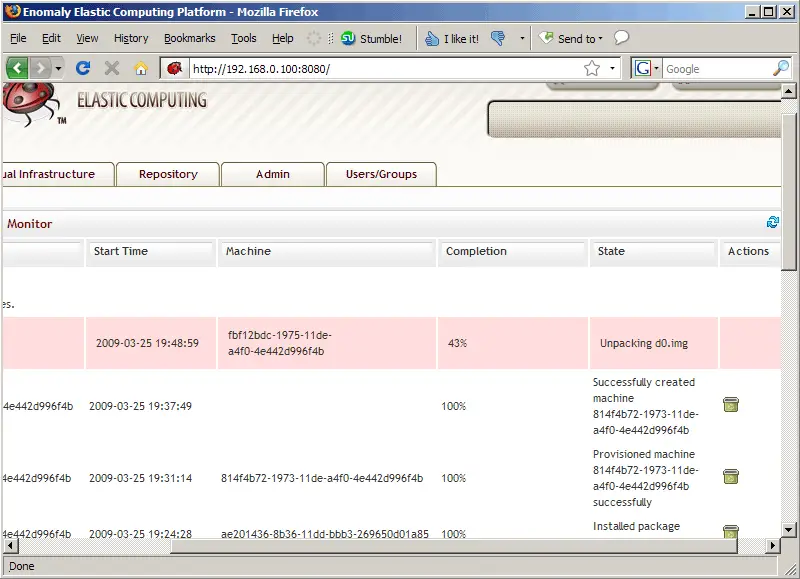
The ISO image is now being unpacked - this can take some minutes, and you can check the status on the Dashboard:
Afterwards, go to Virtual Infrastructure > INFRASTRUCTURE and click on the refresh button in the left frame. There should now be a new guest:
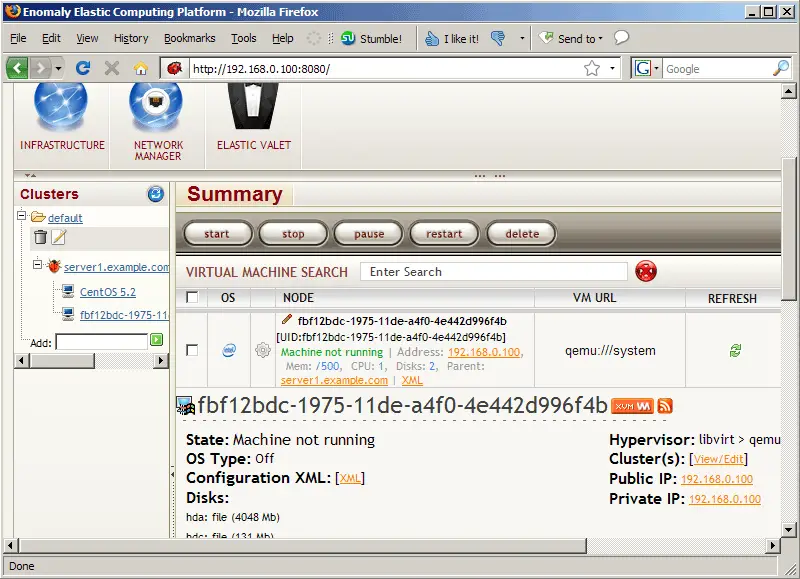
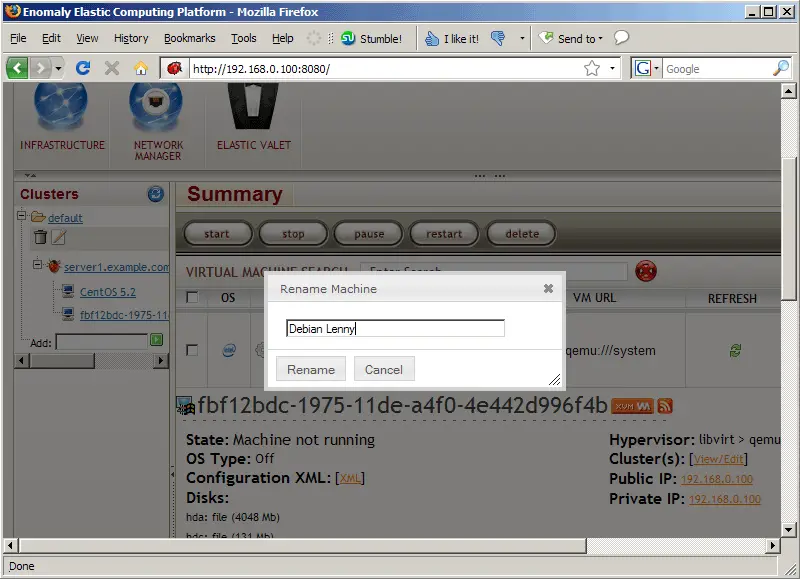
Rename that guest to something less cryptic:
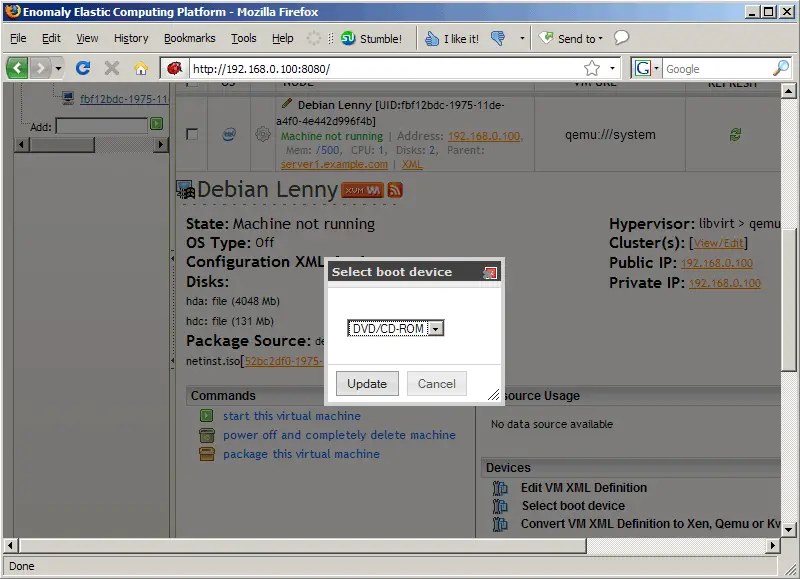
In the virtual machine summary, click on Select boot device...

... and choose DVD/CD-ROM:
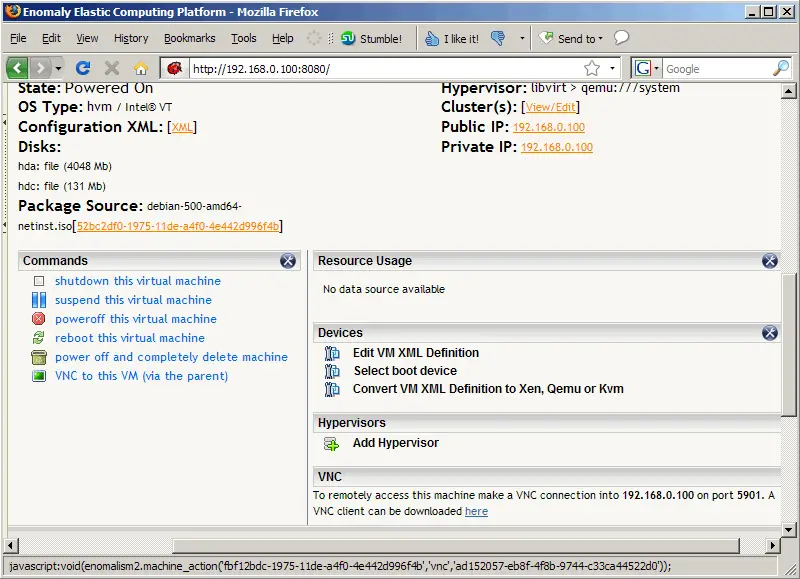
Then start the virtual machine:

Click on the VNC to this VM (via the parent) link to start Enomalism's built-in JAVA VNC client (or use your own VNC client)...
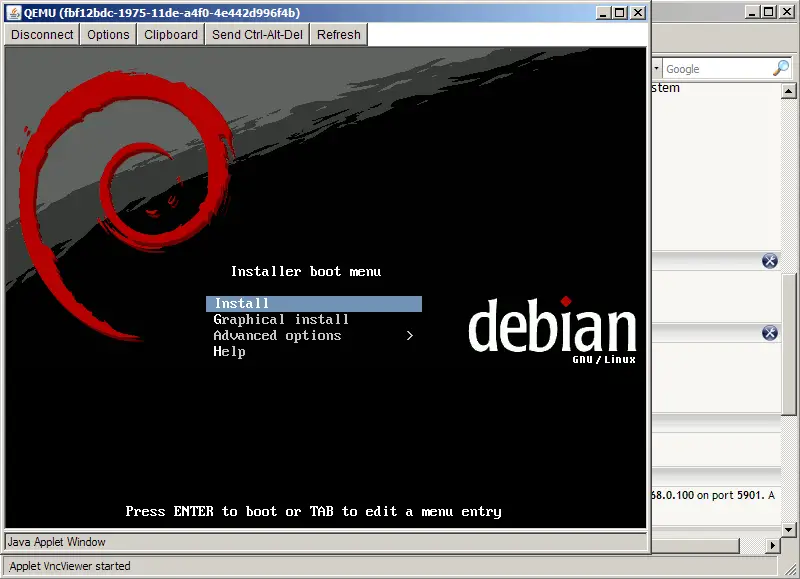
... and install the guest operating system, as you would usually do on a physical system:
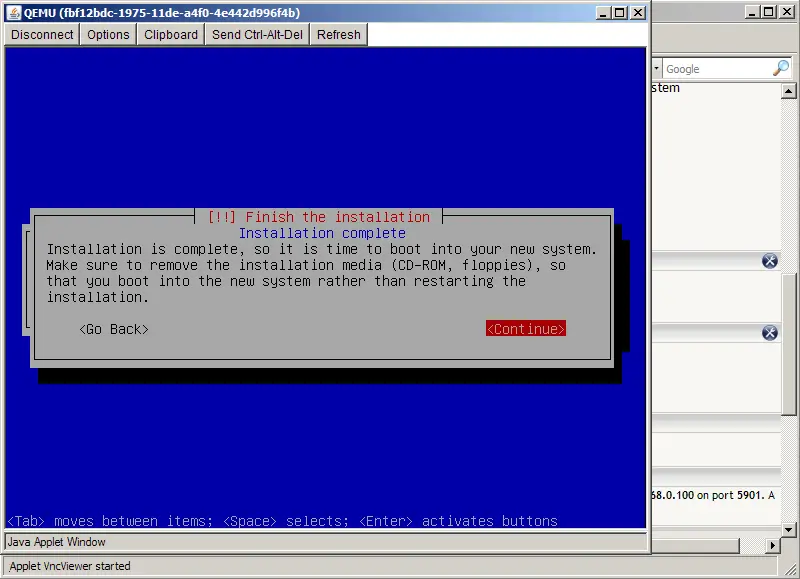
Please note that at the end of the installation, the Debian guest needs a reboot:
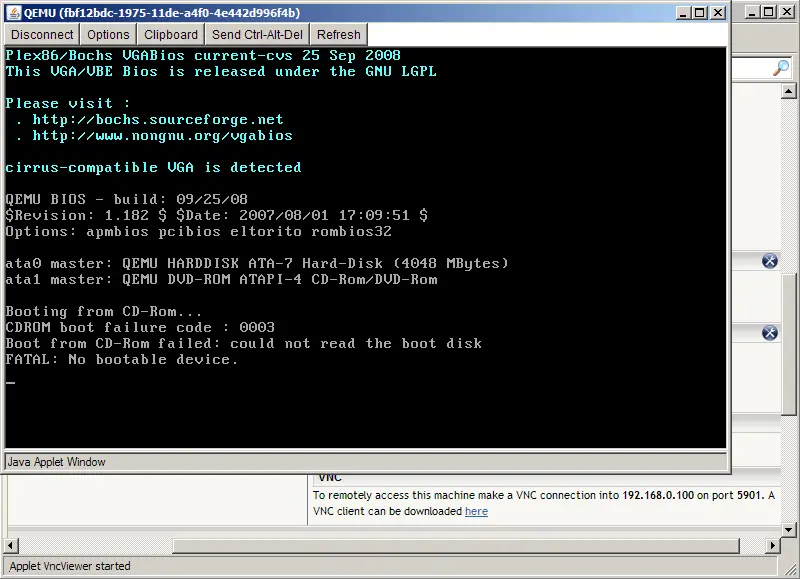
The guest will then try to boot from CD-ROM again which results in a failure:
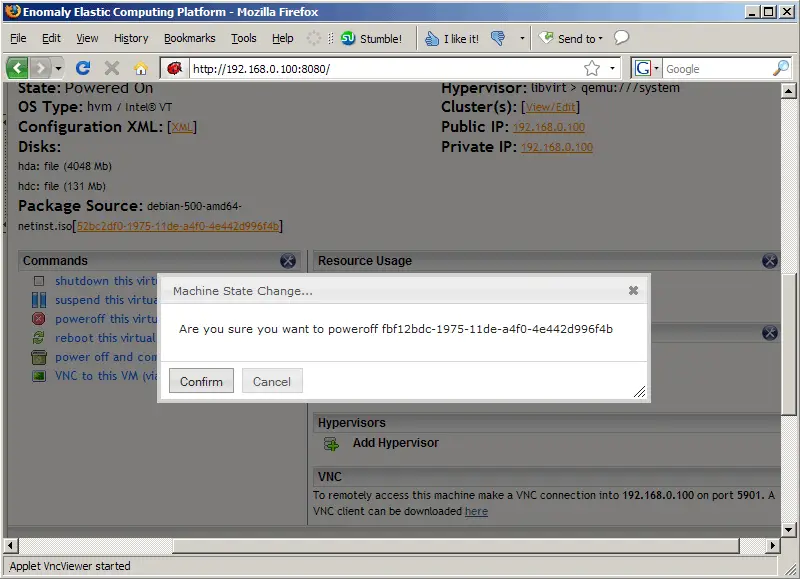
To fix this problem, power down the guest (using the poweroff this virtual machine link):

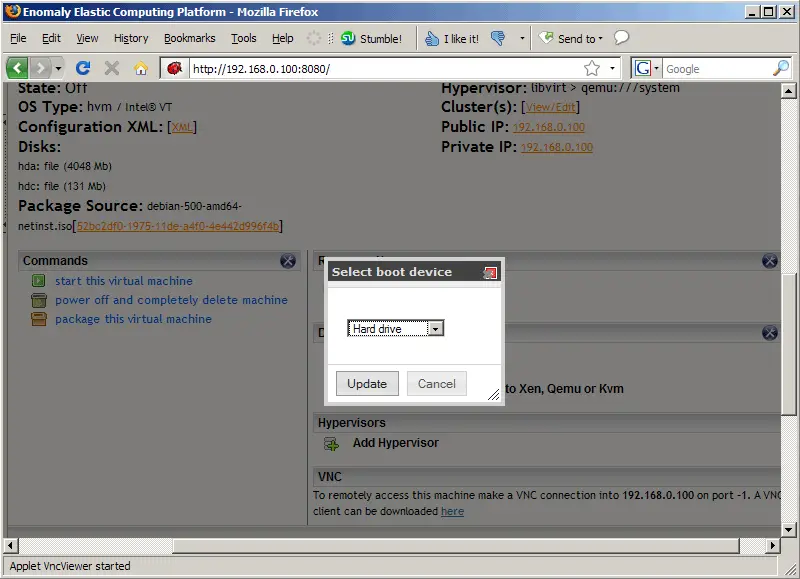
Then click on Select boot device again...
... and select Hard drive:
Now start the guest again using the start this virtual machine link:
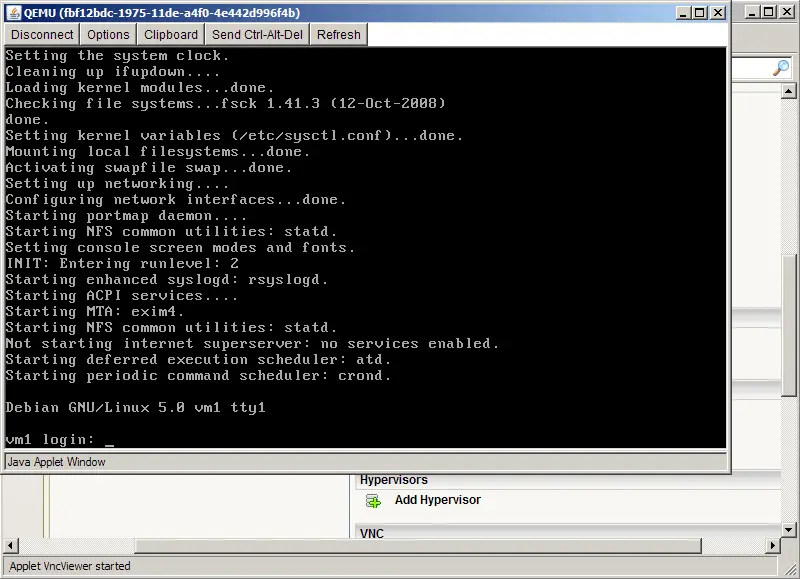
You can now connect to the guest via VNC again, and it should now boot without any problem:
If you are experiencing any problems with Enomalism, you can take a look at the Enomalism logs in the /opt/enomalism2/logs directory.
4 Links
- Enomalism/Enomaly: http://www.enomalism.com/
- Fedora: http://fedoraproject.org/





