
On this page
- Joomla CMS On An ISPConfig Server Within 10 Easy Steps
- Step 1 - Create a website:
- Step 2 - Create a Administator user for the website:
- Step 3 - Create a MySQL database for the website:
- Step 4 – Download Joomla to your local desktop:
- Step 5 – Turn off Register Globals Emulation:
- Step 6 – Upload Joomla to your webserver:
- Step 7 – Visit your new Joomla site:
- Step 8 – Setting permissions:
- STEP 9 - Continue the Joomla Setup:
- Step 10 – Remove the Installation directory and visit your Joomla site:
Joomla CMS On An ISPConfig Server Within 10 Easy Steps

Version 1.2
Author: <hans> [at] bb-hosting [dot] org>
Joomla is a popular Content Management System (CMS).
With this “how to”, I guide you to setup Joomla CMS on your ISPConfig server. Probably you can setup Joomla in different ways but I prefer the way descibed here.
In this how to, I will use just as an example:
- Joomla version 1.0.11.
- I assume also that this is your first Joomla setup for your joomla site, this is not an update!
- Website: www.myjoomlawebsite.tld
- Websitenumber within ISPConfig: web1
- Your webs are stored under /var/www
- MySQL database: web1_db1
- MySQL username: web1_u1
- MySQL password: mysqlpassword
- Administrator (FTP-user) for the website: webadmin
Here we we go:
Step 1 - Create a website:
In ISPConfig, create a website via "New site" in the main menu.
On the tab called "Basis" use www for the hostname and myjoomlawebsite.tld for the domain name. Enable MySQL and PHP scripts for this website but disable PHP Safe Mode.
Step 2 - Create a Administator user for the website:
In ISPConfig, create an Administrator user, so you can upload/download the website later via FTP. For example we will use the loginname "webadmin"for the administrator.
In the main menu select "ISP Manager", select your new website called myjoomlawebsite.tld in the structure tree and press the tab "User and Email". Press "new" and define a new user and its email address. Give this user administrator rights and press "Save".
Step 3 - Create a MySQL database for the website:
Click on the tab called "Options" and create a new database for the website.
ISPConfig will show you:
Database name: web1_db1
Database user: web1_u1
Then you define a password for the database user and press "Save".
Step 4 – Download Joomla to your local desktop:
Download the latest stable Joomla version, which is version 1.0.11 at the moment.
You can download it at:
http://forge.joomla.org/sf/frs/do/viewRelease/projects.joomla/frs.joomla_1_0.1_0_11 by choosing the file Joomla_1.0.11-Stable-Full_Package.zip.
After downloading Joomla, extract it to the file folder of your choice.
Step 5 – Turn off Register Globals Emulation:
In the file folder where you’ve extracted the Joomla files, you’ll find a file globals.php.
Open it with a texteditor and change the line:
define( 'RG_EMULATION', 1 );
into
define( 'RG_EMULATION', 0 );
By changing 1 into 0, globals emulation is turned off, which is recommended for security reasons.
Step 6 – Upload Joomla to your webserver:
Now, you can upload Joomla, using your favourite FTP-client.
URL: ftp://myjoomlawebsite.tld/web
username and password as defined at STEP 2.
Note: you must upload all the Joomla files EXCEPT one file called configuration.php.
Step 7 – Visit your new Joomla site:
Now you can point to your joomla site with your favourite browser.
The (example) address according my how to is: http://myjoomlawebsite.tld
Here you will see the Joomla setup screen:
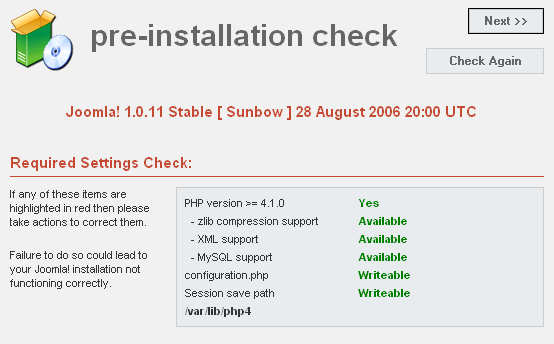
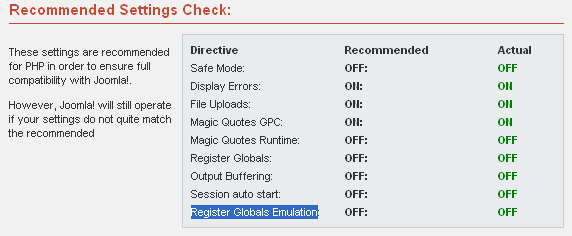
You will see that under "Recommended Settings Check" everything is green, which means that all is ok.
Step 8 – Setting permissions:
Now we have to make the Joomla directories/files writable for Apache, because at this moment they are not!
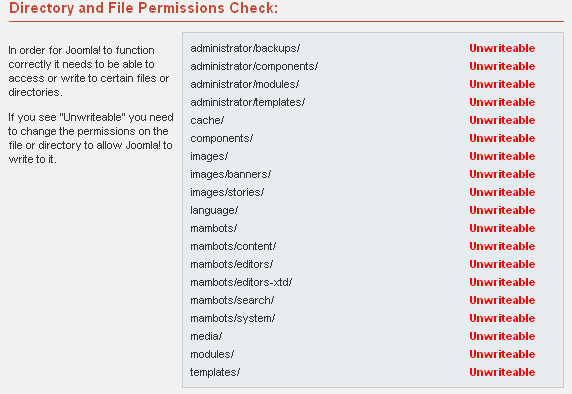
To make them writable for Apache, logon to your server as root.
If you use php5 as a module (php5mod) on your ISPConfig server execute the following commands:
cd /var/www/web1/
And make the webspace web writable for Apache:
chown -R -v -f www-data:www-data web/*
ALTERNATIVE:
If you use php5-cgi with suPHP enabled on your ISPConfig server execute the following commands:
cd /var/www/web1/
chown -R -v -f webadmin:web1 web/*
(Remember that "web1" and the username "webadmin" are according my example, use your own webnumber and username instead !)
In your browser and after clicking "Check Again" on the upper right corner of our Joomla setup screen you’ll see that the necessary directories/files are writeable.
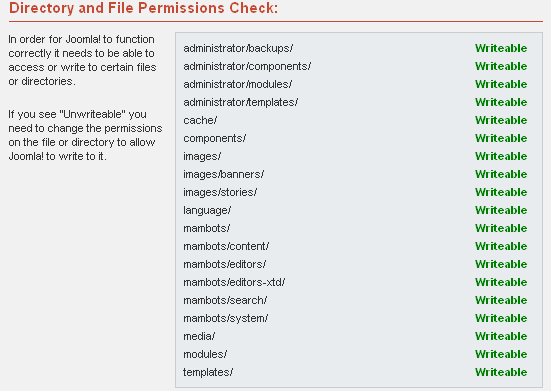
If everything looks ok and save, you can click "NEXT" to continue your setup.
STEP 9 - Continue the Joomla Setup:
- Accept the license agreement by clicking "NEXT".
- Fill in the form as shown here:
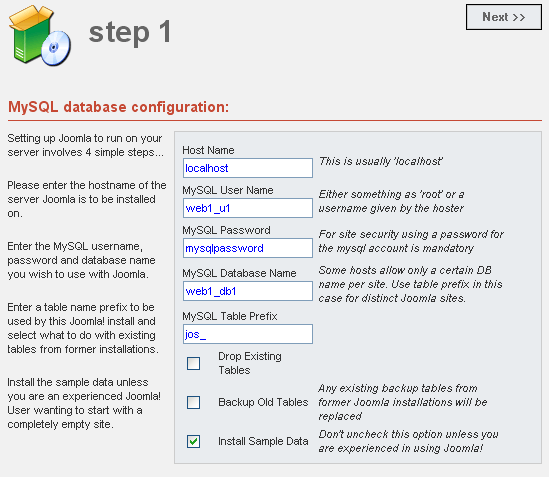
(Use your own MySQL databasename and MySQL username and MySQL password).
Press "NEXT"to continue.
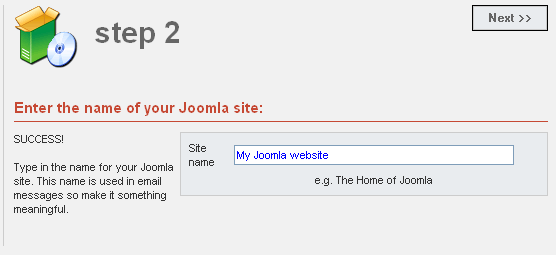
- Give a name for your new Joomla website and Press "NEXT" to continue.
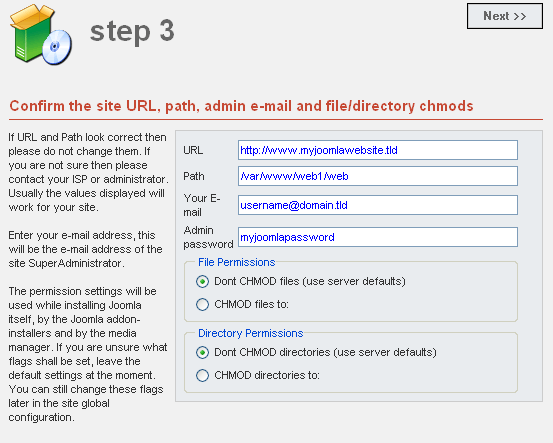
- Fill in the form as shown here, then press "NEXT"to continue.
- If you read "Congratulations! Joomla is installed. You are done.
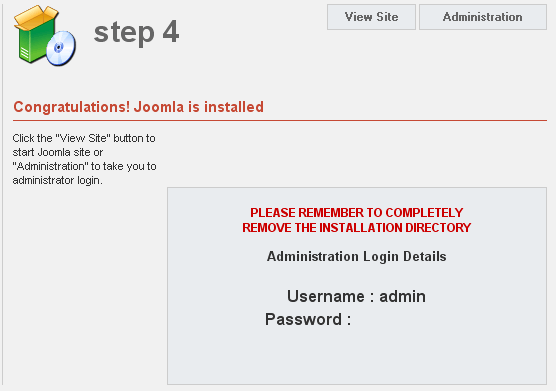
DO NOT FORGET THE JOOMLA ADMINISTRATOR USERNAME AND PASSWORD !
- Press "Administrator" in the upper right corner.
You will see this screen, which means we did not remove the installation directory yet.

Step 10 – Remove the Installation directory and visit your Joomla site:
To remove the Joomla installation directory , logon to your server as root.
Navigate to your Joomla web with the command:
cd /var/www/web1/web
(web1 is according my example, use your own webnumber!)
or
cd /var/www/www.myjoomlawebsite.tld/web
After entering the dir command. You’ll see the installation directory called "installation".
You can remove this with the command:
rm –rf installation
In your internet browser you can visit the frontend of your Joomla CMS site by pointing to http://www.myjoomlawebsite.tld.

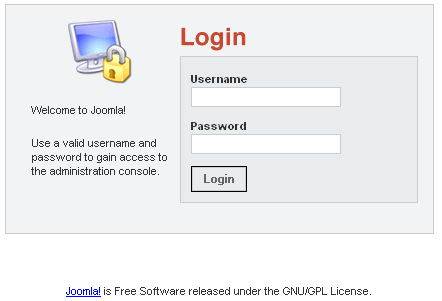
You can visit the backend at URL http://www.myjoomlawebsite.tld/administrator, login with your Joomla administrator account and start with Joomla.
A final note:
If you run php5-cgi+suPHP for your Joomla site on your ISPConfig server, define the permissions as shown in the picture below. You can do this within Joomla in the main menu under: Site > Global Configuration > Server.





