
Installing Google Android SDK 1.0 On Ubuntu 8.04 Desktop - Page 2
On this page
3 Installing Google Android SDK 1.0
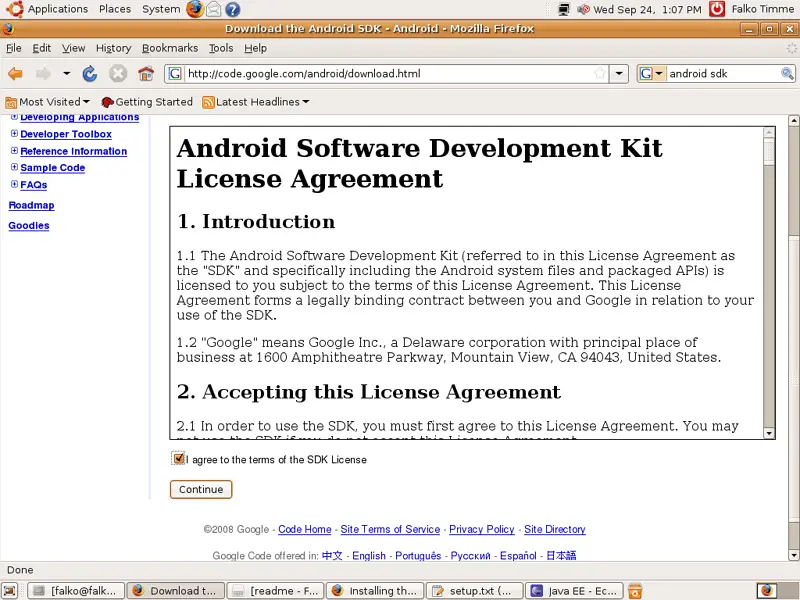
To download the Android SDK 1.0, go to http://code.google.com/android/download.html, accept the license and click on Continue:
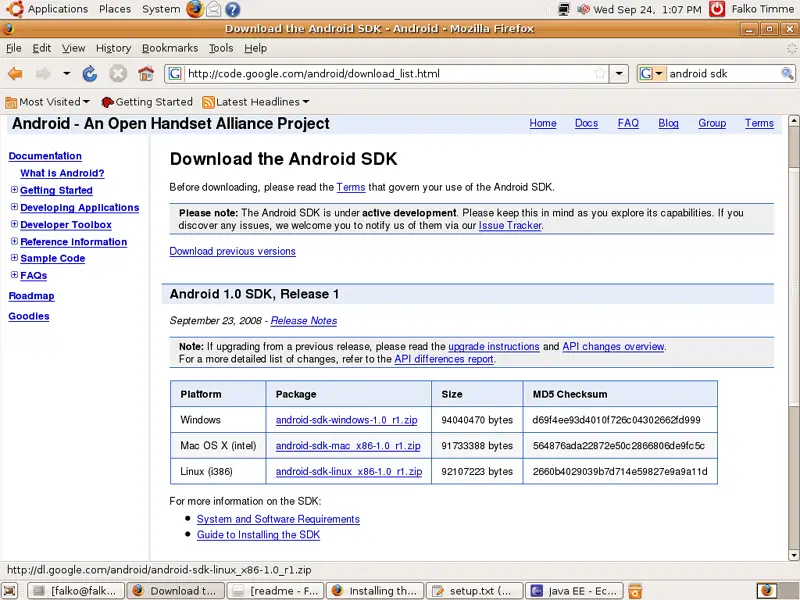
On the next page, select the Android SDK for Linux...
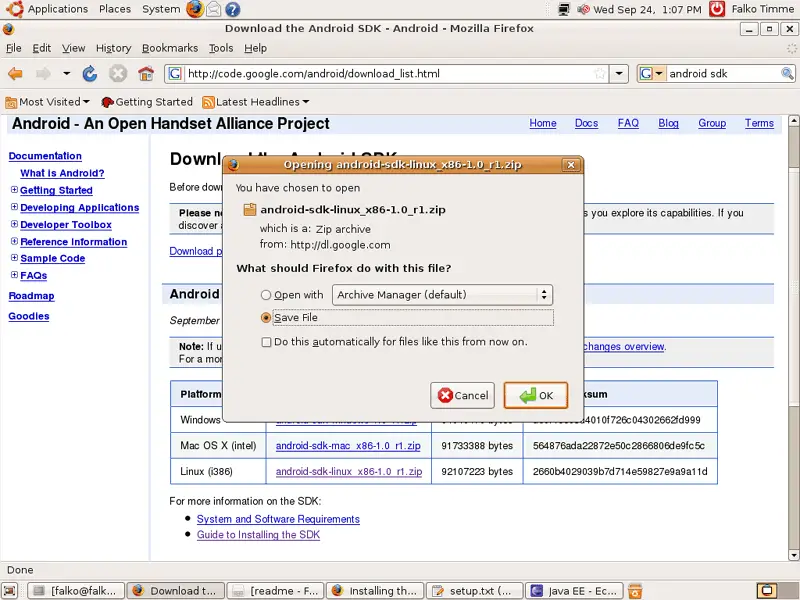
... and save it to your hard disk (e.g. on the desktop):
Now open a terminal again and go to the directory where you've saved the Android SDK and unzip it:
cd /home/falko/Desktop/
unzip android-sdk-linux_x86-1.0_r1.zip
We don't need the zip file anymore, so we can delete it:
rm -f android-sdk-linux_x86-1.0_r1.zip
We now have a directory called android-sdk-linux_x86-1.0_r1. In my case it's on my desktop - I don't want it there, so I move it to my home directory (you can as well leave it where it is):
mv android-sdk-linux_x86-1.0_r1/ ~
The android-sdk-linux_x86-1.0_r1 directory contains a subdirectory called tools (/home/falko/android-sdk-linux_x86-1.0_r1/tools in my case). We must now open ~/.bashrc and add the following line to it so that android-sdk-linux_x86-1.0_r1/tools is in our PATH:
gedit ~/.bashrc
[...]
export PATH=${PATH}:/home/falko/android-sdk-linux_x86-1.0_r1/tools
[...]
|
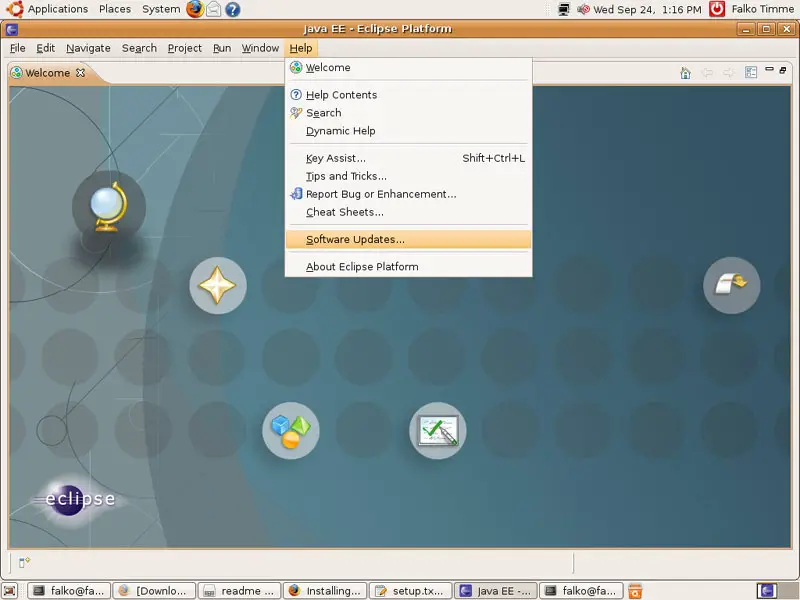
Next, we must install the Android Eclipse plugin. In Eclipse, go to Help > Software Updates...:
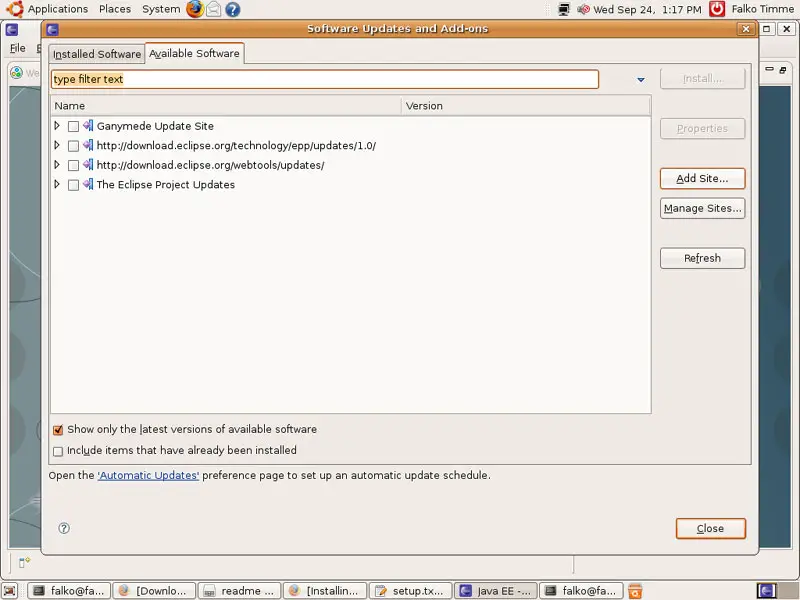
Go to the Available Software tab and click on Add Site...:
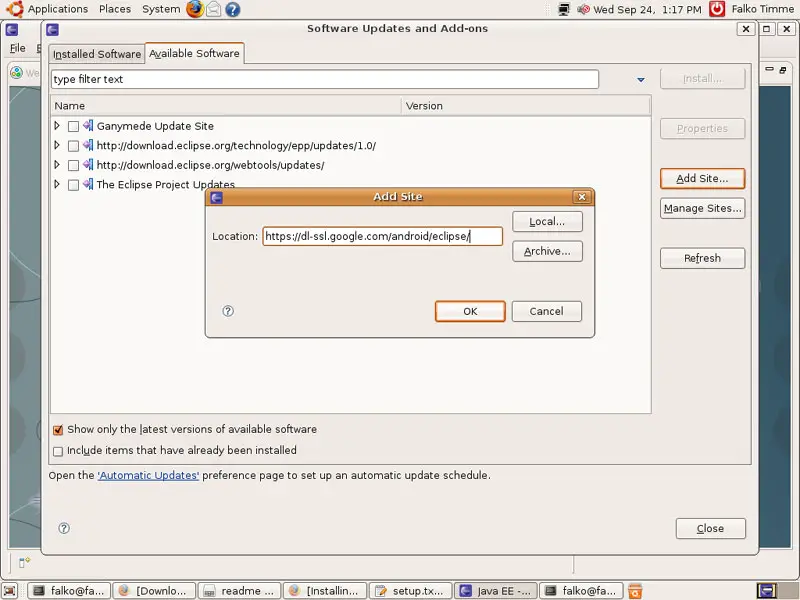
The Add Site window opens. Fill in https://dl-ssl.google.com/android/eclipse/ and click on OK:
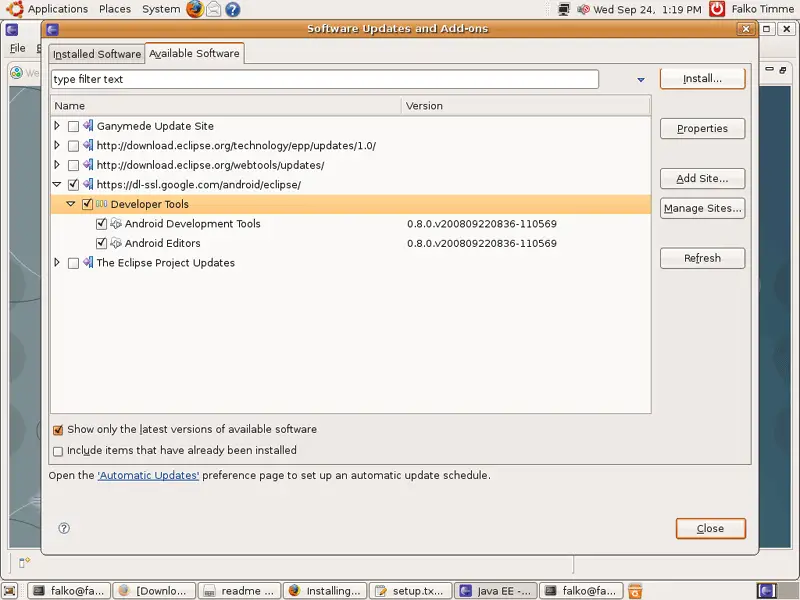
Back on the Available Software tab, select Developer Tools (this should automatically check Android Development Tools and Android Editors) and click on Install...:
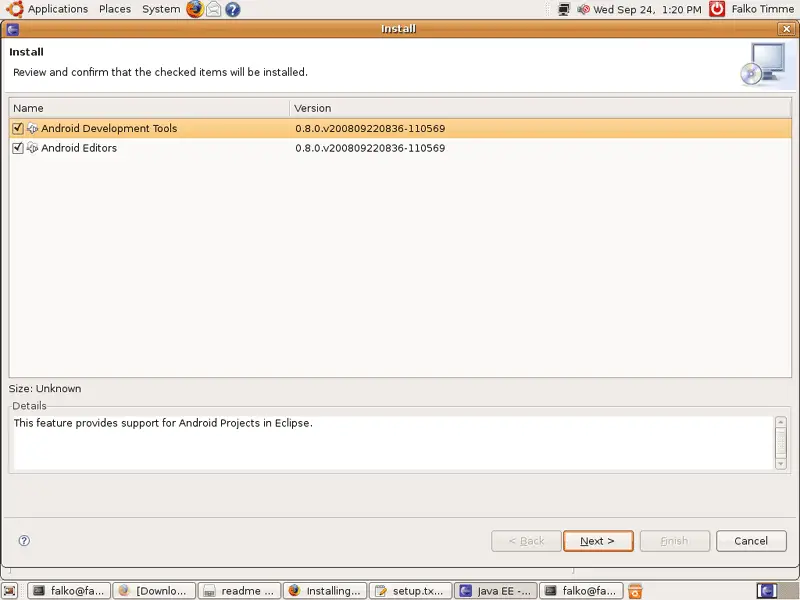
In the Install window, make sure that both Android Development Tools and Android Editors are checked, and click on Next >:
Click on Finish next:
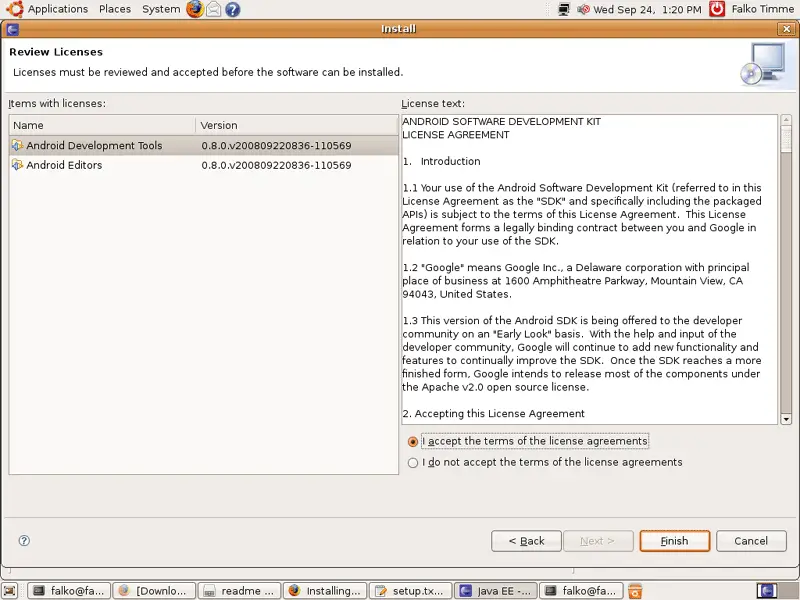
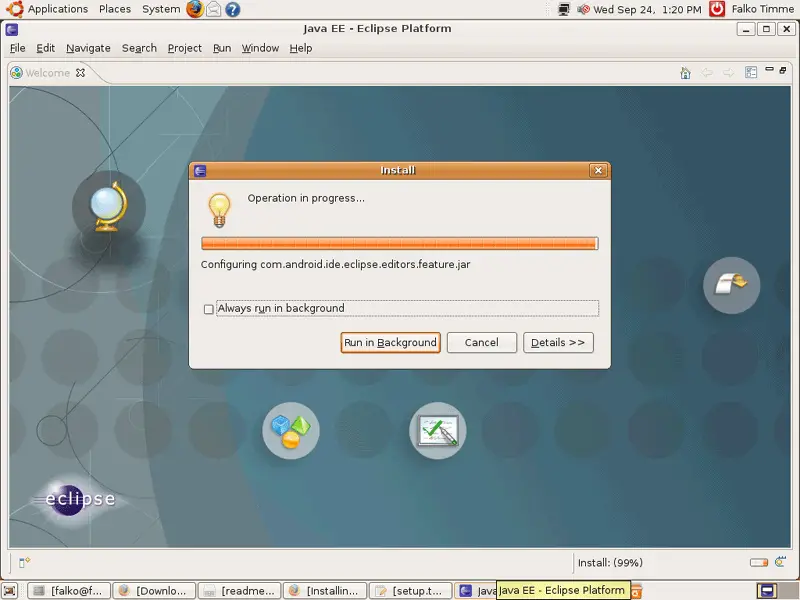
The plugins are now being installed:
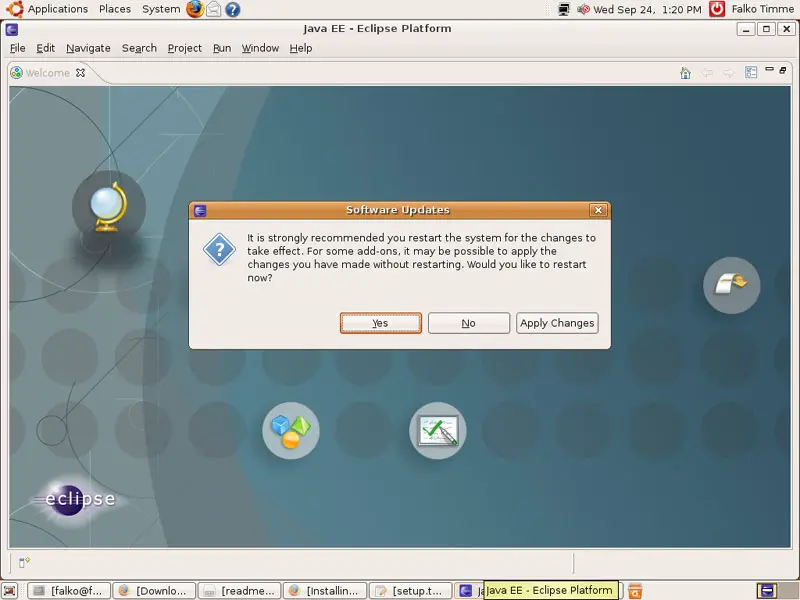
Eclipse must be restarted for the changes to take effect, so when you are asked if you want to restart Eclipse after the installation, you should select Yes:
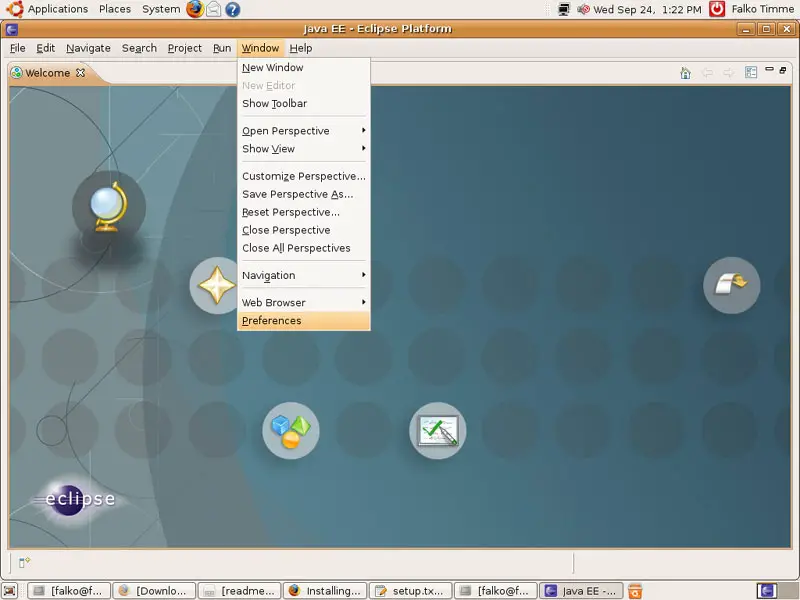
After Eclipse has started again, we must update our Eclipse preferences to point to the Android SDK directory. Go to Window > Preferences:
If you see this message, click on OK and forget it:
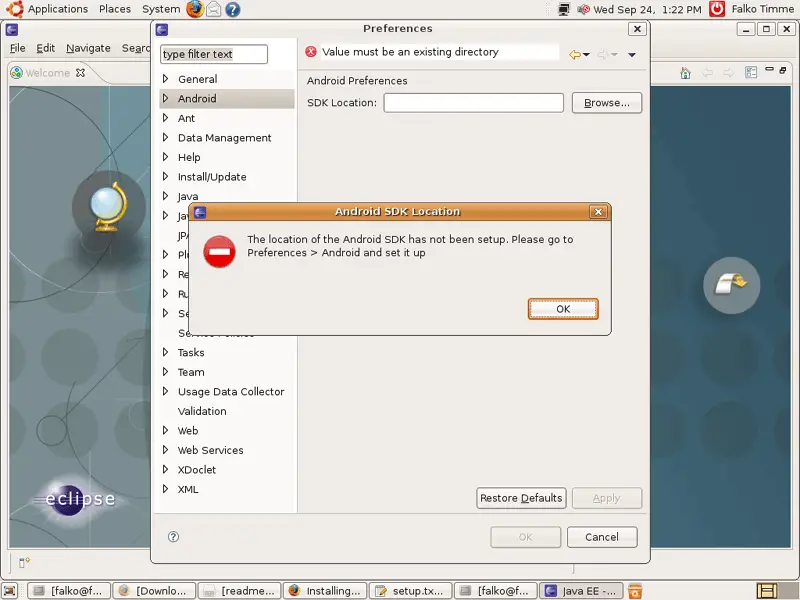
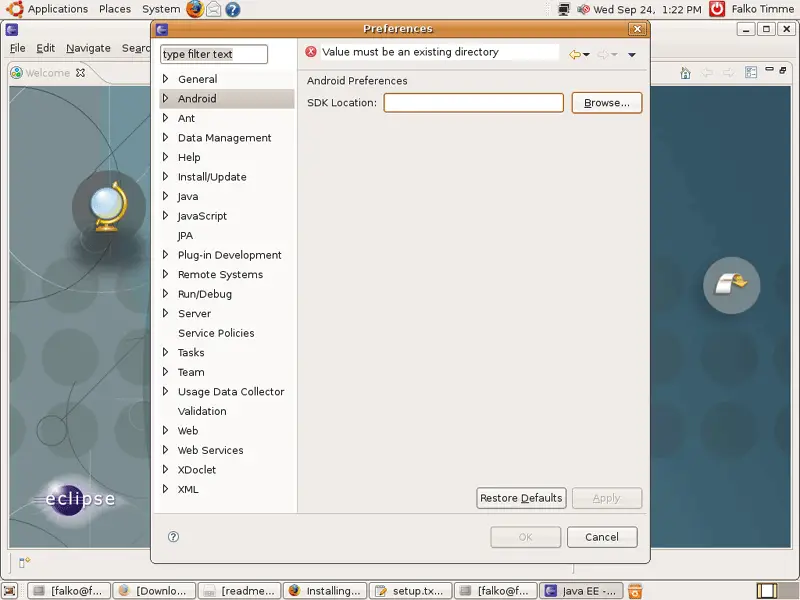
Click on Browse...
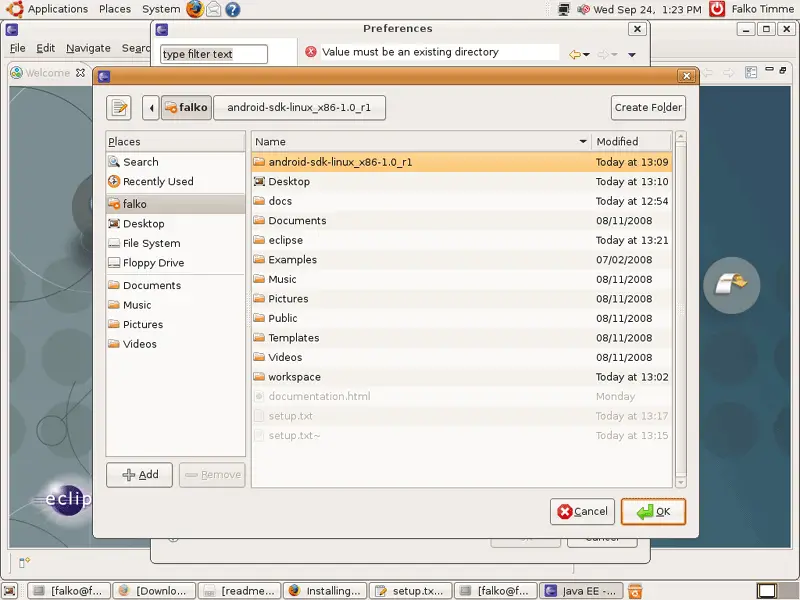
... and select the Android SDK directory (/home/falko/android-sdk-linux_x86-1.0_r1 in my case):
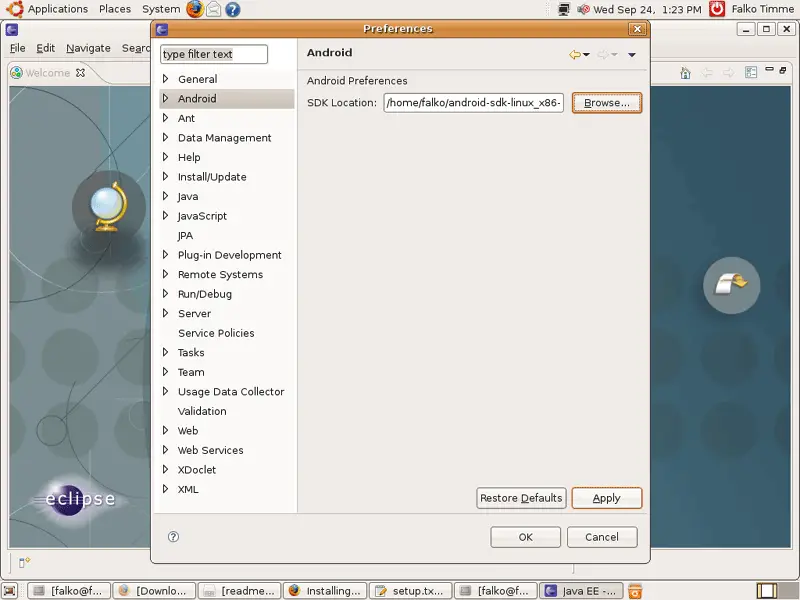
Back in the Preferences window, click on Apply and then OK:
That's it, you can now use the Android SDK to create your own Android applications.





