
Installing Elgg On An ISPConfig 3 System - Page 4
On this page
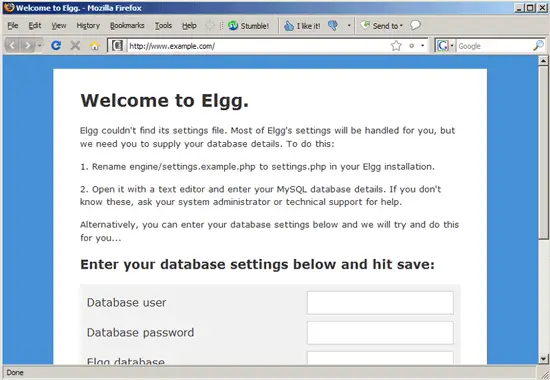
Now we can start the web-based Elgg installer. Open http://www.example.com in a browser - you will see this welcome page from the Elgg installer. Scroll down a bit...
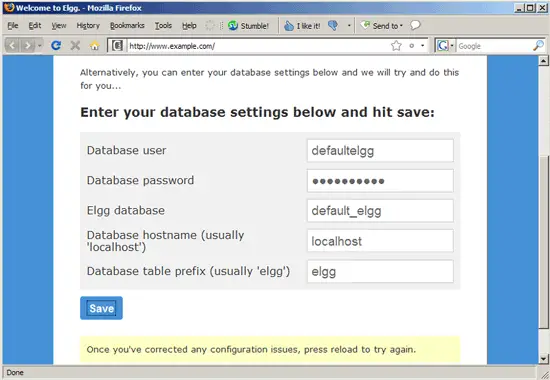
... and fill in the database user (+ password) and the database name that you've created in ISPConfig previously. Click on Save:
If all goes well, the installer should say that the Elgg database was installed successfully. Scroll a bit down...
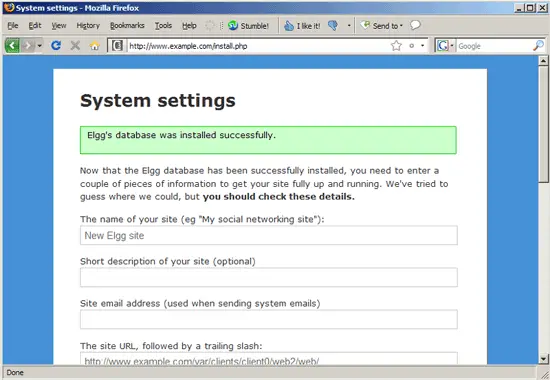
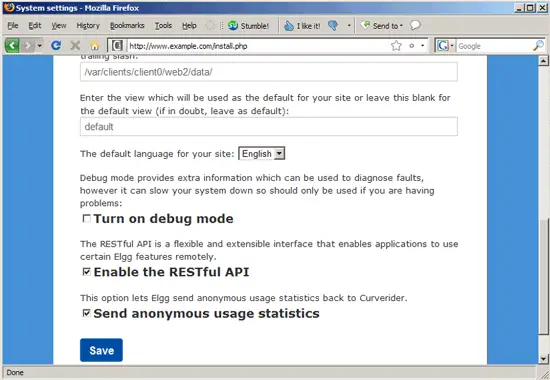
... and fill in some details about your Elgg installation. As the site URL, fill in http://www.example.com/ (including the trailing slash!); also fill in the full paths to the document root of the www.example.com web site (/var/clients/client0/web2/web/ (see chapter 2) or /var/www/example.com/web/ which is a symlink to /var/clients/client0/web2/web/) and the data folder (/var/clients/client0/web2/data/ or /var/www/example.com/data/ which is a symlink to /var/clients/client0/web2/data/):
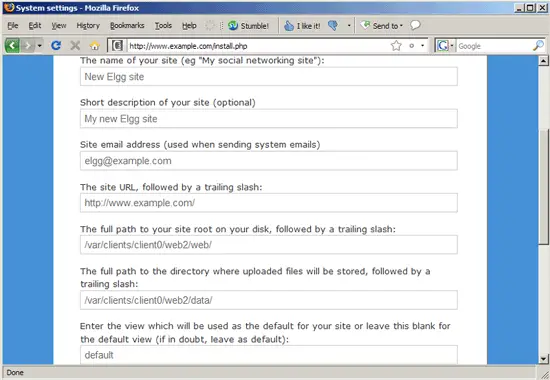
The default values of the other configuration options are usually ok, so you can click on Save:
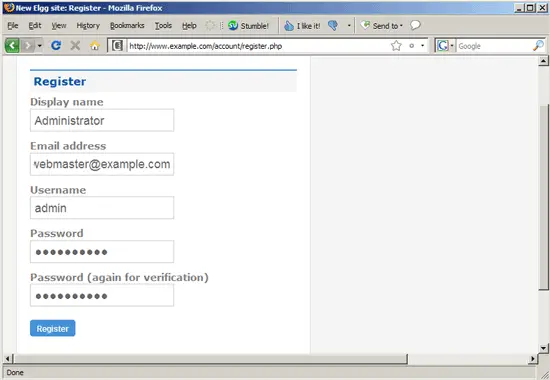
Next create an administrator account...
... and log in with that account:
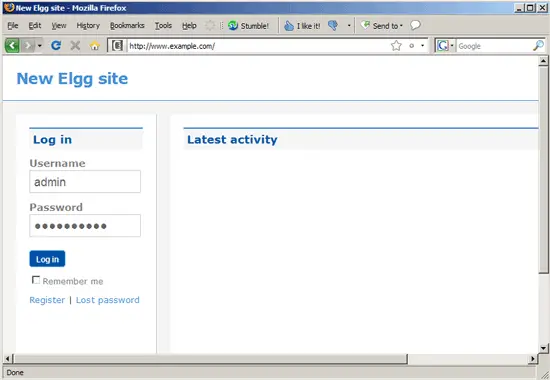
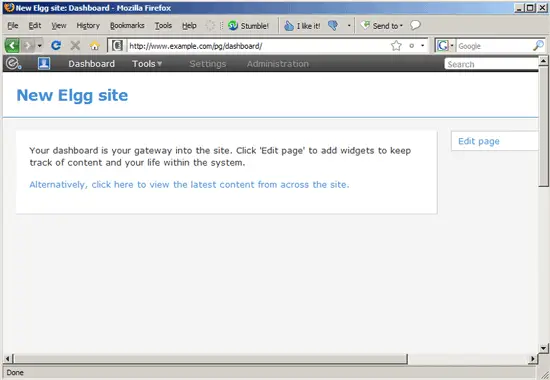
This is how your new Elgg site looks:
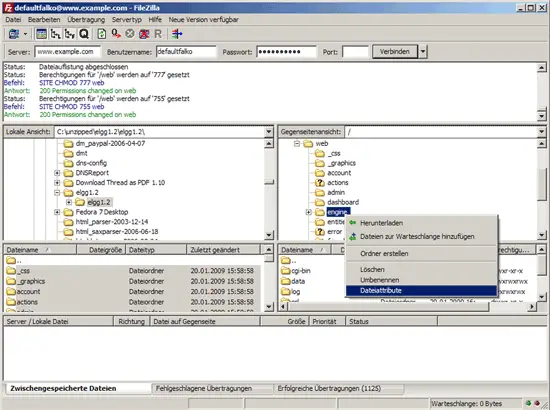
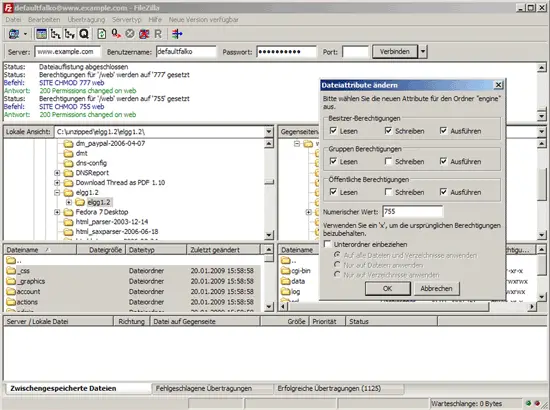
Now that the installation is finished, we can change the permissions of the engine folder inside the web directory back to 755:
That's it - your new Elgg installation is now ready to be used.
7 Links
- Elgg: http://elgg.org/
- ISPConfig: http://www.ispconfig.org/
- FileZilla: http://filezilla-project.org/





