
How To Set Up SSL Vhosts Under Nginx + SNI Support (Ubuntu 11.04/Debian Squeeze) - Page 2
5 SSL Vhost Configuration
Next we create our SSL vhost. The cool thing about nginx is that we do not have to create a new SSL vhost - instead, we can add our SSL directives to the existing http vhost:
vi /etc/nginx/sites-available/www.hostmauritius.com.vhost
If you use nginx >= 0.8.21:
server {
        listen   80; ## listen for ipv4
        listen   [::]:80; ## listen for ipv6
        listen   443 ssl;
        listen   [::]:443 ipv6only=on ssl;
        ssl_certificate /etc/ssl/certs/www.hostmauritius.com.pem;
        ssl_certificate_key /etc/ssl/private/www.hostmauritius.com.key;

        server_name  www.hostmauritius.com hostmauritius.com;
        root /var/www/www.hostmauritius.com/web;

        if ($http_host != "www.hostmauritius.com") {
                 rewrite ^ $scheme://www.hostmauritius.com$request_uri permanent;
        }

        location / {
                index  index.php index.html index.htm;
        }

        location ~ \.php$ {
                fastcgi_pass   127.0.0.1:9000;
                fastcgi_index  index.php;
                fastcgi_param  SCRIPT_FILENAME  /var/www$fastcgi_script_name;
                include         fastcgi_params;
        }

        location ~ /\. {
                deny  all;
        }
}
|
If you use nginx < 0.8.21:
server {
        listen   80; ## listen for ipv4
        listen   [::]:80; ## listen for ipv6
        listen   443 default ssl;
        listen   [::]:443 default ipv6only=on ssl;
        ssl_certificate /etc/ssl/certs/www.hostmauritius.com.pem;
        ssl_certificate_key /etc/ssl/private/www.hostmauritius.com.key;

        server_name  www.hostmauritius.com hostmauritius.com;
        root /var/www/www.hostmauritius.com/web;

        if ($http_host != "www.hostmauritius.com") {
                 rewrite ^ $scheme://www.hostmauritius.com$request_uri permanent;
        }

        location / {
                index  index.php index.html index.htm;
        }

        location ~ \.php$ {
                fastcgi_pass   127.0.0.1:9000;
                fastcgi_index  index.php;
                fastcgi_param  SCRIPT_FILENAME  /var/www$fastcgi_script_name;
                include         fastcgi_params;
        }

        location ~ /\. {
                deny  all;
        }
}
|
We have simply added the lines
listen 443 ssl;
listen [::]:443 ipv6only=on ssl;
ssl_certificate /etc/ssl/certs/www.hostmauritius.com.pem;
ssl_certificate_key /etc/ssl/private/www.hostmauritius.com.key;
to our existing vhost. For nginx < 0.8.21 we must add the word default to the listen directives whenever you specify additional options like ssl or ipv6only=on. The word default can be used only in one vhost, so when you create further SSL vhosts, you must leave it out and therefore also the additional options (as I understand it, they will be inherited from the vhost that uses the word default).
Please note that I have changed the rewrite line
rewrite ^ http://www.hostmauritius.com$request_uri permanent;
to
rewrite ^ $scheme://www.hostmauritius.com$request_uri permanent;
so that the right rewrite is done depending on the scheme you use (http or https).
Reload nginx afterwards:
/etc/init.d/nginx reload
The SSL vhost will now use your new private key and self-signed certificate for encryption (but because it is a self-signed certificate, you will get a browser warning when you access https://www.hostmauritius.com):
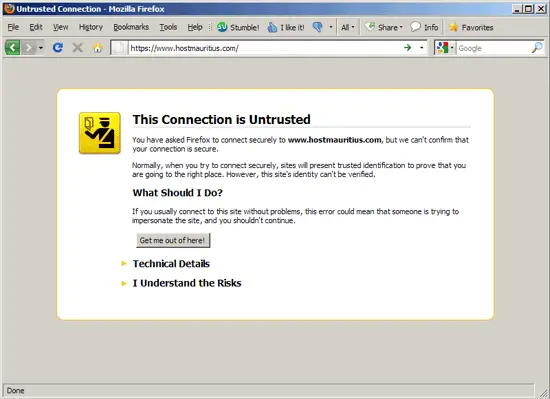
Of course, it's also possible to create a new SSL vhost instead of adding SSL directives to the existing http vhost. I am going to show two possible configurations here:
First Option
vi /etc/nginx/sites-available/www.hostmauritius.com.vhost
If you use nginx >= 0.8.21:
server {
        listen   80; ## listen for ipv4
        listen   [::]:80; ## listen for ipv6

        server_name  www.hostmauritius.com hostmauritius.com;
        root /var/www/www.hostmauritius.com/web;

        if ($http_host != "www.hostmauritius.com") {
                 rewrite ^ $scheme://www.hostmauritius.com$request_uri permanent;
        }

        location / {
                index  index.php index.html index.htm;
        }

        location ~ \.php$ {
                fastcgi_pass   127.0.0.1:9000;
                fastcgi_index  index.php;
                fastcgi_param  SCRIPT_FILENAME  /var/www$fastcgi_script_name;
                include         fastcgi_params;
        }

        location ~ /\. {
                deny  all;
        }
}

server {
        listen   443; ## listen for ipv4
        listen   [::]:443 ipv6only=on; ## listen for ipv6
        ssl on;
        ssl_certificate /etc/ssl/certs/www.hostmauritius.com.pem;
        ssl_certificate_key /etc/ssl/private/www.hostmauritius.com.key;

        server_name  www.hostmauritius.com hostmauritius.com;
        root /var/www/www.hostmauritius.com/web;

        if ($http_host != "www.hostmauritius.com") {
                 rewrite ^ $scheme://www.hostmauritius.com$request_uri permanent;
        }

        location / {
                index  index.php index.html index.htm;
        }

        location ~ \.php$ {
                fastcgi_pass   127.0.0.1:9000;
                fastcgi_index  index.php;
                fastcgi_param  SCRIPT_FILENAME  /var/www$fastcgi_script_name;
                include         fastcgi_params;
        }

        location ~ /\. {
                deny  all;
        }
}
|
If you use nginx < 0.8.21:
server {
        listen   80; ## listen for ipv4
        listen   [::]:80; ## listen for ipv6

        server_name  www.hostmauritius.com hostmauritius.com;
        root /var/www/www.hostmauritius.com/web;

        if ($http_host != "www.hostmauritius.com") {
                 rewrite ^ $scheme://www.hostmauritius.com$request_uri permanent;
        }

        location / {
                index  index.php index.html index.htm;
        }

        location ~ \.php$ {
                fastcgi_pass   127.0.0.1:9000;
                fastcgi_index  index.php;
                fastcgi_param  SCRIPT_FILENAME  /var/www$fastcgi_script_name;
                include         fastcgi_params;
        }

        location ~ /\. {
                deny  all;
        }
}

server {
        listen   443; ## listen for ipv4
        listen   [::]:443 default ipv6only=on; ## listen for ipv6
        ssl on;
        ssl_certificate /etc/ssl/certs/www.hostmauritius.com.pem;
        ssl_certificate_key /etc/ssl/private/www.hostmauritius.com.key;

        server_name  www.hostmauritius.com hostmauritius.com;
        root /var/www/www.hostmauritius.com/web;

        if ($http_host != "www.hostmauritius.com") {
                 rewrite ^ $scheme://www.hostmauritius.com$request_uri permanent;
        }

        location / {
                index  index.php index.html index.htm;
        }

        location ~ \.php$ {
                fastcgi_pass   127.0.0.1:9000;
                fastcgi_index  index.php;
                fastcgi_param  SCRIPT_FILENAME  /var/www$fastcgi_script_name;
                include         fastcgi_params;
        }

        location ~ /\. {
                deny  all;
        }
}
|
I have left the http vhost untouched and added an SSL vhost with the same configuration, except for the SSL part. Instead of adding ssl to the listen line, I use ssl on; here. For nginx < 0.8.21, I have to use listen [::]:443 default ipv6only=on; instead of listen [::]:443 ipv6only=on;.
Reload nginx:
/etc/init.d/nginx reload
Second Option
vi /etc/nginx/sites-available/www.hostmauritius.com.vhost
If you use nginx >= 0.8.21:
server {
        listen   80; ## listen for ipv4
        listen   [::]:80; ## listen for ipv6

        server_name  www.hostmauritius.com hostmauritius.com;
        root /var/www/www.hostmauritius.com/web;

        if ($http_host != "www.hostmauritius.com") {
                 rewrite ^ $scheme://www.hostmauritius.com$request_uri permanent;
        }

        location / {
                index  index.php index.html index.htm;
        }

        location ~ \.php$ {
                fastcgi_pass   127.0.0.1:9000;
                fastcgi_index  index.php;
                fastcgi_param  SCRIPT_FILENAME  /var/www$fastcgi_script_name;
                include         fastcgi_params;
        }

        location ~ /\. {
                deny  all;
        }
}

server {
        listen   443 ssl; ## listen for ipv4
        listen   [::]:443 ssl ipv6only=on; ## listen for ipv6

        ssl_certificate /etc/ssl/certs/www.hostmauritius.com.pem;
        ssl_certificate_key /etc/ssl/private/www.hostmauritius.com.key;

        server_name  www.hostmauritius.com hostmauritius.com;
        root /var/www/www.hostmauritius.com/web;

        if ($http_host != "www.hostmauritius.com") {
                 rewrite ^ $scheme://www.hostmauritius.com$request_uri permanent;
        }

        location / {
                index  index.php index.html index.htm;
        }

        location ~ \.php$ {
                fastcgi_pass   127.0.0.1:9000;
                fastcgi_index  index.php;
                fastcgi_param  SCRIPT_FILENAME  /var/www$fastcgi_script_name;
                include         fastcgi_params;
        }

        location ~ /\. {
                deny  all;
        }
}
|
If you use nginx < 0.8.21:
server {
        listen   80; ## listen for ipv4
        listen   [::]:80; ## listen for ipv6

        server_name  www.hostmauritius.com hostmauritius.com;
        root /var/www/www.hostmauritius.com/web;

        if ($http_host != "www.hostmauritius.com") {
                 rewrite ^ $scheme://www.hostmauritius.com$request_uri permanent;
        }

        location / {
                index  index.php index.html index.htm;
        }

        location ~ \.php$ {
                fastcgi_pass   127.0.0.1:9000;
                fastcgi_index  index.php;
                fastcgi_param  SCRIPT_FILENAME  /var/www$fastcgi_script_name;
                include         fastcgi_params;
        }

        location ~ /\. {
                deny  all;
        }
}

server {
        listen   443 default ssl; ## listen for ipv4
        listen   [::]:443 default ssl ipv6only=on; ## listen for ipv6

        ssl_certificate /etc/ssl/certs/www.hostmauritius.com.pem;
        ssl_certificate_key /etc/ssl/private/www.hostmauritius.com.key;

        server_name  www.hostmauritius.com hostmauritius.com;
        root /var/www/www.hostmauritius.com/web;

        if ($http_host != "www.hostmauritius.com") {
                 rewrite ^ $scheme://www.hostmauritius.com$request_uri permanent;
        }

        location / {
                index  index.php index.html index.htm;
        }

        location ~ \.php$ {
                fastcgi_pass   127.0.0.1:9000;
                fastcgi_index  index.php;
                fastcgi_param  SCRIPT_FILENAME  /var/www$fastcgi_script_name;
                include         fastcgi_params;
        }

        location ~ /\. {
                deny  all;
        }
}
|
Instead of using ssl on;, I add the word ssl to the listen lines. Because of this option in the listen lines, you must add the word default for nginx < 0.8.21.
Reload nginx:
/etc/init.d/nginx reload
6 Creating A Certificate Signing Request (CSR)
To request a trusted certificate from a trusted CA such as Verisign, Thawte or Comodo, we must generate a certificate signing request (CSR) from our private key and send it to the CA which then creates a trusted certificate from it with which we replace our self-signed certificate.
I will create the CSR in the directory /etc/ssl/csr, so we have to create it first:
mkdir /etc/ssl/csr
Now we can create the CSR /etc/ssl/csr/www.hostmauritius.com.csr from our private key /etc/ssl/private/www.hostmauritius.com.key as follows:
openssl req -new -key /etc/ssl/private/www.hostmauritius.com.key -out /etc/ssl/csr/www.hostmauritius.com.csr
You will be asked a few questions. Please fill in your details, they will be used for creating the trusted certificate and can be seen by your visitors when they choose to view the details of your certificate in their browsers. The most important thing is the Common Name - this must be the domain or hostname of your SSL vhost (www.hostmauritius.com in this case)!
root@server1:~# openssl req -new -key /etc/ssl/private/www.hostmauritius.com.key -out /etc/ssl/csr/www.hostmauritius.com.csr
You are about to be asked to enter information that will be incorporated
into your certificate request.
What you are about to enter is what is called a Distinguished Name or a DN.
There are quite a few fields but you can leave some blank
For some fields there will be a default value,
If you enter '.', the field will be left blank.
-----
Country Name (2 letter code) [AU]: <-- DE
State or Province Name (full name) [Some-State]: <-- Lower Saxony
Locality Name (eg, city) []: <-- Lueneburg
Organization Name (eg, company) [Internet Widgits Pty Ltd]: <-- Example Ltd
Organizational Unit Name (eg, section) []: <-- IT
Common Name (eg, YOUR name) []: <-- www.hostmauritius.com
Email Address []: <-- [email protected]
Please enter the following 'extra' attributes
to be sent with your certificate request
A challenge password []: <-- ENTER
An optional company name []: <-- ENTER
root@server1:~#
Afterwards, you should have a CSR in /etc/ssl/csr/www.hostmauritius.com.csr, e.g. as follows:
cat /etc/ssl/csr/www.hostmauritius.com.csr
-----BEGIN CERTIFICATE REQUEST----- MIIC6TCCAdECAQAwgaMxCzAJBgNVBAYTAkRFMRUwEwYDVQQIEwxMb3dlciBTYXhv bnkxEjAQBgNVBAcTCUx1ZW5lYnVyZzEUMBIGA1UEChMLRXhhbXBsZSBMdGQxCzAJ BgNVBAsTAklUMR4wHAYDVQQDExV3d3cuaG9zdG1hdXJpdGl1cy5jb20xJjAkBgkq hkiG9w0BCQEWF2ZhbGtvLnRpbW1lQGV4YW1wbGUuY29tMIIBIjANBgkqhkiG9w0B AQEFAAOCAQ8AMIIBCgKCAQEAsxOSdUsiEcay6M8EpSu5eeC797v/TpDRGnui4uaY d/YpjrPhPWW01FEIpaCixYb5U2uMuvFOlmZhyfer+7qoJDeueuNW1sDCn/0pkOrd SWgfBuihFkqXgau6KMDvuShcUkZ2ufMbMohiz+9ahMiqKBAxMeXijR7t9eqfmO3s +WGd65l85yoEDz+NNxk4w9SZmpIHu8vt37c7PX7fxZntxer56PvElz01gRj0xZsM YMlaHROQ+q/d8p1g0CWTOjlgelQXxqEPGVGphYDMFd8gL5bNbCnJoCeF0CYK5w2B f+Jfppgvub8AU8kMPNh/vyRm/7Ximc51dUSGWI/Xp39OcwIDAQABoAAwDQYJKoZI hvcNAQEFBQADggEBAD7JYyEsKnK5/xiiuPNPwQ7HVhWY0LirkePiI6rxLFAJTOwg 6kb/GOKK+b1j4TWsiOI+zGhAawVhp2LnBzxOhr8m27x7lf6q73HUUM5pDrW7FlsE 2BU6E1tHRX8d9Mb4SfhsCES7wuoF/EH9FjtpPXMOWfXKAk9BiA/zE4aFaF31Z2uI brLP1cgpVr4WJ8OR3uUacu/i4et9dpeIiZcSD5f0/pqR+ZM3NFViMO+KYA26M0YT Vnm84UsmtjzWgzir1icwdI/pbEOPNXveQDEYwGRuKH0SSnPETN2/E8Xc8sHmasFt 1iNnvJMfsECCJI6xTYusxtv+9LlAr8rx+G//hCI= -----END CERTIFICATE REQUEST----- |
7 Getting A Trusted Certificate
To get a trusted certificate, you have to take your certificate signing request (CSR) to a certificate authority (CA) such as Verisign, Thawte, or Comodo (please note that you have to pay for a trusted certificate). Certificates issued by such a CA are trusted by all browsers which means you won't see any browser warnings anymore.
CAcert.org allows you to get free certificates, but the downside is that such certificates are trusted by only a few browsers (which means you will get browser warnings). Anyway, I will use CAcert.org here to show you how to get a certificate from a CA - it should give you the idea, the procedure is the same with the trusted CAs.
Go to CAcert.org and open an account. Afterwards, go to Domains to add your own domain(s) (without a hostname, so if you want to get a certificate for www.hostmauritius.com, you just enter hostmauritius.com without www here). The service will send an email with a link to an email address that it finds in the WHOIS data of the domain - you have to click on that link to verify that you are the owner of the domain. I've verified three domains here:
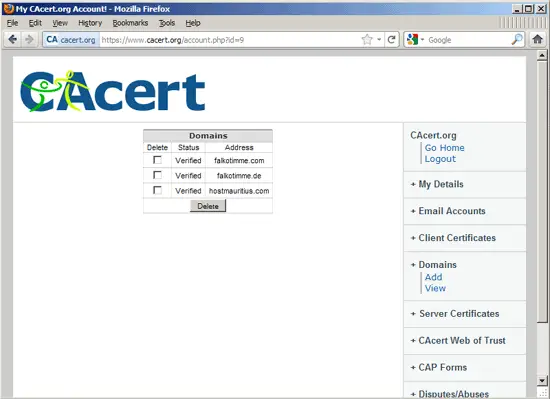
To get a certificate, go to Server Certificates > New...
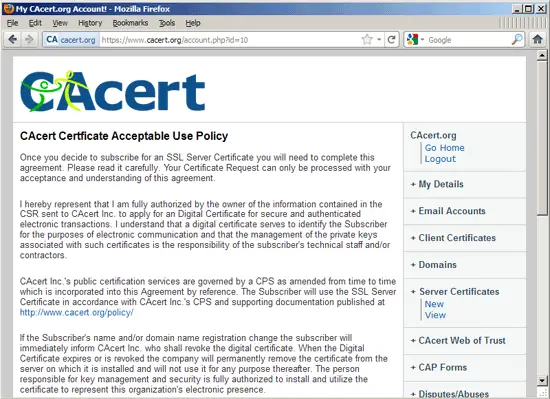
... and scroll down to the big text area - this is where you paste your CSR that you've created in chapter 6. Click on Submit afterwards:
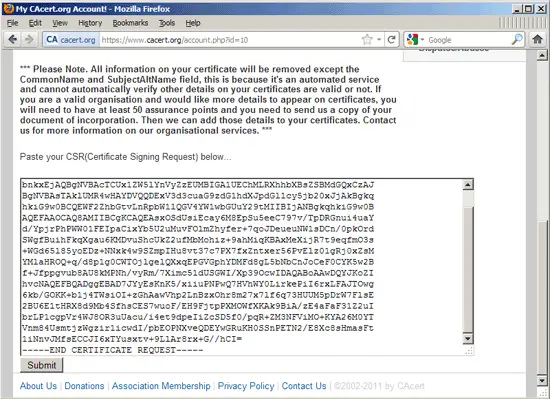
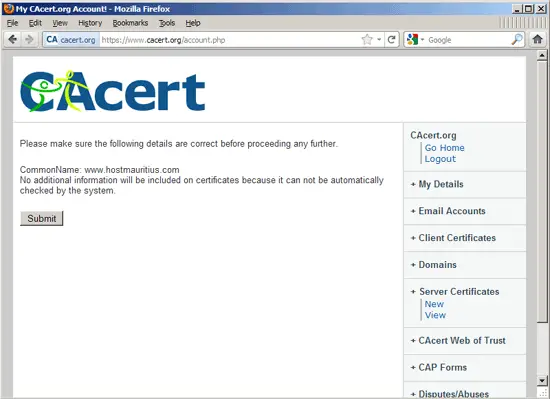
Click on Submit again on the next page:
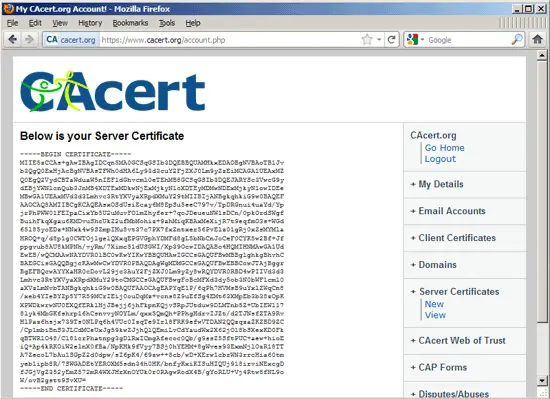
After a few moments, you will see your new certificate:
Now create a backup of your self-signed certificate...
cp /etc/ssl/certs/www.hostmauritius.com.pem /etc/ssl/certs/www.hostmauritius.com.pem_bak
... , then empty your self-signed certificate...
> /etc/ssl/certs/www.hostmauritius.com.pem
... and open the empty certificate file:
vi /etc/ssl/certs/www.hostmauritius.com.pem
Now copy&paste the certificate from the CAcert.org page into the empty file:
-----BEGIN CERTIFICATE----- MIIE5zCCAs+gAwIBAgIDCqn5MA0GCSqGSIb3DQEBBQUAMHkxEDAOBgNVBAoTB1Jv b3QgQ0ExHjAcBgNVBAsTFWh0dHA6Ly93d3cuY2FjZXJ0Lm9yZzEiMCAGA1UEAxMZ Q0EgQ2VydCBTaWduaW5nIEF1dGhvcml0eTEhMB8GCSqGSIb3DQEJARYSc3VwcG9y dEBjYWNlcnQub3JnMB4XDTExMDkwNjExMjkyN1oXDTEyMDMwNDExMjkyN1owIDEe MBwGA1UEAxMVd3d3Lmhvc3RtYXVyaXRpdXMuY29tMIIBIjANBgkqhkiG9w0BAQEF AAOCAQ8AMIIBCgKCAQEAsxOSdUsiEcay6M8EpSu5eeC797v/TpDRGnui4uaYd/Yp jrPhPWW01FEIpaCixYb5U2uMuvFOlmZhyfer+7qoJDeueuNW1sDCn/0pkOrdSWgf BuihFkqXgau6KMDvuShcUkZ2ufMbMohiz+9ahMiqKBAxMeXijR7t9eqfmO3s+WGd 65l85yoEDz+NNxk4w9SZmpIHu8vt37c7PX7fxZntxer56PvElz01gRj0xZsMYMla HROQ+q/d8p1g0CWTOjlgelQXxqEPGVGphYDMFd8gL5bNbCnJoCeF0CYK5w2Bf+Jf ppgvub8AU8kMPNh/vyRm/7Ximc51dUSGWI/Xp39OcwIDAQABo4HQMIHNMAwGA1Ud EwEB/wQCMAAwNAYDVR0lBC0wKwYIKwYBBQUHAwIGCCsGAQUFBwMBBglghkgBhvhC BAEGCisGAQQBgjcKAwMwCwYDVR0PBAQDAgWgMDMGCCsGAQUFBwEBBCcwJTAjBggr BgEFBQcwAYYXaHR0cDovL29jc3AuY2FjZXJ0Lm9yZy8wRQYDVR0RBD4wPIIVd3d3 Lmhvc3RtYXVyaXRpdXMuY29toCMGCCsGAQUFBwgFoBcMFXd3dy5ob3N0bWF1cml0 aXVzLmNvbTANBgkqhkiG9w0BAQUFAAOCAgEAPYqE1P/6qPh7HVMsB9uYxlZWqCn8 /xeb4YIeBYZp5Y7R59MCrIEij0ouDqMz+vcns8Z9uEfSg4EMt63XMpEb3b38zOpK XPWDkwrwNU0EXQfERklHjJBejj6jhFkpnKQjvSRpJUtduw9DLMTnb5Z+UbIEWl17 8lyk4MbGKfshrp16hCsnvvyNOYLm/qxx5QmQh+PPhgHdrvIJZt/d2TJNsfZTA9Rv HlPaz6hsjx739Ts0NLPq6h4VUc0IzqTe9Irl8FRK9efwVTDAN2QQzqzaZKZBD9ZC /Cp1mbiBnS3JLCdMCeUxJg59kwZJjhQlQEmiLvCdYaudWx2X62jOl8bSXexKD0Fk qBTWRlO48/Cl81crPhatnpg3gDlRxICmgAfecoc0Qb/g9ssZ5SftPUC+aew+hioE iQ+Ap4kRKOiW2elnX0fBa/NpKHk9fVyy7BSj0hYEHM+8gWves93ExmNjlOzR18TT A7ZecoL7bAu1SGpZ2d0dpw/sI6pK4/69zw++8cb/wD+XErw1cbrWN3rrcHia60tm yeb1ipb8R/7SWGADEtYEROXM5sdn34h0HK/bnfyKxiKISuHIQUj918irviNExcgD fJGjVgZ352yEmZ572mR4WXJHrXnOYUk0r0RAgwRodX4B/gYoRLU+Vj4Rtw8fNL9o W/ovB2gstt9SvXU= -----END CERTIFICATE----- |
Reload nginx:
/etc/init.d/nginx reload
That's it, if your CA doesn't ask you to install a certificate chain file or intermediate certificate in nginx, you're done, and you can now access your SSL vhost (https://www.hostmauritius.com in this case) without a browser warning. (If you use a CAcert.org certificate, you will still see a browser warning as most browsers don't know this CA - read chapter 8 to learn how to make your browser trust CAcert.org certificates).
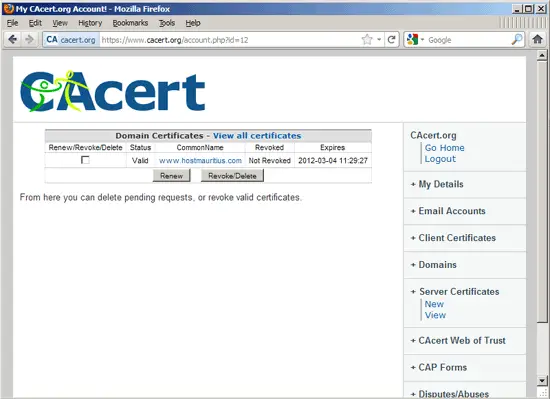
To manage your existing certificates on the CAcert.org web site, go to Server Certificates > View:
7.1 Certificate Chain Files Or Intermediate Certificates
Some CAs require that you install a certificate chain file or intermediate certificate in nginx (in addition to the certificate that you installed in chapter 7). (Please note that CAcert.org does not require this!).
Because nginx does not have a special configuration directive for chain files or internediate certificates (like Apache does which knows the SSLCertificateChainFile directive) , we simply have to append the chain file to our certificate. Let's assume you have downloaded the chain file to /etc/ssl/certs/CAcert_chain.pem. You can now append it to the certificate /etc/ssl/certs/www.hostmauritius.com.pem as follows:
cat /etc/ssl/certs/CAcert_chain.pem >> /etc/ssl/certs/www.hostmauritius.com.pem
Reload nginx...
/etc/init.d/nginx reload
... and you're done!





