How To Make An Ubuntu 10.10 Desktop Resemble A Mac (With Elementary, Docky & Gloobus-Preview)
Version 1.0
Author: Falko Timme  Follow me on Twitter
This article shows how you can change the appearance of your Ubuntu 10.10 desktop so that it resembles a Mac. This can be achieved with the help of Elementary, Docky, and Gloobus-Preview. Elementary is a project that provides a popular icon set and GTK theme; Docky is an interactive dock (like the one you know from a Mac) that provides easy access to some of the files, folders, and applications on your computer, and more; and Gloobus-Preview is an extension for the Gnome Desktop Environment designed to enable a full screen preview of any kind of file or directory.
I do not issue any guarantee that this will work for you!
1 Preliminary Note
Docky requires that you use a compositing manager on your desktop. If you've enabled Compiz Fusion (e.g. as shown in this tutorial: Enabling Compiz Fusion On An Ubuntu 10.10 Desktop (NVIDIA GeForce 8200)), then you're good to go. If your hardware doesn't support Compiz Fusion, you should enable the metacity compositing manager.
2 Installing Elementary, Docky, And Gloobus
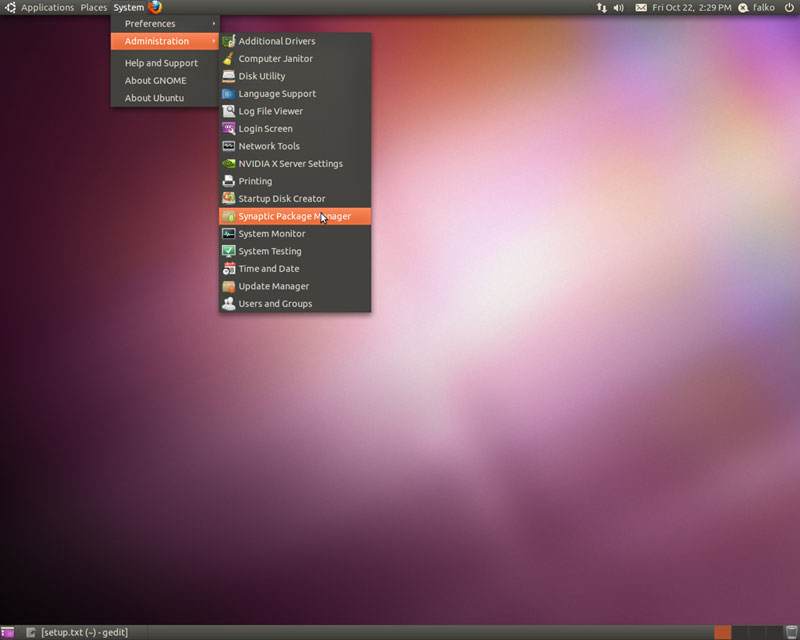
Docky is available as a package in the official Ubuntu 10.10 repositories, but Elementary and Gloobus-Preview are not. Fortunately there are packages available on Launchpad, so we have to add software sources to our system so that we can install these packages. Go to System > Administration > Synaptic Package Manager:
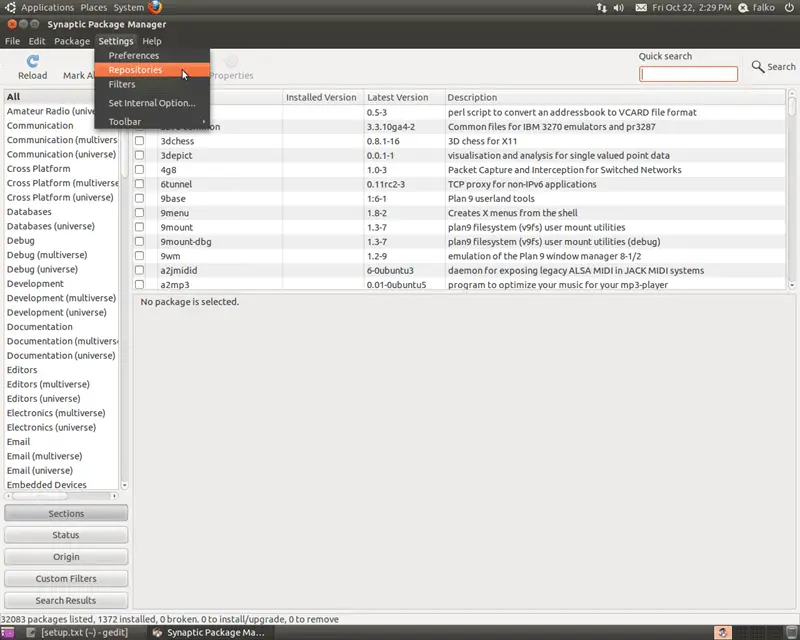
In the Synaptic Package Manager, go to Settings > Repositories:
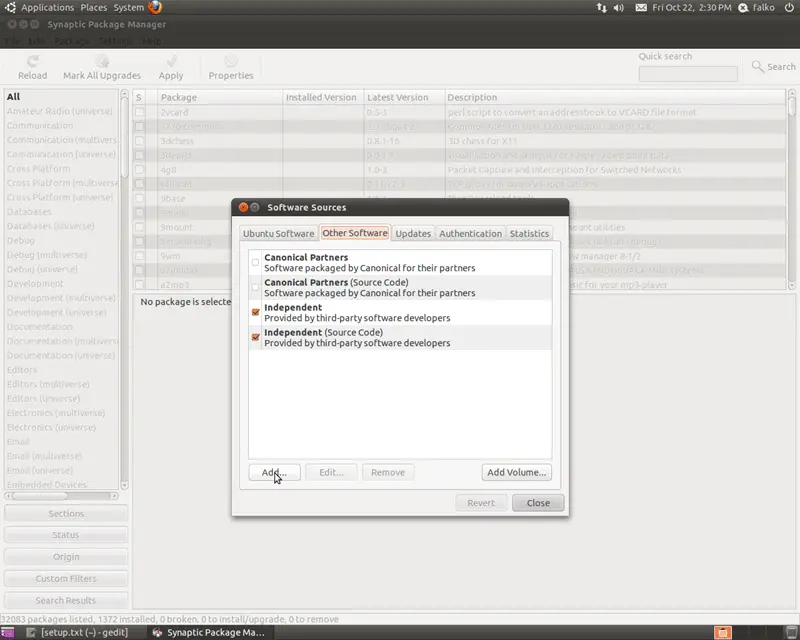
Go to the Other Software tab and click on the Add button:
Add the first new repository in the APT line field:
deb http://ppa.launchpad.net/elementaryart/ppa/ubuntu maverick main
Then click on the Add Source button:
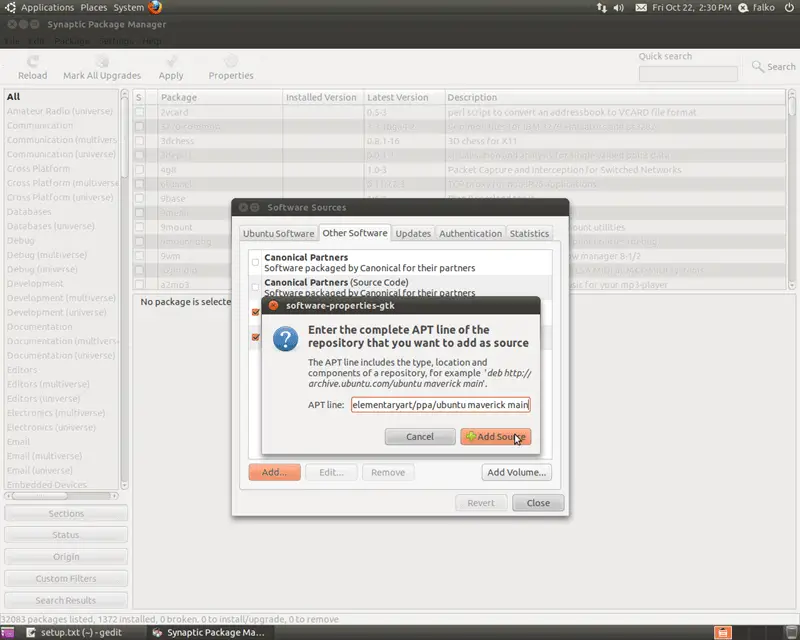
Do the same for the following three repositories:
- deb-src http://ppa.launchpad.net/elementaryart/ppa/ubuntu maverick main
- ppa:gloobus-dev/gloobus-preview
- ppa:am-monkeyd/nautilus-elementary-ppa
Click on Close in the Software Sources window afterwards:
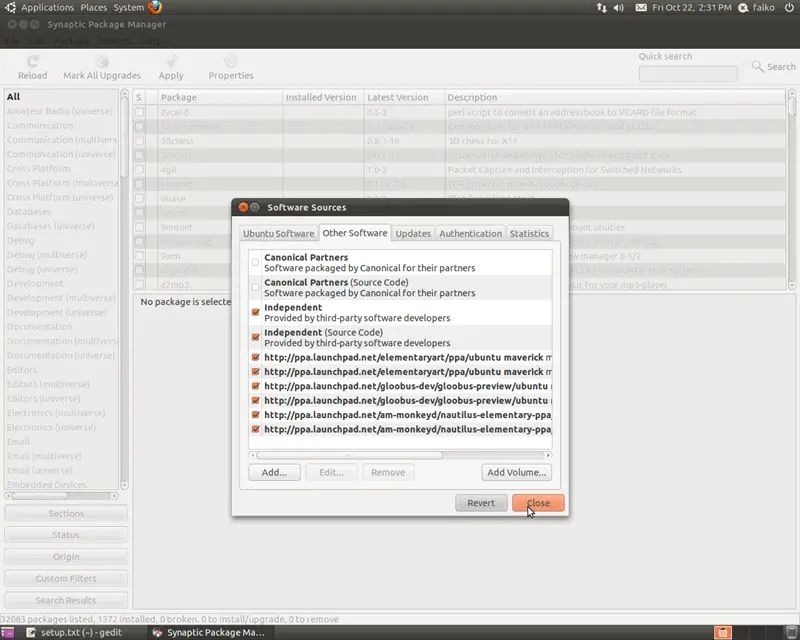
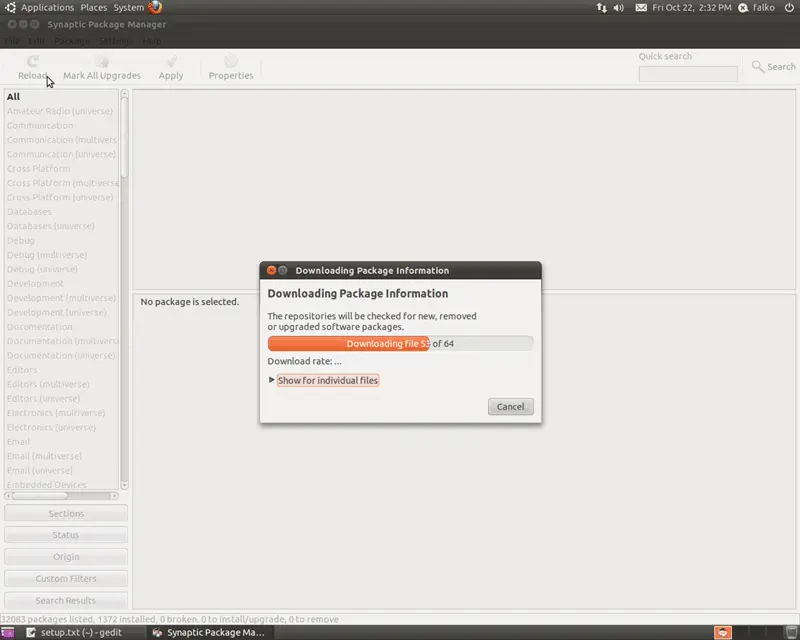
Because of the new repositories, the system's package database needs to be updated...
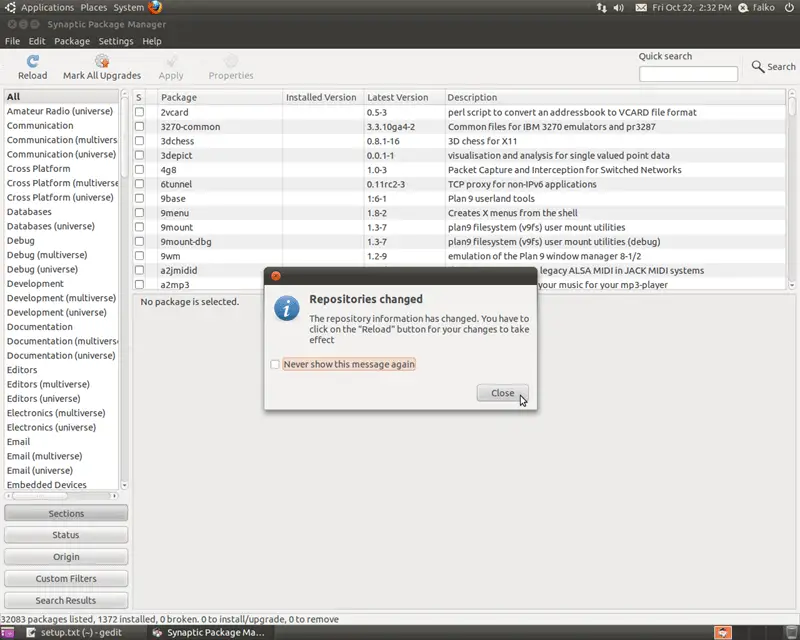
... to do this, click on the Reload button in the following window:
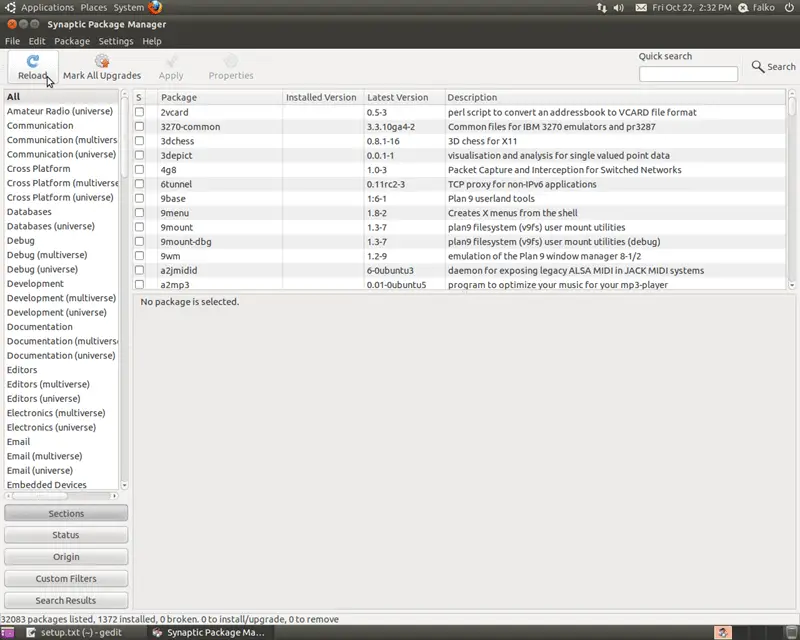
Now the package database is being updated:
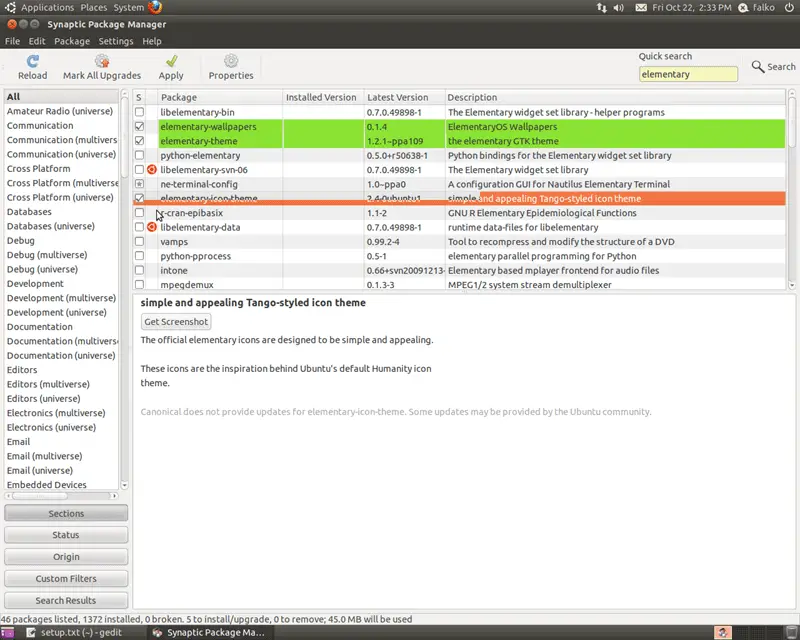
Still in the Synaptic Package Manager, select the following packages for installation (you can use the Quick search field to search for them):
- elementary-theme
- elementary-icon-theme
- elementary-wallpapers
- docky
- gloobus-preview
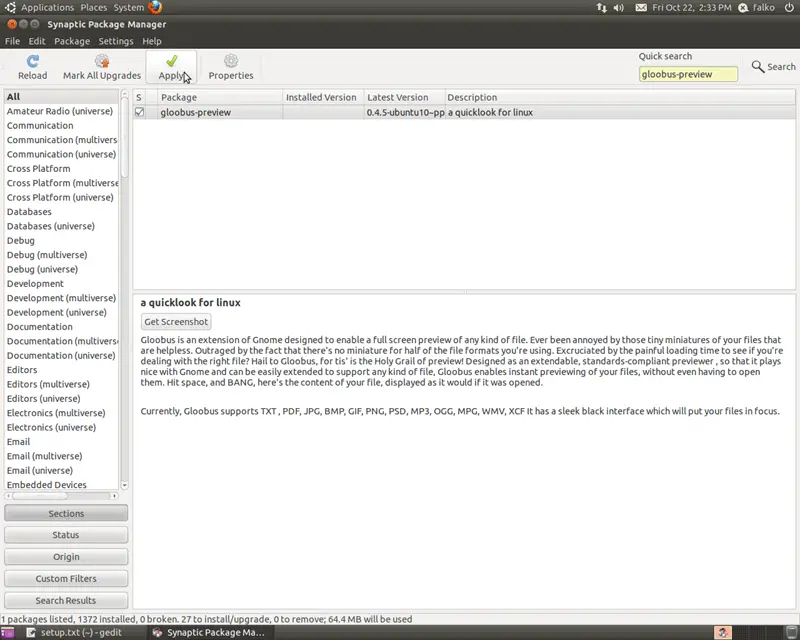
Click on Apply to install the packages:
3 Activating Elementary
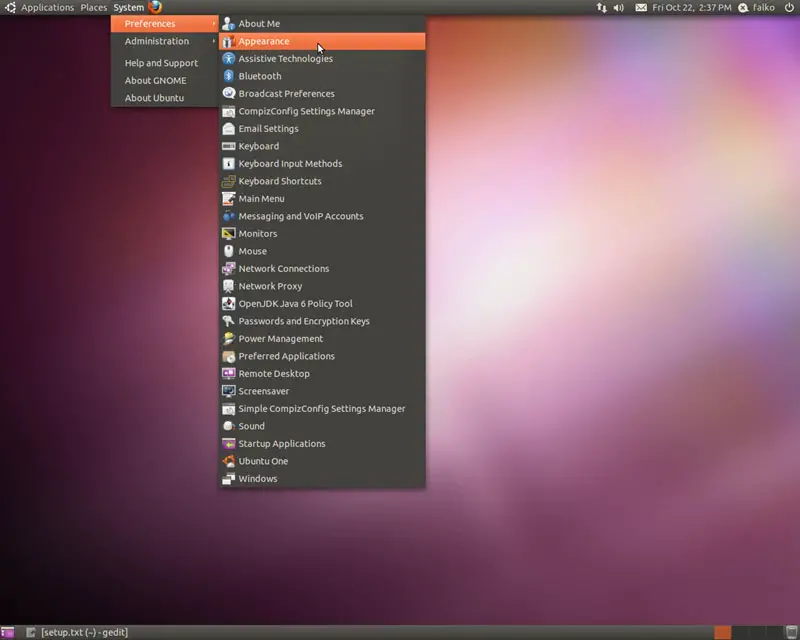
To activate the Elementary theme, go to System > Preferences > Appearance:
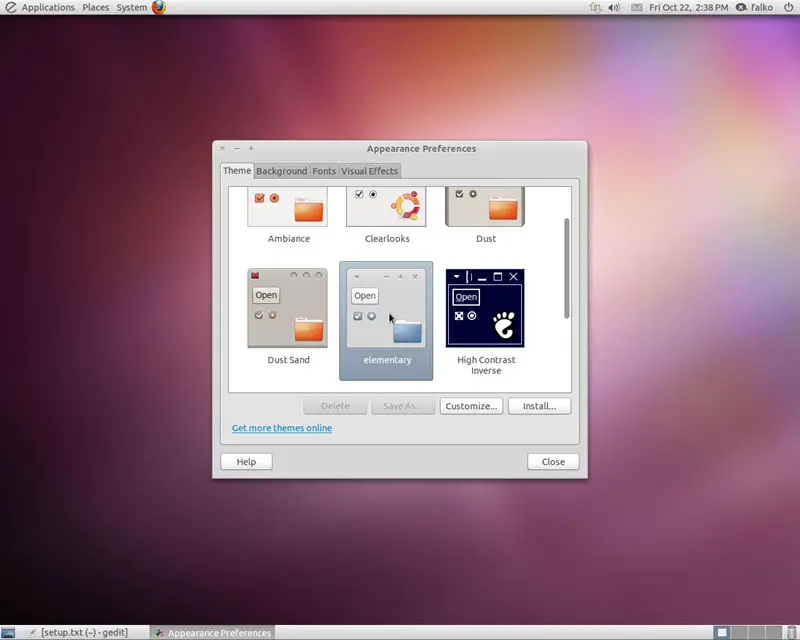
On the Theme tab, select the elementary theme - the desktop theme should change immediately:
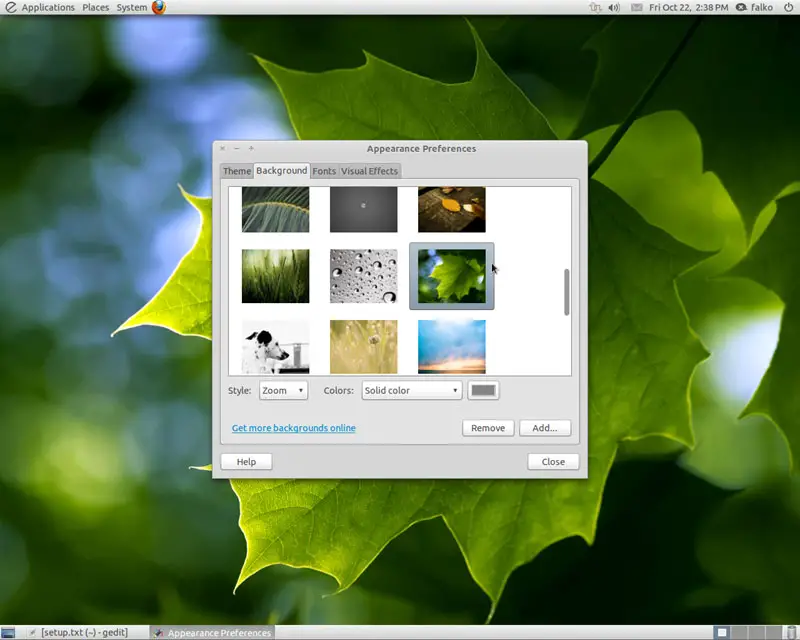
Go to the Background tab and select a wallpaper that you like - the wallpaper should also change immediately: