Running A File-, Print-, Proxy-, DHCP-, AND Time-Server For Small/Medium Enterprises - Page 5
16 User Permissions
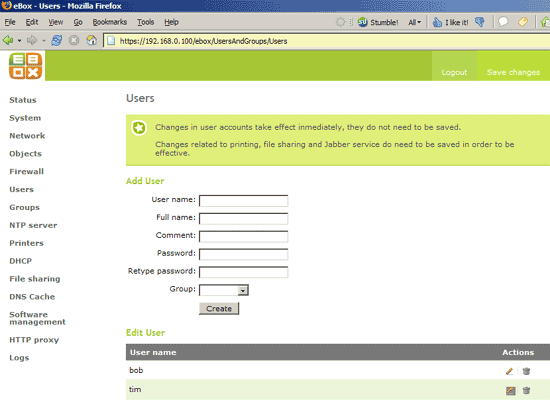
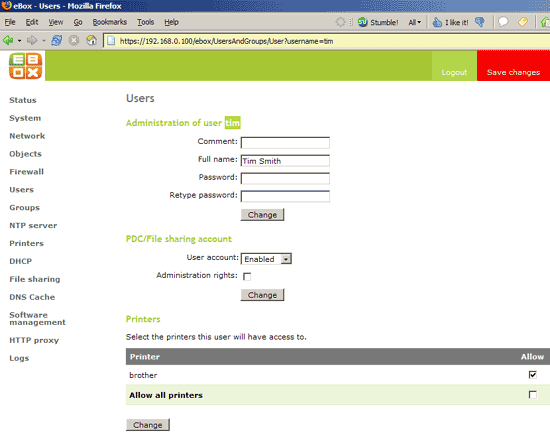
Now that all desired services are running, we can set the permissions for our users, i.e., we can specify which user can use our file share and our printer. In the following example, I allow the user tim to use our file share and the printer:
17 Group Permissions
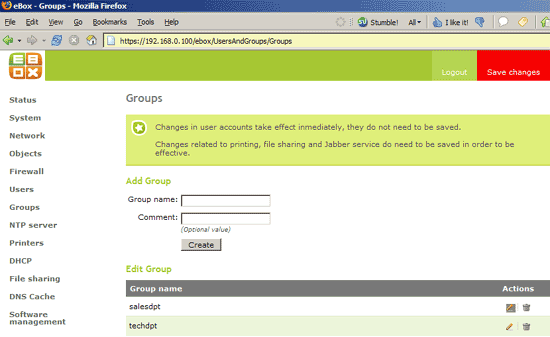
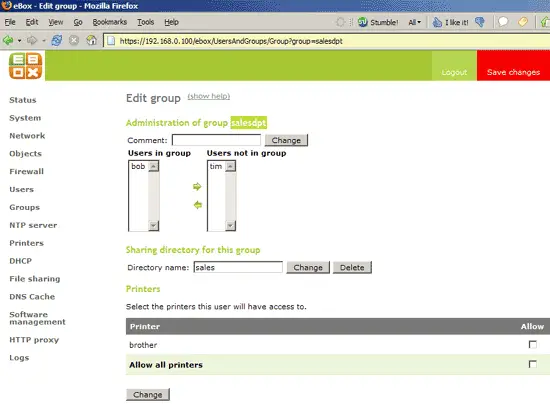
As before for our users, you can now specify which group can use the printer, plus you can specify a file sharing directory for each group:
18 Test The File Share And The Printer
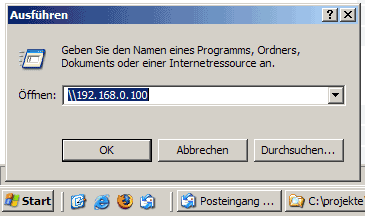
Now we can test our file share and the printer from a Windows workstation. Go to Start -> Run (Start -> Ausführen if it's a German Windows) and type in
\\192.168.0.100
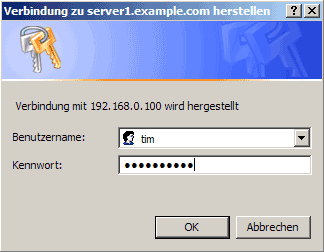
You will be prompted for a username and password, so if you are tim, type in tim and tim's password:
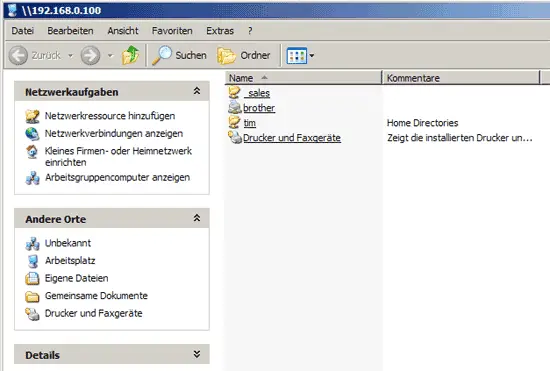
If the login is correct, you will be granted access to your file share. You can now see your personal folder tim and the printer we created in eBox. You can also see the folder sales which is owned by the salesdpt group. Since tim is not an owner of that group, he cannot access the sales folder (unless he provides a correct username and password for it). Of course, he can access his own folder tim.