
Creating Screencasts With recordMyDesktop On Ubuntu 9.04 - Page 2
On this page
2 Using recordMyDesktop
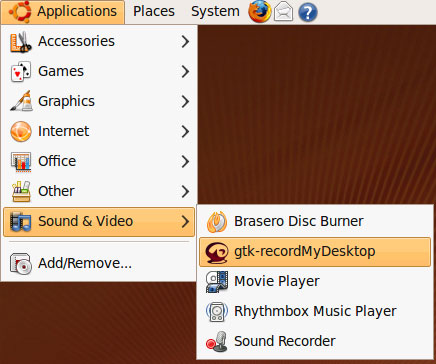
You can start recordMyDesktop under Applications > Sound & Video > gtk-recordMyDesktop:
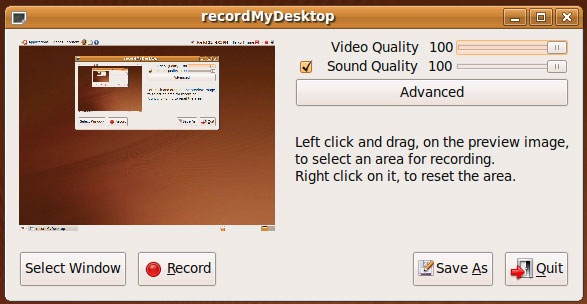
This is how its interface looks. You can configure the video and sound quality (if you want to include sound in your screencast; it's also possible to deselect sound); to start a recording, click on Record; the recordMyDesktop window will disappear, and the recording starts.
During the recording, you will see a square button in the taskbar in the upper right corner:

This button allows you to control the recording. By right-clicking the button, you can pause the recording:

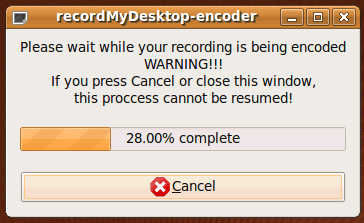
And by left-clicking it, you stop the recording. This will cause the recordMyDesktop-encoder window to apppear; your screencast is now being converted to Theora Ogg:
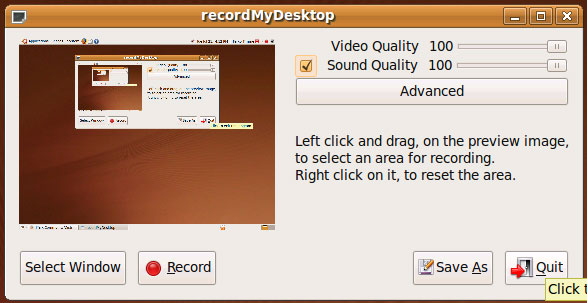
Afterwards, the recordMyDesktop window appears again. Click on Quit to leave it:
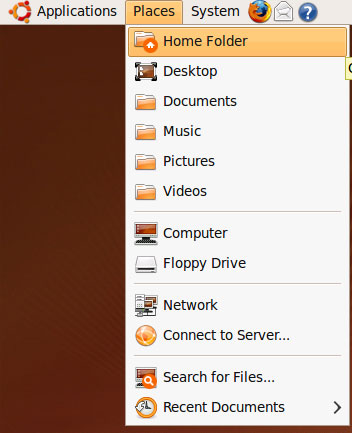
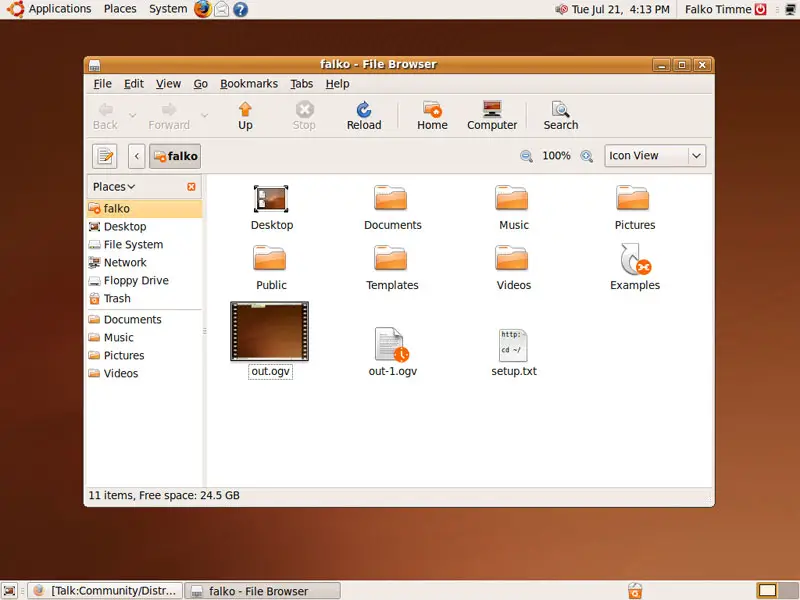
You can now find the screencast in your home folder (Places > Home Folder):
Your screencast is named out.ogv. You can watch it by double-clicking it:
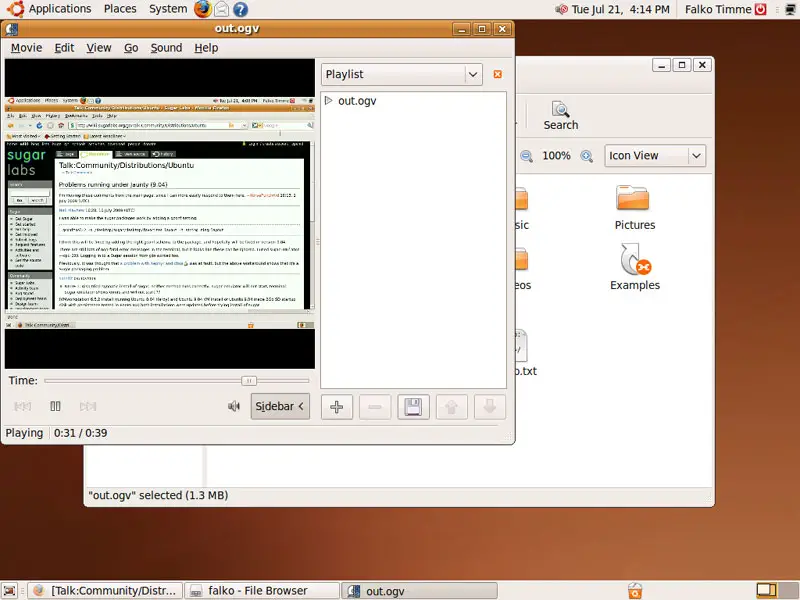
This will open your screencast in the Totem movie player:
3 Links
- recordMyDesktop: http://recordmydesktop.sourceforge.net/about.php
- Ubuntu: http://www.ubuntu.com/





