
Creating Screencasts With recordMyDesktop On Ubuntu 9.04
Version 1.0
Author: Falko Timme  Follow me on Twitter
recordMyDesktop is a desktop session recorder for GNU/Linux that attemps to be easy to use, yet also effective at its primary task. It produces files using only open formats. These are theora for video and vorbis for audio, using the ogg container. This tutorial shows how to install and use recordMyDesktop on Ubuntu 9.04.
I do not issue any guarantee that this will work for you!
1 Installing recordMyDesktop
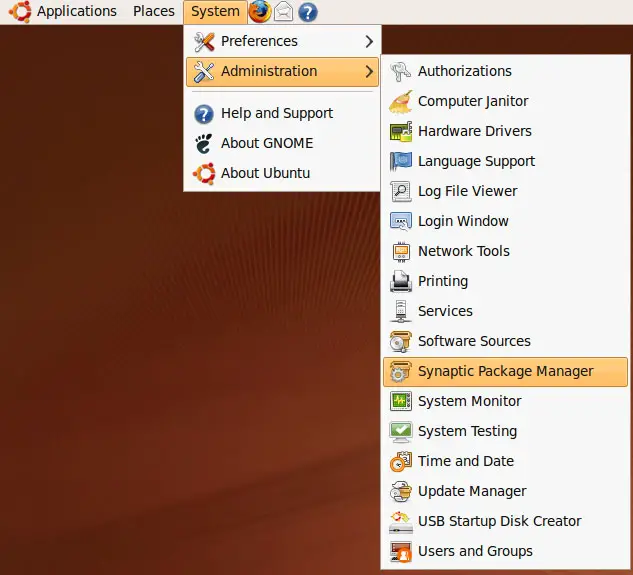
recordMyDesktop is available in the Ubuntu 9.04 repositories, therefore we can install it using Synaptic. Go to System > Administration > Synaptic Package Manager:
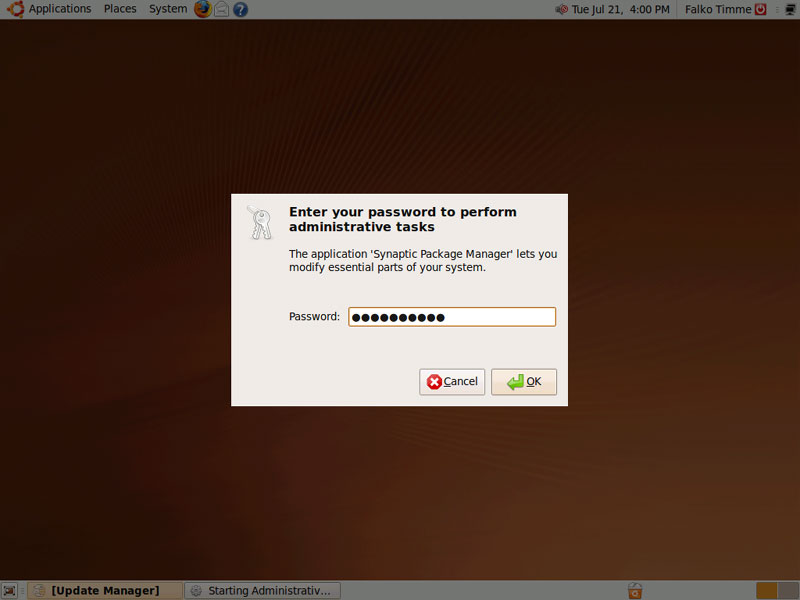
Type in your password:
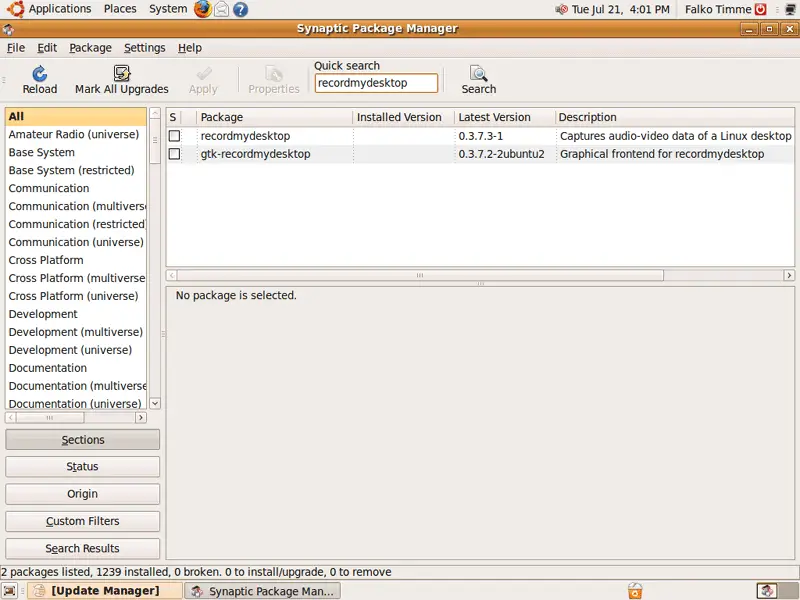
In Synaptic, you can use the Quick search field to search for recordmydesktop. This should result in two hits, recordmydesktop (the command line tool) and gtk-recordmydesktop (the graphical frontend):
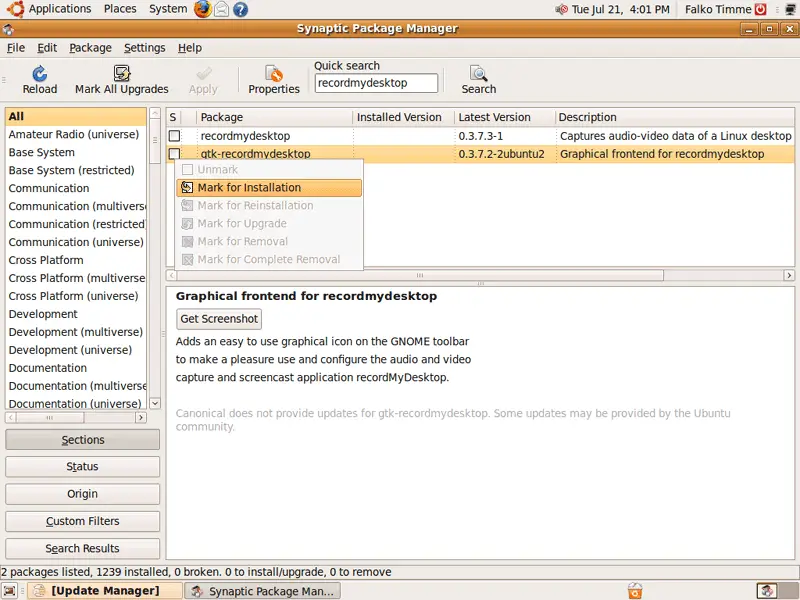
Click on the checkbox in front of gtk-recordmydesktop and select Mark for Installation:
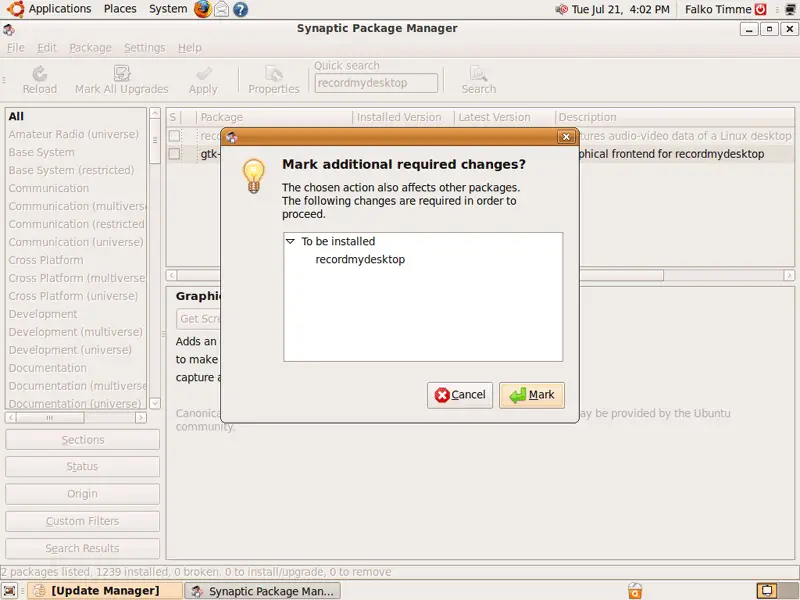
As gtk-recordmydesktop depends on the recordmydesktop package, click on Mark to accept the installation of recordmydesktop as well:
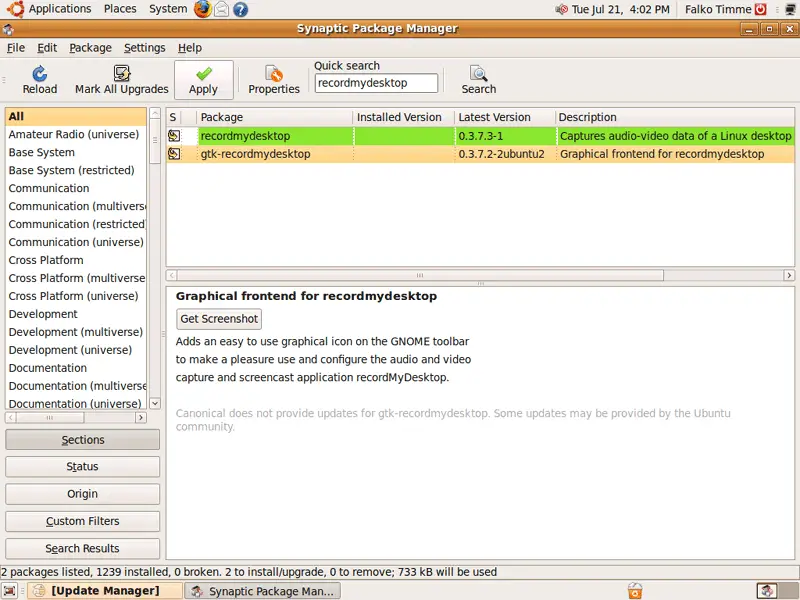
Click on Apply to start the installation:
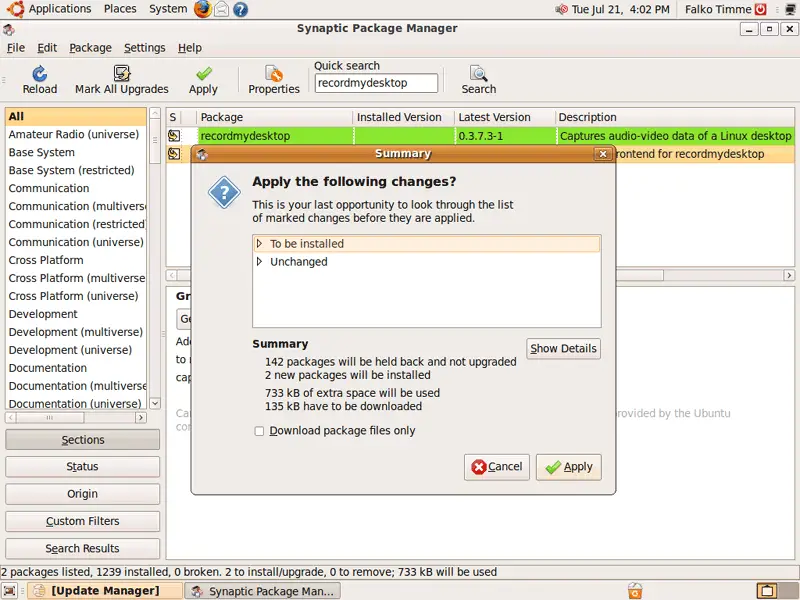
Click on Apply again to confirm your selection:
Afterwards the packages are being downloaded and installed:
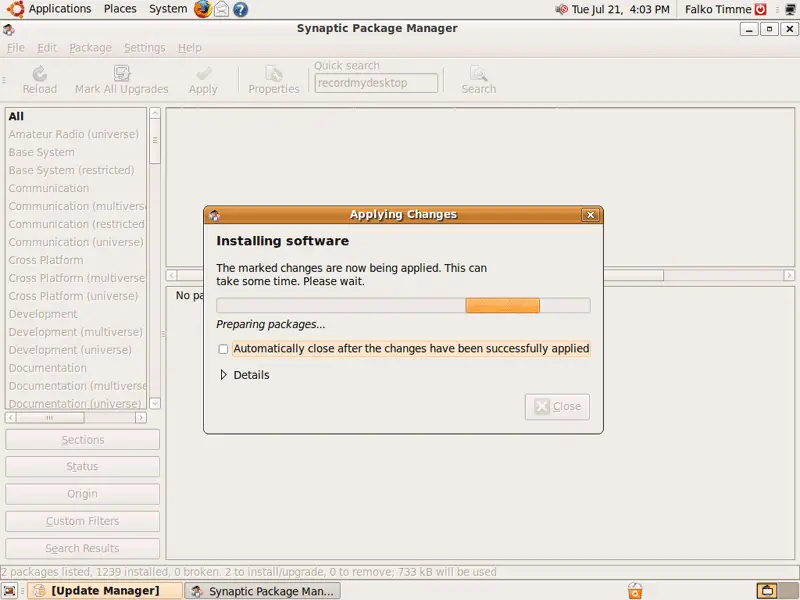
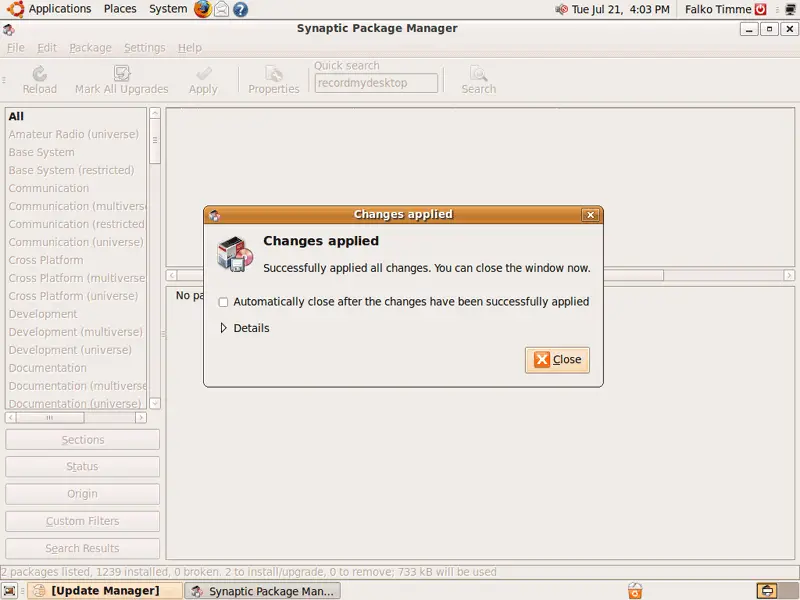
Click on Close afterwards and leave Synaptic:
That's it, recordMyDesktop is now installed and ready to be used!





