
Enabling Compiz Fusion On A Fedora 8 GNOME Desktop (NVIDIA GeForce FX 5200)
Version 1.0
Author: Falko Timme
This tutorial shows how you can enable Compiz Fusion on a Fedora 8 GNOME desktop (the system must have a 3D-capable graphics card - I'm using an NVIDIA GeForce FX 5200 here). With Compiz Fusion you can use beautiful 3D effects like wobbly windows or a desktop cube on your desktop.
This document comes without warranty of any kind! I do not issue any guarantee that this will work for you!
1 Preliminary Note
I have tried this on a desktop system with an NVIDIA GeForce FX 5200 graphics card. It should work with any other NVIDIA graphics card as well.
2 Graphic Card Driver
To use 3D effects on an NVIDIA graphics card, we need the proprietary NVIDIA driver which is not available from the official Fedora 8 repositories, but from rpm.livna.org. Go to http://rpm.livna.org/rlowiki/:
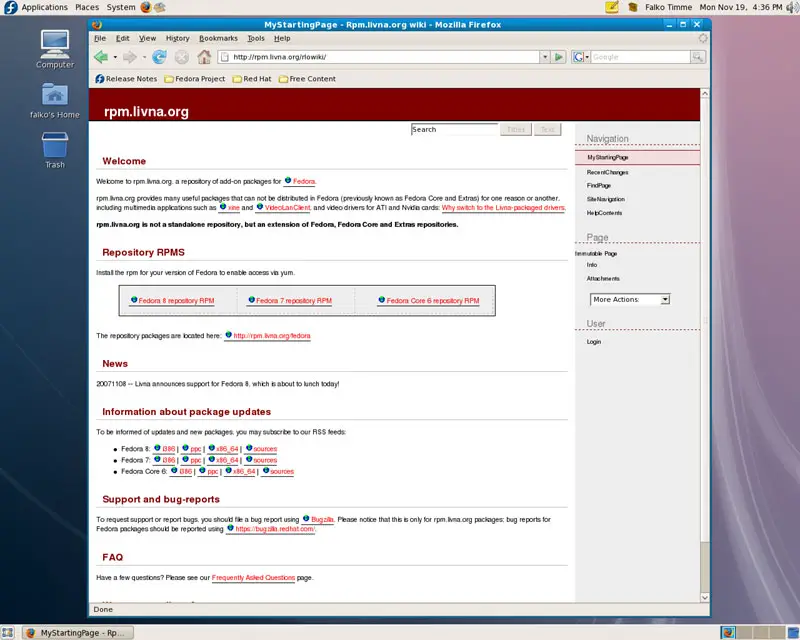
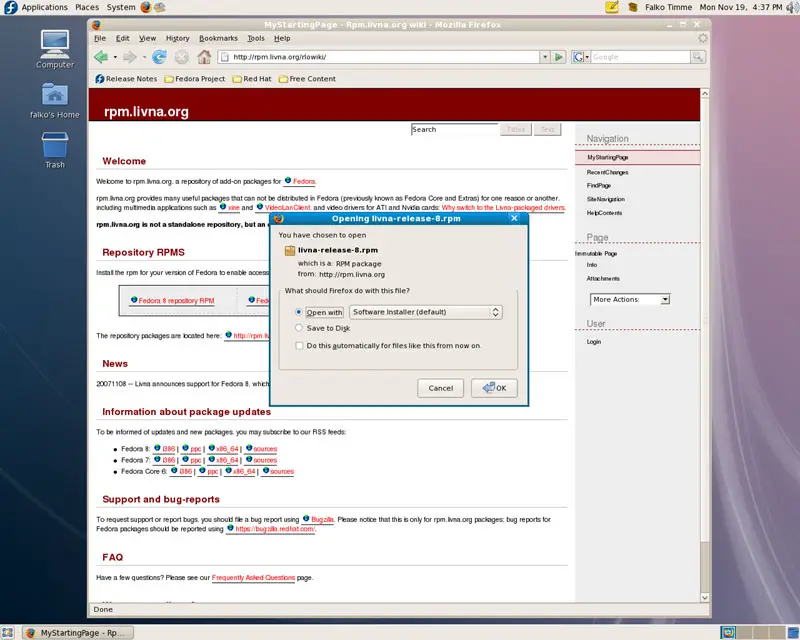
Click on the link Fedora 8 repository RPM; this is the package that enables the livna repository on our Fedora system. In the Firefox download dialogue, select Open with Software Installer (default):
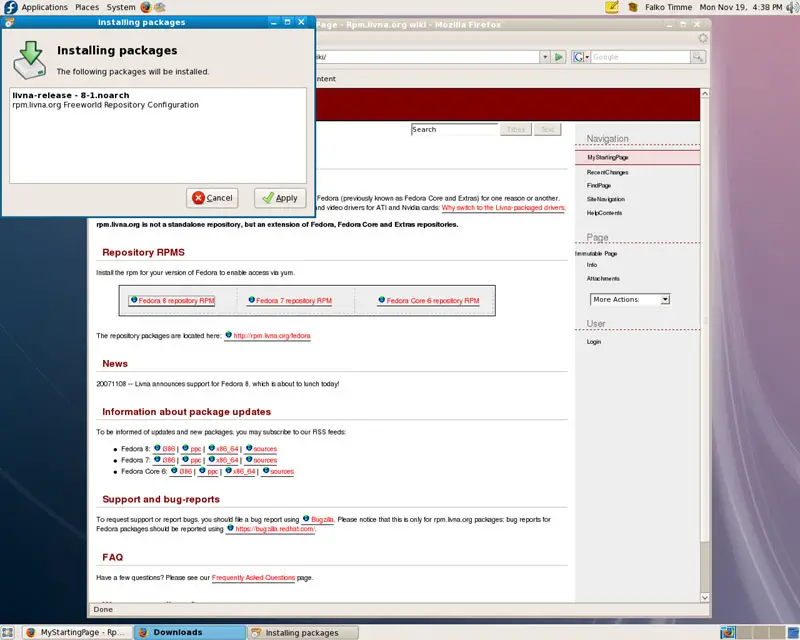
The Installing packages window opens; click on Apply to install the package:
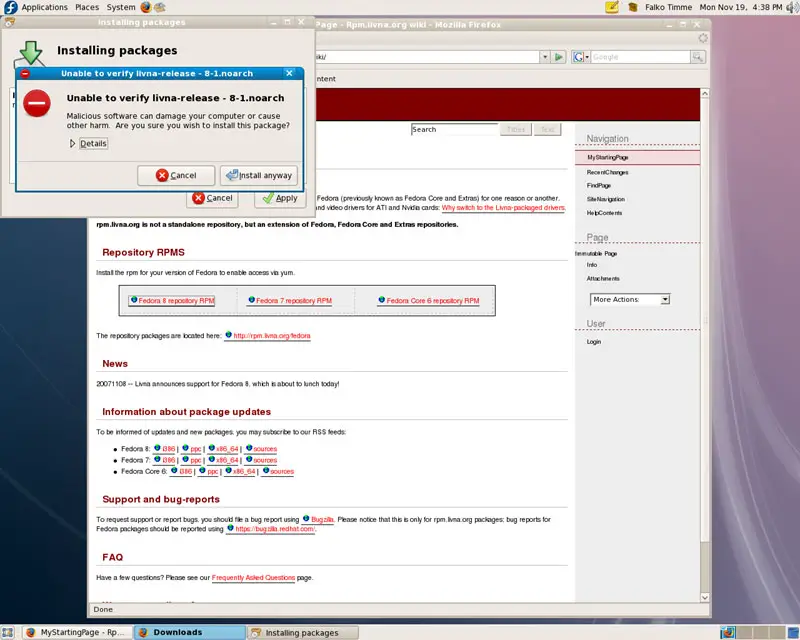
It might happen that your system can't verify that package. If that happens, simply click on Install anyway to continue with the installation:
After the package has been installed, you can close the Software Installer window and Firefox:
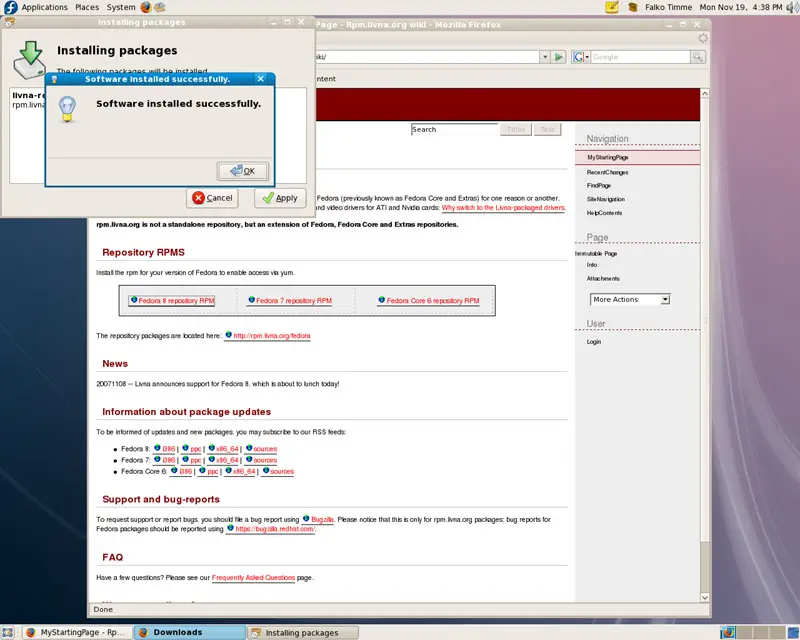
The livna repository is now available on our Fedora system. So let's install the NVIDIA driver.
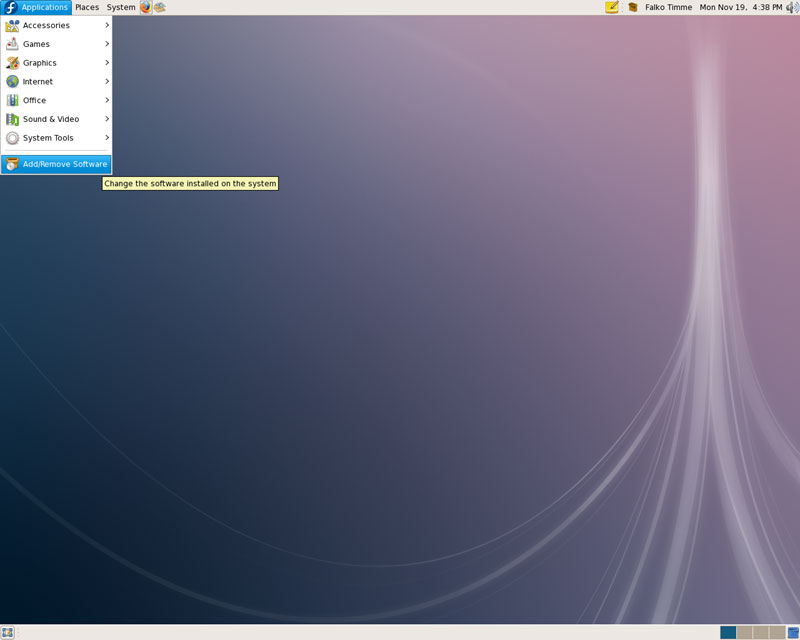
Open the Package Manager (Applications > Add/Remove Software):
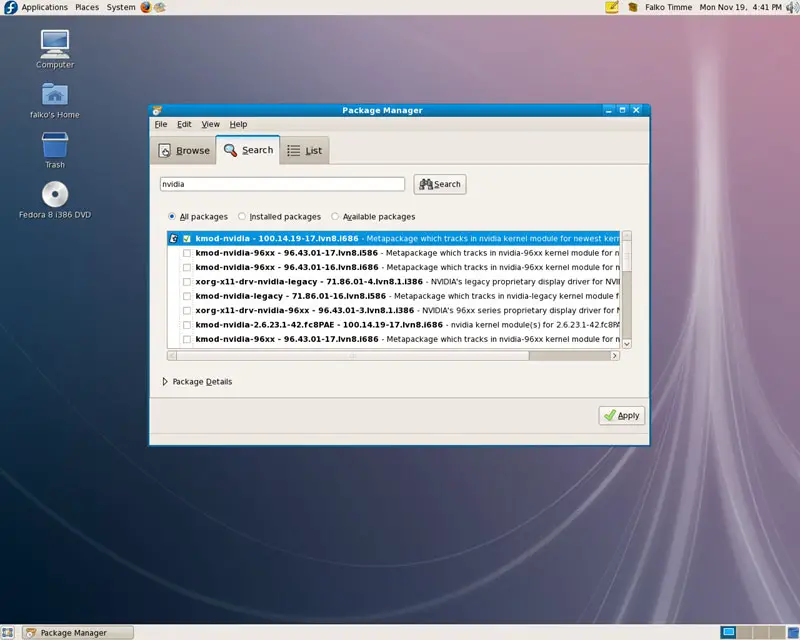
Go to the Search tab and search for nvidia. From the results, select the packages:
- kmod-nvidia
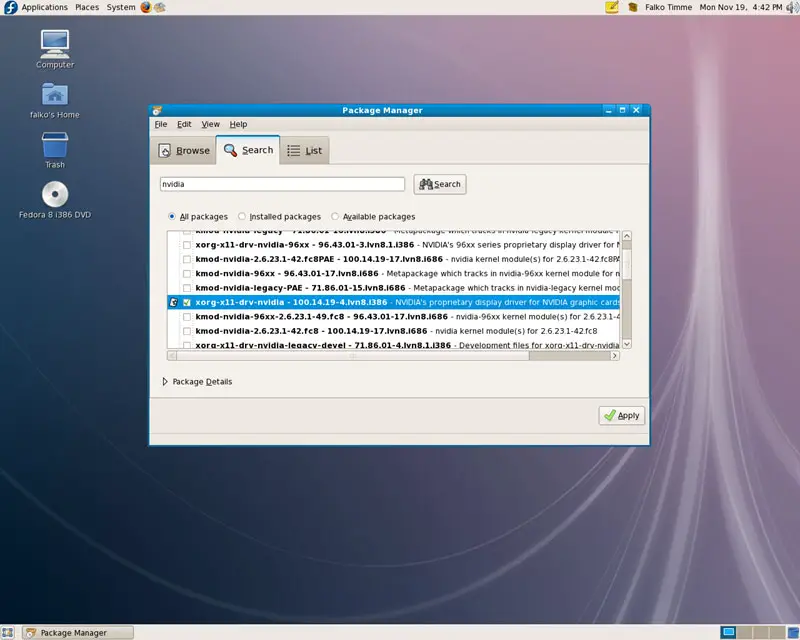
- xorg-x11-drv-nvidia
Then click on the Apply button:
Confirm your selection by clicking on Continue:
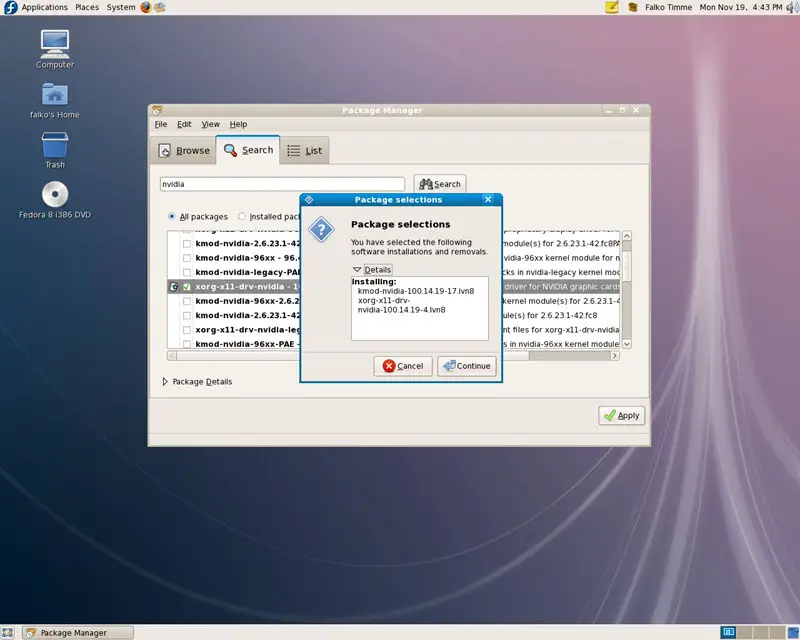
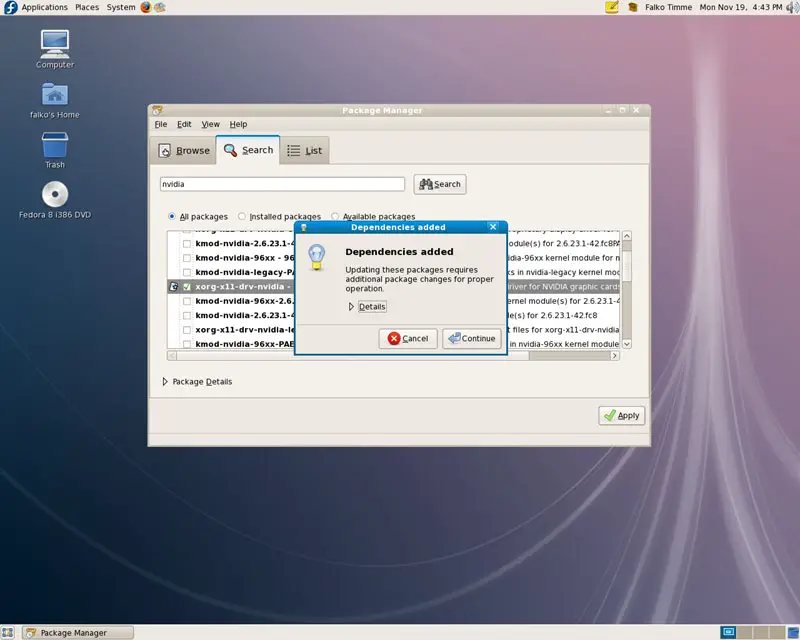
The selected packages might have a few dependencies that must be installed as well. Click on Continue to accept these dependencies:
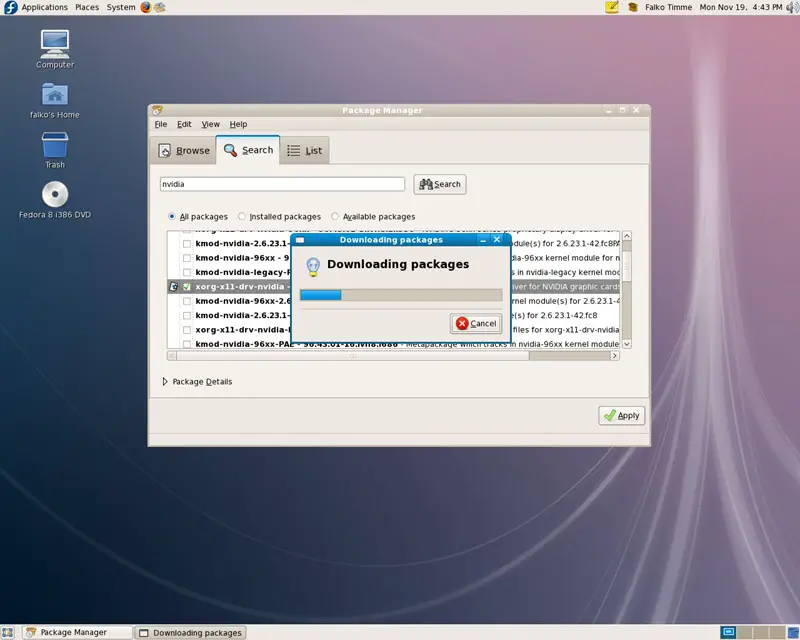
The packages are now being downloaded:
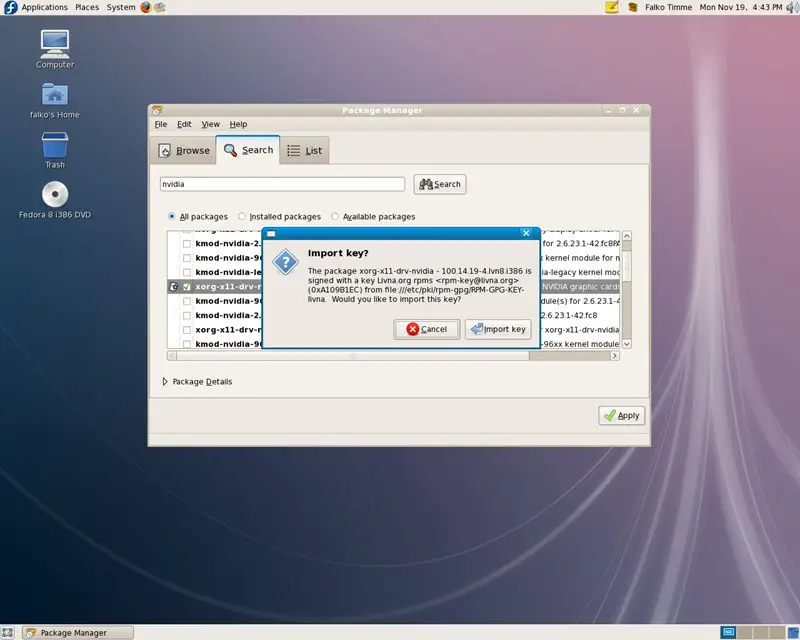
It might happen that your system doesn't know the GPG key of a package. If that happens, simply click on Import key to continue with the installation:
The packages are now being installed:
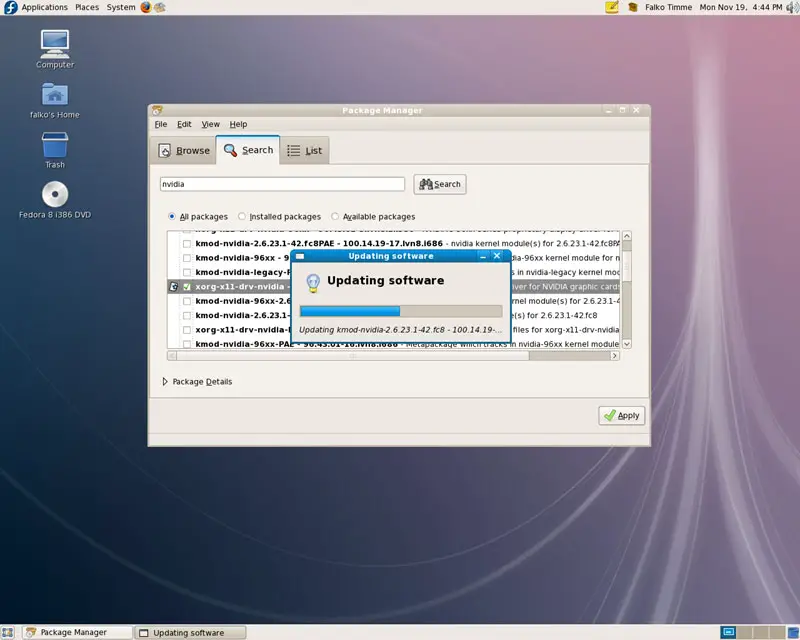
You can close the Package Manager afterwards:
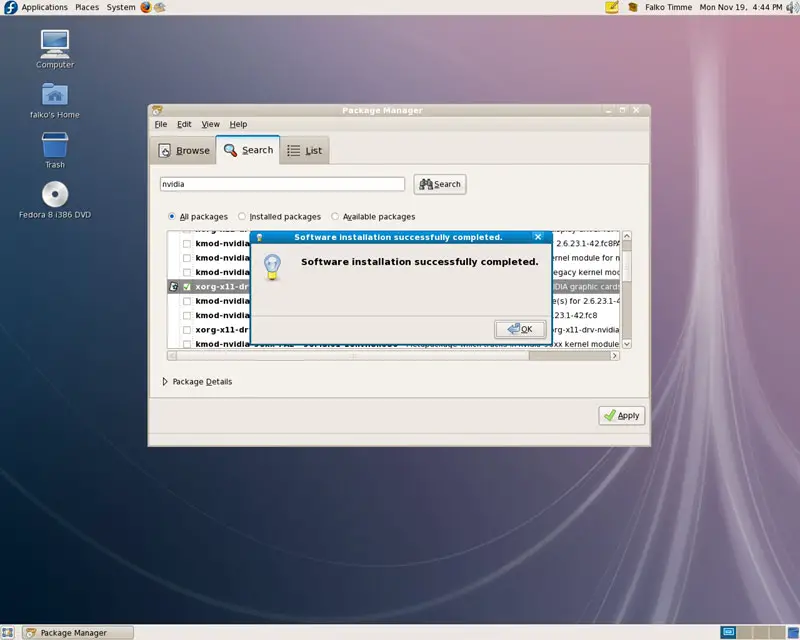
The NVIDIA driver is now installed, but for the changes to take effect, we have to finish our current desktop session and start a new one. The fastest way to do this is press CTRL+ALT+Backspace. Then log in again to start a new desktop session.





