
Virtual Hosting With Proftpd And MySQL (Incl. Quota) On Ubuntu 8.04 LTS - Page 2
This tutorial exists for these OS versions
- Ubuntu 14.04 LTS (Trusty Tahr)
- Ubuntu 12.10 (Quantal Quetzal)
- Ubuntu 9.10 (Karmic Koala)
- Ubuntu 8.10 (Intrepid Ibex)
- Ubuntu 8.04 (Hardy Heron)
On this page
6 Populate The Database And Test
To populate the database you can use the MySQL shell:
mysql -u root -p
USE ftp;
First we create an entry in the table ftpgroup. It contains the groupname, the groupid and the username of the ftp group/user we created at the end of step two (replace the groupid appropriately if you use another one than 2001):
INSERT INTO `ftpgroup` (`groupname`, `gid`, `members`) VALUES ('ftpgroup', 2001, 'ftpuser');
Now we are done with the table ftpgroup. We do not have to create further entries here. Whenever you create a new virtual ftp user, you do this in the tables ftpquotalimits and ftpuser. So let us create our first user exampleuser with a quota of 15MB and the password secret (we are still in the MySQL shell):
INSERT INTO `ftpquotalimits` (`name`, `quota_type`, `per_session`, `limit_type`, `bytes_in_avail`, `bytes_out_avail`, `bytes_xfer_avail`, `files_in_avail`, `files_out_avail`, `files_xfer_avail`) VALUES ('exampleuser', 'user', 'true', 'hard', 15728640, 0, 0, 0, 0, 0);
INSERT INTO `ftpuser` (`id`, `userid`, `passwd`, `uid`, `gid`, `homedir`, `shell`, `count`, `accessed`, `modified`) VALUES (1, 'exampleuser', 'secret', 2001, 2001, '/home/www.example.com', '/sbin/nologin', 0, '', '');
quit;
(Do not forget to replace the groud- and userid 2001 appropriately in the last INSERT statement if you are using other values than in this tutorial!)
Now open your FTP client program on your work station (something like WS_FTP or SmartFTP if you are on a Windows system or gFTP on a Linux desktop) and try to connect. As hostname you use server1.example.com (or the IP address of the system), the username is exampleuser, and the password is secret.
If you are able to connect - congratulations! If not, something went wrong.
Now, if you run
ls -l /home/
you should see that the directory /home/www.example.com (exampleuser's home directory) has been automatically created, and it is owned by ftpuser and ftpgroup (the user/group we created at the end of step two):
root@server1:~# ls -l /home/
total 12
drwxr-xr-x 2 administrator administrator 4096 2008-04-24 11:56 administrator
drwxr-xr-x 2 ftp           nogroup       4096 2008-06-13 15:48 ftp
drwx------ 2 ftpuser       ftpgroup      4096 2008-06-13 16:02 www.example.com
root@server1:~#
7 Database Administration
For most people it is easier if they have a graphical front-end to MySQL; therefore you can also use phpMyAdmin (in this example under http://server1.example.com/phpmyadmin/) to administrate the ftp database.
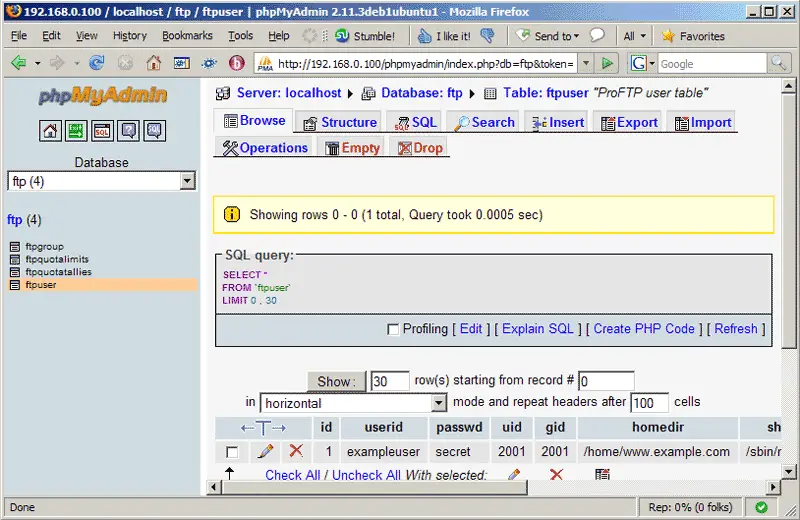
Whenever you create a new user, you only have to create entries in the tables ftpquotalimits and ftpuser so I will explain the columns of these tables here:
ftpuser Table:
The important columns are these (the others are handled by MySQL or Proftpd automatically, so do not fill these manually!):
- userid: The name of the virtual Proftpd user (e.g. exampleuser).
- passwd: The unencrypted (i.e., clear-text) password of the user.
- uid: The userid of the ftp user you created at the end of step two (e.g. 2001).
- gid: The groupid of the ftp group you created at the end of step two (e.g. 2001).
- homedir: The home directory of the virtual Proftpd user (e.g. /home/www.example.com). If it does not exist, it will be created when the new user logs in the first time via FTP. The virtual user will be jailed into this home directory, i.e., he cannot access other directories outside his home directory.
- shell: It is ok if you fill in /sbin/nologin here by default.
ftpquotalimits Table:
The important columns are these (the others are handled by MySQL or Proftpd automatically, so do not fill these manually!):
- name: The name of the virtual Proftpd user (e.g. exampleuser).
- quota_type: user or group. Normally, we use user here.
- per_session: true or false. true means the quota limits are valid only for a session. For example, if the user has a quota of 15 MB, and he has uploaded 15 MB during the current session, then he cannot upload anything more. But if he logs out and in again, he again has 15 MB available. false means, that the user has 15 MB, no matter if he logs out and in again.
- limit_type: hard or soft. A hard quota limit is a never-to-exceed limit, while a soft quota can be temporarily exceeded. Normally you use hard here.
- bytes_in_avail: Upload limit in bytes (e.g. 15728640 for 15 MB). 0 means unlimited.
- bytes_out_avail: Download limit in bytes. 0 means unlimited.
- bytes_xfer_avail: Transfer limit in bytes. The sum of uploads and downloads a user is allowed to do. 0 means unlimited.
- files_in_avail: Upload limit in files. 0 means unlimited.
- files_out_avail: Download limit in files. 0 means unlimited.
- files_xfer_avail: Tranfer limit in files. 0 means unlimited.
The ftpquotatallies table is used by Proftpd internally to manage quotas so you do not have to make entries there!
8 Anonymous FTP
If you want to create an anonymous ftp account (an ftp account that everybody can login to without a password), you can do it like this:
First we create a user and group with the name anonymous_ftp. The user has the home directory /home/anonymous_ftp:
groupadd -g 2002 anonymous_ftp
useradd -u 2002 -s /bin/false -d /home/anonymous_ftp -m -c "Anonymous FTP User" -g anonymous_ftp anonymous_ftp
(Replace 2002 with a group-/userid that is free on your system.)
Then we create the directory /home/anonymous_ftp/incoming which will allow anonymous users to upload files:
mkdir /home/anonymous_ftp/incoming
chown anonymous_ftp:nogroup /home/anonymous_ftp/incoming
And finally, open /etc/proftpd/proftpd.conf and append the following directives to it:
vi /etc/proftpd/proftpd.conf
[...]
<Anonymous ~anonymous_ftp>
  User                                anonymous_ftp
  Group                               nogroup
  # We want clients to be able to login with "anonymous" as well as "ftp"
  UserAlias                        anonymous anonymous_ftp
  # Cosmetic changes, all files belongs to ftp user
  DirFakeUser        on anonymous_ftp
  DirFakeGroup on anonymous_ftp

  RequireValidShell                off

  # Limit the maximum number of anonymous logins
  MaxClients                        10

  # We want 'welcome.msg' displayed at login, and '.message' displayed
  # in each newly chdired directory.
  DisplayLogin                        welcome.msg
  DisplayChdir                        .message

  # Limit WRITE everywhere in the anonymous chroot
  <Directory *>
    <Limit WRITE>
      DenyAll
    </Limit>
  </Directory>

  # Uncomment this if you're brave.
  <Directory incoming>
    # Umask 022 is a good standard umask to prevent new files and dirs
    # (second parm) from being group and world writable.
    Umask                                022  022
             <Limit READ WRITE>
             DenyAll
             </Limit>
             <Limit STOR>
             AllowAll
             </Limit>
  </Directory>

</Anonymous>
|
Finally restart Proftpd:
/etc/init.d/proftpd restart
Now anonymous users can login, and they can download files from /home/anonymous_ftp, but uploads are limited to /home/anonymous_ftp/incoming (and once a file is uploaded into /home/anonymous_ftp/incoming, it cannot be read nor downloaded from there; the server admin has to move it into /home/anonymous_ftp first to make it available to others).
(Please note: You can only have one anonymous ftp account per IP address!)
9 References
Mandrake 10.1 - Proftpd + MySQL authentication + Quotas Howto: http://www.khoosys.net/single.htm?ipg=848
10 Links
- Proftpd: http://www.proftpd.org
- MySQL: http://www.mysql.com
- phpMyAdmin: http://www.phpmyadmin.net
- Ubuntu: http://www.ubuntu.com





