
Using mod_spdy With Apache2 On OpenSUSE 12.2 (x86_64)
On this page
SPDY (pronounced "SPeeDY") is a new networking protocol whose goal is to speed up the web. It is Google's alternative to the HTTP protocol and a candidate for HTTP/2.0. SPDY augments HTTP with several speed-related features such as stream multiplexing and header compression. To use SPDY, you need a web server and a browser (like Google Chrome and upcoming versions of Firefox) that both support SPDY. mod_spdy is an open-source Apache module that adds support for the SPDY protocol to the Apache HTTPD server. This tutorial explains how to use mod_spdy with Apache2 on OpenSUSE 12.2.
1 Preliminary Note
SPDY runs over HTTPS, so we need an HTTPS-enabled web site to test SPDY. Please note that SPDY will fall back to HTTPS if the user's browser does not support SPDY or if things go wrong, so installing mod_spdy doesn't hurt your existing setup.
I'm assuming that you have a working LAMP setup, as described on Installing Apache2 With PHP5 And MySQL Support On OpenSUSE 12.2 (LAMP).
Before we proceed, we need to enable SSL in Apache:
a2enmod ssl
a2enflag SSL
systemctl restart apache2.service
For testing purposes I will simply use the default SSL web site that comes with OpenSUSE's Apache package (you don't need to do this if you already have an SSL web site on your server).
Create a self-signed certificate for the default SSL vhost...
openssl genrsa -des3 -out /etc/apache2/ssl.key/server.key.org 4096
openssl req -new -key /etc/apache2/ssl.key/server.key.org -out /etc/apache2/ssl.crt/server.csr
openssl x509 -req -days 365 -in /etc/apache2/ssl.crt/server.csr -signkey /etc/apache2/ssl.key/server.key.org -out /etc/apache2/ssl.crt/server.crt
openssl rsa -in /etc/apache2/ssl.key/server.key.org -out /etc/apache2/ssl.key/server.key
chmod 400 /etc/apache2/ssl.key/server.key
... and enable the default SSL vhost:
cd /etc/apache2/vhosts.d
cp vhost-ssl.template vhost-ssl.conf
systemctl restart apache2.service
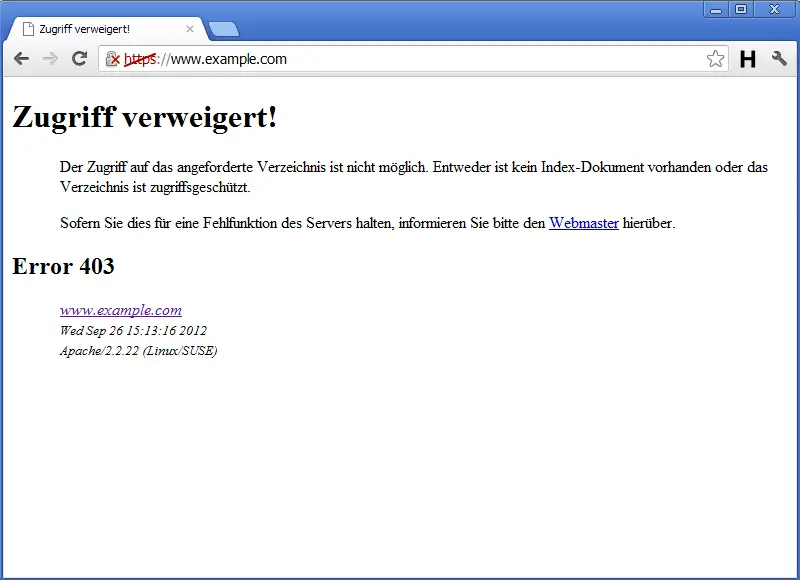
Go to the default SSL web site's URL (e.g. https://www.example.com) and test if it works (I'm using the default self-signed certificate here, that's why I have a certificate warning, but this has no effect on using SPDY; also don't worry about the 403 Forbidden error - that happens because there's no index file in the document root):
2 Installing mod_spdy
mod_spdy can be installed as follows:
zypper install http://download.opensuse.org/repositories/Apache/openSUSE_12.2/x86_64/apache2-mod_spdy-0.9.1.5-1.1.x86_64.rpm
(Unfortunately, at the time of this writing, there's no mod_spdy package for i386 systems, so this works only on x86_64 systems.)
Next create the mod_spdy configuration file /etc/apache2/conf.d/spdy.conf:
vi /etc/apache2/conf.d/spdy.conf
LoadModule spdy_module /usr/lib64/apache2/libmod_spdy.so
<IfModule spdy_module>
    # Turn on mod_spdy. To completely disable mod_spdy, you can set
    # this to "off".
    SpdyEnabled on

    # In order to support concurrent multiplexing of requests over a
    # single connection, mod_spdy maintains its own thread pool in
    # each Apache child process for processing requests.  The default
    # size of this thread pool is very conservative; you can override
    # it with a larger value (as below) to increase concurrency, at
    # the possible cost of increased memory usage.
    #
    #SpdyMaxThreadsPerProcess 30

    # Memory usage can also be affected by the maximum number of
    # simultaneously open SPDY streams permitted for each client
    # connection.  Ideally, this limit should be set as high as
    # possible, but you can tweak it as necessary to limit memory
    # consumption.
    #
    #SpdyMaxStreamsPerConnection 100
</IfModule>
|
You can learn more about the configuration options on https://developers.google.com/speed/spdy/mod_spdy/install.
Restart Apache afterwards:
systemctl restart apache2.service
3 Testing
Now let's test if SPDY is working. We need a browser with SPDY support. e.g. Google Chrome. Open Chrome and reload your SSL web site (e.g. https://www.example.com) - it is important that you reload it so that it can use SPDY (the first time you loaded it in chapter 1 it used normal HTTPS). Afterwards, open a new tab and type in the URL
chrome://net-internals/#spdy
If everything went well, your SSL vhost should now be listed in the table which means SPDY support is working.
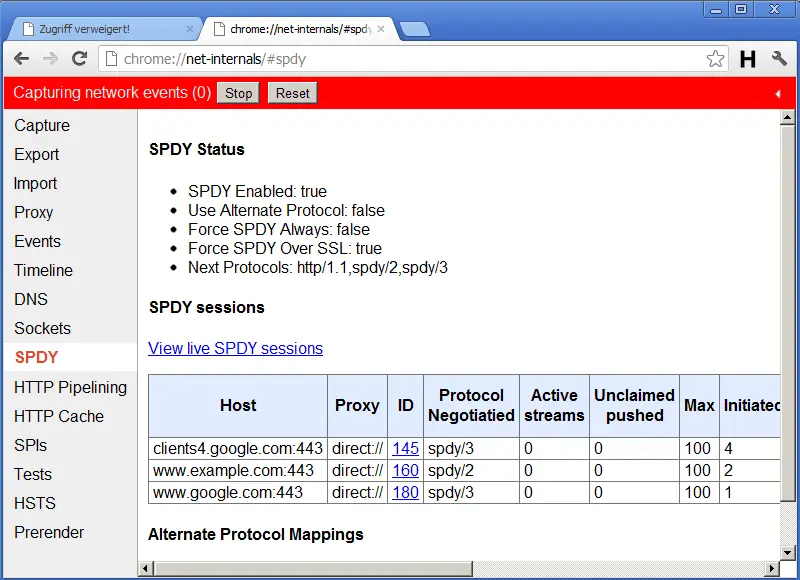
(Because of SPDY's fallback mechanism to HTTPS, your SSL vhost will still work in any other browser that does not support SPDY.)
4 Links
- SPDY: https://developers.google.com/speed/spdy/
- Apache mod_spdy: http://code.google.com/p/mod-spdy/
- mod_spdy Configuration: https://developers.google.com/speed/spdy/mod_spdy/install
- Apache: http://httpd.apache.org/
- OpenSUSE: http://www.opensuse.org/





