
Installing Beryl On An Ubuntu Feisty Fawn Desktop With An ATI Radeon Graphic Card - Page 3
5 Make Beryl Start Automatically
Of course, you don't want to start Beryl manually each time you log in to your desktop. Fortunately, there's a way to make it start automatically.
First, we create the file /usr/bin/startberyl.sh:
sudo gedit /usr/bin/startberyl.sh
#!/bin/sh beryl-manager sleep 4 exec gnome-session |
Then we make it executable:
sudo chmod a+x /usr/bin/startberyl.sh
Afterwards, we create the file /usr/share/xsessions/Beryl.desktop:
sudo gedit /usr/share/xsessions/Beryl.desktop
[Desktop Entry] Encoding=UTF-8 Name=Beryl Exec=/usr/bin/startberyl.sh Icon= Type=Application |
Then we log out of our current desktop session. On the login screen, go to Options > Select Session..., choose Beryl and click on the Change Session button. Then log in with your username and password. You will then be asked:
Do you wish to make Beryl the default for future sessions?
You can choose between Just For This Session and Make Default. If this is your first try, I recommend to select Just For This Session to see if Beryl really starts automatically. If it works, you can select Make Default at the next login.
6 Customize Beryl Behaviour And Window Themes
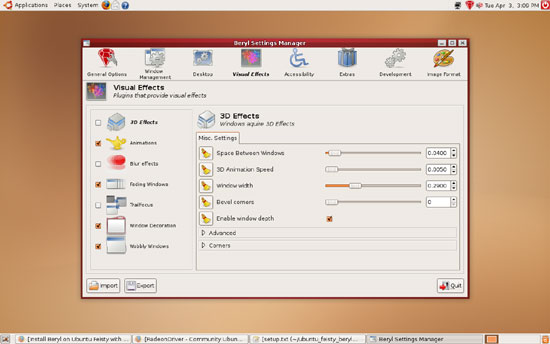
If you like to modify Beryl's behaviour and effects, you can go to Applications > System Tools > Beryl Manager. In the menu that comes up, select Beryl Settings Manager. You can then customize Beryl:
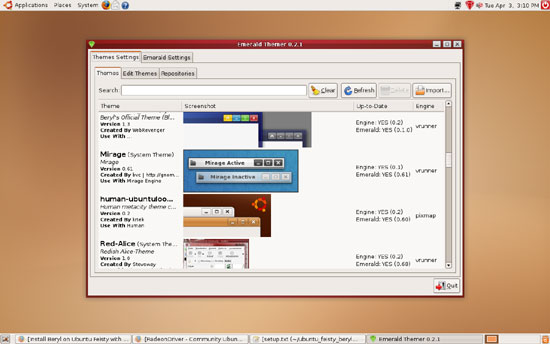
To change window decorations and themes, you must start the Emerald Theme Manager by going to System > Preferences > Emerald Theme Manager:
7 Screenshots
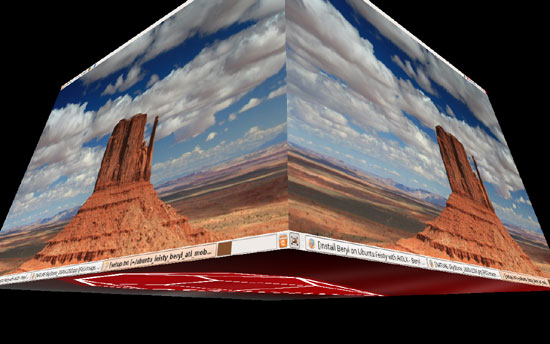
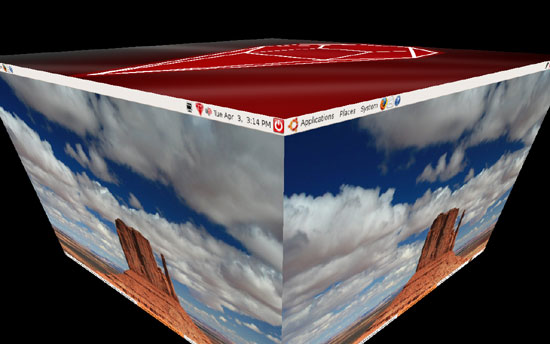
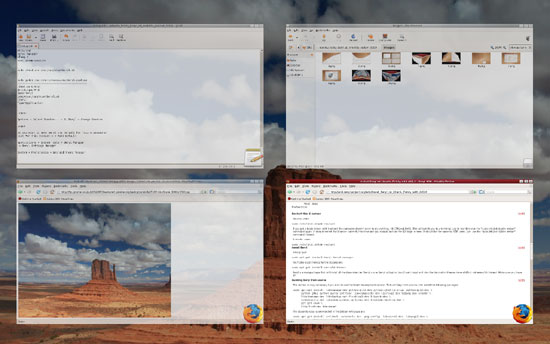
Here are some further screenshots of Beryl in action, this time with a beautiful wallpaper instead of Ubuntu's default brown background:
8 Links
- The ATI Radeon open-source driver HowTo: https://help.ubuntu.com/community/RadeonDriver
- Install Beryl on Ubuntu Feisty with AIGLX: http://wiki.beryl-project.org/wiki/Install_Beryl_on_Ubuntu_Feisty_with_AIGLX
- Ubuntu: http://www.ubuntu.com
- Beryl: http://www.beryl-project.org





