
The Perfect Desktop - PCLinuxOS 2010 (KDE)
Version 1.0
Author: Falko Timme  Follow me on Twitter
This tutorial shows how you can set up a PCLinuxOS 2010 desktop (with KDE) that is a full-fledged replacement for a Windows desktop, i.e. that has all the software that people need to do the things they do on their Windows desktops. The advantages are clear: you get a secure system without DRM restrictions that works even on old hardware, and the best thing is: all software comes free of charge.
I want to say first that this is not the only way of setting up such a system. There are many ways of achieving this goal but this is the way I take. I do not issue any guarantee that this will work for you!
1 Preliminary Note
To fully replace a Windows desktop, I want the PCLinuxOS 2010 desktop to have the following software installed:
Graphics:
- The GIMP - free software replacement for Adobe Photoshop
- F-Spot - full-featured personal photo management application for the GNOME desktop
- Google Picasa - application for organizing and editing digital photos
Internet:
- Firefox
- Opera
- Flash Player 10
- FileZilla - multithreaded FTP client
- Thunderbird - email and news client
- Evolution - combines e-mail, calendar, address book, and task list management functions
- aMule - P2P file sharing application
- KTorrent - Bittorrent client
- Azureus/Vuze - Java Bittorrent client
- Pidgin - multi-platform instant messaging client
- Skype
- Google Earth
- Xchat IRC - IRC client
Office:
- OpenOffice Writer - replacement for Microsoft Word
- OpenOffice Calc - replacement for Microsoft Excel
- Adobe Reader
- GnuCash - double-entry book-keeping personal finance system, similar to Quicken
- Scribus - open source desktop publishing (DTP) application
Sound & Video:
- Amarok - audio player
- Banshee - audio player, can encode/decode various formats and synchronize music with Apple iPods
- MPlayer - media player (video/audio), supports WMA. The MPlayer frontend is named SMPlayer on PCLinuxOS 2010.
- gtkPod - software similar to Apple's iTunes, supports iPod, iPod nano, iPod shuffle, iPod photo, and iPod mini
- XMMS - audio player similar to Winamp
- dvd::rip - full featured DVD copy program
- Kino - free digital video editor
- Sound Juicer CD Extractor - CD ripping tool, supports various audio codecs
- VLC Media Player - media player (video/audio)
- Real Player
- Totem - media player (video/audio)
- Xine - media player, supports various formats; can play DVDs
- Brasero - CD/DVD burning program
- K3B - CD/DVD burning program
- Multimedia-Codecs
Programming:
- KompoZer - WYSIWYG HTML editor, similar to Macromedia Dreamweaver, but not as feature-rich (yet)
- Bluefish - text editor, suitable for many programming and markup languages
Other:
- VirtualBox - lets you run your old Windows desktop as a virtual machine under your Linux desktop, so you don't have to entirely abandon Windows
- TrueType fonts
- Java
- Read/Write support for NTFS partitions
I use the KDE version of PCLinuxOS 2010 in this tutorial.
As you might have noticed, a few applications are redundant, for example there are two CD/DVD burning applications in my list (Brasero, K3B). If you know which one you like best, you obviously don't need to install the other applications, however if you like choice, then of course you can install both. The same goes for music players like Amarok, Banshee, XMMS or browsers (Firefox, Opera).
I will use the username falko in this tutorial. If you use another username (which you most probably do ;-)), please replace falko with your own username.
2 Installing The Base System
Download the PCLinuxOS 2010 KDE CD iso image (the full version, not the MiniMe version!) from http://www.pclinuxos.com/?page_id=180, burn it onto a CD, and boot your computer from it. At the boot prompt, select LiveCD:
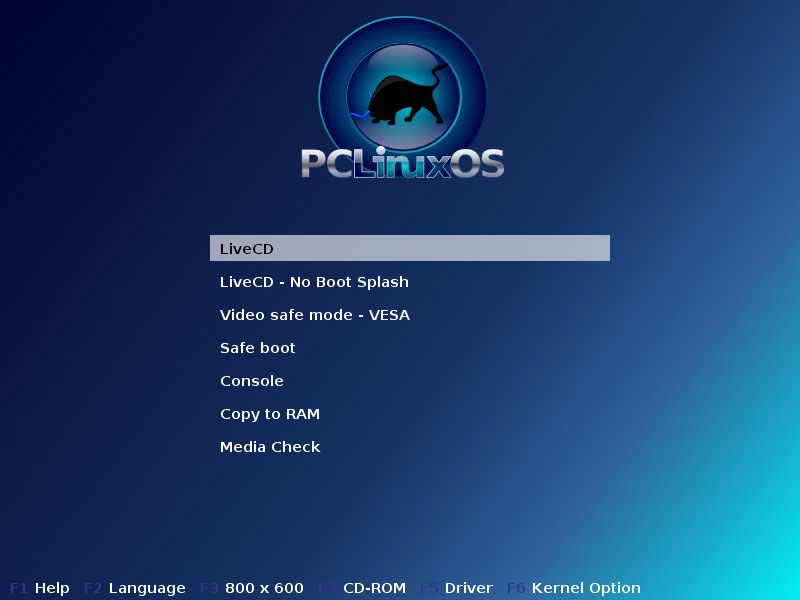
The system boots and starts a desktop that is run entirely in the RAM of your system (the PCLinuxOS installation CD is also a Live-CD) without changing anything on your hard disk. This has the advantage that you can test how PCLinuxOS works on your hardware before you finally install it.
Select your keyboard layout:
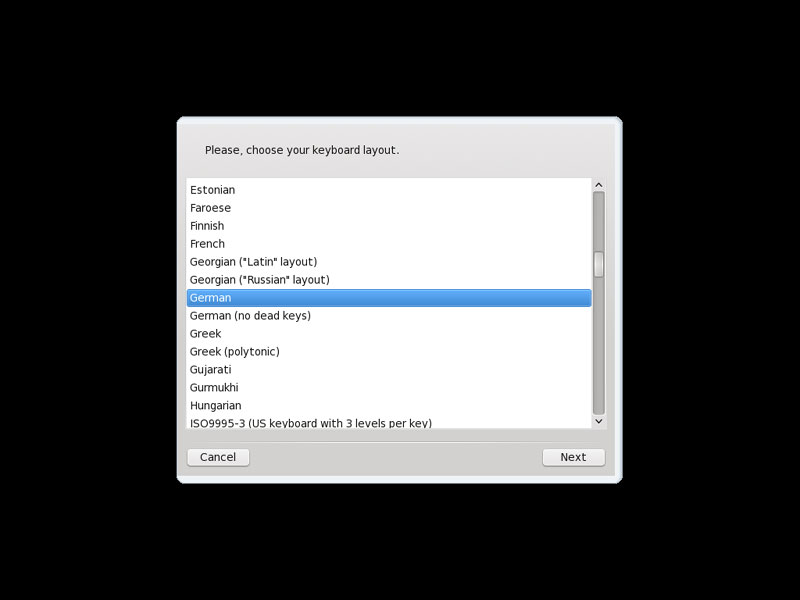
This is how the LiveCD desktop looks. Click Install PCLinuxOS to start the installation to the hard disk:
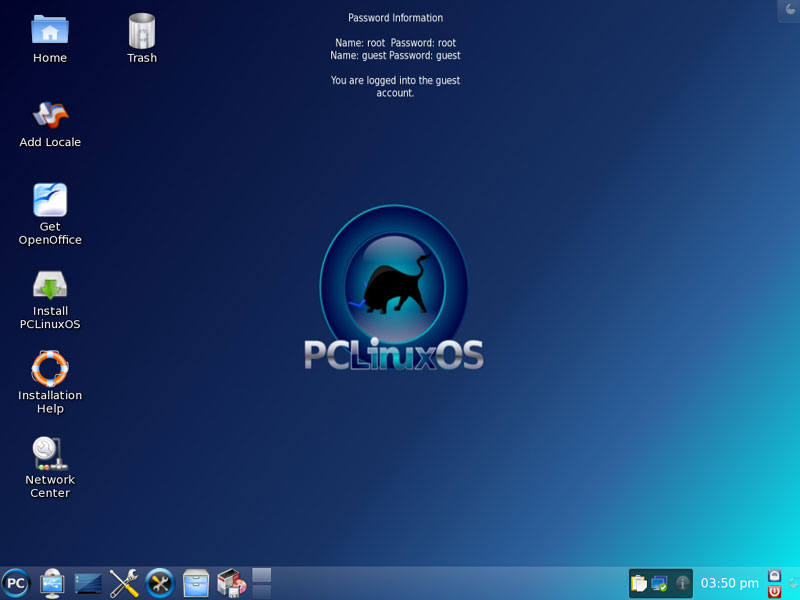
To start the installation, we must type in the root password (which is root):
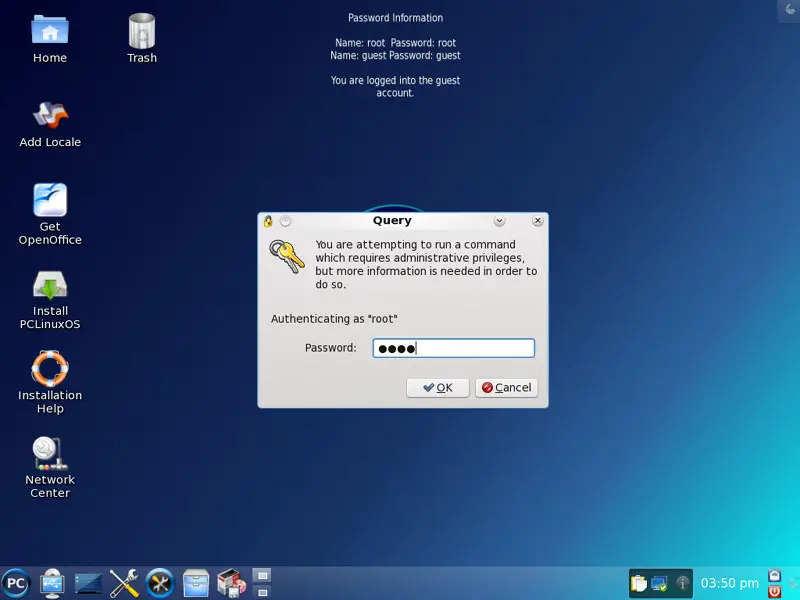
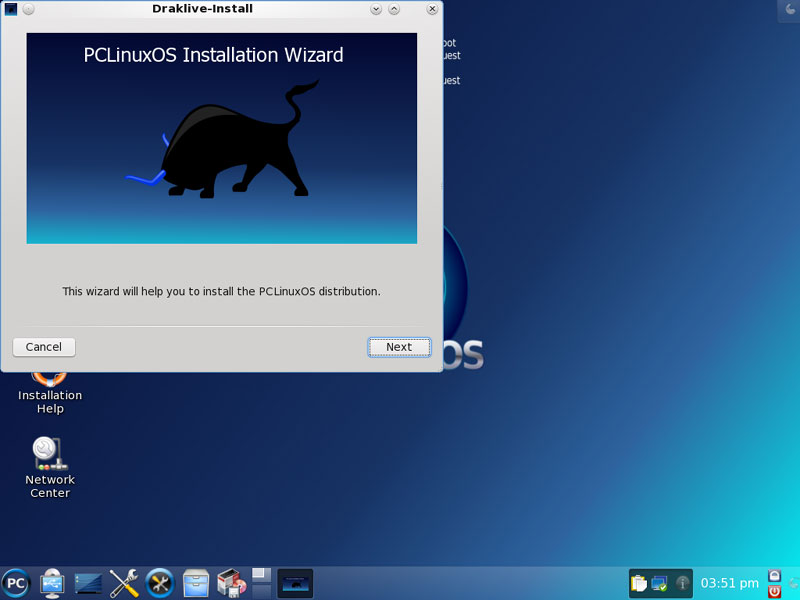
The installation wizard starts. Click Next:
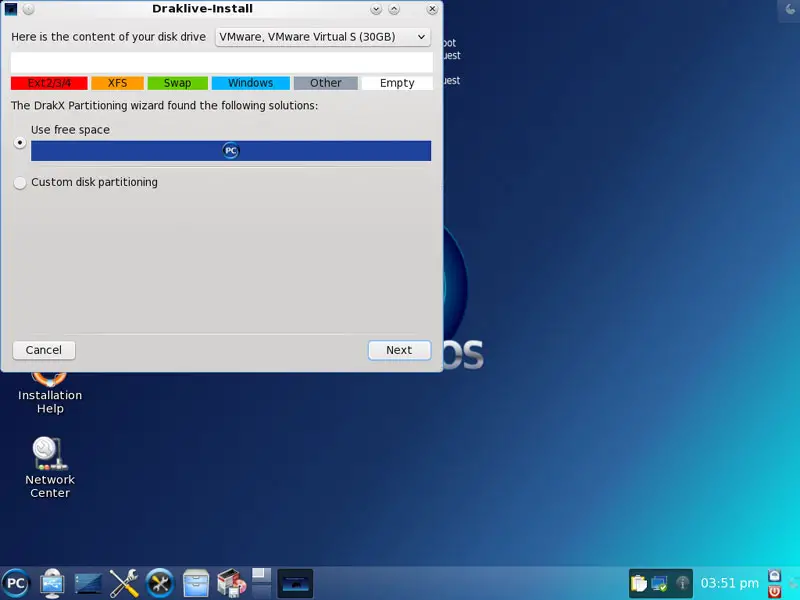
The PCLinuxOS default partitioning scheme is ok for our purposes, so you can select Use free space.
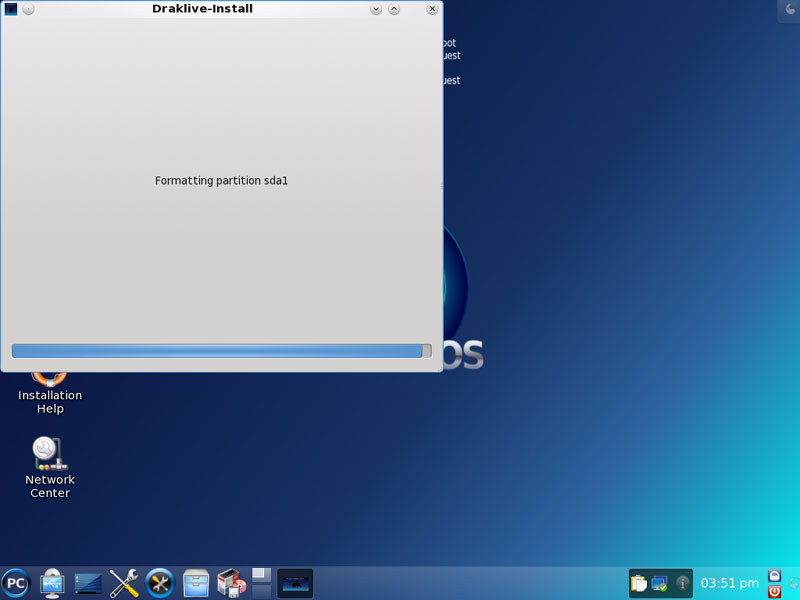
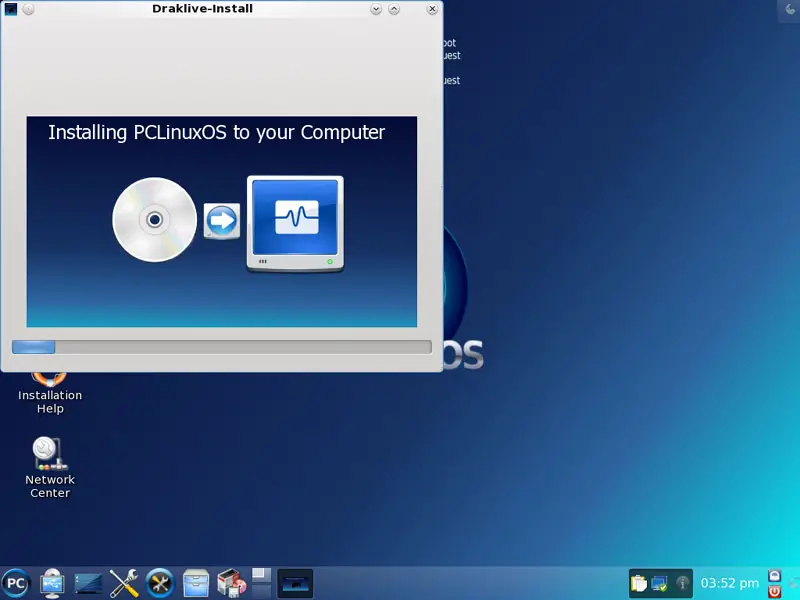
The hard drive is partitioned, and the installation begins. This can take a few minutes, so please be patient:
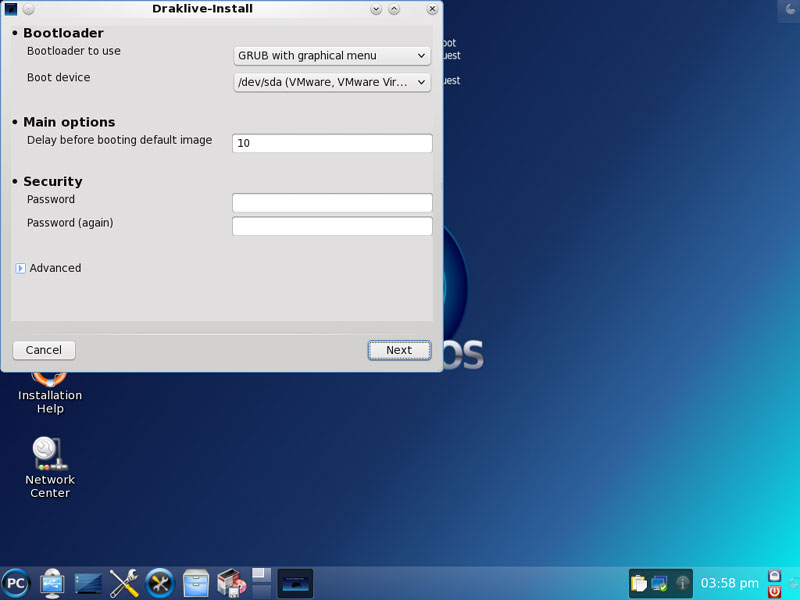
Afterwards we have to configure the bootloader. The default settings are ok, so we can click Next:
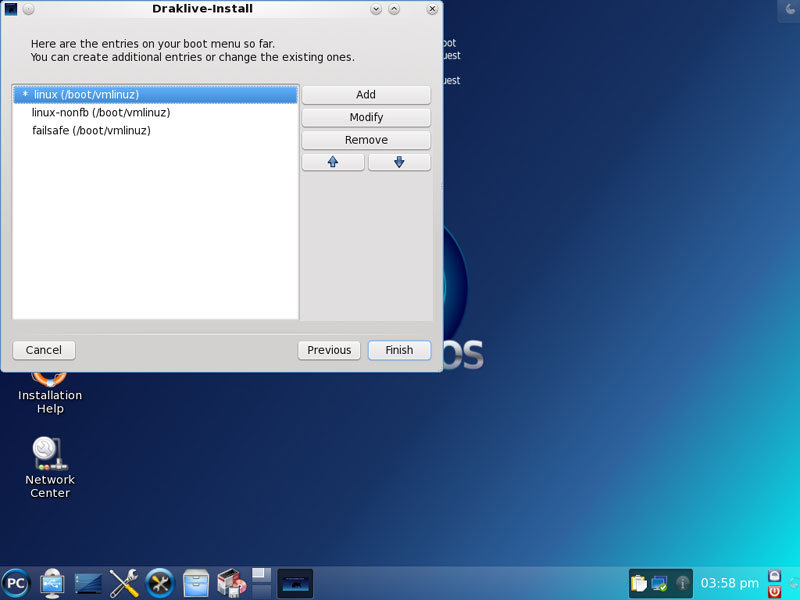
The default boot menu entries are ok as well, so we click Finish:
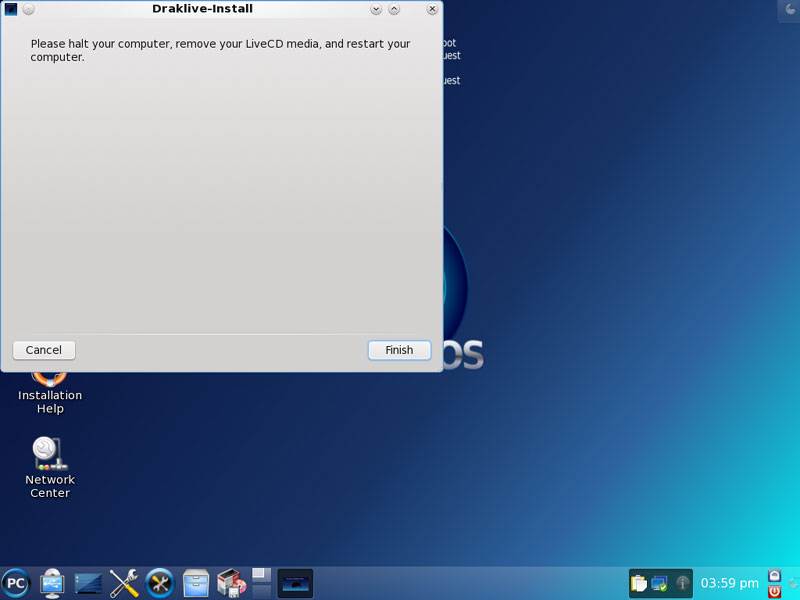
Click Finish to complete the installation:
To use our new installation, we must reboot and remove the PCLinuxOS CD from our CD drive. Go to Leave > Restart Computer...
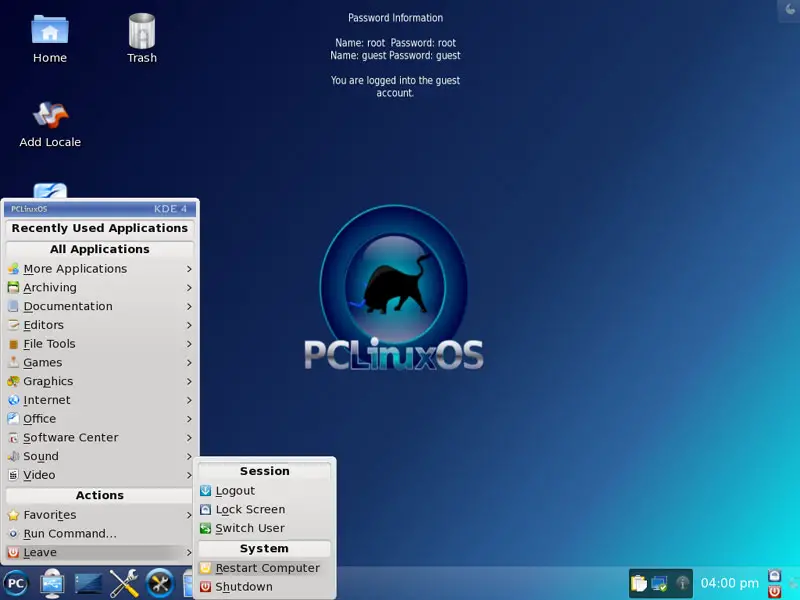
Then click Restart Computer:
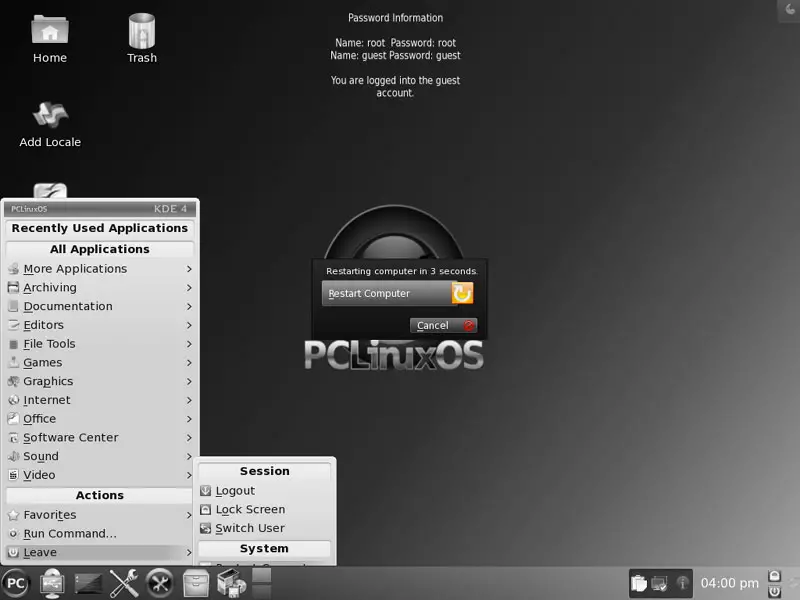
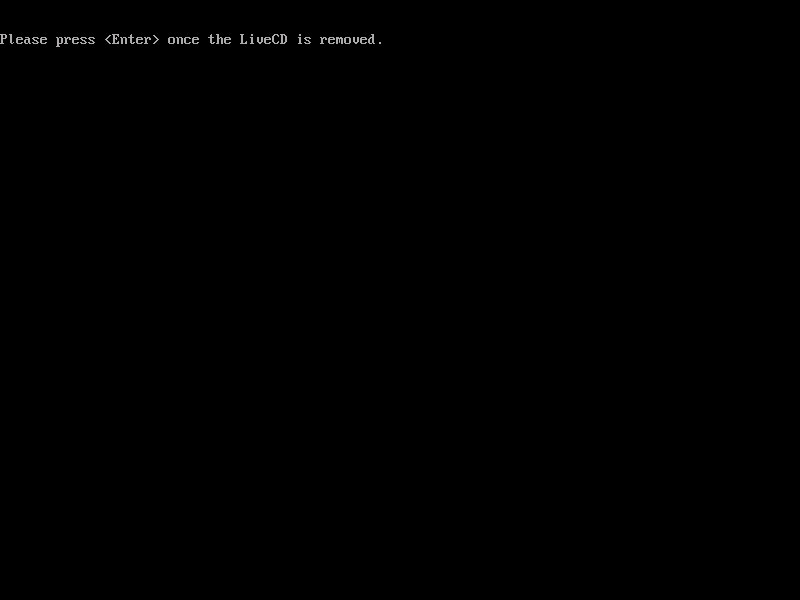
The system shuts down. Remove the PCLinuxOS CD and press <ENTER>:
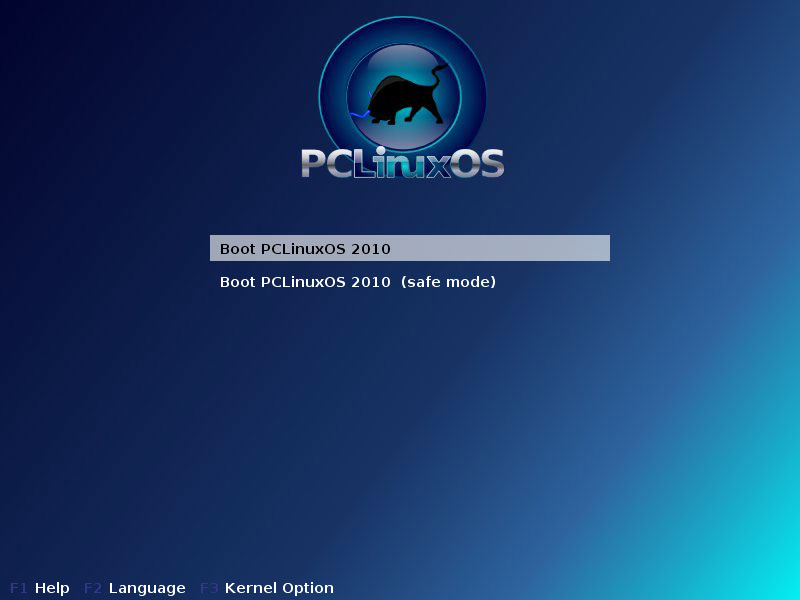
Afterwards, select Boot PCLinuxOS 2010 from the bootloader menu (or wait a few seconds):
After the first boot, we have to specify the root password...
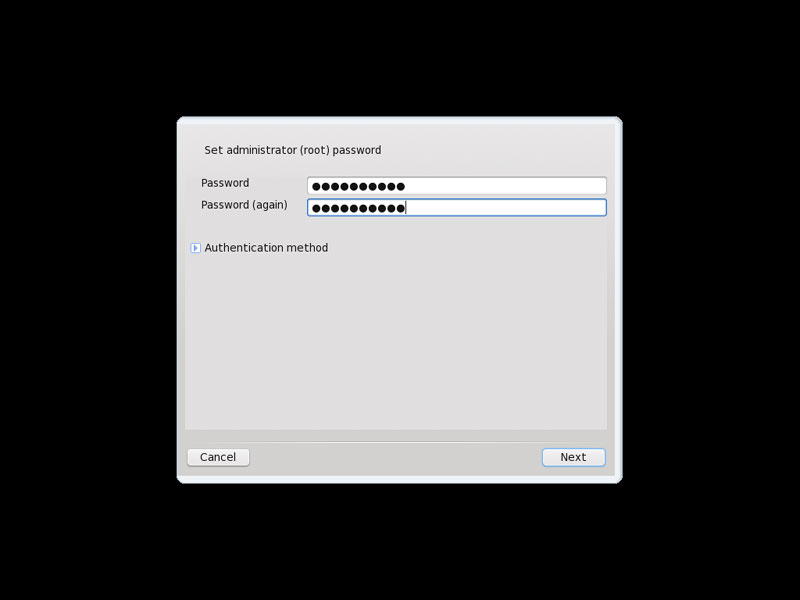
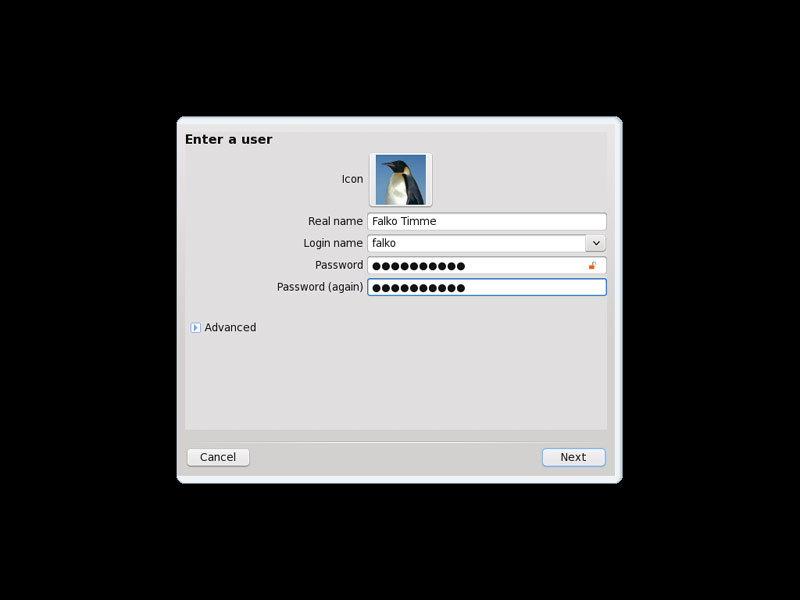
... and create a normal user account (falko in this example). Click Next...
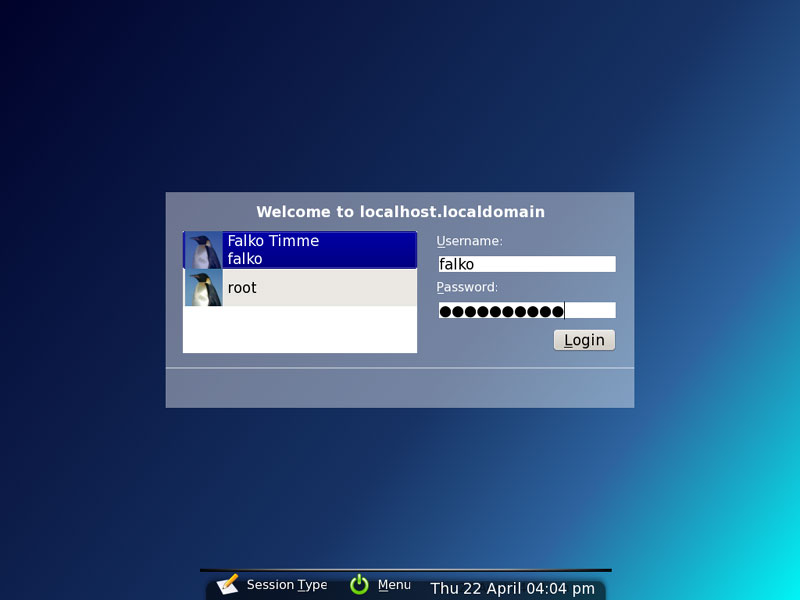
... and log in with the regular user account you've just created::
This is how your new desktop looks:
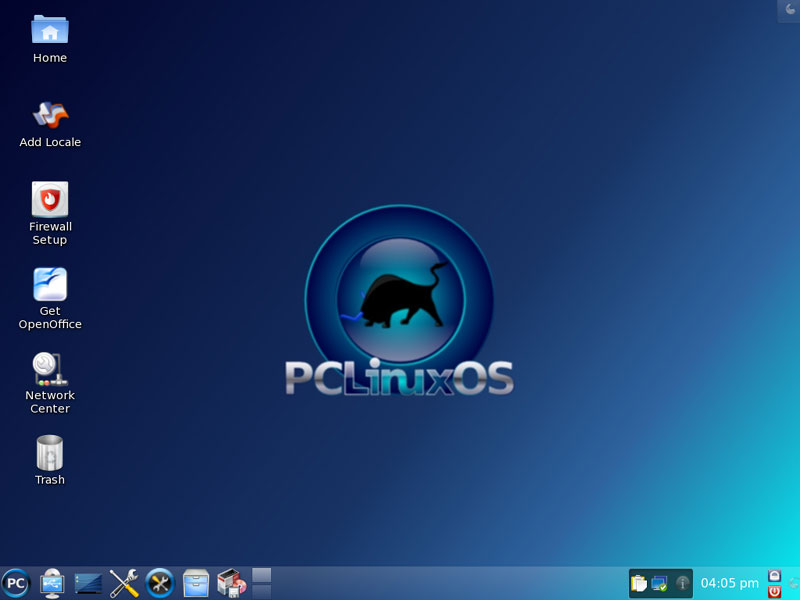
Now the base system is ready to be used.





