
The Perfect Desktop - Linux Mint 9 (Isadora) - Page 3
This tutorial exists for these OS versions
- Linux Mint 17.1 (Rebecca)
- Linux Mint 17 (Quiana)
- Linux Mint 15 (Olivia)
- Linux Mint 14 (Nadia)
- Linux Mint 13 (Maya)
- Linux Mint 12 (Lisa)
On this page
7 Install Additional Software
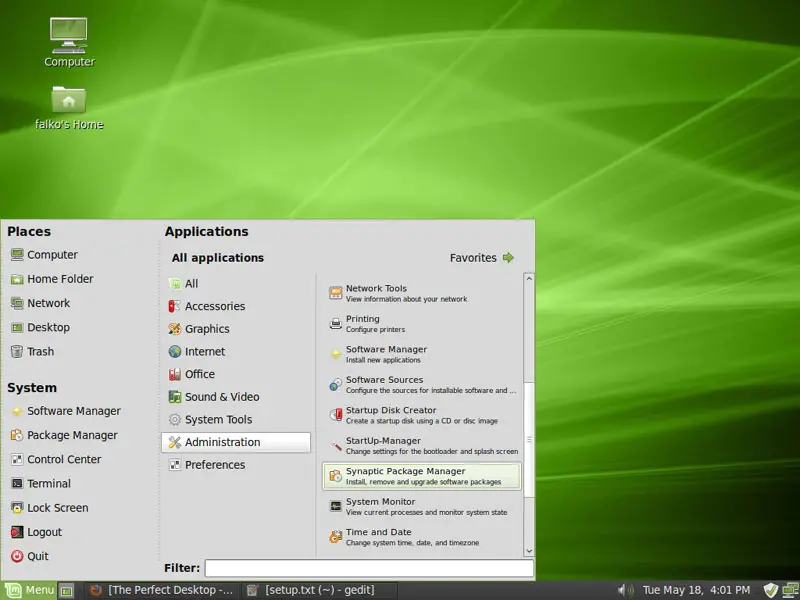
To install additional applications, open the Synaptic Package Manager (Applications > Administration > Synaptic Package Manager):
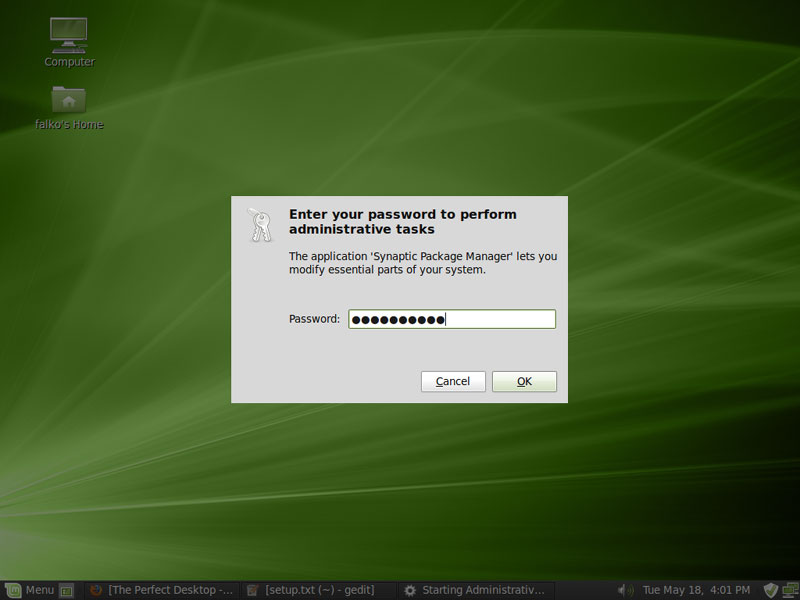
Type in your password:
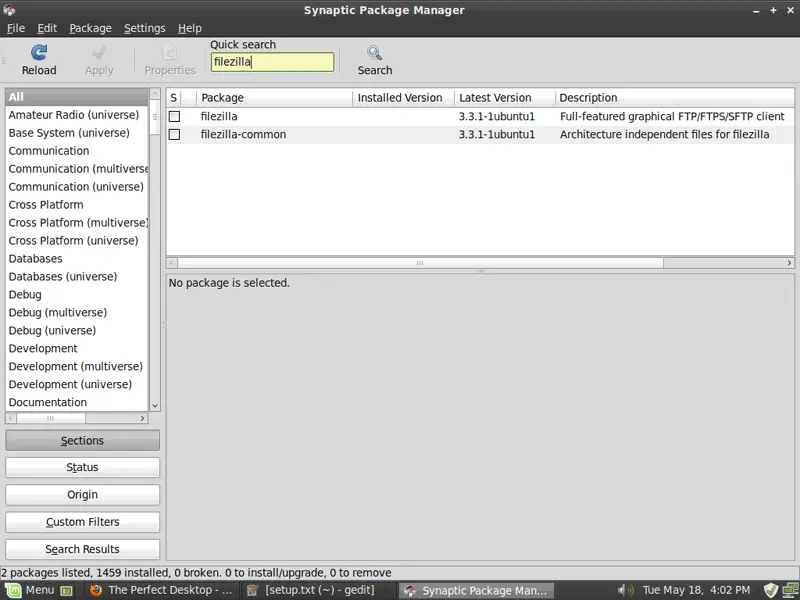
In the Synaptic Package Manager, we can install additional software. You can use the Quick search field to find packages:
Select the following packages for installation (* is a wildcard; e.g. gstreamer0.10* means all packages that start with gstreamer0.10):
- picasa
- opera
- filezilla
- evolution
- amule
- vuze
- skype
- googleearth
- acroread
- gnucash
- scribus
- amarok
- audacity
- banshee
- sound-juicer
- gtkpod-aac
- xmms2*
- dvdrip
- kino
- vlc*
- mozilla-plugin-vlc
- realplayer
- xine-ui
- xine-plugin
- k3b
- normalize-audio
- sox
- vcdimager
- non-free-codecs
- gstreamer0.10*
- kompozer
- bluefish
- quanta
- ttf-mscorefonts-installer
- sun-java6*
- virtualbox-ose
There are also lots of other applications available that you can install as well if you like.
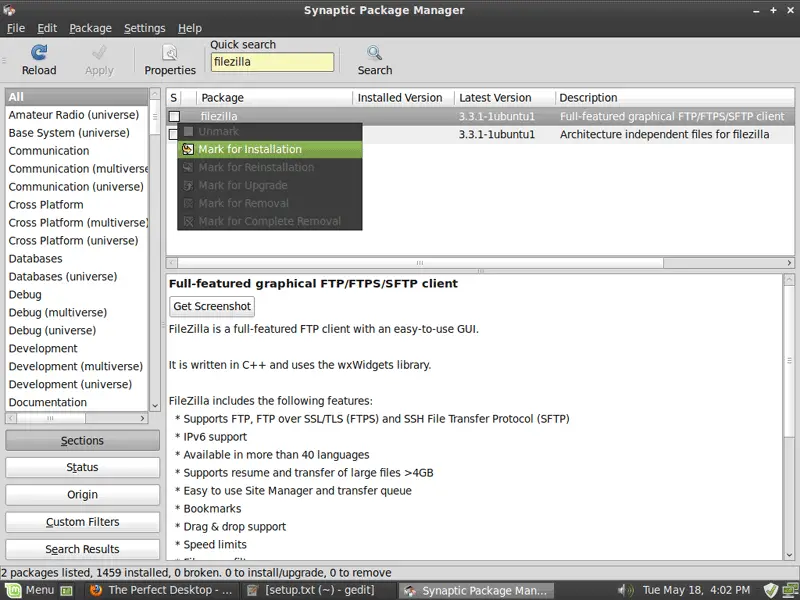
To select a package for installation, click on the checkbox in front of it and select Mark for Installation from the menu that comes up:
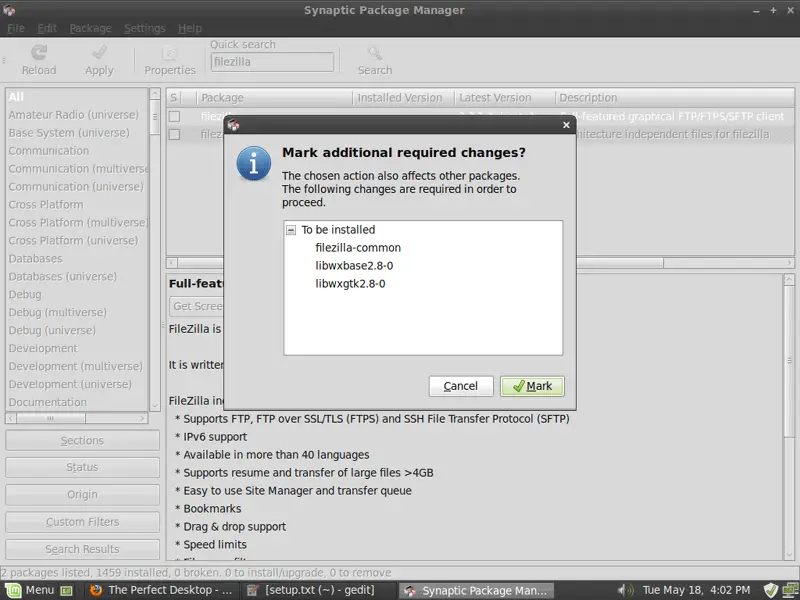
If a package has a dependency that needs to be satisfied, a window will pop up. Accept the dependencies by clicking on Mark:
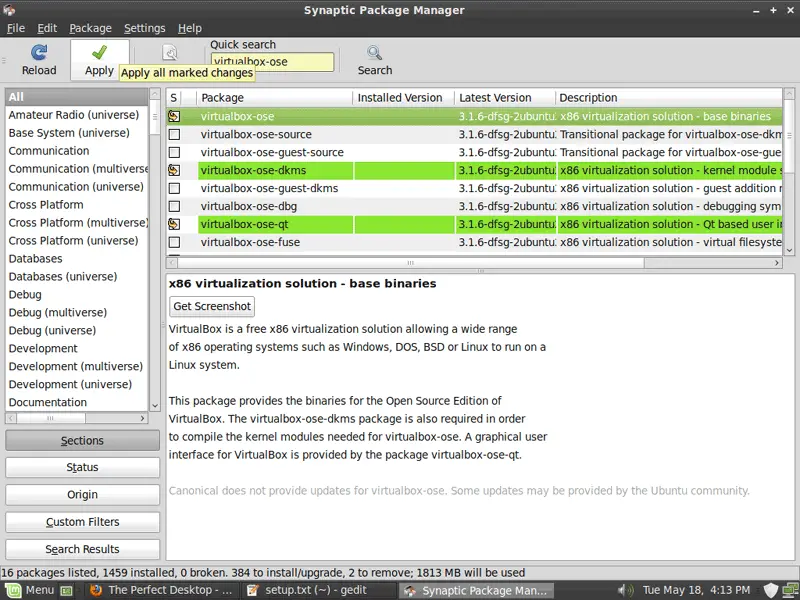
After you've selected the desired packages, click on the Apply button:
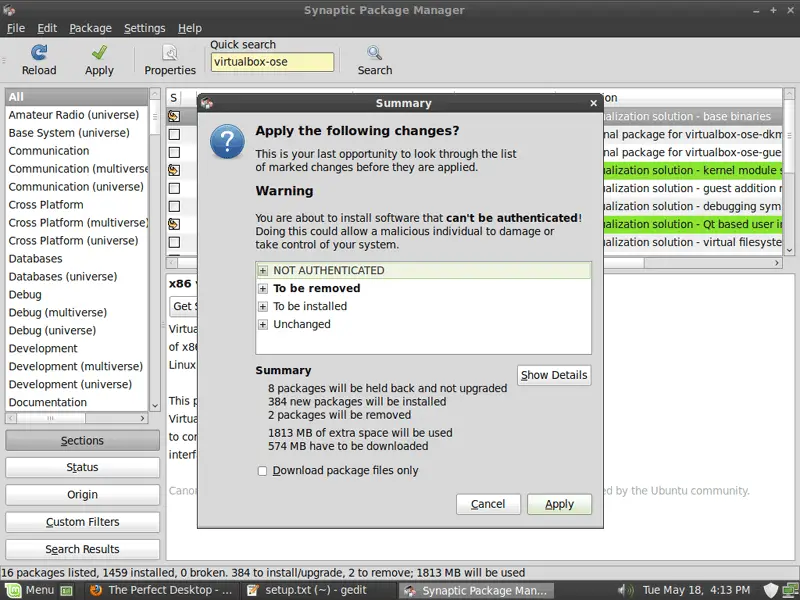
Confirm your selection by clicking on Apply:
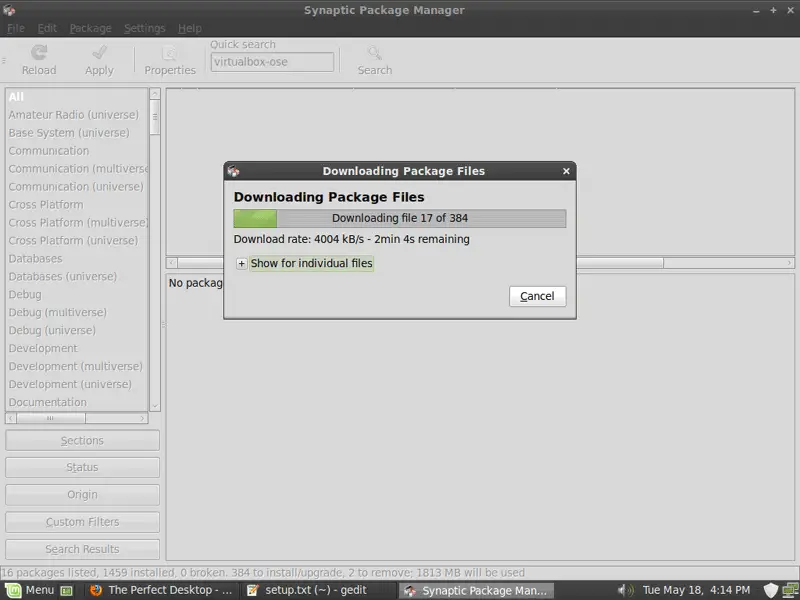
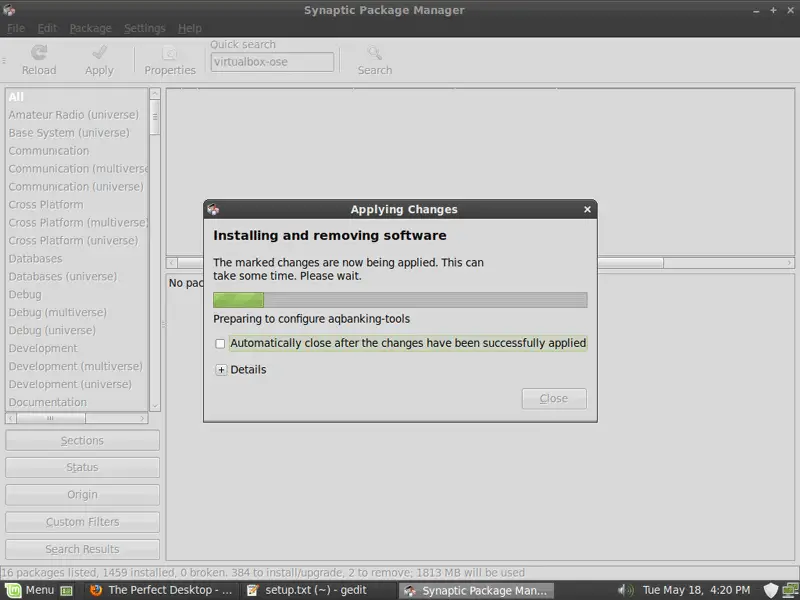
The packages are now being downloaded from the repositories and installed. This can take a few minutes, so please be patient:
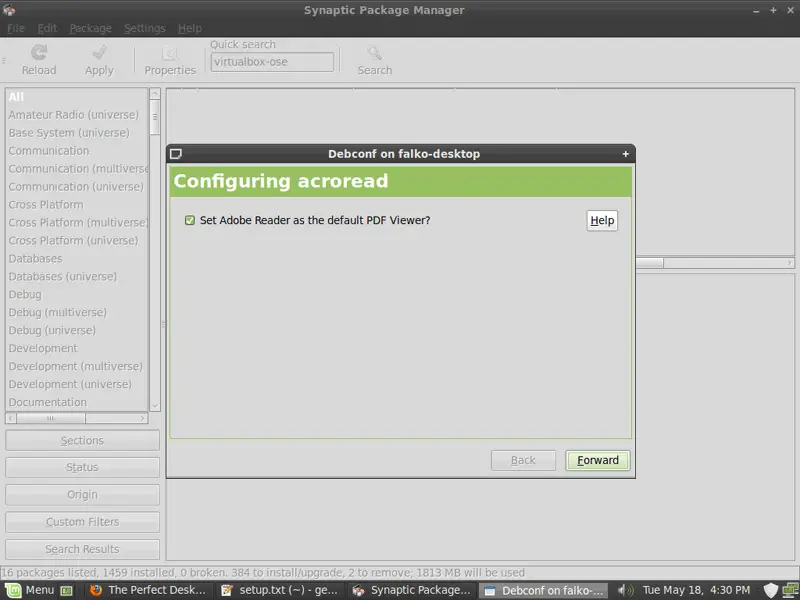
You might see some messages. Click on Forward to continue the installation:
After all packages have been installed, click on Close:
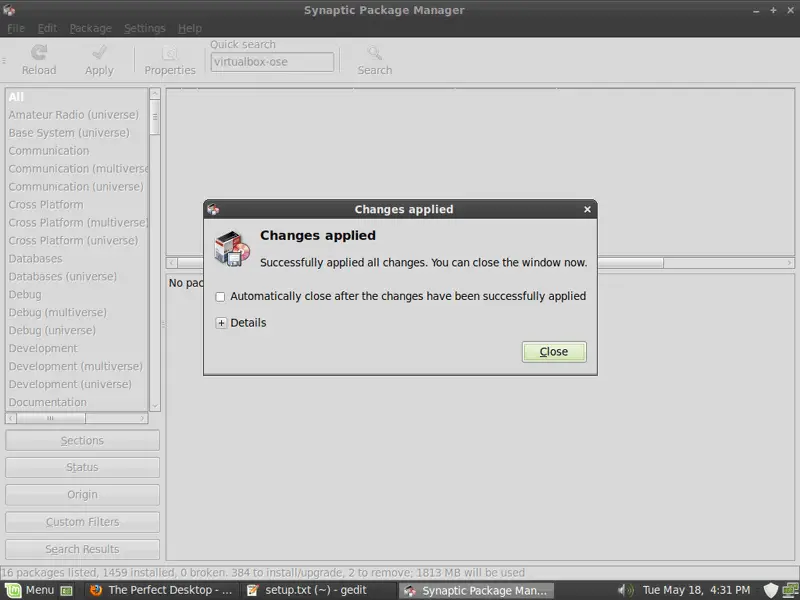
You can leave the Synaptic Package Manager afterwards.
8 Inventory (II)
Now let's check again what we have so far by browsing the menus again:
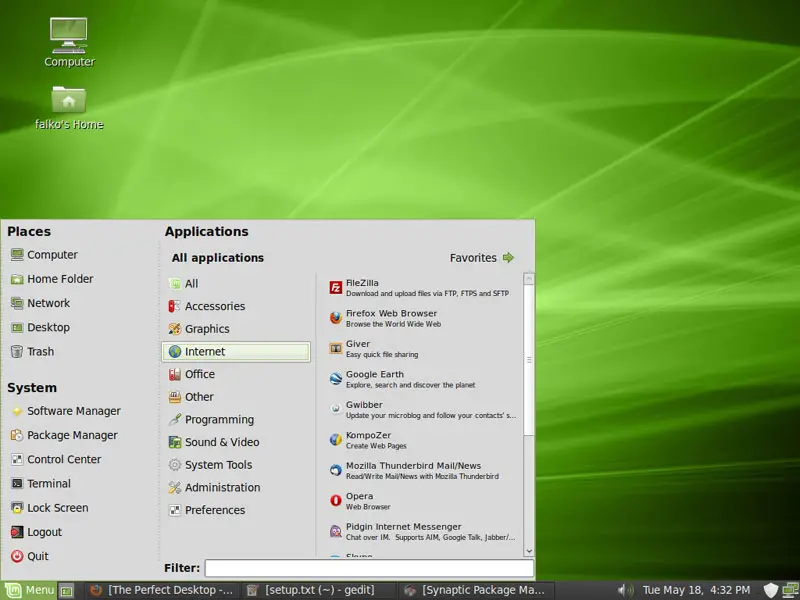
We have now all wanted applications installed:
Graphics:
[x] The GIMP
[x] F-Spot
[x] Picasa
Internet:
[x] Firefox
[x] Opera
[x] Flash Player
[x] FileZilla
[x] Thunderbird
[x] Evolution
[x] aMule
[x] Transmission BitTorrent Client
[x] Vuze
[x] Pidgin
[x] Skype
[x] Google Earth
[x] Xchat IRC
Office:
[x] OpenOffice Writer
[x] OpenOffice Calc
[x] Adobe Reader
[x] GnuCash
[x] Scribus
Sound & Video:
[x] Amarok
[x] Audacity
[x] Banshee
[x] MPlayer
[x] Rhythmbox Music Player
[x] gtkPod
[x] XMMS
[x] dvd::rip
[x] Kino
[x] Sound Juicer CD Extractor
[x] VLC Media Player
[x] RealPlayer
[x] Totem
[x] Xine
[x] Brasero
[x] K3B
[x] Multimedia-Codecs
Programming:
[x] KompoZer
[x] Bluefish
[x] Quanta Plus
Other:
[x] VirtualBox
[x] TrueType fonts
[x] Java
[x] Read/Write support for NTFS partitions
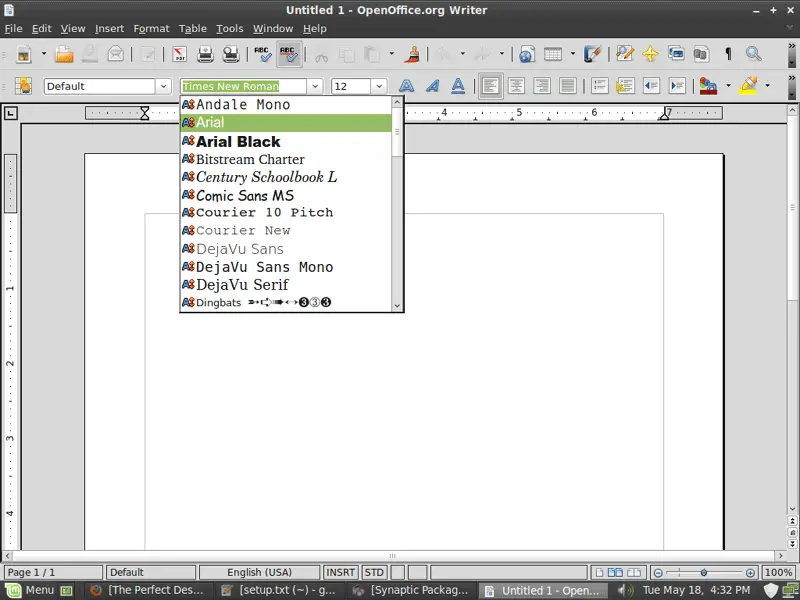
Microsoft's TrueType fonts are now installed, you can check that for example by opening the OpenOffice Writer. Take a look at the available fonts, and you should find fonts such as Arial, Times New Roman, Verdana, etc.:
9 Links
- Linux Mint: http://www.linuxmint.com/





