
The Perfect Desktop - Linux Mint 7 (Gloria) - Page 2
This tutorial exists for these OS versions
- Linux Mint 17.1 (Rebecca)
- Linux Mint 17 (Quiana)
- Linux Mint 15 (Olivia)
- Linux Mint 14 (Nadia)
- Linux Mint 13 (Maya)
- Linux Mint 12 (Lisa)
On this page
3 Update The System
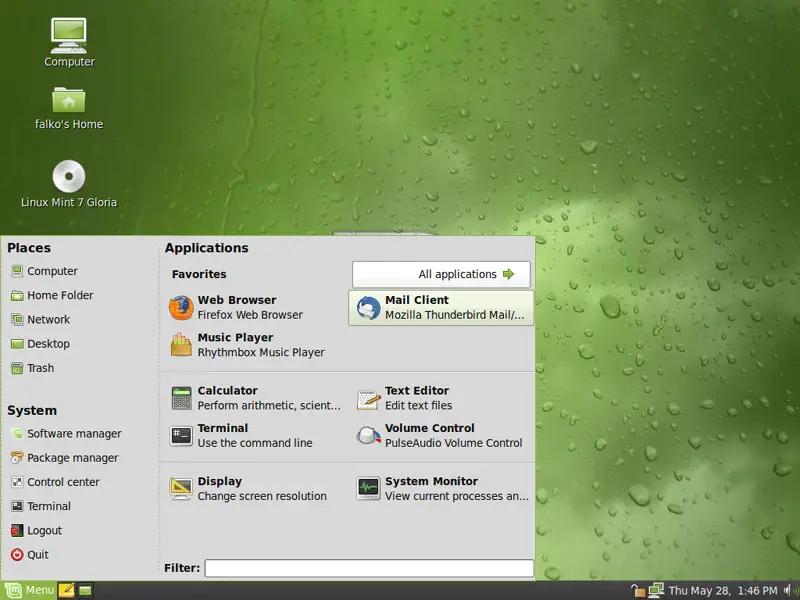
When you log in for the first time, you will most likely see an open lock icon in the lower right corner which means that updates for the installed software are available. Open the main menu and click on the All applications button:
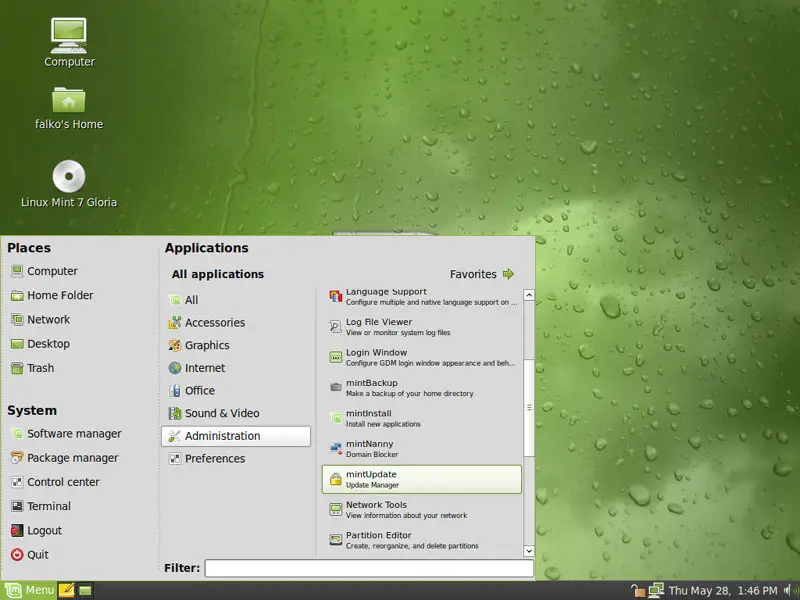
To install the updates, go to Applications > Administration > mintUpdate:
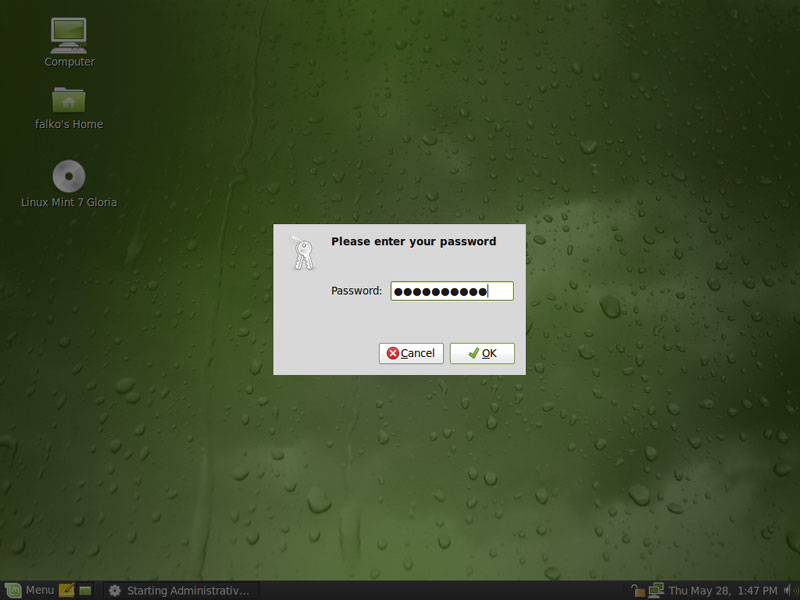
Type in your password:
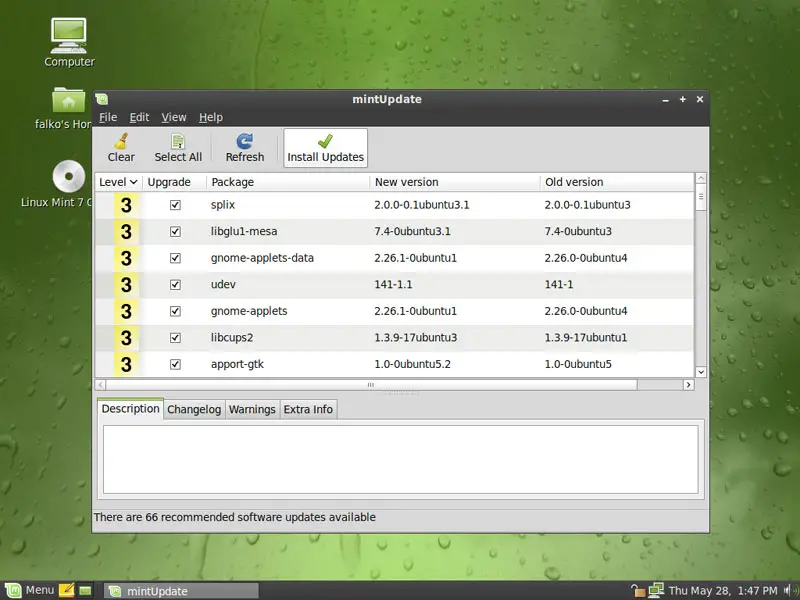
mintUpdate tells you which updates are available. Click on Install Updates to install them:
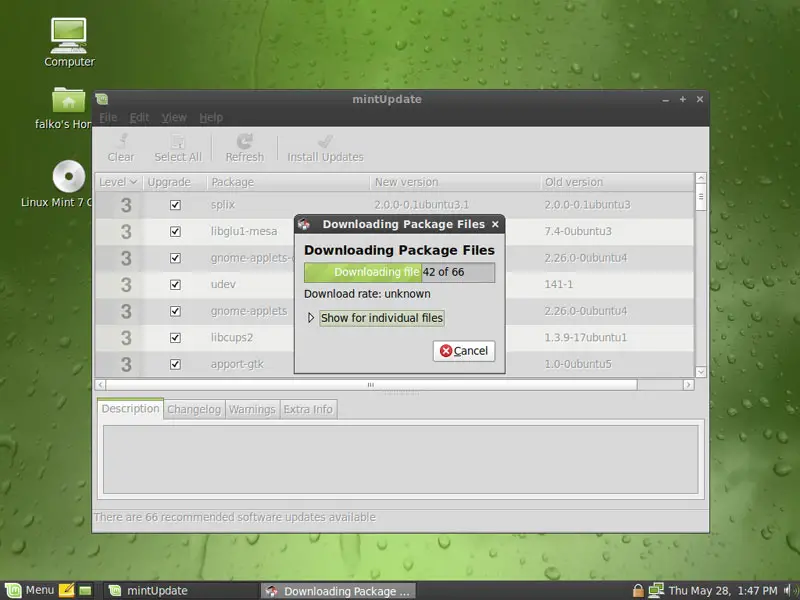
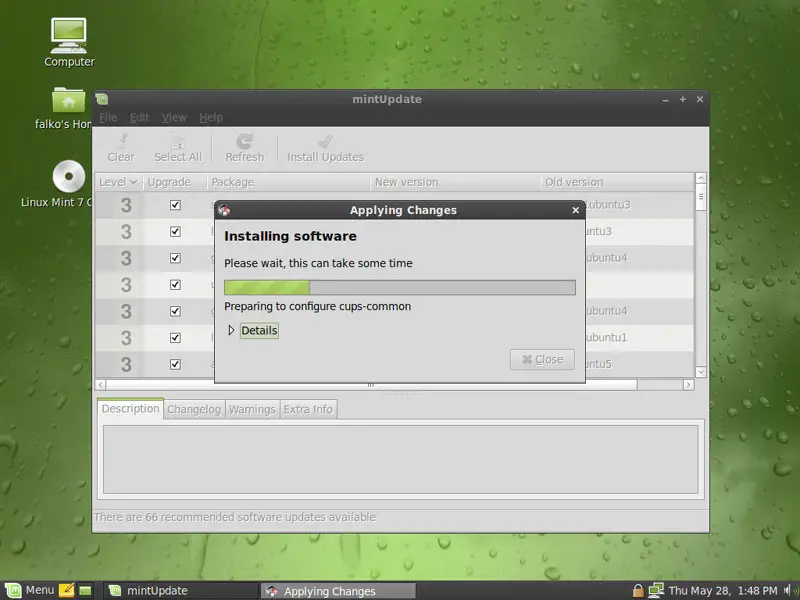
The updates are being downloaded and installed (this can take a few minutes):
When the update is complete, click on Close and leave the mintUpdate window:
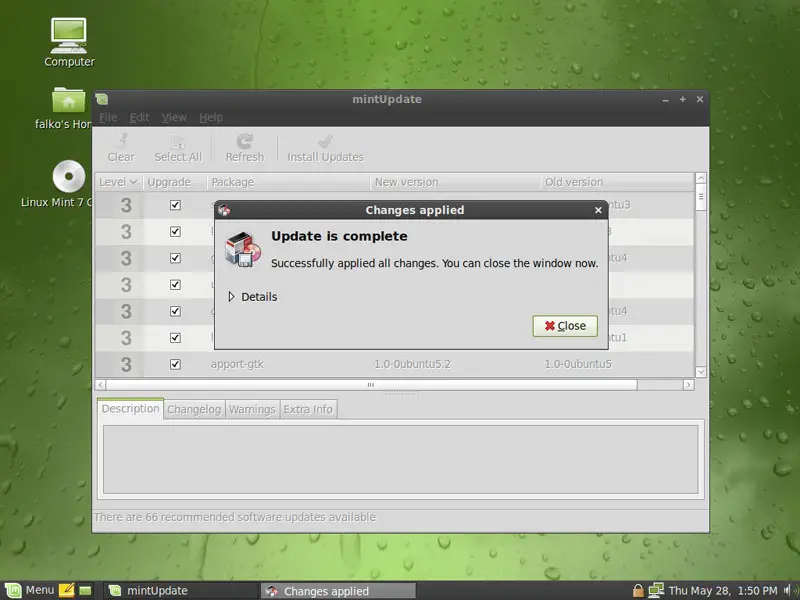
The lock icon should now be closed. The system is up-to-date.
4 Flash Player
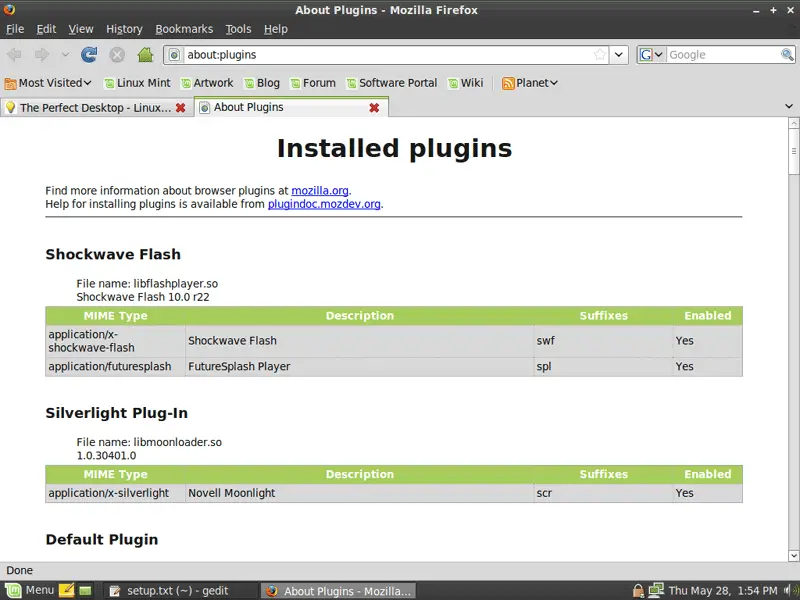
Linux Mint 7 installs the Macromedia Flash Player by default. To see if the Flash plugin is working, start Firefox (Applications > Internet > Firefox Web Browser). Then type about:plugins in the address bar. Firefox will then list all installed plugins, and it should list the Flash Player (version 10.0r22) among them:
5 NVIDIA/ATI Drivers
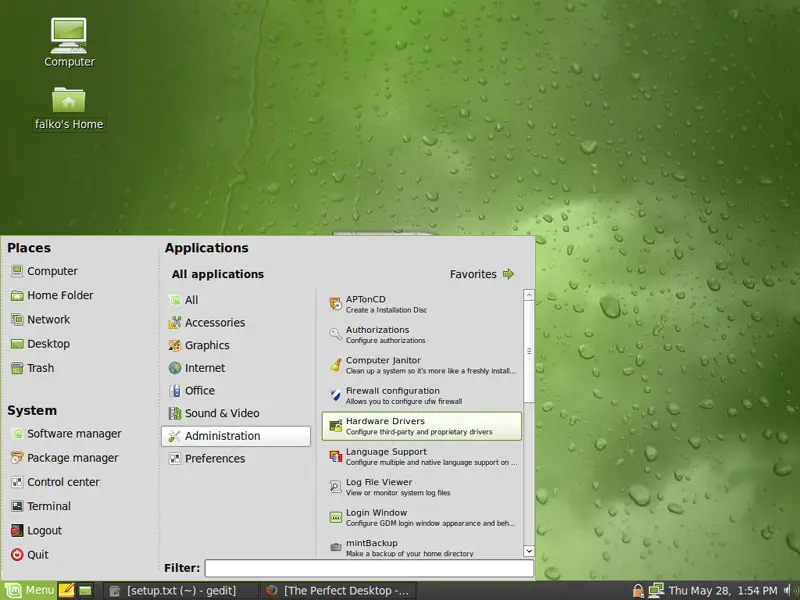
If you have an NVIDIA or ATI graphics card and want to use 3D acceleration (e.g. for Compiz-Fusion), you must install the proprietary NVIDIA or ATI driver. To do this, use the Hardware Drivers Manager (Applications > Administration > Hardware Drivers):
6 Inventory Of What We Have So Far
Now let's browse all menus under Applications to see which of our needed applications are already installed:
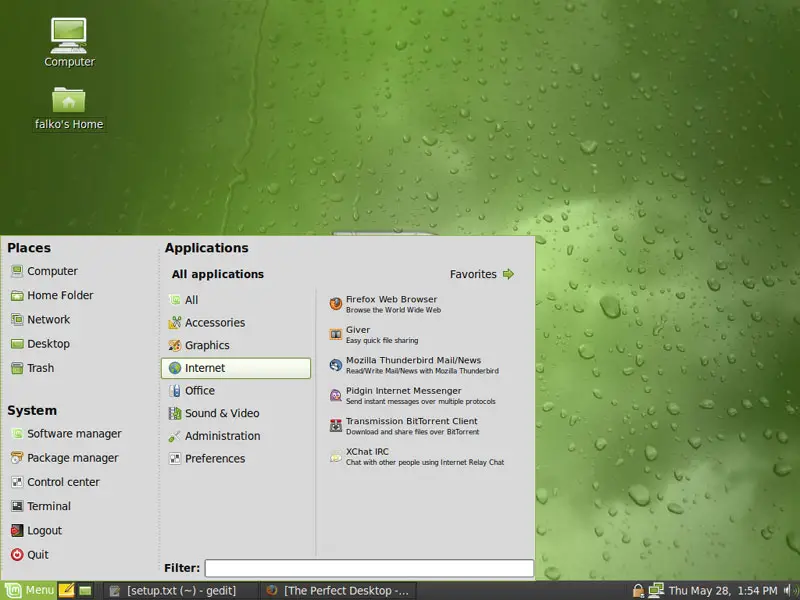
You should find the following situation ([x] marks an application that is already installed, where [ ] is an application that is missing):
Graphics:
[x] The GIMP
[ ] F-Spot
[ ] Picasa
Internet:
[x] Firefox
[ ] Opera
[x] Flash Player
[ ] FileZilla
[x] Thunderbird
[ ] Evolution
[ ] aMule
[x] Transmission BitTorrent Client
[ ] Azureus/Vuze
[x] Pidgin
[ ] Skype
[ ] Google Earth
[x] Xchat IRC
Office:
[x] OpenOffice Writer
[x] OpenOffice Calc
[ ] Adobe Reader
[ ] GnuCash
[ ] Scribus
Sound & Video:
[ ] Amarok
[ ] Audacity
[ ] Banshee
[x] MPlayer
[x] Rhythmbox Music Player
[ ] gtkPod
[ ] XMMS
[ ] dvd::rip
[ ] Kino
[ ] Sound Juicer CD Extractor
[ ] VLC Media Player
[ ] Helix Player
[x] Totem
[ ] Xine
[x] Brasero
[ ] K3B
[ ] Multimedia-Codecs
Programming:
[ ] KompoZer
[ ] Bluefish
[ ] Quanta Plus
Other:
[ ] VirtualBox
[ ] TrueType fonts
[ ] Java
[x] Read/Write support for NTFS partitions
So some applications are already on the system. NTFS read-/write support is enabled by default on Linux Mint 7.





