
The Perfect Desktop - Fedora 15 i686 (GNOME) - Page 3
This tutorial exists for these OS versions
On this page
3 Update The System
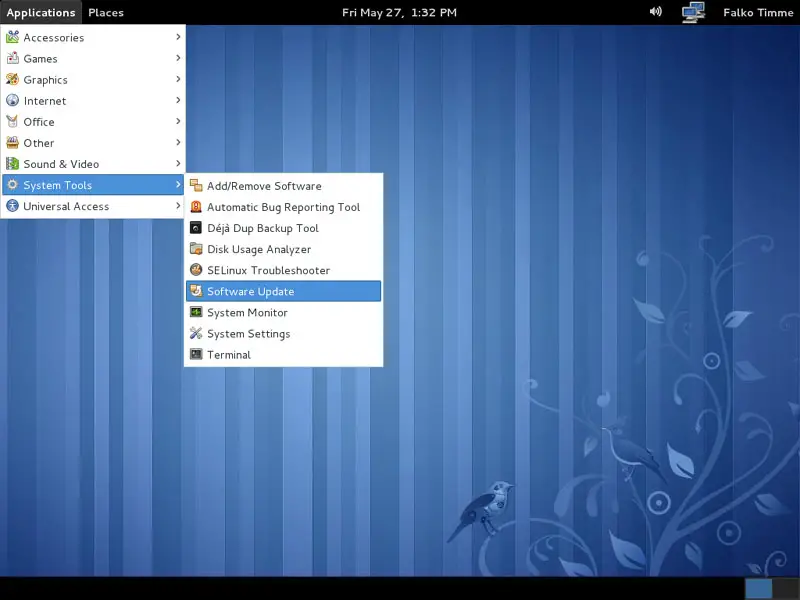
Now it's time to check for updates. Go to Applications > System Tools > Software Update:
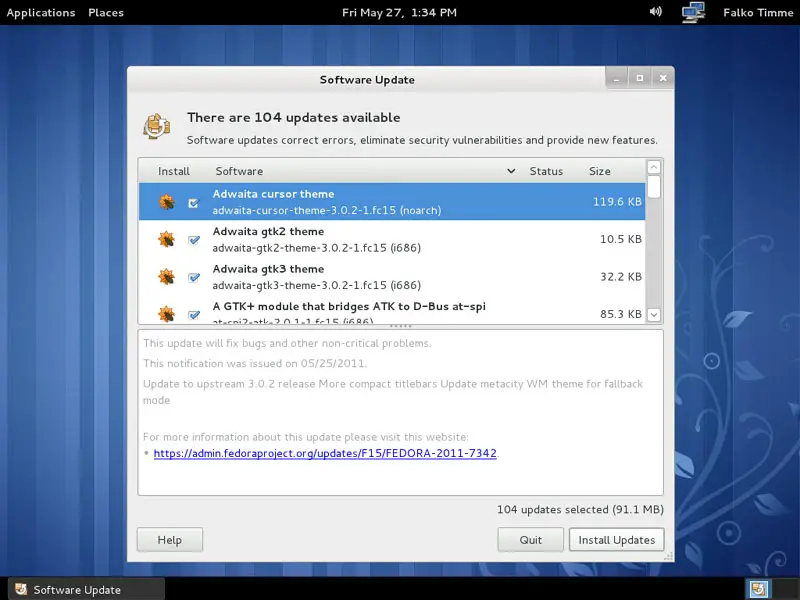
The Software Update wizard comes up and checks for the latest updates. Click on Install Updates to install them:
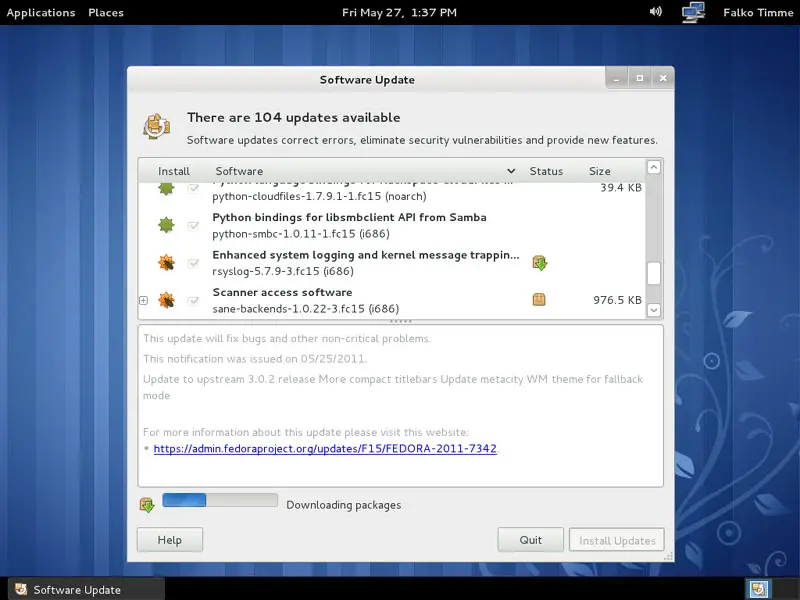
Afterwards the updates are being downloaded and installed:
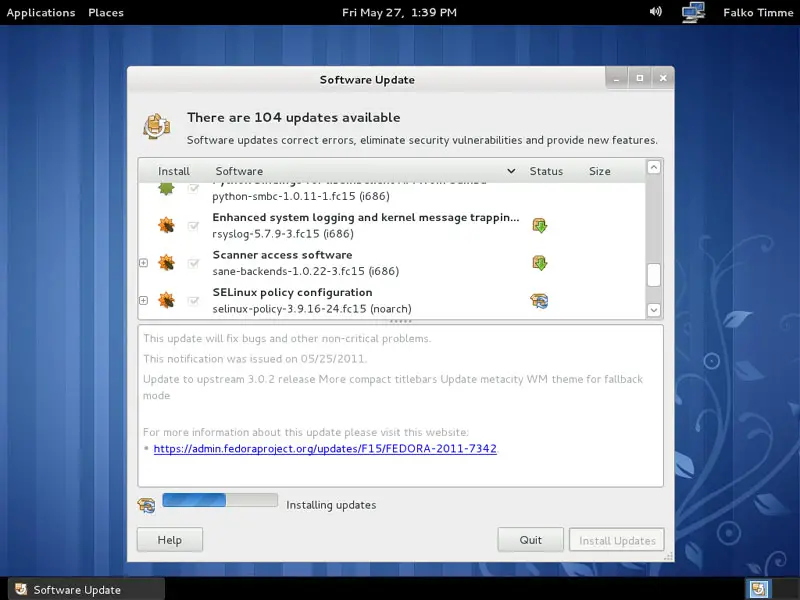
Your computer is now up to date (in some cases, e.g. if a new kernel got installed, you might have to restart your computer for the changes to take effect - if this is necessary, the Software Update wizard will tell you to do so).
4 Disable SELinux
SELinux is a security extension of Fedora that should provide extended security. In my opinion you don't need it to configure a secure system, and it usually causes more problems than advantages (think of it after you have done a week of trouble-shooting because some service wasn't working as expected, and then you find out that everything was ok, only SELinux was causing the problem). Therefore I choose disable it, although you might prefer to go with it. I haven't tested this setup with SELinux enabled - it might well be that it works without problems, but if it does not, you can try to turn SELinux off and see if the problem is gone.
To disable SELinux, open a terminal (Applications > System Tools > Terminal)...
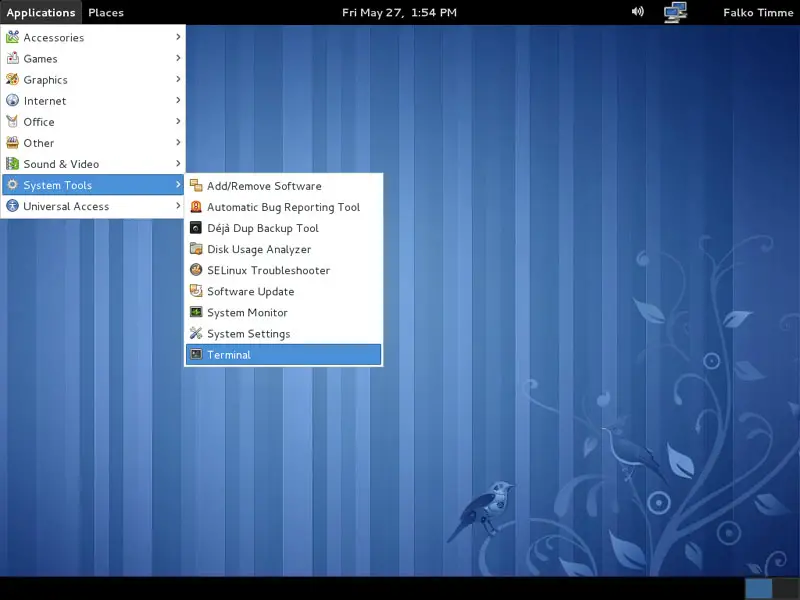
... and become root:
su
Open /etc/sysconfig/selinux...
gedit /etc/sysconfig/selinux
... and set SELINUX to disabled:
# This file controls the state of SELinux on the system. # SELINUX= can take one of these three values: # enforcing - SELinux security policy is enforced. # permissive - SELinux prints warnings instead of enforcing. # disabled - SELinux is fully disabled. SELINUX=disabled # SELINUXTYPE= type of policy in use. Possible values are: # targeted - Only targeted network daemons are protected. # strict - Full SELinux protection. SELINUXTYPE=targeted |
To make the change effective, we must reboot the system:
reboot
5 Inventory Of What We Have So Far
Now let's browse all menus under Applications to see which of our needed applications are already installed:
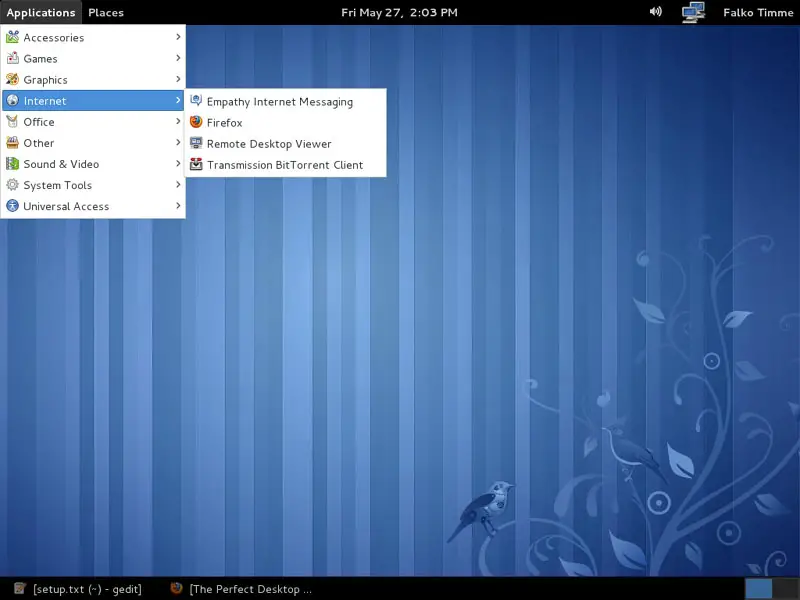
You should find the following situation ([x] marks an application that is already installed, where [ ] is an application that is missing). NTFS read/write support is enabled by default on Fedora 15.
Graphics:
[ ] Gimp
[x] Shotwell Photo Manager
[ ] Picasa
Internet:
[x] Firefox
[ ] Opera
[ ] Google Chrome
[ ] Flash Player
[ ] FileZilla
[ ] Thunderbird
[x] Evolution
[ ] aMule
[ ] Azureus/Vuze
[x] Transmission BitTorrent Client
[x] Empathy IM Client
[ ] Skype
[ ] Google Earth
[ ] Xchat IRC
[ ] Gwibber Social Client
Office:
[ ] LibreOffice Writer
[ ] LibreOffice Calc
[ ] Adobe Reader
[ ] GnuCash
[ ] Scribus
Sound & Video:
[ ] Amarok
[ ] Audacity
[ ] Banshee
[ ] MPlayer
[x] Rhythmbox Music Player
[ ] gtkPod
[ ] XMMS
[ ] dvd::rip
[ ] Kino
[x] Sound Juicer CD Extractor
[ ] VLC Media Player
[ ] Real Player
[x] Totem
[ ] Xine
[x] Brasero
[ ] K3B
[ ] Multimedia-Codecs
Programming:
[ ] Kompozer
[ ] Bluefish
[ ] Quanta Plus
Other:
[ ] VirtualBox
[ ] TrueType Fonts
[ ] Java
[x] Read/Write Support for NTFS Partitions
So some applications are already on the system...
6 Adding Software Repositories
The official Fedora repositories don't provide all the software we need. Fortunately there are also third-party repositories for Fedora 15 that have what we need, and we can make our system use these repositories.
To do this, open a terminal window (under Applications > System Tools > Terminal)...
... and type in
su
to become root.
Then run
rpm -Uvh http://download1.rpmfusion.org/free/fedora/rpmfusion-free-release-stable.noarch.rpm http://download1.rpmfusion.org/nonfree/fedora/rpmfusion-nonfree-release-stable.noarch.rpm
This adds the RPM Fusion repository (a merger or Dribble, Freshrpms, and rpm.livna.org) to our package manager.
Next we add the Adobe repository which provides the Flash player and the Adobe Reader:
rpm -Uvh http://linuxdownload.adobe.com/adobe-release/adobe-release-i386-1.0-1.noarch.rpm
Then we add the Skype repository - as there is no rpm, we have to do it manually:
gedit /etc/yum.repos.d/skype.repo
[skype] name=Skype Repository baseurl=http://download.skype.com/linux/repos/fedora/updates/i586/ gpgkey=http://www.skype.com/products/skype/linux/rpm-public-key.asc enabled=1 gpgcheck=0 |
Finally we add the Google repository (which contains Picasa and Google Earth):
gedit /etc/yum.repos.d/google.repo
[Google] name=Google - i386 baseurl=http://dl.google.com/linux/rpm/stable/i386 enabled=1 gpgcheck=0 [GoogleTesting] name=Google Testing - i386 baseurl=http://dl.google.com/linux/rpm/testing/i386 enabled=1 gpgcheck=0 [google-earth] name=google-earth baseurl=http://dl.google.com/linux/earth/rpm/stable/$basearch enabled=1 gpgcheck=0 gpgkey=https://dl-ssl.google.com/linux/linux_signing_key.pub |
Next we import the GPG keys for software packages:
rpm --import /etc/pki/rpm-gpg/RPM-GPG-KEY*





