
The Perfect Desktop - Fedora 14 i686 (GNOME) - Page 5
This tutorial exists for these OS versions
On this page
13 RealPlayer
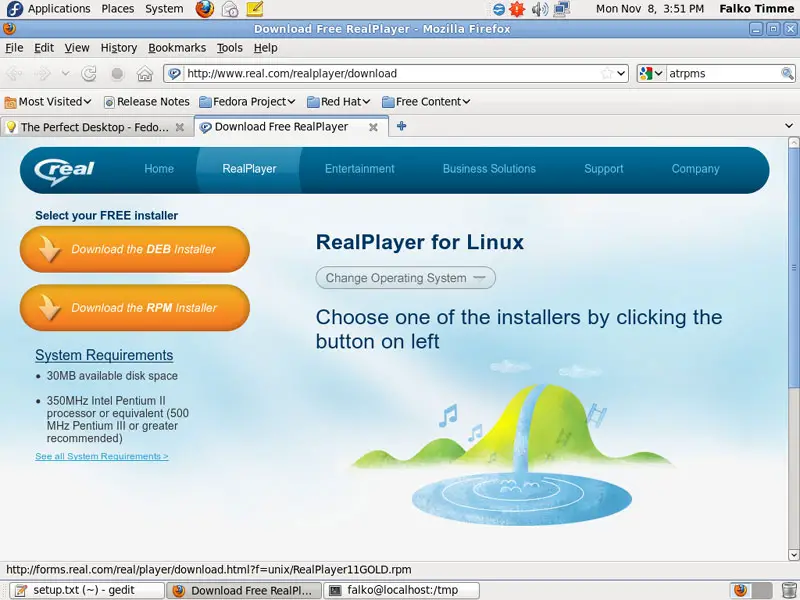
To install RealPlayer, visit http://www.real.com/linux/ in Firefox and download the RPM package (click on the Download the RPM Installer link):
Select Open with Package Installer (default) in the Firefox download dialogue:
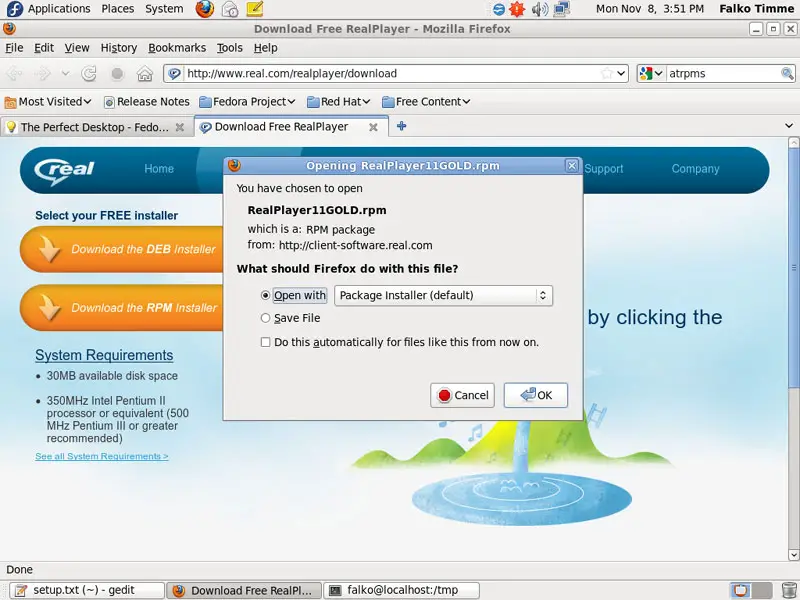
The Package Installer will then come up and guide you through the installation.
14 Opera
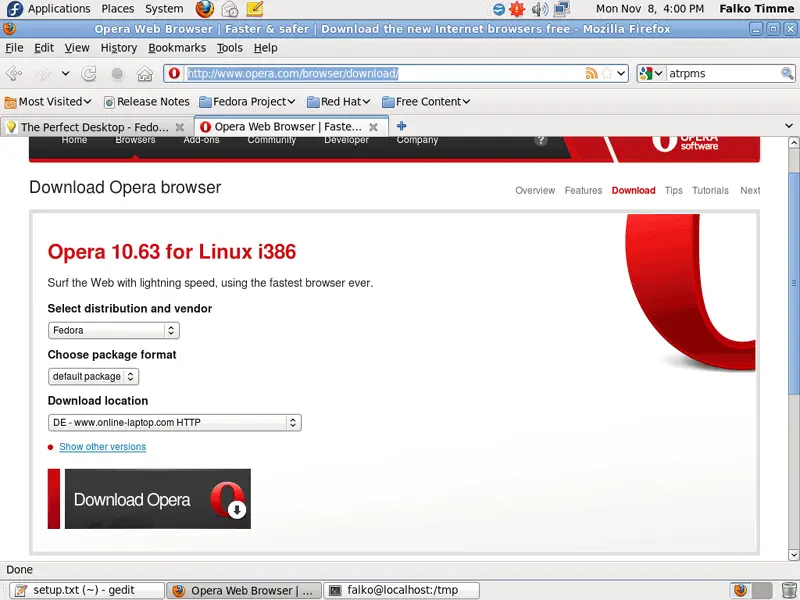
Go to http://www.opera.com/browser/download/ in your browser and select Fedora as distribution. Click on the Download Opera button...
... and select Open with Package Installer (default):
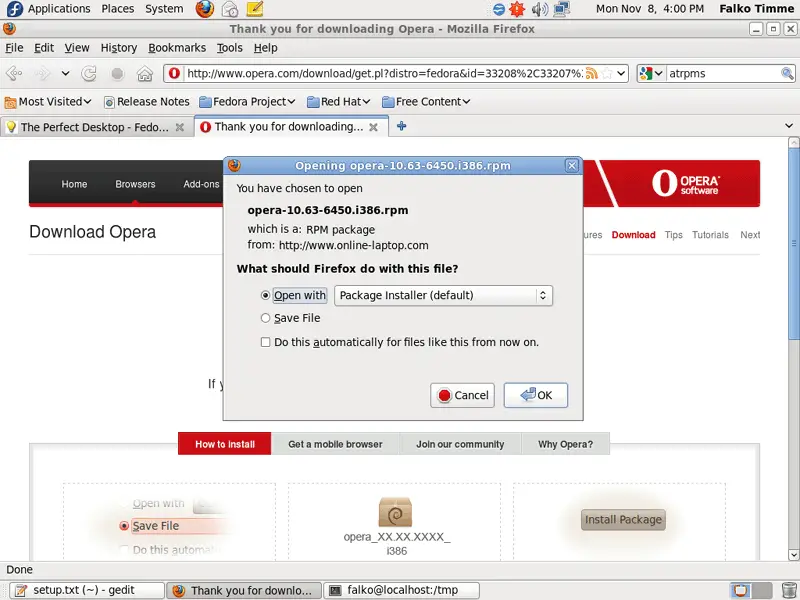
The Package Installer will then come up and guide you through the installation.
15 Google Earth
To install Google Earth, open a terminal and become root:
su
Then run
cd /home/falko/Downloads
wget http://dl.google.com/earth/client/current/GoogleEarthLinux.bin
chmod 755 GoogleEarthLinux.bin
./GoogleEarthLinux.bin --target /tmp/ge
cd /tmp/ge/setup.data/bin/Linux/x86/
mv setup.gtk setup.gtk2
cd /tmp/ge
./setup.sh
This will download Google Earth and start the installation. Click on Begin Install:
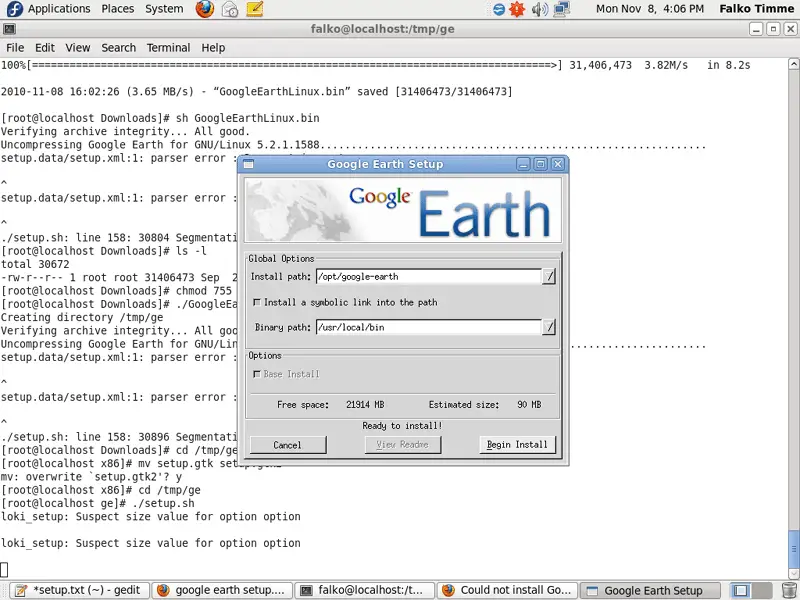
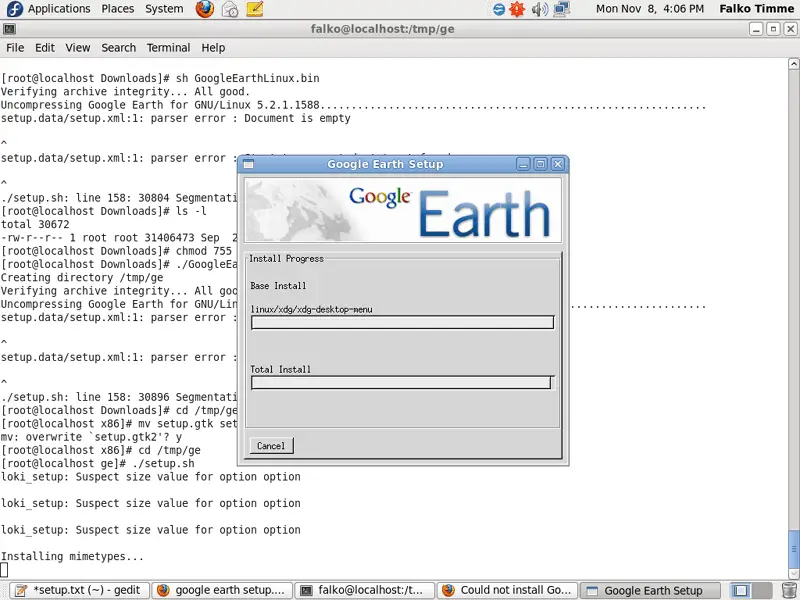
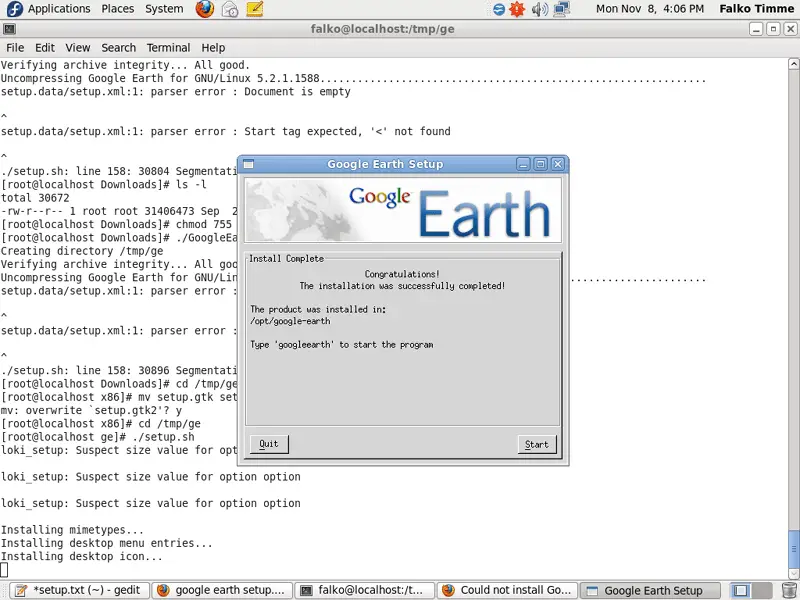
After the installation, you can click on Quit or on Start, if you want to start Google Earth now:
Afterwards, we delete the Google Earth installer:
cd /home/falko/Downloads
rm -f GoogleEarthLinux.bin
16 Kompozer
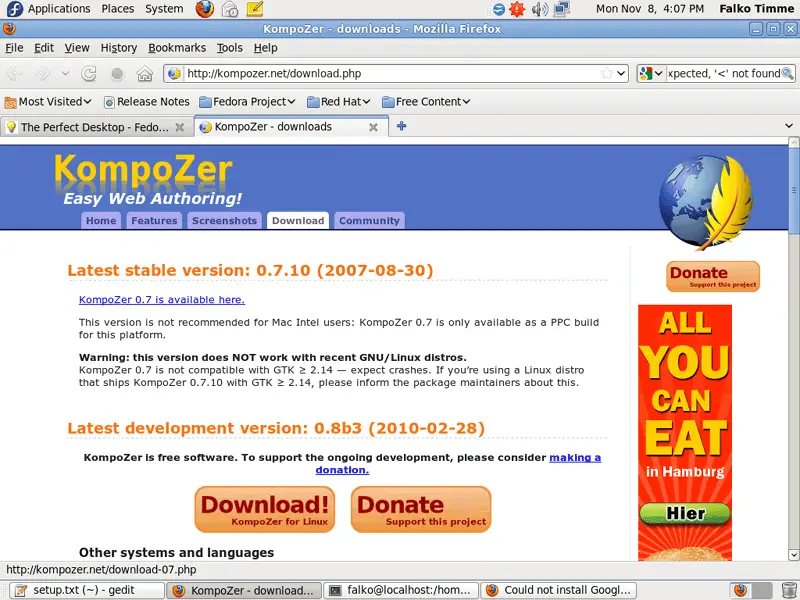
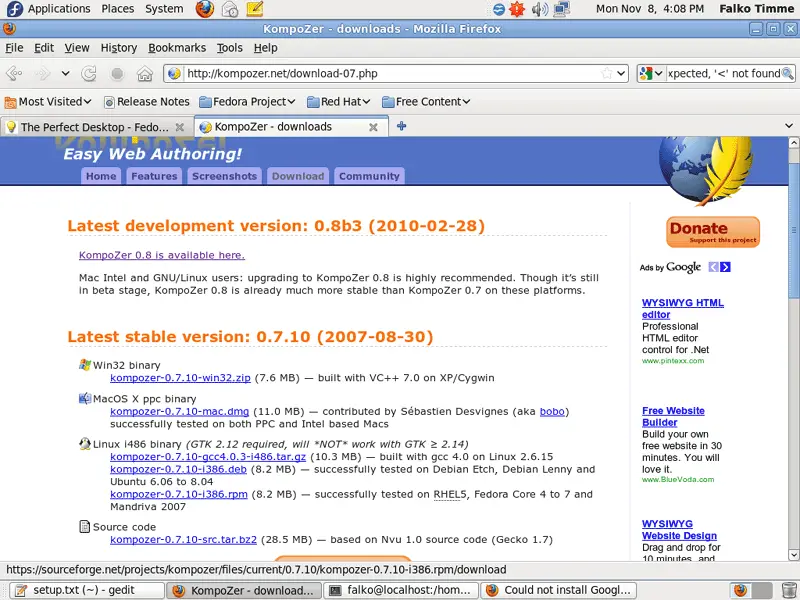
Go to http://kompozer.net/download.php and click on the KompoZer 0.7 is available here link:
Select the kompozer-0.7.10-i386.rpm package:
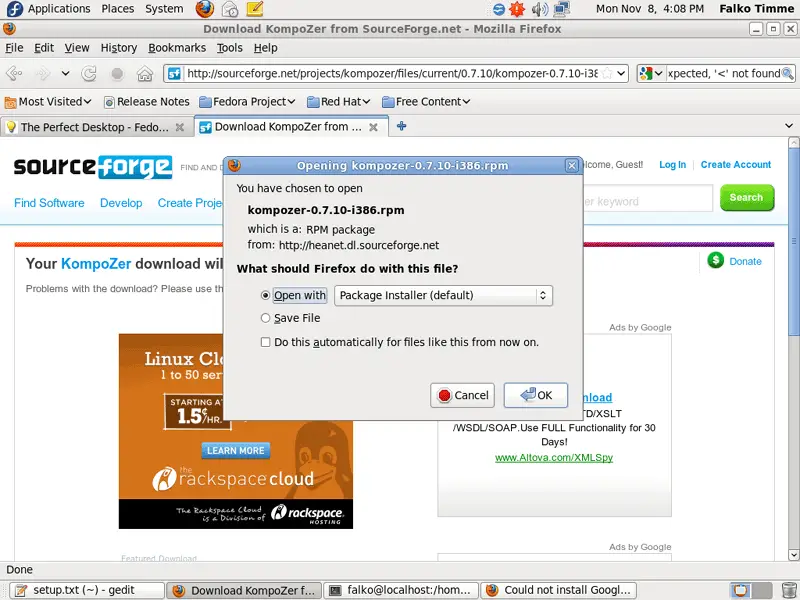
This will bring you to SourceForge, and after a few seconds the Firefox download dialogue should pop up (if it does not, click on direct link) where you select Open with Package Installer (default), as usual:
17 Inventory (III)
We have now all wanted applications installed:
Graphics:
[x] Gimp
[x] F-Spot
[x] Picasa
Internet:
[x] Firefox
[x] Opera
[x] Flash Player
[x] FileZilla
[x] Thunderbird
[x] Evolution
[x] aMule
[x] Azureus/Vuze
[x] Transmission BitTorrent Client
[x] Empathy IM Client
[x] Skype
[x] Google Earth
[x] Xchat IRC
Office:
[x] OpenOffice Writer
[x] OpenOffice Calc
[x] Adobe Reader
[x] GnuCash
[x] Scribus
Sound & Video:
[x] Amarok
[x] Audacity
[x] Banshee
[x] MPlayer
[x] Rhythmbox Music Player
[x] gtkPod
[x] XMMS
[x] dvd::rip
[x] Kino
[x] Sound Juicer CD Extractor
[x] VLC Media Player
[x] Real Player
[x] Totem
[x] Xine
[x] Brasero
[x] K3B
[x] Multimedia-Codecs
Programming:
[x] Kompozer
[x] Bluefish
[x] Quanta Plus
Other:
[x] VirtualBox
[x] TrueType Fonts
[x] Java
[x] Read/Write Support for NTFS Partitions
18 Links
- Fedora: http://fedoraproject.org/





