The Perfect Desktop - Fedora 10 (GNOME) - Page 3
This tutorial exists for these OS versions
On this page
6 Adding Software Repositories
The official Fedora repositories don't provide all the software we need. Fortunately there are also third-party repositories for Fedora 10 that have what we need, and we can make our system use these repositories.
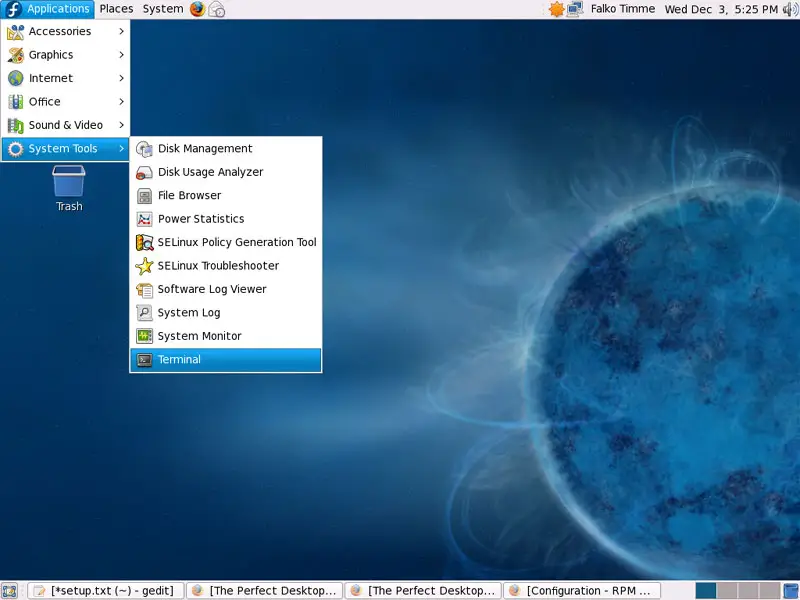
To do this, open a terminal window (under Applications > System Tools > Terminal)...
... and type in
su
to become root.
Then run
rpm -Uvh http://download1.rpmfusion.org/free/fedora/rpmfusion-free-release-stable.noarch.rpm http://download1.rpmfusion.org/nonfree/fedora/rpmfusion-nonfree-release-stable.noarch.rpm
This adds the RPM Fusion repository (a merger or Dribble, Freshrpms, and rpm.livna.org) to our package manager.
Unfortunately the RPM Fusion repository doesn't have libdvdcss in its repository, therefore we also add the livna repository (which contains only that package):
rpm -Uvh http://livna-dl.reloumirrors.net/fedora/10/i386/livna-release-9-2.noarch.rpm
Next we add the Adobe repository which provides the Flash player and the Adobe Reader:
rpm -Uvh http://linuxdownload.adobe.com/adobe-release/adobe-release-i386-1.0-1.noarch.rpm
Finally we add the Skype repository - as there is no rpm, we have to do it manually:
gedit /etc/yum.repos.d/skype.repo
[skype] name=Skype Repository baseurl=http://download.skype.com/linux/repos/fedora/updates/i586/ gpgkey=http://www.skype.com/products/skype/linux/rpm-public-key.asc enabled=1 gpgcheck=0 |
7 Installing Additional Software
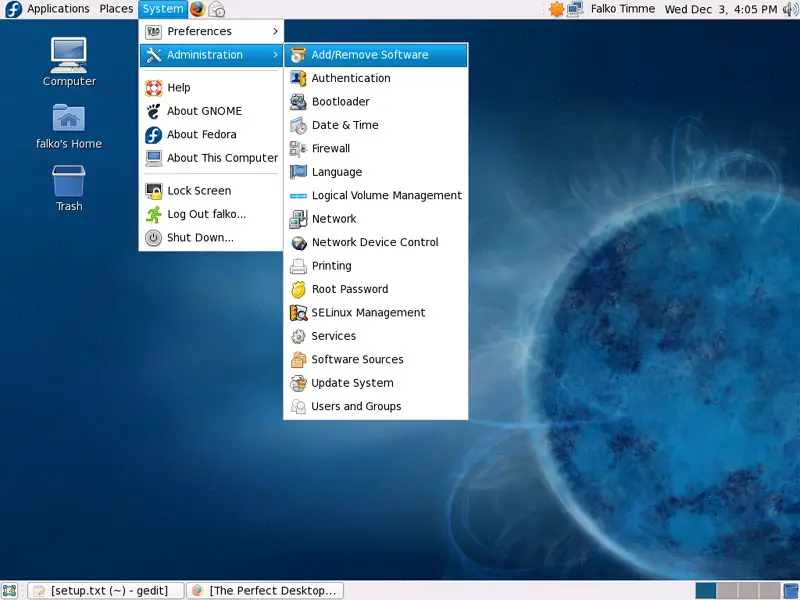
Now that we have added additional repositories, a lot more packages are available in our package manager for installation, especially a big deal of our needed packages. To install them, go to System > Administration > Add/Remove Software:
The Package Manager opens:
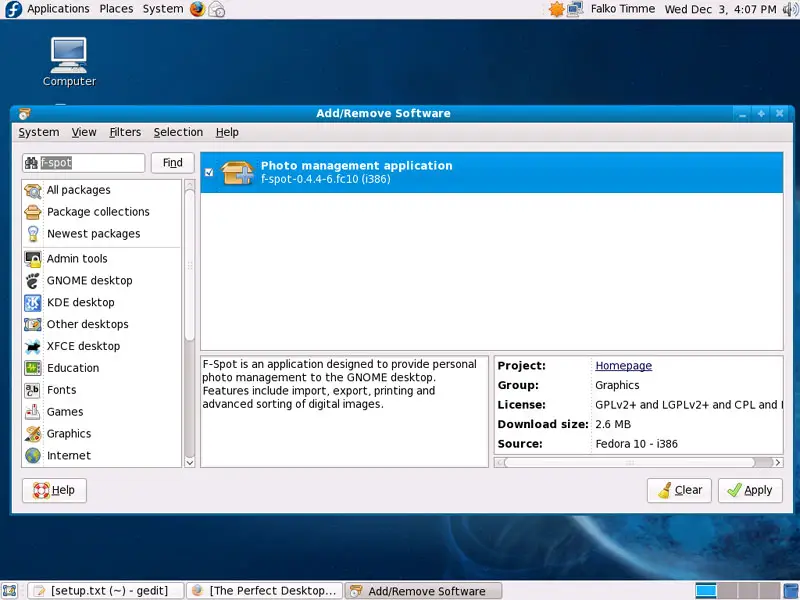
Use the search field and select the following packages for installation (* is a wildcard; e.g. mplayer* means all packages that start with mplayer) and click on Apply afterwards:
- f-spot
- flash-plugin
- filezilla
- thunderbird
- amule
- azureus
- skype
- xchat-gnome
- openoffice.org*
- AdobeReader_enu
- gnucash
- scribus
- amarok
- audacity
- banshee
- mplayer
- mplayer-gui
- gtkpod
- xmms*
- DVDRipOMatic
- kino
- vlc
- mozilla-vlc
- xine*
- brasero
- k3b
- bluefish
- kdewebdev
- java
- compat-libstdc++-33 (needed by RealPlayer)
- ffmpeg
- lame
- libdvdcss
- libXp
- mjpegtools
- kernel-devel (needed by VMware)
- xinetd (needed by VMware)
- gcc (needed by VMware)
- gcc-c++ (needed by VMware)
- perl-devel (needed by VMware)
- perl-ExtUtils-Embed (needed by VMware)
- wget
Afterwards, the selected packages will be installed. This can take a few minutes, so please be patient.
8 Inventory (II)
Now let's check again what we have so far by browsing the menus again:
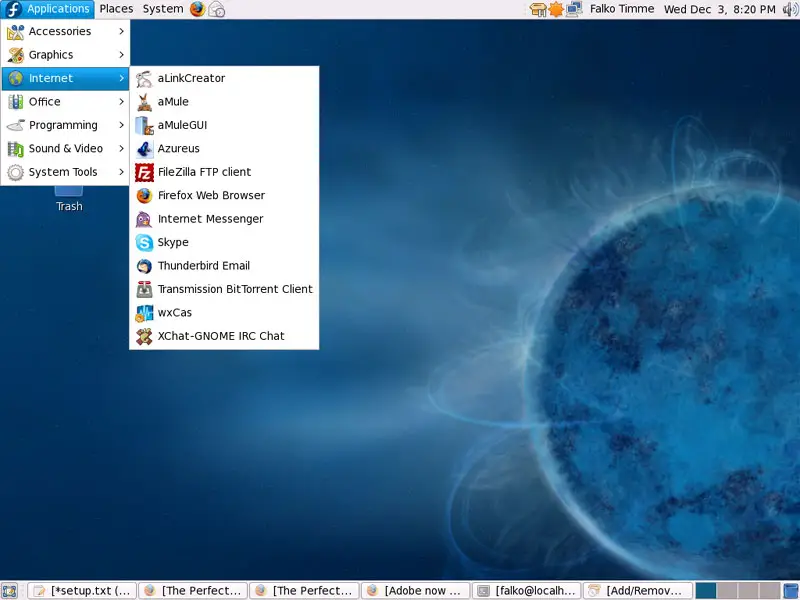
Our inventory should now look like this:
Graphics:
[x] Gimp
[x] F-Spot
[ ] Picasa
Internet:
[x] Firefox
[ ] Opera
[x] Flash Player
[x] FileZilla
[x] Thunderbird
[x] Evolution
[x] aMule
[x] Azureus/Vuze
[x] Transmission BitTorrent Client
[x] Pidgin
[x] Skype
[ ] Google Earth
[x] Xchat IRC
Office:
[x] OpenOffice Writer
[x] OpenOffice Calc
[x] Adobe Reader
[x] GnuCash
[x] Scribus
Sound & Video:
[x] Amarok
[x] Audacity
[x] Banshee
[x] MPlayer
[x] Rhythmbox Music Player
[x] gtkPod
[x] XMMS
[x] dvd::rip
[x] Kino
[x] Sound Juicer CD Extractor
[x] VLC Media Player
[ ] Real Player
[x] Totem
[x] Xine
[x] Brasero
[x] K3B
[ ] Multimedia-Codecs
Programming:
[ ] Kompozer
[x] Bluefish
[x] Quanta Plus
Other:
[ ] VMware Server
[ ] TrueType Fonts
[x] Java
[x] Read/Write Support for NTFS Partitions
9 Flash Player
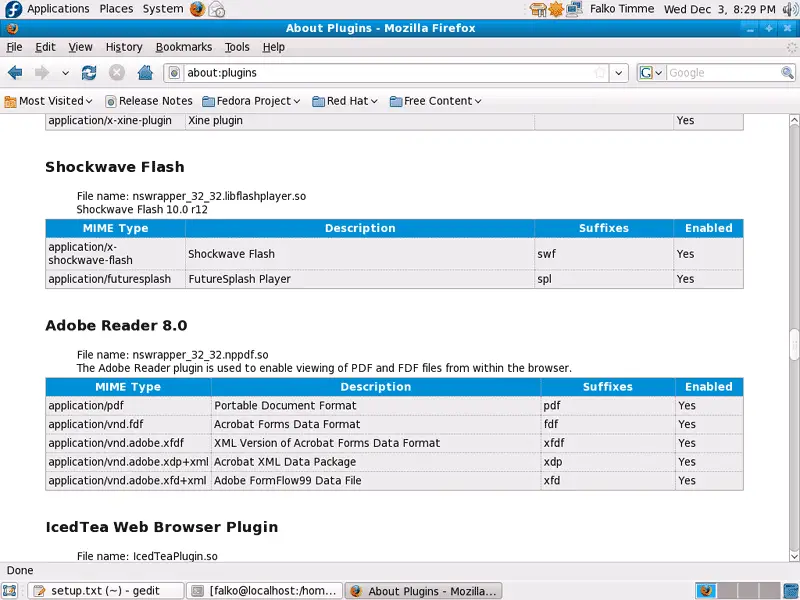
To see if the Flash plugin (which we installed before) is working, start Firefox. Then type about:plugins in the address bar. Firefox will then list all installed plugins, and it should list the Flash Player (version 10.0r12 which is the newest one at the time of this writing) among them: