
Installing Simple Invoices On Debian Etch - Page 2
5 Creating A Database For Simple Invoices
Before we install Simple Invoices, we create a MySQL database called simpleinvoices for it and a MySQL user (also called simpleinvoices):
mysql -u root -p
CREATE DATABASE simpleinvoices;
GRANT SELECT, INSERT, UPDATE, DELETE, CREATE, DROP ON simpleinvoices.* TO 'simpleinvoices'@'localhost' IDENTIFIED BY 'simpleinvoicessqlpassword';
GRANT SELECT, INSERT, UPDATE, DELETE, CREATE, DROP ON simpleinvoices.* TO 'simpleinvoices'@'localhost.localdomain' IDENTIFIED BY 'simpleinvoicessqlpassword';
FLUSH PRIVILEGES;
Replace the string simpleinvoicessqlpassword with whatever password you want to use for the MySQL user simpleinvoices.
quit;
As you may have noticed, with the quit; command we have left the MySQL shell and are back on the Linux shell.
6 Installing Simple Invoices
Now go to the Simple Invoices web site and grab a copy of the software and download it to your Debian system like this (I download it to the /tmp directory):
cd /tmp
wget http://kent.dl.sourceforge.net/sourceforge/simpleinvoices/simpleinvoices-20070525.zip
The package comes in .zip format, so we must install unzip so that we can uncompress the software:
apt-get install unzip
Now we can uncompress the Simple Invoices package:
unzip simpleinvoices-20070525.zip
This creates a directory simpleinvoices which contains all other files. Now we move this simpleinvoices directory to the document root of our web site (as I mentioned before, I use the default document root /var/www here - if yours is different, adjust the commands from this tutorial to your needs):
mv simpleinvoices /var/www/
Next we create the needed database tables in our simpleinvoices database. Simple Invoices comes with two MySQL dumps, one for MySQL 4.1 and above and one for all older MySQL versions. Since we have installed MySQL 5.0 previously, we use the dump for Mysql 4.1 and above:
cd /var/www/simpleinvoices
mysql -h localhost -u simpleinvoices -psimpleinvoicessqlpassword simpleinvoices < SimpleInvoices.sql
Replace simpleinvoicessqlpassword with your own password for the MySQL user simpleinvoices. Please note that there must not be a space between -p and the password!
Afterwards we can delete the MySQL dumps that came with Simple Invoices:
rm -f SimpleInvoices*.sql
Now we have to tell Simple Invoices our database settings. Open /var/www/simpleinvoices/config/config.php and make sure you fill in the correct database settings:
vi /var/www/simpleinvoices/config/config.php
[...] /*Enter your database information */ $db_host = "localhost"; $db_name = "simpleinvoices"; $db_user = "simpleinvoices"; $db_password = "simpleinvoicessqlpassword"; [...] |
Next we must make the directories cache and pdf/fpdf/* writable by the Apache user and group (which is www-data on Debian):
chown www-data:www-data /var/www/simpleinvoices/cache
chown www-data:www-data /var/www/simpleinvoices/pdf/fpdf/*
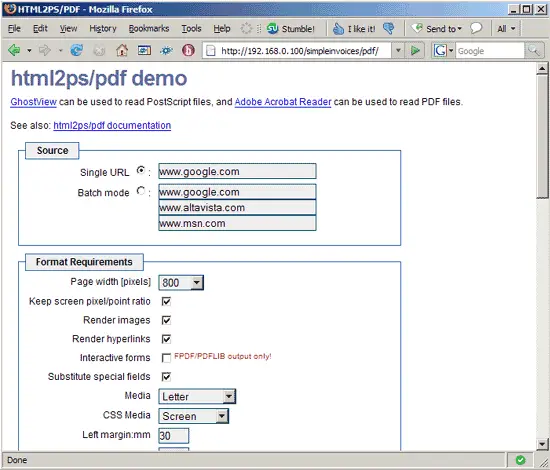
Now we test if the creation of PDF files is working. Direct your browser to http://192.168.0.100/simpleinvoices/pdf. You should see this page:
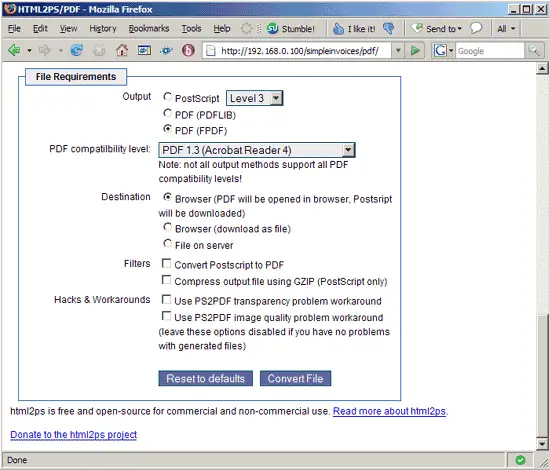
Scroll down and click on Convert File:
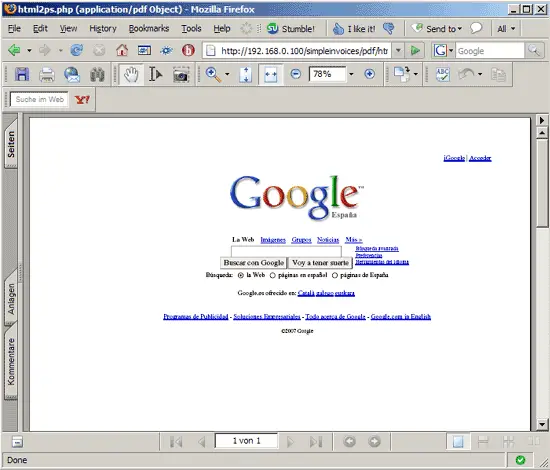
Simple Invoices now tries to download the Google homepage and converts it into a PDF file. If everything goes well, you should get something like this:
If you get an error like this:
Fatal error: Allowed memory size of 8388608 bytes exhausted (tried to allocate 4864 bytes) in /var/www/simpleinvoices/pdf/filter.data.html2xhtml.class.php on line 8
you must increase PHP's memory as shown in chapter four, restart Apache and try again.
Finally we must make the database_backups directory writable by the Apache user and group:
chown www-data:www-data /var/www/simpleinvoices/database_backups
6.1 Turning On Authentication
Simple Invoices is now installed, but it can now be accessed by anyone who knows the URL. Obviously this is not what you want - only you should be able to create and manage invoices. Therefore we turn on authentication in Simple Invoices. First we open /var/www/simpleinvoices/include/include_auth.php and remove the comment signs (/* and */) so that it looks like this:
vi /var/www/simpleinvoices/include/include_auth.php
<?php

//To turn authentification on uncomment (remove the /* and */) the lines below

if ($_GET['location'] == 'pdf' ) {
        include('../include/auth/auth.php');
}
else {
        include('./include/auth/auth.php');
}


?>
|
Then we log in to our simpleinvoices MySQL database:
mysql -u root -p
USE simpleinvoices;
There we create a new table si_users:
CREATE TABLE si_users (
user_id int(11) NOT NULL AUTO_INCREMENT,
user_email VARCHAR(100) NOT NULL,
user_name VARCHAR(100) NOT NULL,
user_group VARCHAR(10) NOT NULL,
user_domain VARCHAR(10) NOT NULL,
user_password CHAR(32) NOT NULL,
PRIMARY KEY (user_id)
);
Then we add an admin user to that table like this:
INSERT INTO si_users (user_id, user_email, user_name, user_group, user_domain, user_password) VALUES ('','[email protected]','admin','1','1', md5('adminpassword'));
Replace the email address, username, and password with whatever values you like.
Finally we create the table si_auth_challenges and leave the MySQL shell:
CREATE TABLE `si_auth_challenges` (
`challenges_key` INT( 11 ) NOT NULL ,
`challenges_timestamp` TIMESTAMP ON UPDATE CURRENT_TIMESTAMP NOT NULL DEFAULT CURRENT_TIMESTAMP
);
quit;
That's it. Now direct your browser to http://192.168.0.100/simpleinvoices, and you should see this login form:
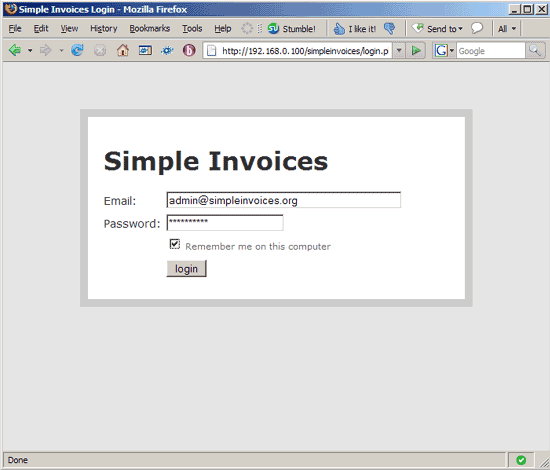
Login with the email address and password you've just inserted into the si_users table.
After the login, you can start to work with Simple Invoices:
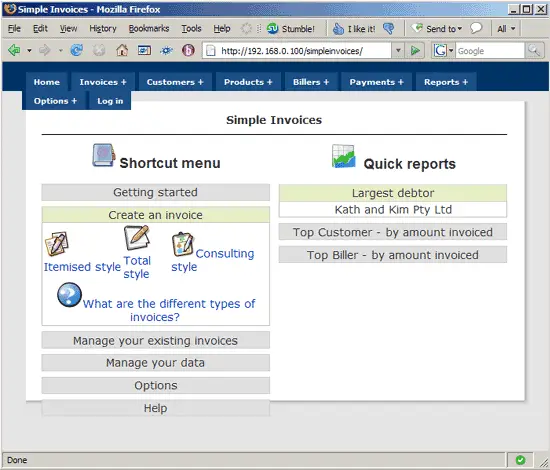
If you need help using Simple Invoices, please refer to the Simple Invoices documentation.
7 Links
- Simple Invoices: http://www.simpleinvoices.org
- Debian: http://www.debian.org





