
Setting Up A High-Availability Load Balancer With HAProxy/Wackamole/Spread On Debian Etch - Page 2
5 Setting Up Wackamole/Spread
We've just configured HAProxy to listen on the virtual IP address 192.168.0.99, but someone has to tell lb1 and lb2 that they should listen on that IP address. This is done by Wackamole and Spread which we install like this:
lb1/lb2:
apt-get install wackamole
To allow HAProxy to bind to the shared IP address, we add the following line to /etc/sysctl.conf:
vi /etc/sysctl.conf
[...] net.ipv4.ip_nonlocal_bind=1 |
... and run:
sysctl -p
Next we modify /etc/default/spread and set ENABLED to 1:
vi /etc/default/spread
# Change to enable spread ENABLED=1 # Options, see spread.1 for list OPTIONS="" |
The Spread configuration is located in /etc/spread/spread.conf. We create a backup of the original file and edit spread.conf as follows:
cp /etc/spread/spread.conf /etc/spread/spread.conf_orig
cat /dev/null > /etc/spread/spread.conf
vi /etc/spread/spread.conf
Spread can send broadcast or multicast messages, therefore you have two choices for configuring Spread.
Option 1 (Broadcast Messages):
Spread_Segment 192.168.0.255 {
       lb1.example.com     192.168.0.100
       lb2.example.com     192.168.0.101
}

EventLogFile = /var/log/spread.log

EventTimeStamp
|
Option 2 (Multicast Messages):
Spread_Segment 225.0.1.1 {
       lb1.example.com     192.168.0.100
       lb2.example.com     192.168.0.101
}

EventLogFile = /var/log/spread.log

EventTimeStamp
|
Spread will feel free to use broadcast messages within a sub-network if you use broadcast messages. If IP-multicast is supported by the operating system, then the messages will only be received by those machines who are in the group and not by all others in the same sub-network as happens with broadcast addresses
Now we can start Spread:
/etc/init.d/spread start
On to the Wackamole configuration. Open /etc/default/wackamole and set ENABLED to 1:
vi /etc/default/wackamole
# Change to enable wackamole ENABLED=1 # Options OPTIONS="" |
Then configure Wackamole as follows:
cp /etc/wackamole.conf /etc/wackamole.conf_orig
cat /dev/null > /etc/wackamole.conf
vi /etc/wackamole.conf
Spread = 4803
SpreadRetryInterval = 5s
Group = wack1
Control = /var/run/wackamole/wackamole.it

Prefer None

VirtualInterfaces {
        eth0:192.168.0.99/24
}

Arp-Cache = 60s

Notify {
        eth0:192.168.0.1/32
        eth0:192.0.0.0/24
        arp-cache
}
balance {
        AcquisitionsPerRound = all
        interval = 4s
}
mature = 5s
|
The VirtualInterfaces stanza is the most important part - it conatins our network interface (eth0 in this example) together with our virtual IP address (192.168.0.99).
The Notify stanza contains hosts (e.g. your router) or subnets to notify when the virtual IP switches. It is not necessary, so you can leave out that stanza, if you like.
(You can learn more about the Wackamole configuration by taking a look at
man 5 wackamole.conf
)
Finally we start Wackamole on both load balancers:
/etc/init.d/wackamole start
Then run:
ifconfig
on both load balancers. The outputs should be different - one load balancer should now own the virtual IP address, e.g. like this:
lb1:~# ifconfig
eth0      Link encap:Ethernet  HWaddr 00:0C:29:A5:5B:93
          inet addr:192.168.0.100  Bcast:192.168.0.255  Mask:255.255.255.0
          inet6 addr: fe80::20c:29ff:fea5:5b93/64 Scope:Link
          UP BROADCAST RUNNING MULTICAST  MTU:1500  Metric:1
          RX packets:9578 errors:0 dropped:0 overruns:0 frame:0
          TX packets:6347 errors:0 dropped:0 overruns:0 carrier:0
          collisions:0 txqueuelen:1000
          RX bytes:8849468 (8.4 MiB)  TX bytes:811454 (792.4 KiB)
          Interrupt:177 Base address:0x1400

eth0:1    Link encap:Ethernet  HWaddr 00:0C:29:A5:5B:93
          inet addr:192.168.0.99  Bcast:192.168.0.255  Mask:255.255.255.0
          UP BROADCAST RUNNING MULTICAST  MTU:1500  Metric:1
          Interrupt:177 Base address:0x1400

lo        Link encap:Local Loopback
          inet addr:127.0.0.1  Mask:255.0.0.0
          inet6 addr: ::1/128 Scope:Host
          UP LOOPBACK RUNNING  MTU:16436  Metric:1
          RX packets:51 errors:0 dropped:0 overruns:0 frame:0
          TX packets:51 errors:0 dropped:0 overruns:0 carrier:0
          collisions:0 txqueuelen:0
          RX bytes:3528 (3.4 KiB)  TX bytes:3528 (3.4 KiB)

lb1:~#
On the other load balancer, the output should be like this:
lb2:~# ifconfig
eth0      Link encap:Ethernet  HWaddr 00:0C:29:E0:78:92
          inet addr:192.168.0.101  Bcast:192.168.0.255  Mask:255.255.255.0
          inet6 addr: fe80::20c:29ff:fee0:7892/64 Scope:Link
          UP BROADCAST RUNNING MULTICAST  MTU:1500  Metric:1
          RX packets:6550 errors:0 dropped:0 overruns:0 frame:0
          TX packets:4109 errors:0 dropped:0 overruns:0 carrier:0
          collisions:0 txqueuelen:1000
          RX bytes:8591676 (8.1 MiB)  TX bytes:377481 (368.6 KiB)
          Interrupt:177 Base address:0x1400

lo        Link encap:Local Loopback
          inet addr:127.0.0.1  Mask:255.0.0.0
          inet6 addr: ::1/128 Scope:Host
          UP LOOPBACK RUNNING  MTU:16436  Metric:1
          RX packets:11 errors:0 dropped:0 overruns:0 frame:0
          TX packets:11 errors:0 dropped:0 overruns:0 carrier:0
          collisions:0 txqueuelen:0
          RX bytes:824 (824.0 b)  TX bytes:824 (824.0 b)

lb2:~#
6 Starting HAProxy
Now we can start HAProxy:
lb1/lb2:
/etc/init.d/haproxy start
7 Testing
Our high-availability load balancer is now up and running.
You can now make HTTP requests to the virtual IP address 192.168.0.99 (or to any domain/hostname that is pointing to the virtual IP address), and you should get content from the backend web servers.
You can test its high-availability/failover capabilities by switching off one backend web server - the load balancer should then redirect all requests to the remaining backend web server. Afterwards, switch off the active load balancer (lb1) or stop Wackamole on the active load balancer - lb2 should take over immediately. You can check that by running:
lb2:
ifconfig
You should now see the virtual IP address in the output on lb2:
lb2:~# ifconfig
eth0      Link encap:Ethernet  HWaddr 00:0c:29:e0:78:92
          inet addr:192.168.0.101  Bcast:192.168.0.255  Mask:255.255.255.0
          inet6 addr: fe80::20c:29ff:fee0:7892/64 Scope:Link
          UP BROADCAST RUNNING MULTICAST  MTU:1500  Metric:1
          RX packets:99050 errors:0 dropped:0 overruns:0 frame:0
          TX packets:56342 errors:0 dropped:0 overruns:0 carrier:0
          collisions:0 txqueuelen:1000
          RX bytes:144164308 (137.4 MiB)  TX bytes:4502509 (4.2 MiB)
          Interrupt:177 Base address:0x1400

eth0:1    Link encap:Ethernet  HWaddr 00:0c:29:e0:78:92
          inet addr:192.168.0.99  Bcast:192.168.0.255  Mask:255.255.255.0
          UP BROADCAST RUNNING MULTICAST  MTU:1500  Metric:1
          Interrupt:177 Base address:0x1400

lo        Link encap:Local Loopback
          inet addr:127.0.0.1  Mask:255.0.0.0
          inet6 addr: ::1/128 Scope:Host
          UP LOOPBACK RUNNING  MTU:16436  Metric:1
          RX packets:60 errors:0 dropped:0 overruns:0 frame:0
          TX packets:60 errors:0 dropped:0 overruns:0 carrier:0
          collisions:0 txqueuelen:0
          RX bytes:4296 (4.1 KiB)  TX bytes:4296 (4.1 KiB)

lb2:~#
8 HAProxy Statistics
You might have noticed that we have used the options stats enable and stats auth someuser:somepassword in the HAProxy configuration in chapter 4. This allow us to access (password-protected) HAProxy statistics under the URL http://192.168.0.99/haproxy?stats. This is how it looks:
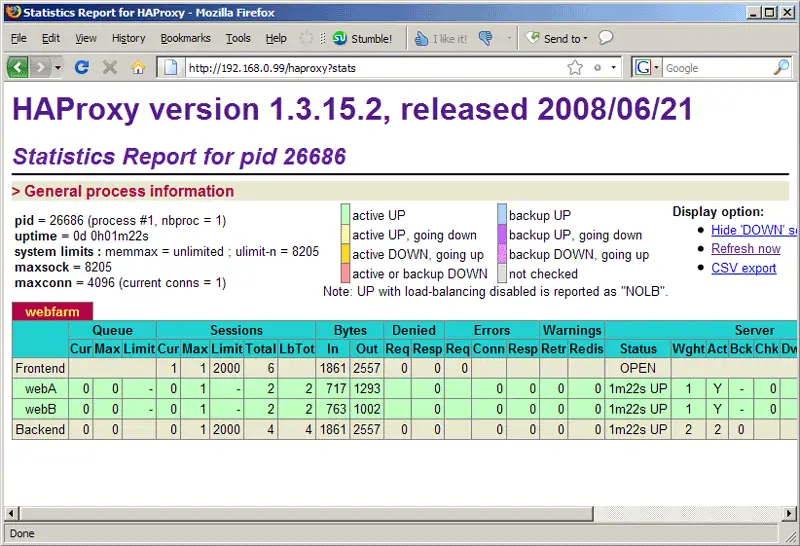
If you don't need the statistics, just comment out or remove the stats lines from the HAProxy configuration.
9 Links
- HAProxy: http://haproxy.1wt.eu
- Wackamole: http://www.backhand.org/wackamole/
- Spread: http://www.spread.org/
- Debian: http://www.debian.org





