
Setting, Changing and Resetting MySQL and MariaDB Root Passwords
This tutorial explains how you can set, change and reset (if you've forgotten the password) MySQL or MariaDB root passwords. Time and again I see problems like mysqladmin: connect to server at 'localhost' failed error: 'Access denied for user 'root'@'localhost' (using password: YES)'. So I thought it's time to remind you how to solve MySQL related password problems. If you are just looking for a quick fix how to reset a MySQL root password you can find that at the bottom of this tutorial. This tutorial is compatible with all major Linux Distributions incl. CentOS, Debian, Fedora, and Ubuntu.
Use the mysqladmin Command to Change the Root Password
Method 1 - Set up a root password for the first time
If you have never set a root password for MySQL, the server does not require a password at all for connecting as root. To set up a root password for the first time, use the mysqladmin command at the shell prompt as follows:
mysqladmin -u root password newpass
If you want to change (or update) a root password to the new password 'newpass', then you need to use the following command:
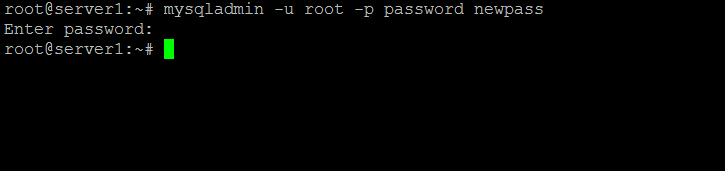
mysqladmin -u root -p password newpass
Enter password:
If you get...
mysqladmin: connect to server at 'localhost' failed
error: 'Access denied for user 'root'@'localhost' (using password: YES)'
then follow the instructions below on how to recover your MySQL password.
The word 'password' in the above example is part of the command, do not replace that with your password. The word 'newpass' is the new password.
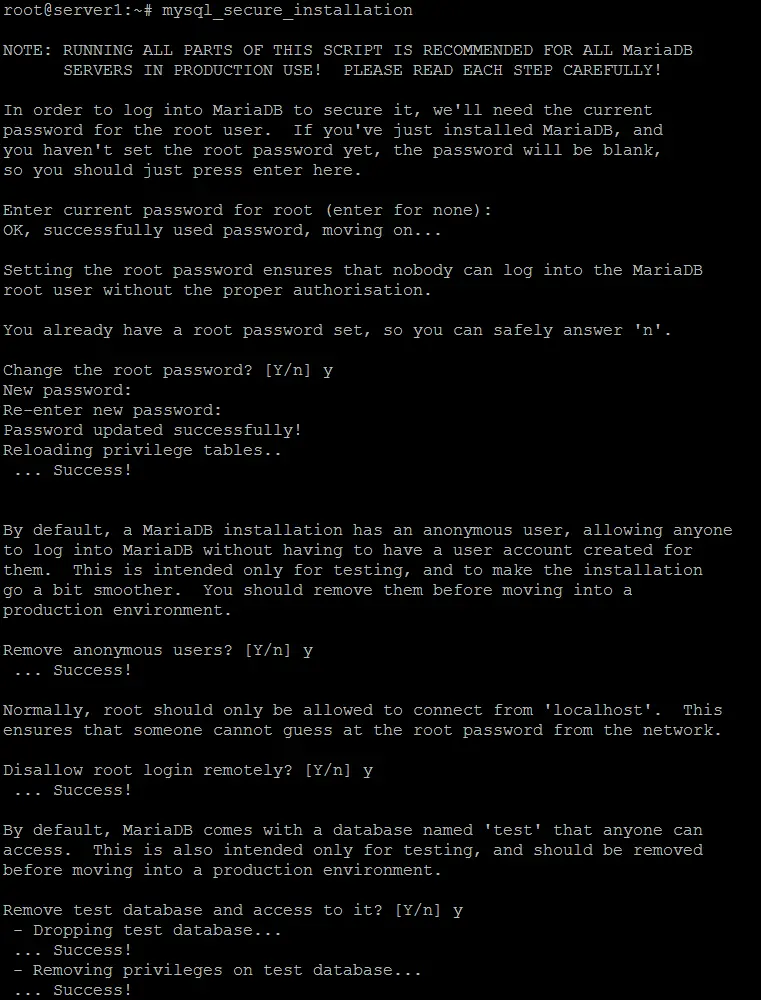
An alternative to using the mysqladmin command when setting the MySQL or MariaDB root password the first time is to use the mysql_secure_installation command. This command will not only ask for the old- and new MySQL root password but will also do some other security settings like disabling the test database.
Here is how to use that command:
mysql_secure_installation
Answer the questions as shown below:
Change the root password? [Y/n] <-- y
New password: <-- Enter a new MySQL root password
Re-enter new password: <-- Repeat the MySQL root password
Remove anonymous users? [Y/n] <-- y
Disallow root login remotely? [Y/n] <-- y
Remove test database and access to it? [Y/n] <-- y
Reload privilege tables now? [Y/n] <-- y
The above answers are recommendations, you are free to choose other settings e.g. when you prefer to keep the test databases or need remote access for the root user. Note: you do not need remote access to use PHPMyAdmin remotely.
Change MySQL password for other users
To change a normal user password you need to type:
mysqladmin -u user-name -p password newpass
The variables in this example are:
- user-name: The username of the user that you want to change the password for.
- newpass: The new password
The word 'password' is not a variable, so do not replace it. The command will ask for the old password.

Method 2 - Update or change password
MySQL stores usernames and passwords in the user table inside the MySQL database. You can directly update a password using the following method to update or change passwords:
1) Login to the MySQL server, type the following command at the shell prompt:
mysql -u root -p
2) Use the mysql database (type commands at the mysql> prompt):
mysql> use mysql;
3) Change password for a user:
MySQL 5.7.5 and earlier
mysql> update user set password=PASSWORD("newpass") where User='ENTER-USER-NAME-HERE';
MySQL 5.7.6 and newer
mysql> SET PASSWORD FOR 'ENTER-USER-NAME-HERE'@'localhost' = PASSWORD("newpass");
4) Reload privileges:
mysql> flush privileges;
mysql> quit
This method you need to use while using PHP or Perl scripting.
Recover lost MySQL root password
You can recover a MySQL database server password with the following five easy steps:
Step # 1: Stop the MySQL server process.
Step # 2: Start the MySQL (mysqld) server/daemon process with the --skip-grant-tables option so that it will not prompt for a password.
Step # 3: Connect to the MySQL server as the root user.
Step # 4: Set a new root password.
Step # 5: Exit and restart the MySQL server.
Here are the commands you need to type for each step (log in as the root user):
Step # 1: Stop the MySQL service:
service mysql stop
Output:
Stopping MySQL database server: mysqld.
Step # 2: Start the MySQL server w/o password:
mysqld_safe --skip-grant-tables &
Output:
[1] 5988
Starting mysqld daemon with databases from /var/lib/mysql
mysqld_safe[6025]: started
Step # 3: Connect to the MySQL server using the MySQL client:
mysql -u root
Output:
Welcome to the MySQL monitor. Commands end with ; or \g.
Your MySQL connection id is 56299
Server version: 5.6.34-1 (Debian)
Copyright (c) 2000, 2016, Oracle and/or its affiliates. All rights reserved.
Oracle is a registered trademark of Oracle Corporation and/or its
affiliates. Other names may be trademarks of their respective
owners.
Type 'help;' or '\h' for help. Type '\c' to clear the current input statement.
mysql>
Step # 4: Set a new MySQL root user password:
MySQL 5.7.5 and earlier
mysql> use mysql;
mysql> update user set password=PASSWORD("NEW-ROOT-PASSWORD") where User='root';
mysql> flush privileges;
mysql> quit
MySQL 5.7.6 and newer
mysql> use mysql;
mysql> SET PASSWORD FOR 'root'@'localhost' = PASSWORD("newpass");
mysql> flush privileges;
mysql> quit
Step # 5: Stop the MySQL server:
service mysql stop
Output:
Stopping MySQL database server: mysqld
STOPPING server from pid file /var/run/mysqld/mysqld.pid
mysqld_safe[6186]: ended

[1]+  Done                    mysqld_safe --skip-grant-tables
Or use this command to stop MySQL if the command above fails to stop it (which command works depends on the MySQL version):
killall mysqld
The output might differ based on the Linux distribution. Don't worry unless it reports an error. Start the MySQL server and test it:
service mysql start
mysql -u root -p





