
Running Windows Programs On Ubuntu 8.10 With CrossOver Linux Pro 7.1.0
Version 1.0
Author: Falko Timme
This guide shows how you can use CrossOver Linux Pro 7.1.0 to run Windows applications on Ubuntu 8.10. CrossOver is based on Wine. It is not available for free, but maybe you are one of the lucky guys that grabbed a CrossOver copy for free a few days ago; otherwise you can install a 30-day trial version to test it.
This document comes without warranty of any kind! I do not issue any guarantee that this will work for you!
1 Installing CrossOver Linux Pro
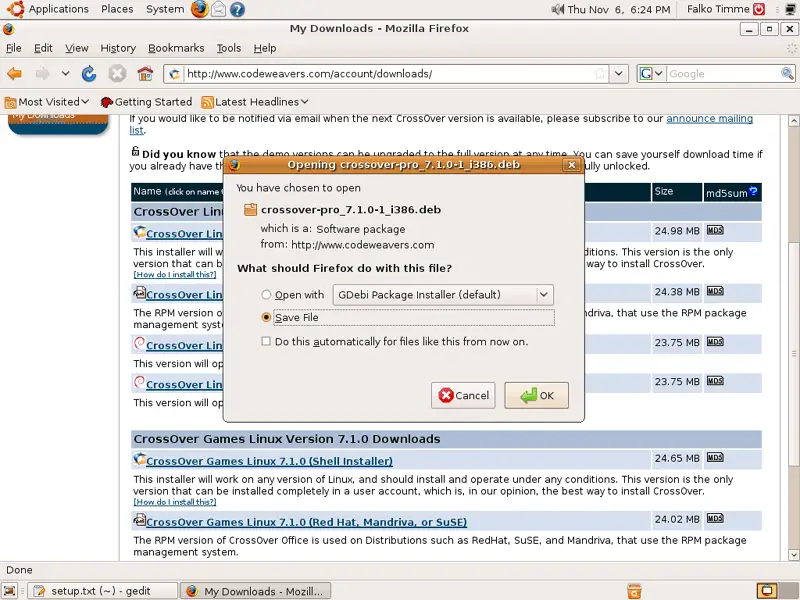
Visit the Codeweavers web site and grab a trial version, or log in to your existing Codeweavers account. There's a CrossOver Pro .deb package available for Debian and Ubuntu systems - download that one to your hard drive (e.g. /home/falko/Desktop). The Open with GDebi Package Installer (default) option does not work here for some strange reason, it gives back an error.
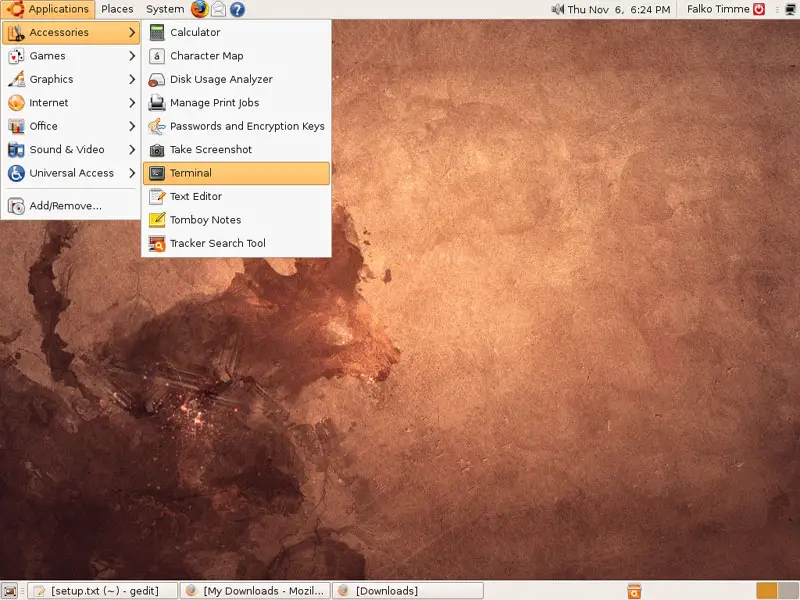
Then open a terminal (Applications > Accessories > Terminal)...
... and go to the directory where you've saved CrossOver Pro:
cd /home/falko/Desktop/
You can install it with the following command:
sudo dpkg -i crossover-pro_7.1.0-1_i386.deb
Afterwards, you can delete the .deb file to clean up your system:
rm -f crossover-pro_7.1.0-1_i386.deb
2 Installing Windows Applications
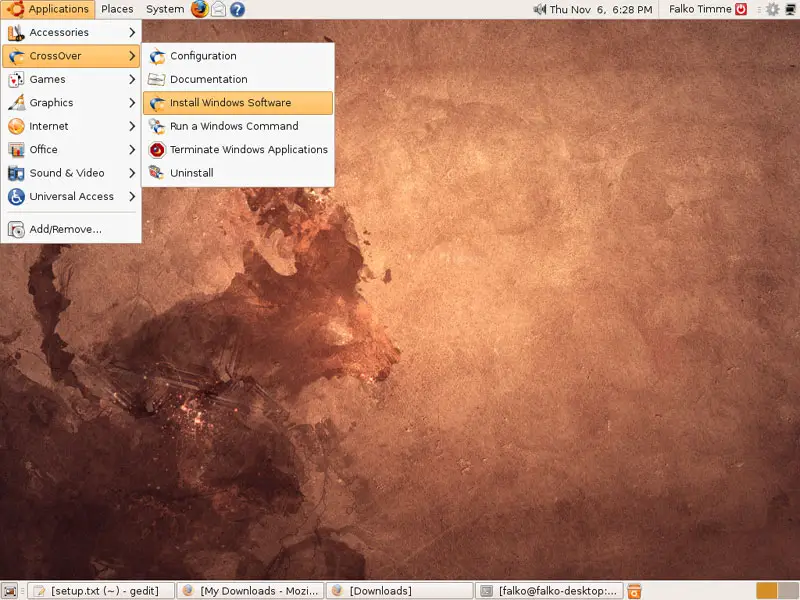
To install Windows applications, go to Applications > CrossOver > Install Windows Software:
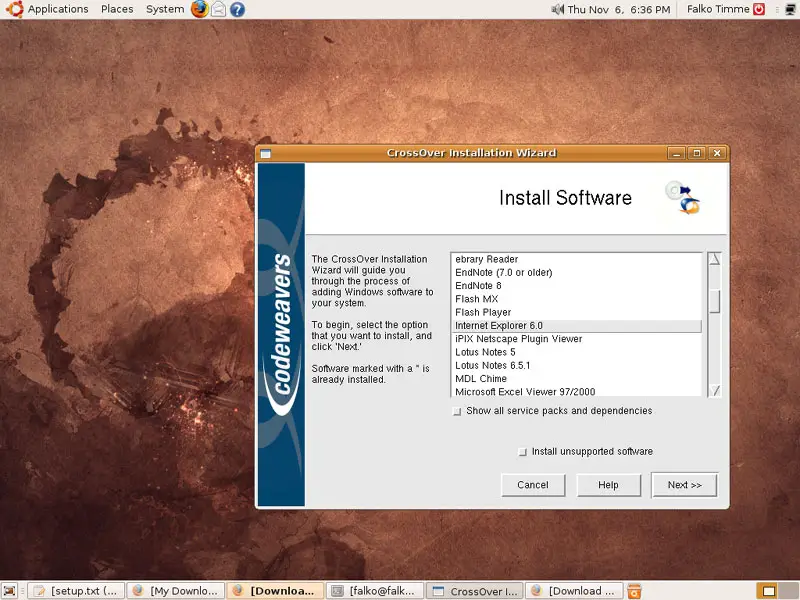
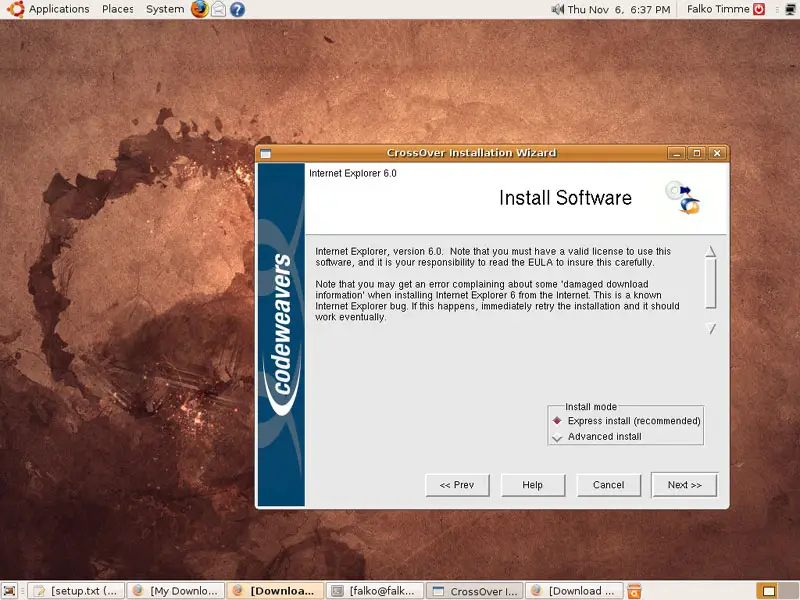
The CrossOver Installation Wizard starts. You can now select to install one of the listed ("supported") applications, or you can select to install unsupported software if your desired Windows application is not listed. Please make sure that you have the installation media of your desired application (CD/DVD, setup.exe file, etc.) at hand because in most cases the wizard will ask for it. In this example I select to install Internet Explorer 6. Because CrossOver can download IE6 directly from the Internet, I don't need any installation media for this example.
Select Express Install or Advanced Install:
Afterwards, simply click your way through the wizard:
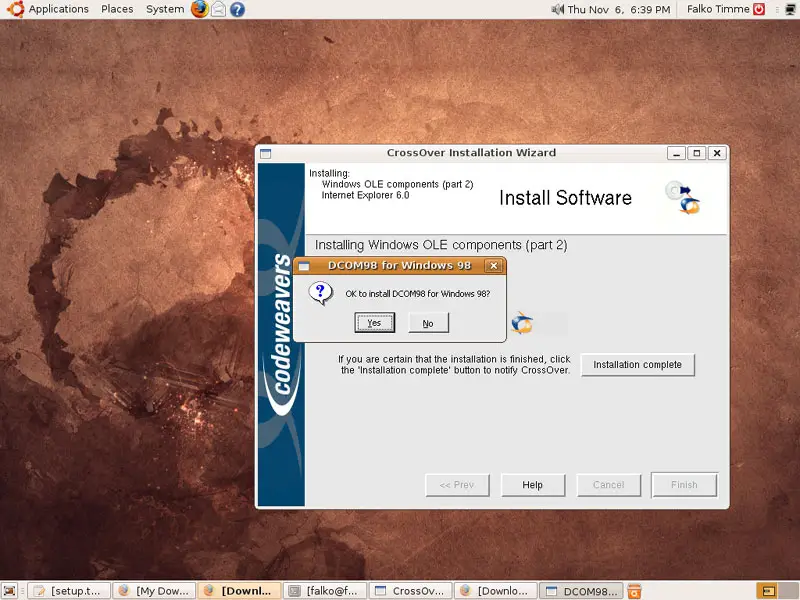
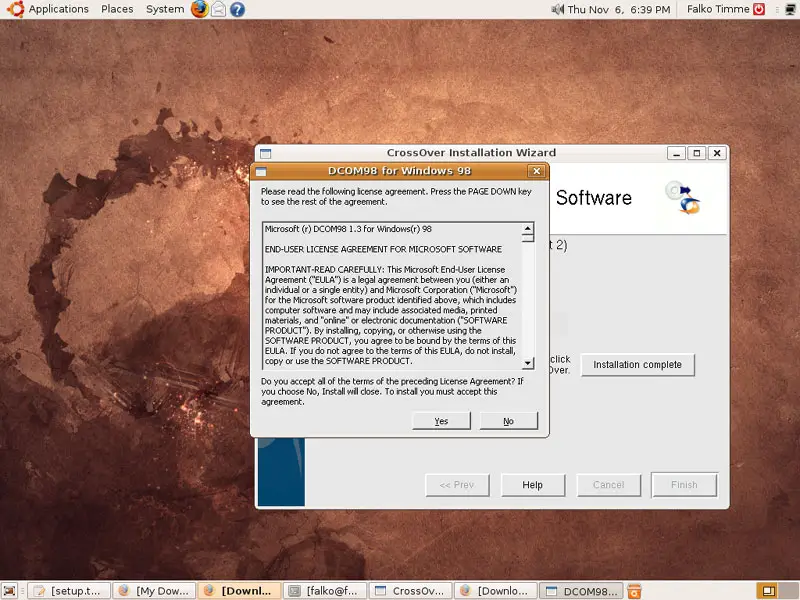
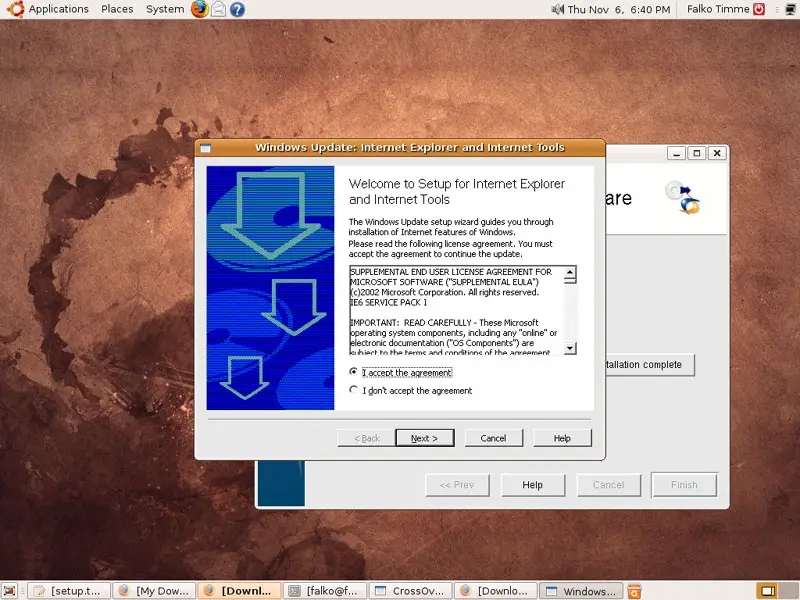
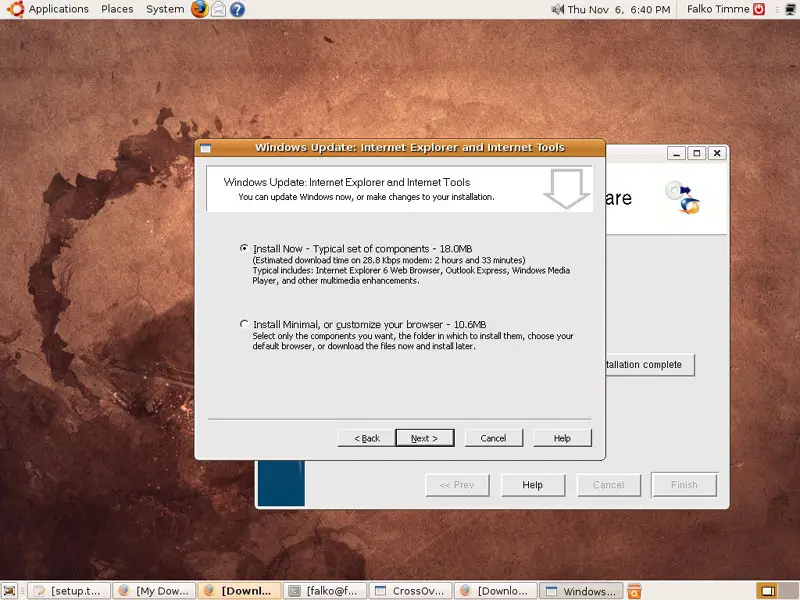
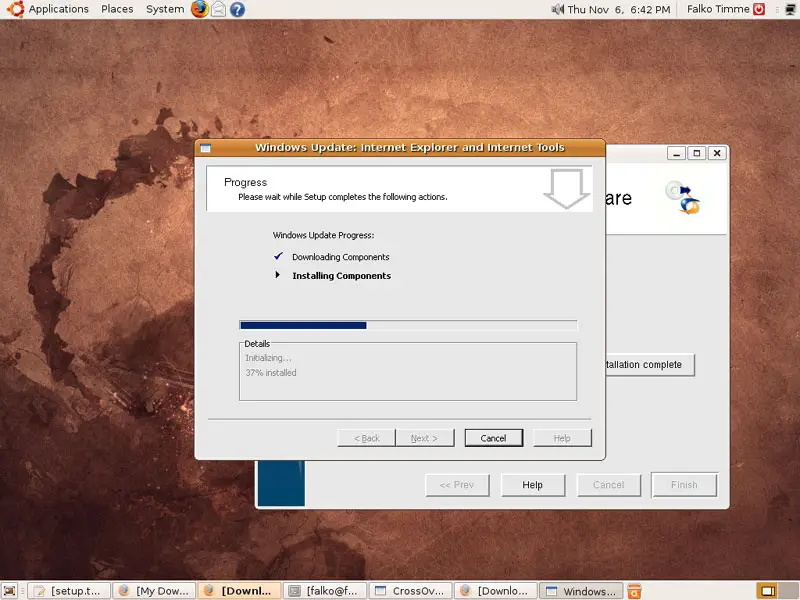
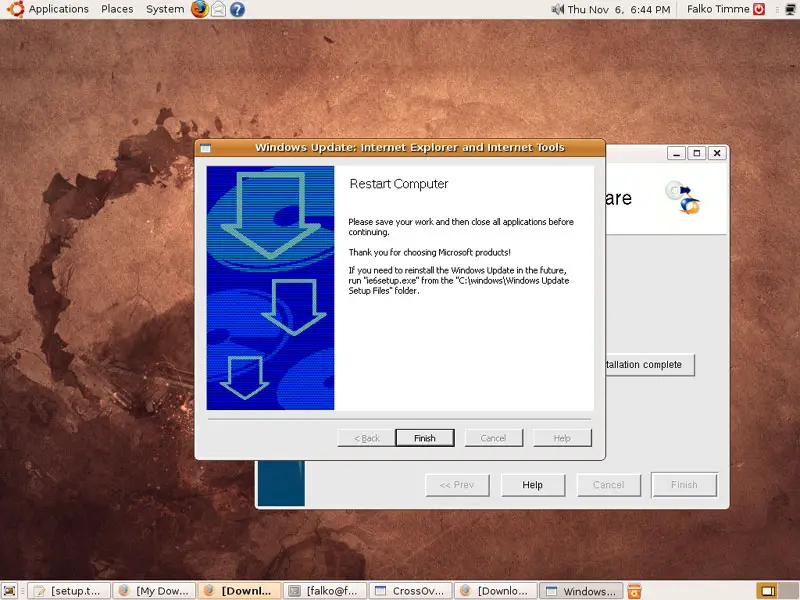
Click on Finish to complete the installation:
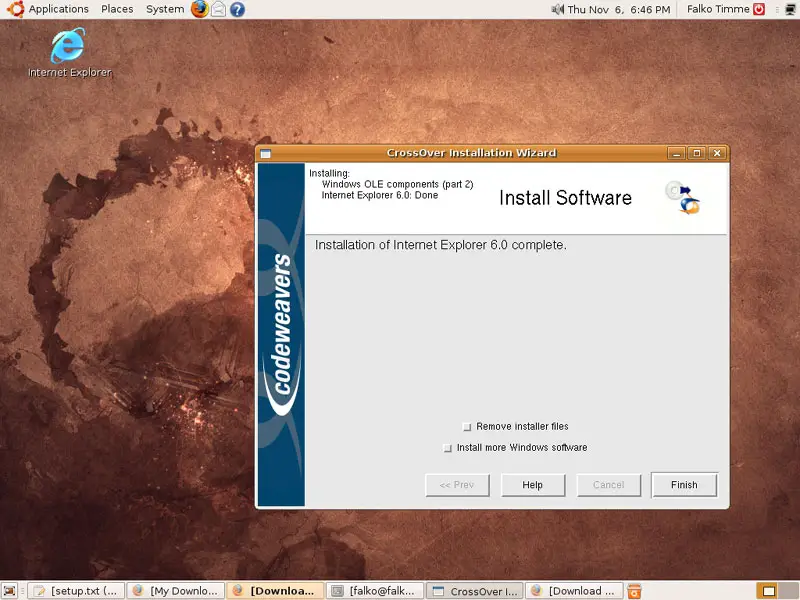
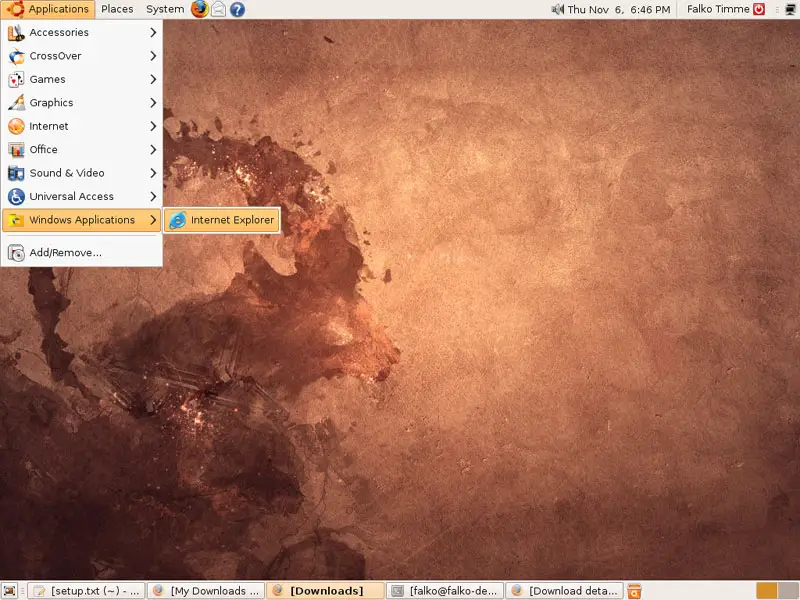
Afterwards, you can find your Windows application under Applications > Windows Applications (or there is an icon for it on the desktop):
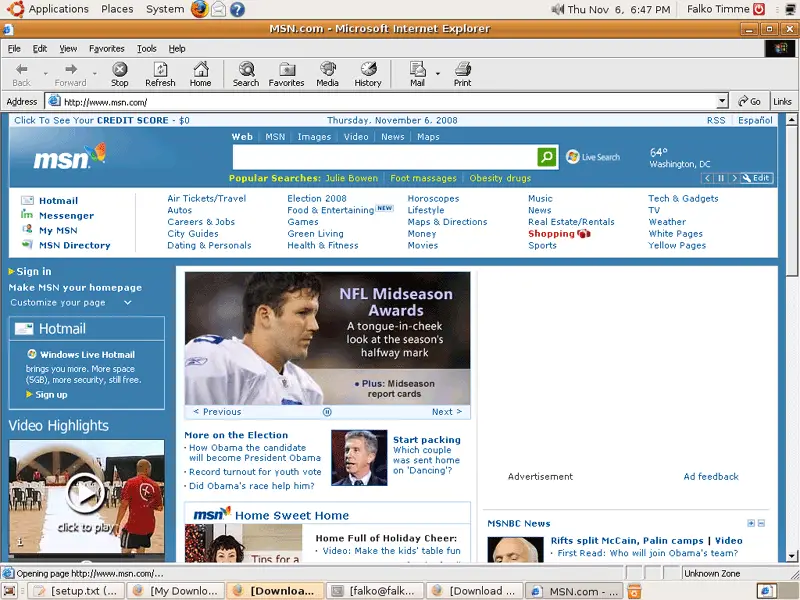
If all goes well, your Windows application should start without problems:
3 Links
- CrossOver Linux: http://www.codeweavers.com/products/cxlinux/
- Ubuntu: http://www.ubuntu.com/





