
On this page
- Running The Latest Firefox Version On Debian Squeeze
- 1.Install Dependencies
- 2. Get The Latest Version Of Firefox Source Code
- 3. Create The Required Configuration File
- 4. Uncompress Firefox Source Code
- 5. Start The Compile Process
- 6. Run make
- 7. Then Run make install
- 8. Test If Firefox Works
- 9. Change Ownership On Firefox Directory To Non-Root User
- 10. Copy Firefox Directory Into Non-Root User Home Directory
- 11. Obtain Firefox Icons
- 12. Create Firefox Launcher Desktop Icon
Running The Latest Firefox Version On Debian Squeeze
Version: 1
Author: Jair Bolivar
Last edit: January 21 2012 15:30 CST
We all know that Debian is a production like GNU/Linux operating system, thus the software available by default in the repository servers is not always the newest version. I created this tutorial to help those interested in running the latest version of the graphical Internet browser Mozilla Firefox.
I do not issue any guarantee that this will work for you! but if you run into problem you are welcome to send me your questions in the howtoforge.com forums, best of luck!
1.Install Dependencies
Make sure you have all these dependencies installed in your system; as root run the following command:
apt-get install g++ libgtk+2.0 libnotify-dev libasound2-dev libcurl4-openssl-dev libidl-dev libiw-dev mesa-common-dev yasm libxt-dev
2. Get The Latest Version Of Firefox Source Code
Go to the following mozilla.org url http://releases.mozilla.org/pub/mozilla.org/firefox/releases/ and download the latest source file version of Firefox, at the time of this tutorial /9.0.1/source/firefox-9.0.1.source.tar.bz2 firefox-9.0.1 was the latest version of Firefox. Then select a directory for the Firefox source code to be downloaded - in my case /home/user/firefox-source where user is my username on the Debian system.
3. Create The Required Configuration File
In the home directory of the non-root user - in my case user - create a new file using your favorite text editor, save it and name it .mozconfig - don't forget the dot in front, it's very important. Once done type or paste the following settings to it:
mk_add_options MOZ_OBJDIR=@TOPSRCDIR@/obj-firefox
ac_add_options --prefix=/opt/firefox
ac_add_options --enable-application=browser
ac_add_options --with-system-zlib
ac_add_options --with-system-jpeg
ac_add_options --enable-optimize
ac_add_options --enable-official-branding
ac_add_options --enable-canvas
ac_add_options --enable-strip
ac_add_options --disable-tests
ac_add_options --disable-installer
ac_add_options --disable-accessibility
ac_add_options --enable-xinerama
ac_add_options --with-default-mozilla-five-home=/usr/lib/firefox-9.0.1
4. Uncompress Firefox Source Code
As root unpack the content of the firefox-9.0.1.source.tar.bz2 using the following command:
tar xjf firefox-9.0.1.source.tar.bz2
5. Start The Compile Process
The result will be the following directory: mozilla-release
Go inside the directory just created, and run the following command:
./configure --enable-application=browser --disable-libjpeg-turbo
If the system complains about dependencies missing install them and re-run the command:
./configure --enable-application=browser --disable-libjpeg-turbo
6. Run make
Once the command finishes without reporting dependency errors, run the command:
make
7. Then Run make install
Wait for approximately 10 to 15 minutes, if make finishes successfully it is time to run the command:
make install
8. Test If Firefox Works
Now go to the directory /mozilla-release/dst/firefox and run the command:
./firefox
9. Change Ownership On Firefox Directory To Non-Root User
To make sure it runs and that you can browse URLs like google.com successfully once validated close Firefox, change directory to /mozilla-release/dst and run the command:
chown -R user:user firefox
10. Copy Firefox Directory Into Non-Root User Home Directory
Notice we are still root and we are running this command against the directory firefox , exit root user and become in my case user and copy the full directory firefox into your home directory /home/user/firefox - you can use this command:
cp -rvp firefox /home/user/
11. Obtain Firefox Icons
Next, it is time to get the icons for Firefox and create a launcher in your graphical desktop, in my case I am using gnome.
Point your browser to the following URL http://blog.mozilla.com/faaborg/2009/06/18/the-new-firefox-icon/ and download the Firefox 48 or 64 pixels size icon and place it somewhere you can find it easily, in my case I use the same firefox-source.
12. Create Firefox Launcher Desktop Icon
Finally do a right click on an open space in your gnome desktop and select "create launcher". When the window appears fill in the following information:
Name: Firefox 9
Command: /home/user/firefox/firefox-bin
Comment: Mozilla-firefox
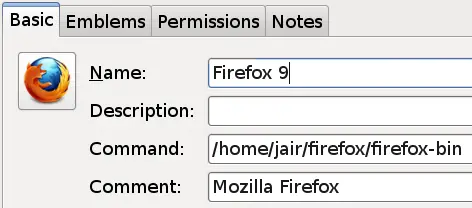
In the left side upper corner of the launcher window, click on the icon and browse to where the Firefox icons are, select one of them and press OK. Now you should be able to open Firefox using the icon launcher you just created.
Enjoy!





