
PostBooks ERP On Ubuntu 7.04
Version 1.0
Author: Oliver Meyer <o [dot] meyer [at] projektfarm [dot] de>
This document describes how to set up PostBooks ERP on Ubuntu 7.04. The resulting system provides a powerful GUI-based ERP-system. Postbooks is licensed under the CPAL license (OSI-certified Common Public Attribution License).
This howto is meant as a practical guide; it does not cover the theoretical backgrounds. They are treated in a lot of other documents in the web.
This document comes without warranty of any kind! I want to say that this is not the only way of setting up such a system. There are many ways of achieving this goal but this is the way I take. I do not issue any guarantee that this will work for you!
1 Preparation
Set up a basic ubuntu 7.04 system and update it.
2 Get Postbooks
cd ~
wget http://mesh.dl.sourceforge.net/sourceforge/postbooks/PostBooks-2.2.0Beta3-Linux6.tar.bz2
wget http://mesh.dl.sourceforge.net/sourceforge/postbooks/postbooks_quickstart.backup
wget http://mesh.dl.sourceforge.net/sourceforge/postbooks/init.sql
tar xvfj PostBooks-2.2.0Beta3-Linux6.tar.bz2
3 Install PostgreSQL
sudo apt-get install postgresql-8.1 postgresql-contrib-8.1
4 Configure PostgreSQL
The default configuration of PostgreSQL on Debian and Debian-based distributions requires that the system-username is the same as the postgresql-username to connect to postgresql.
So we have to customize the pg_hba.conf:
sudo vi /etc/postgresql/8.1/main/pg_hba.conf
Near the end of the file you should see this:
# TYPE DATABASE USER CIDR-ADDRESS METHOD
# "local" is for Unix domain socket connections only
local all all ident sameuser
# IPv4 local connections:
host all all 127.0.0.1/32 md5
# IPv6 local connections:
host all all ::1/128 md5
Change it to:
# TYPE DATABASE USER CIDR-ADDRESS METHOD
# "local" is for Unix domain socket connections only
#local all all ident sameuser
local all all trust
# IPv4 local connections:
#host all all 127.0.0.1/32 md5
host all all 127.0.0.1/32 trust
# IPv6 local connections:
#host all all ::1/128 md5
host all all ::1/128 trust
Now restart Postgresql:
sudo /etc/init.d/postgresql-8.1 restart
5 Prepare Postgresql For Postbooks
cd ~
sudo su postgres
psql -U postgres -f init.sql template1
createdb -U mfgadmin mfg
pg_restore -U mfgadmin -d mfg postbooks_quickstart.backup -v
6 Create A Desktoplauncher
Right click on the Desktop and choose "Create Launcher..." from the menu.
In the new window choose:
Type: Application
Name: Postbooks (or something else)
Command: /home/%yourusername%/PostBooks/PostBooks
Comment: Insert something if you want
Icon: Select one if you want
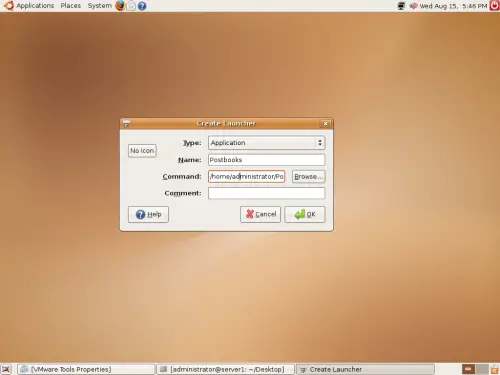
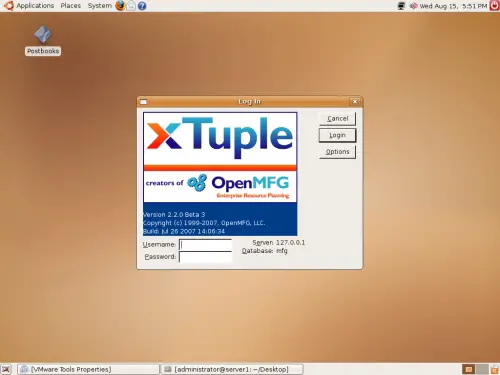
Now you can start Postbooks via double-click on the icon.
Log in with the default-username "mfgadmin" and the default-password "mfgadmin".
Use this settings only to test!
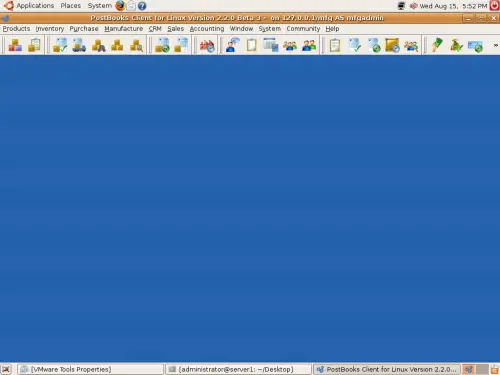
A detailed user-guide is also available. Click here to download it.
7 Links
- Postbooks ERP: http://sourceforge.net/projects/postbooks
- PostgreSQL: http://www.postgresql.org/
- Ubuntu: http://www.ubuntu.com/





