Set Up PC-BSD v1.4 beta
Version 1.0
Author: Oliver Meyer <o [dot] meyer [at] projektfarm [dot] de>
This document describes how to set up PC-BSD v1.4 beta. PC-BSD is released under the BSD license.
This howto is meant as a practical guide; it does not cover the theoretical backgrounds. They are treated in a lot of other documents in the web.
This document comes without warranty of any kind! I want to say that this is not the only way of setting up such a system. There are many ways of achieving this goal but this is the way I take. I do not issue any guarantee that this will work for you!
1 Get PC-BSD
At the moment 1.4 beta is the latest version of PC-BSD - consisting out of two disc-images. The first image contains the basic files for the installation, the second image provides extra software, that can be selected later in the installation process. Download the images at http://pcbsd.org/?p=download14.
2 Installation
The graphical installation, guided by the PC-BSD installer, is very easy as you will presently see.
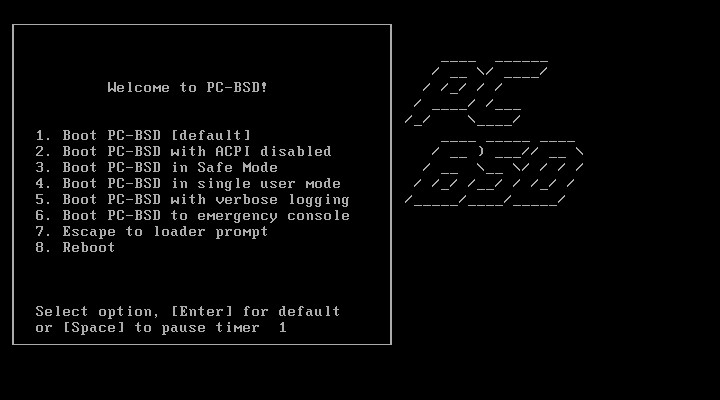
2.1 The Boot Screen
The boot screen provides a little menu where you can choose the kind of installation. Choose 1 or wait a few seconds if you don't have specific reasons to choose another option.
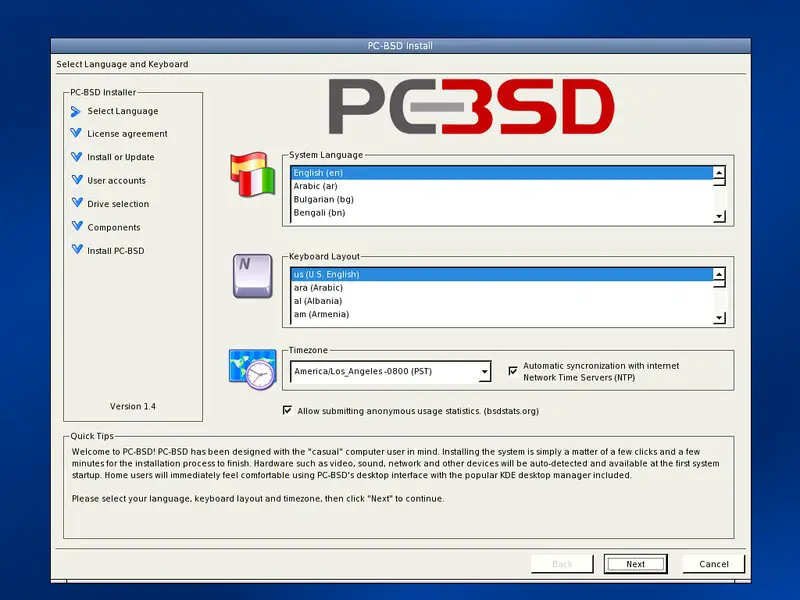
2.2 Language Selection
At this point you have to choose your preferred language, keyboard layout and timezone. You have the optional choice to use automatic time-synchronization via NTP and to submit anonymous user statistics to bsdstats.org.
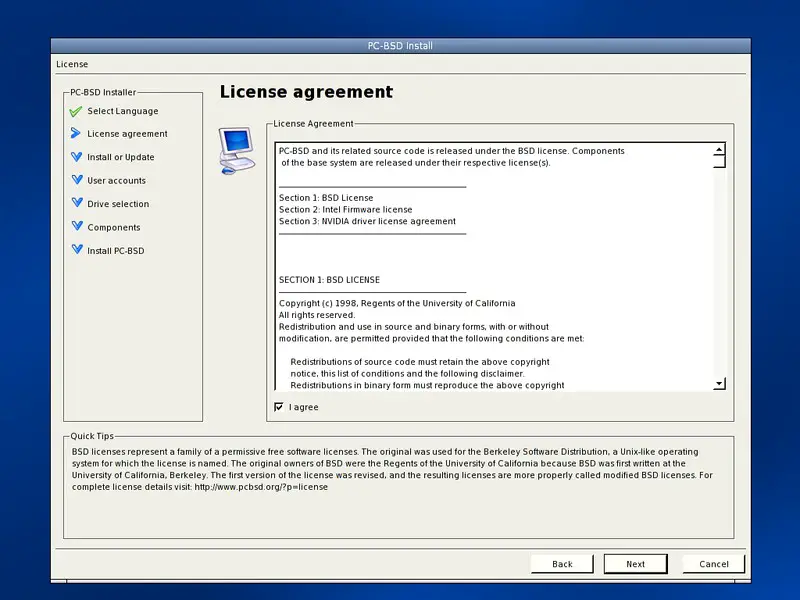
2.3 License Agreement
If you agree with the license agreement select the checkbox, else abort the installation.
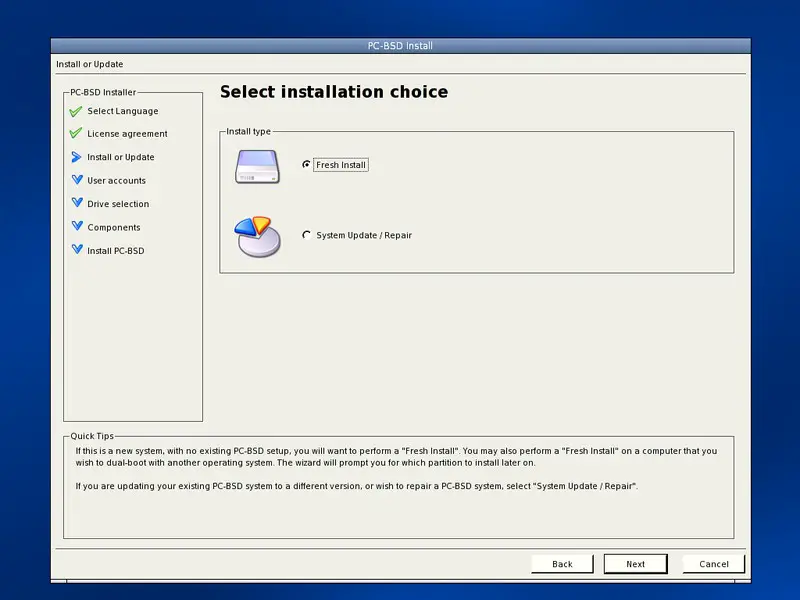
2.4 Installation Choice
Choose the default for a fresh installation.
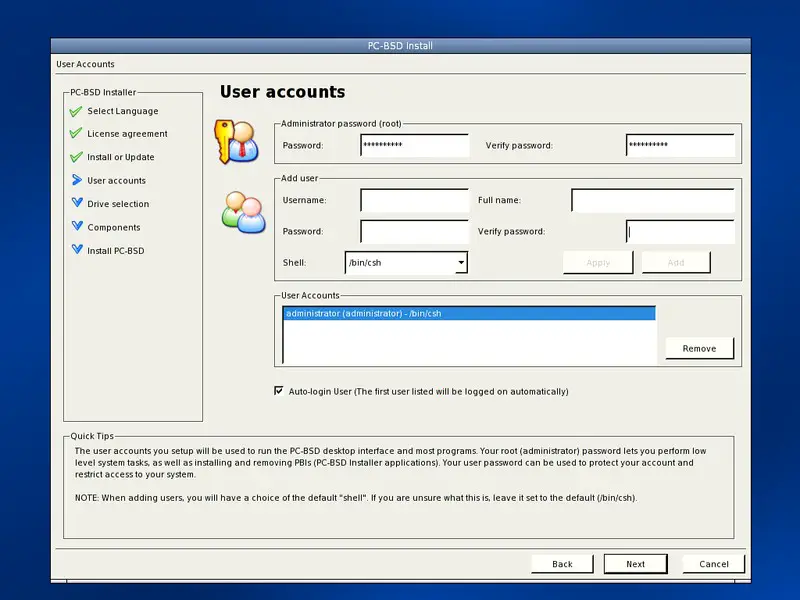
2.5 User Accounts
At this point you have to choose the root-password and are asked to create one or more user accounts. If you have entered the data for a user, click "add" to commit the data. The created account will be shown in the window "User Accounts". If you wish to automatically log in the first user created, select the corresponding checkbox. Keep in mind, that there won't be a password request for this user.